# RAG Web Browser
Web browser for OpenAI Assistants, RAG pipelines, or AI agents, similar to a web browser in ChatGPT. It queries Google Search, scrapes the top N pages, and returns their content as Markdown for further processing by an LLM. It can also scrape individual URLs. Supports Model Context Protocol (MCP).
## Actor Statistics
- Total users: 4840
- Monthly users: 1295
- Runs succeeded: 99.96%
- Categories: AI, Open source
## Pricing
Pay per usage
## Input Schema
- **query** (type: string): Enter Google Search keywords or a URL of a specific web page. The keywords might include the [advanced search operators](https://blog.apify.com/how-to-scrape-google-like-a-pro/). Examples:
- san francisco weather
- https://www.cnn.com
- function calling site:openai.com
- **maxResults** (type: integer): The maximum number of top organic Google Search results whose web pages will be extracted. If `query` is a URL, then this field is ignored and the Actor only fetches the specific web page.
- **outputFormats** (type: array): Select one or more formats to which the target web pages will be extracted and saved in the resulting dataset.
- **requestTimeoutSecs** (type: integer): The maximum time in seconds available for the request, including querying Google Search and scraping the target web pages. For example, OpenAI allows only [45 seconds](https://platform.openai.com/docs/actions/production#timeouts) for custom actions. If a target page loading and extraction exceeds this timeout, the corresponding page will be skipped in results to ensure at least some results are returned within the timeout. If no page is extracted within the timeout, the whole request fails.
- **serpProxyGroup** (type: string): Enables overriding the default Apify Proxy group used for fetching Google Search results.
- **serpMaxRetries** (type: integer): The maximum number of times the Actor will retry fetching the Google Search results on error. If the last attempt fails, the entire request fails.
- **proxyConfiguration** (type: object): Apify Proxy configuration used for scraping the target web pages.
- **scrapingTool** (type: string): Select a scraping tool for extracting the target web pages. The Browser tool is more powerful and can handle JavaScript heavy websites, while the Plain HTML tool can't handle JavaScript but is about two times faster.
- **removeElementsCssSelector** (type: string): A CSS selector matching HTML elements that will be removed from the DOM, before converting it to text, Markdown, or saving as HTML. This is useful to skip irrelevant page content. The value must be a valid CSS selector as accepted by the `document.querySelectorAll()` function.
By default, the Actor removes common navigation elements, headers, footers, modals, scripts, and inline image. You can disable the removal by setting this value to some non-existent CSS selector like `dummy_keep_everything`.
- **htmlTransformer** (type: string): Specify how to transform the HTML to extract meaningful content without any extra fluff, like navigation or modals. The HTML transformation happens after removing and clicking the DOM elements.
- **None** (default) - Only removes the HTML elements specified via 'Remove HTML elements' option.
- **Readable text** - Extracts the main contents of the webpage, without navigation and other fluff.
- **desiredConcurrency** (type: integer): The desired number of web browsers running in parallel. The system automatically scales the number based on the CPU and memory usage. If the initial value is `0`, the Actor picks the number automatically based on the available memory.
- **maxRequestRetries** (type: integer): The maximum number of times the Actor will retry loading the target web page on error. If the last attempt fails, the page will be skipped in the results.
- **dynamicContentWaitSecs** (type: integer): The maximum time in seconds to wait for dynamic page content to load. The Actor considers the web page as fully loaded once this time elapses or when the network becomes idle.
- **removeCookieWarnings** (type: boolean): If enabled, the Actor attempts to close or remove cookie consent dialogs to improve the quality of extracted text. Note that this setting increases the latency.
- **debugMode** (type: boolean): If enabled, the Actor will store debugging information into the resulting dataset under the `debug` field.
## API example
## RAG Web Browser
- **OpenAPI Version:** `3.1.1`
- **API Version:** `1.0`
Web browser for OpenAI Assistants, RAG pipelines, or AI agents, similar to a web browser in ChatGPT. It queries Google Search, scrapes the top N pages, and returns their content as Markdown for further processing by an LLM. It can also scrape individual URLs. Supports Model Context Protocol (MCP).
### Servers
- **URL:** `https://api.apify.com/v2`
### Operations
#### Executes an Actor, waits for its completion, and returns Actor's dataset items in response.
- **Method:** `POST`
- **Path:** `/acts/apify~rag-web-browser/run-sync-get-dataset-items`
- **Tags:** Run Actor
##### Request Body
###### Content-Type: application/json
- **`query` (required)**
`string` — Enter Google Search keywords or a URL of a specific web page. The keywords might include the \[advanced search operators]\(https://blog.apify.com/how-to-scrape-google-like-a-pro/). Examples: - \san francisco weather\ - \https://www.cnn.com\ - \function calling site:openai.com\
- **`debugMode`**
`boolean`, default: `false` — If enabled, the Actor will store debugging information into the resulting dataset under the \`debug\` field.
- **`desiredConcurrency`**
`integer`, default: `5` — The desired number of web browsers running in parallel. The system automatically scales the number based on the CPU and memory usage. If the initial value is \`0\`, the Actor picks the number automatically based on the available memory.
- **`dynamicContentWaitSecs`**
`integer`, default: `10` — The maximum time in seconds to wait for dynamic page content to load. The Actor considers the web page as fully loaded once this time elapses or when the network becomes idle.
- **`htmlTransformer`**
`string`, default: `"none"` — Specify how to transform the HTML to extract meaningful content without any extra fluff, like navigation or modals. The HTML transformation happens after removing and clicking the DOM elements. - \*\*None\*\* (default) - Only removes the HTML elements specified via 'Remove HTML elements' option. - \*\*Readable text\*\* - Extracts the main contents of the webpage, without navigation and other fluff.
- **`maxRequestRetries`**
`integer`, default: `1` — The maximum number of times the Actor will retry loading the target web page on error. If the last attempt fails, the page will be skipped in the results.
- **`maxResults`**
`integer`, default: `3` — The maximum number of top organic Google Search results whose web pages will be extracted. If \`query\` is a URL, then this field is ignored and the Actor only fetches the specific web page.
- **`outputFormats`**
`array`, default: `["markdown"]` — Select one or more formats to which the target web pages will be extracted and saved in the resulting dataset.
**Items:**
`string`, possible values: `"text", "markdown", "html"`
- **`proxyConfiguration`**
`object`, default: `{"useApifyProxy":true}` — Apify Proxy configuration used for scraping the target web pages.
- **`removeCookieWarnings`**
`boolean`, default: `true` — If enabled, the Actor attempts to close or remove cookie consent dialogs to improve the quality of extracted text. Note that this setting increases the latency.
- **`removeElementsCssSelector`**
`string`, default: `"nav, footer, script, style, noscript, svg, img[src^='data:'],\n[role=\"alert\"],\n[role=\"banner\"],\n[role=\"dialog\"],\n[role=\"alertdialog\"],\n[role=\"region\"][aria-label*=\"skip\" i],\n[aria-modal=\"true\"]"` — A CSS selector matching HTML elements that will be removed from the DOM, before converting it to text, Markdown, or saving as HTML. This is useful to skip irrelevant page content. The value must be a valid CSS selector as accepted by the \`document.querySelectorAll()\` function. By default, the Actor removes common navigation elements, headers, footers, modals, scripts, and inline image. You can disable the removal by setting this value to some non-existent CSS selector like \`dummy\_keep\_everything\`.
- **`requestTimeoutSecs`**
`integer`, default: `40` — The maximum time in seconds available for the request, including querying Google Search and scraping the target web pages. For example, OpenAI allows only \[45 seconds]\(https://platform.openai.com/docs/actions/production#timeouts) for custom actions. If a target page loading and extraction exceeds this timeout, the corresponding page will be skipped in results to ensure at least some results are returned within the timeout. If no page is extracted within the timeout, the whole request fails.
- **`scrapingTool`**
`string`, possible values: `"browser-playwright", "raw-http"`, default: `"raw-http"` — Select a scraping tool for extracting the target web pages. The Browser tool is more powerful and can handle JavaScript heavy websites, while the Plain HTML tool can't handle JavaScript but is about two times faster.
- **`serpMaxRetries`**
`integer`, default: `2` — The maximum number of times the Actor will retry fetching the Google Search results on error. If the last attempt fails, the entire request fails.
- **`serpProxyGroup`**
`string`, possible values: `"GOOGLE_SERP", "SHADER"`, default: `"GOOGLE_SERP"` — Enables overriding the default Apify Proxy group used for fetching Google Search results.
**Example:**
```
{
"query": "",
"maxResults": 3,
"outputFormats": [
"markdown"
],
"requestTimeoutSecs": 40,
"serpProxyGroup": "GOOGLE_SERP",
"serpMaxRetries": 2,
"proxyConfiguration": {
"useApifyProxy": true
},
"scrapingTool": "raw-http",
"removeElementsCssSelector": "nav, footer, script, style, noscript, svg, img[src^='data:'],\n[role=\"alert\"],\n[role=\"banner\"],\n[role=\"dialog\"],\n[role=\"alertdialog\"],\n[role=\"region\"][aria-label*=\"skip\" i],\n[aria-modal=\"true\"]",
"htmlTransformer": "none",
"desiredConcurrency": 5,
"maxRequestRetries": 1,
"dynamicContentWaitSecs": 10,
"removeCookieWarnings": true,
"debugMode": false
}
```
##### Responses
###### Status: 200 OK
#### Executes an Actor and returns information about the initiated run in response.
- **Method:** `POST`
- **Path:** `/acts/apify~rag-web-browser/runs`
- **Tags:** Run Actor
##### Request Body
###### Content-Type: application/json
- **`query` (required)**
`string` — Enter Google Search keywords or a URL of a specific web page. The keywords might include the \[advanced search operators]\(https://blog.apify.com/how-to-scrape-google-like-a-pro/). Examples: - \san francisco weather\ - \https://www.cnn.com\ - \function calling site:openai.com\
- **`debugMode`**
`boolean`, default: `false` — If enabled, the Actor will store debugging information into the resulting dataset under the \`debug\` field.
- **`desiredConcurrency`**
`integer`, default: `5` — The desired number of web browsers running in parallel. The system automatically scales the number based on the CPU and memory usage. If the initial value is \`0\`, the Actor picks the number automatically based on the available memory.
- **`dynamicContentWaitSecs`**
`integer`, default: `10` — The maximum time in seconds to wait for dynamic page content to load. The Actor considers the web page as fully loaded once this time elapses or when the network becomes idle.
- **`htmlTransformer`**
`string`, default: `"none"` — Specify how to transform the HTML to extract meaningful content without any extra fluff, like navigation or modals. The HTML transformation happens after removing and clicking the DOM elements. - \*\*None\*\* (default) - Only removes the HTML elements specified via 'Remove HTML elements' option. - \*\*Readable text\*\* - Extracts the main contents of the webpage, without navigation and other fluff.
- **`maxRequestRetries`**
`integer`, default: `1` — The maximum number of times the Actor will retry loading the target web page on error. If the last attempt fails, the page will be skipped in the results.
- **`maxResults`**
`integer`, default: `3` — The maximum number of top organic Google Search results whose web pages will be extracted. If \`query\` is a URL, then this field is ignored and the Actor only fetches the specific web page.
- **`outputFormats`**
`array`, default: `["markdown"]` — Select one or more formats to which the target web pages will be extracted and saved in the resulting dataset.
**Items:**
`string`, possible values: `"text", "markdown", "html"`
- **`proxyConfiguration`**
`object`, default: `{"useApifyProxy":true}` — Apify Proxy configuration used for scraping the target web pages.
- **`removeCookieWarnings`**
`boolean`, default: `true` — If enabled, the Actor attempts to close or remove cookie consent dialogs to improve the quality of extracted text. Note that this setting increases the latency.
- **`removeElementsCssSelector`**
`string`, default: `"nav, footer, script, style, noscript, svg, img[src^='data:'],\n[role=\"alert\"],\n[role=\"banner\"],\n[role=\"dialog\"],\n[role=\"alertdialog\"],\n[role=\"region\"][aria-label*=\"skip\" i],\n[aria-modal=\"true\"]"` — A CSS selector matching HTML elements that will be removed from the DOM, before converting it to text, Markdown, or saving as HTML. This is useful to skip irrelevant page content. The value must be a valid CSS selector as accepted by the \`document.querySelectorAll()\` function. By default, the Actor removes common navigation elements, headers, footers, modals, scripts, and inline image. You can disable the removal by setting this value to some non-existent CSS selector like \`dummy\_keep\_everything\`.
- **`requestTimeoutSecs`**
`integer`, default: `40` — The maximum time in seconds available for the request, including querying Google Search and scraping the target web pages. For example, OpenAI allows only \[45 seconds]\(https://platform.openai.com/docs/actions/production#timeouts) for custom actions. If a target page loading and extraction exceeds this timeout, the corresponding page will be skipped in results to ensure at least some results are returned within the timeout. If no page is extracted within the timeout, the whole request fails.
- **`scrapingTool`**
`string`, possible values: `"browser-playwright", "raw-http"`, default: `"raw-http"` — Select a scraping tool for extracting the target web pages. The Browser tool is more powerful and can handle JavaScript heavy websites, while the Plain HTML tool can't handle JavaScript but is about two times faster.
- **`serpMaxRetries`**
`integer`, default: `2` — The maximum number of times the Actor will retry fetching the Google Search results on error. If the last attempt fails, the entire request fails.
- **`serpProxyGroup`**
`string`, possible values: `"GOOGLE_SERP", "SHADER"`, default: `"GOOGLE_SERP"` — Enables overriding the default Apify Proxy group used for fetching Google Search results.
**Example:**
```
{
"query": "",
"maxResults": 3,
"outputFormats": [
"markdown"
],
"requestTimeoutSecs": 40,
"serpProxyGroup": "GOOGLE_SERP",
"serpMaxRetries": 2,
"proxyConfiguration": {
"useApifyProxy": true
},
"scrapingTool": "raw-http",
"removeElementsCssSelector": "nav, footer, script, style, noscript, svg, img[src^='data:'],\n[role=\"alert\"],\n[role=\"banner\"],\n[role=\"dialog\"],\n[role=\"alertdialog\"],\n[role=\"region\"][aria-label*=\"skip\" i],\n[aria-modal=\"true\"]",
"htmlTransformer": "none",
"desiredConcurrency": 5,
"maxRequestRetries": 1,
"dynamicContentWaitSecs": 10,
"removeCookieWarnings": true,
"debugMode": false
}
```
##### Responses
###### Status: 200 OK
\####### Content-Type: application/json
- **`data`**
`object`
- **`actId`**
`string`
- **`buildId`**
`string`
- **`buildNumber`**
`string`
- **`containerUrl`**
`string`
- **`defaultDatasetId`**
`string`
- **`defaultKeyValueStoreId`**
`string`
- **`defaultRequestQueueId`**
`string`
- **`finishedAt`**
`string`, format: `date-time`
- **`id`**
`string`
- **`meta`**
`object`
- **`origin`**
`string`
- **`userAgent`**
`string`
- **`options`**
`object`
- **`build`**
`string`
- **`diskMbytes`**
`integer`
- **`memoryMbytes`**
`integer`
- **`timeoutSecs`**
`integer`
- **`startedAt`**
`string`, format: `date-time`
- **`stats`**
`object`
- **`computeUnits`**
`integer`
- **`inputBodyLen`**
`integer`
- **`rebootCount`**
`integer`
- **`restartCount`**
`integer`
- **`resurrectCount`**
`integer`
- **`status`**
`string`
- **`usage`**
`object`
- **`ACTOR_COMPUTE_UNITS`**
`integer`
- **`DATA_TRANSFER_EXTERNAL_GBYTES`**
`integer`
- **`DATA_TRANSFER_INTERNAL_GBYTES`**
`integer`
- **`DATASET_READS`**
`integer`
- **`DATASET_WRITES`**
`integer`
- **`KEY_VALUE_STORE_LISTS`**
`integer`
- **`KEY_VALUE_STORE_READS`**
`integer`
- **`KEY_VALUE_STORE_WRITES`**
`integer`
- **`PROXY_RESIDENTIAL_TRANSFER_GBYTES`**
`integer`
- **`PROXY_SERPS`**
`integer`
- **`REQUEST_QUEUE_READS`**
`integer`
- **`REQUEST_QUEUE_WRITES`**
`integer`
- **`usageTotalUsd`**
`number`
- **`usageUsd`**
`object`
- **`ACTOR_COMPUTE_UNITS`**
`integer`
- **`DATA_TRANSFER_EXTERNAL_GBYTES`**
`integer`
- **`DATA_TRANSFER_INTERNAL_GBYTES`**
`integer`
- **`DATASET_READS`**
`integer`
- **`DATASET_WRITES`**
`integer`
- **`KEY_VALUE_STORE_LISTS`**
`integer`
- **`KEY_VALUE_STORE_READS`**
`integer`
- **`KEY_VALUE_STORE_WRITES`**
`number`
- **`PROXY_RESIDENTIAL_TRANSFER_GBYTES`**
`integer`
- **`PROXY_SERPS`**
`integer`
- **`REQUEST_QUEUE_READS`**
`integer`
- **`REQUEST_QUEUE_WRITES`**
`integer`
- **`userId`**
`string`
**Example:**
```
{
"data": {
"id": "",
"actId": "",
"userId": "",
"startedAt": "2025-01-08T00:00:00.000Z",
"finishedAt": "2025-01-08T00:00:00.000Z",
"status": "READY",
"meta": {
"origin": "API",
"userAgent": ""
},
"stats": {
"inputBodyLen": 2000,
"rebootCount": 0,
"restartCount": 0,
"resurrectCount": 0,
"computeUnits": 0
},
"options": {
"build": "latest",
"timeoutSecs": 300,
"memoryMbytes": 1024,
"diskMbytes": 2048
},
"buildId": "",
"defaultKeyValueStoreId": "",
"defaultDatasetId": "",
"defaultRequestQueueId": "",
"buildNumber": "1.0.0",
"containerUrl": "",
"usage": {
"ACTOR_COMPUTE_UNITS": 0,
"DATASET_READS": 0,
"DATASET_WRITES": 0,
"KEY_VALUE_STORE_READS": 0,
"KEY_VALUE_STORE_WRITES": 1,
"KEY_VALUE_STORE_LISTS": 0,
"REQUEST_QUEUE_READS": 0,
"REQUEST_QUEUE_WRITES": 0,
"DATA_TRANSFER_INTERNAL_GBYTES": 0,
"DATA_TRANSFER_EXTERNAL_GBYTES": 0,
"PROXY_RESIDENTIAL_TRANSFER_GBYTES": 0,
"PROXY_SERPS": 0
},
"usageTotalUsd": 0.00005,
"usageUsd": {
"ACTOR_COMPUTE_UNITS": 0,
"DATASET_READS": 0,
"DATASET_WRITES": 0,
"KEY_VALUE_STORE_READS": 0,
"KEY_VALUE_STORE_WRITES": 0.00005,
"KEY_VALUE_STORE_LISTS": 0,
"REQUEST_QUEUE_READS": 0,
"REQUEST_QUEUE_WRITES": 0,
"DATA_TRANSFER_INTERNAL_GBYTES": 0,
"DATA_TRANSFER_EXTERNAL_GBYTES": 0,
"PROXY_RESIDENTIAL_TRANSFER_GBYTES": 0,
"PROXY_SERPS": 0
}
}
}
```
#### Executes an Actor, waits for completion, and returns the OUTPUT from Key-value store in response.
- **Method:** `POST`
- **Path:** `/acts/apify~rag-web-browser/run-sync`
- **Tags:** Run Actor
##### Request Body
###### Content-Type: application/json
- **`query` (required)**
`string` — Enter Google Search keywords or a URL of a specific web page. The keywords might include the \[advanced search operators]\(https://blog.apify.com/how-to-scrape-google-like-a-pro/). Examples: - \san francisco weather\ - \https://www.cnn.com\ - \function calling site:openai.com\
- **`debugMode`**
`boolean`, default: `false` — If enabled, the Actor will store debugging information into the resulting dataset under the \`debug\` field.
- **`desiredConcurrency`**
`integer`, default: `5` — The desired number of web browsers running in parallel. The system automatically scales the number based on the CPU and memory usage. If the initial value is \`0\`, the Actor picks the number automatically based on the available memory.
- **`dynamicContentWaitSecs`**
`integer`, default: `10` — The maximum time in seconds to wait for dynamic page content to load. The Actor considers the web page as fully loaded once this time elapses or when the network becomes idle.
- **`htmlTransformer`**
`string`, default: `"none"` — Specify how to transform the HTML to extract meaningful content without any extra fluff, like navigation or modals. The HTML transformation happens after removing and clicking the DOM elements. - \*\*None\*\* (default) - Only removes the HTML elements specified via 'Remove HTML elements' option. - \*\*Readable text\*\* - Extracts the main contents of the webpage, without navigation and other fluff.
- **`maxRequestRetries`**
`integer`, default: `1` — The maximum number of times the Actor will retry loading the target web page on error. If the last attempt fails, the page will be skipped in the results.
- **`maxResults`**
`integer`, default: `3` — The maximum number of top organic Google Search results whose web pages will be extracted. If \`query\` is a URL, then this field is ignored and the Actor only fetches the specific web page.
- **`outputFormats`**
`array`, default: `["markdown"]` — Select one or more formats to which the target web pages will be extracted and saved in the resulting dataset.
**Items:**
`string`, possible values: `"text", "markdown", "html"`
- **`proxyConfiguration`**
`object`, default: `{"useApifyProxy":true}` — Apify Proxy configuration used for scraping the target web pages.
- **`removeCookieWarnings`**
`boolean`, default: `true` — If enabled, the Actor attempts to close or remove cookie consent dialogs to improve the quality of extracted text. Note that this setting increases the latency.
- **`removeElementsCssSelector`**
`string`, default: `"nav, footer, script, style, noscript, svg, img[src^='data:'],\n[role=\"alert\"],\n[role=\"banner\"],\n[role=\"dialog\"],\n[role=\"alertdialog\"],\n[role=\"region\"][aria-label*=\"skip\" i],\n[aria-modal=\"true\"]"` — A CSS selector matching HTML elements that will be removed from the DOM, before converting it to text, Markdown, or saving as HTML. This is useful to skip irrelevant page content. The value must be a valid CSS selector as accepted by the \`document.querySelectorAll()\` function. By default, the Actor removes common navigation elements, headers, footers, modals, scripts, and inline image. You can disable the removal by setting this value to some non-existent CSS selector like \`dummy\_keep\_everything\`.
- **`requestTimeoutSecs`**
`integer`, default: `40` — The maximum time in seconds available for the request, including querying Google Search and scraping the target web pages. For example, OpenAI allows only \[45 seconds]\(https://platform.openai.com/docs/actions/production#timeouts) for custom actions. If a target page loading and extraction exceeds this timeout, the corresponding page will be skipped in results to ensure at least some results are returned within the timeout. If no page is extracted within the timeout, the whole request fails.
- **`scrapingTool`**
`string`, possible values: `"browser-playwright", "raw-http"`, default: `"raw-http"` — Select a scraping tool for extracting the target web pages. The Browser tool is more powerful and can handle JavaScript heavy websites, while the Plain HTML tool can't handle JavaScript but is about two times faster.
- **`serpMaxRetries`**
`integer`, default: `2` — The maximum number of times the Actor will retry fetching the Google Search results on error. If the last attempt fails, the entire request fails.
- **`serpProxyGroup`**
`string`, possible values: `"GOOGLE_SERP", "SHADER"`, default: `"GOOGLE_SERP"` — Enables overriding the default Apify Proxy group used for fetching Google Search results.
**Example:**
```
{
"query": "",
"maxResults": 3,
"outputFormats": [
"markdown"
],
"requestTimeoutSecs": 40,
"serpProxyGroup": "GOOGLE_SERP",
"serpMaxRetries": 2,
"proxyConfiguration": {
"useApifyProxy": true
},
"scrapingTool": "raw-http",
"removeElementsCssSelector": "nav, footer, script, style, noscript, svg, img[src^='data:'],\n[role=\"alert\"],\n[role=\"banner\"],\n[role=\"dialog\"],\n[role=\"alertdialog\"],\n[role=\"region\"][aria-label*=\"skip\" i],\n[aria-modal=\"true\"]",
"htmlTransformer": "none",
"desiredConcurrency": 5,
"maxRequestRetries": 1,
"dynamicContentWaitSecs": 10,
"removeCookieWarnings": true,
"debugMode": false
}
```
##### Responses
###### Status: 200 OK
### Schemas
#### inputSchema
- **Type:**`object`
* **`query` (required)**
`string` — Enter Google Search keywords or a URL of a specific web page. The keywords might include the \[advanced search operators]\(https://blog.apify.com/how-to-scrape-google-like-a-pro/). Examples: - \san francisco weather\ - \https://www.cnn.com\ - \function calling site:openai.com\
* **`debugMode`**
`boolean`, default: `false` — If enabled, the Actor will store debugging information into the resulting dataset under the \`debug\` field.
* **`desiredConcurrency`**
`integer`, default: `5` — The desired number of web browsers running in parallel. The system automatically scales the number based on the CPU and memory usage. If the initial value is \`0\`, the Actor picks the number automatically based on the available memory.
* **`dynamicContentWaitSecs`**
`integer`, default: `10` — The maximum time in seconds to wait for dynamic page content to load. The Actor considers the web page as fully loaded once this time elapses or when the network becomes idle.
* **`htmlTransformer`**
`string`, default: `"none"` — Specify how to transform the HTML to extract meaningful content without any extra fluff, like navigation or modals. The HTML transformation happens after removing and clicking the DOM elements. - \*\*None\*\* (default) - Only removes the HTML elements specified via 'Remove HTML elements' option. - \*\*Readable text\*\* - Extracts the main contents of the webpage, without navigation and other fluff.
* **`maxRequestRetries`**
`integer`, default: `1` — The maximum number of times the Actor will retry loading the target web page on error. If the last attempt fails, the page will be skipped in the results.
* **`maxResults`**
`integer`, default: `3` — The maximum number of top organic Google Search results whose web pages will be extracted. If \`query\` is a URL, then this field is ignored and the Actor only fetches the specific web page.
* **`outputFormats`**
`array`, default: `["markdown"]` — Select one or more formats to which the target web pages will be extracted and saved in the resulting dataset.
**Items:**
`string`, possible values: `"text", "markdown", "html"`
* **`proxyConfiguration`**
`object`, default: `{"useApifyProxy":true}` — Apify Proxy configuration used for scraping the target web pages.
* **`removeCookieWarnings`**
`boolean`, default: `true` — If enabled, the Actor attempts to close or remove cookie consent dialogs to improve the quality of extracted text. Note that this setting increases the latency.
* **`removeElementsCssSelector`**
`string`, default: `"nav, footer, script, style, noscript, svg, img[src^='data:'],\n[role=\"alert\"],\n[role=\"banner\"],\n[role=\"dialog\"],\n[role=\"alertdialog\"],\n[role=\"region\"][aria-label*=\"skip\" i],\n[aria-modal=\"true\"]"` — A CSS selector matching HTML elements that will be removed from the DOM, before converting it to text, Markdown, or saving as HTML. This is useful to skip irrelevant page content. The value must be a valid CSS selector as accepted by the \`document.querySelectorAll()\` function. By default, the Actor removes common navigation elements, headers, footers, modals, scripts, and inline image. You can disable the removal by setting this value to some non-existent CSS selector like \`dummy\_keep\_everything\`.
* **`requestTimeoutSecs`**
`integer`, default: `40` — The maximum time in seconds available for the request, including querying Google Search and scraping the target web pages. For example, OpenAI allows only \[45 seconds]\(https://platform.openai.com/docs/actions/production#timeouts) for custom actions. If a target page loading and extraction exceeds this timeout, the corresponding page will be skipped in results to ensure at least some results are returned within the timeout. If no page is extracted within the timeout, the whole request fails.
* **`scrapingTool`**
`string`, possible values: `"browser-playwright", "raw-http"`, default: `"raw-http"` — Select a scraping tool for extracting the target web pages. The Browser tool is more powerful and can handle JavaScript heavy websites, while the Plain HTML tool can't handle JavaScript but is about two times faster.
* **`serpMaxRetries`**
`integer`, default: `2` — The maximum number of times the Actor will retry fetching the Google Search results on error. If the last attempt fails, the entire request fails.
* **`serpProxyGroup`**
`string`, possible values: `"GOOGLE_SERP", "SHADER"`, default: `"GOOGLE_SERP"` — Enables overriding the default Apify Proxy group used for fetching Google Search results.
**Example:**
```
{
"query": "",
"maxResults": 3,
"outputFormats": [
"markdown"
],
"requestTimeoutSecs": 40,
"serpProxyGroup": "GOOGLE_SERP",
"serpMaxRetries": 2,
"proxyConfiguration": {
"useApifyProxy": true
},
"scrapingTool": "raw-http",
"removeElementsCssSelector": "nav, footer, script, style, noscript, svg, img[src^='data:'],\n[role=\"alert\"],\n[role=\"banner\"],\n[role=\"dialog\"],\n[role=\"alertdialog\"],\n[role=\"region\"][aria-label*=\"skip\" i],\n[aria-modal=\"true\"]",
"htmlTransformer": "none",
"desiredConcurrency": 5,
"maxRequestRetries": 1,
"dynamicContentWaitSecs": 10,
"removeCookieWarnings": true,
"debugMode": false
}
```
#### runsResponseSchema
- **Type:**`object`
* **`data`**
`object`
- **`actId`**
`string`
- **`buildId`**
`string`
- **`buildNumber`**
`string`
- **`containerUrl`**
`string`
- **`defaultDatasetId`**
`string`
- **`defaultKeyValueStoreId`**
`string`
- **`defaultRequestQueueId`**
`string`
- **`finishedAt`**
`string`, format: `date-time`
- **`id`**
`string`
- **`meta`**
`object`
- **`origin`**
`string`
- **`userAgent`**
`string`
- **`options`**
`object`
- **`build`**
`string`
- **`diskMbytes`**
`integer`
- **`memoryMbytes`**
`integer`
- **`timeoutSecs`**
`integer`
- **`startedAt`**
`string`, format: `date-time`
- **`stats`**
`object`
- **`computeUnits`**
`integer`
- **`inputBodyLen`**
`integer`
- **`rebootCount`**
`integer`
- **`restartCount`**
`integer`
- **`resurrectCount`**
`integer`
- **`status`**
`string`
- **`usage`**
`object`
- **`ACTOR_COMPUTE_UNITS`**
`integer`
- **`DATA_TRANSFER_EXTERNAL_GBYTES`**
`integer`
- **`DATA_TRANSFER_INTERNAL_GBYTES`**
`integer`
- **`DATASET_READS`**
`integer`
- **`DATASET_WRITES`**
`integer`
- **`KEY_VALUE_STORE_LISTS`**
`integer`
- **`KEY_VALUE_STORE_READS`**
`integer`
- **`KEY_VALUE_STORE_WRITES`**
`integer`
- **`PROXY_RESIDENTIAL_TRANSFER_GBYTES`**
`integer`
- **`PROXY_SERPS`**
`integer`
- **`REQUEST_QUEUE_READS`**
`integer`
- **`REQUEST_QUEUE_WRITES`**
`integer`
- **`usageTotalUsd`**
`number`
- **`usageUsd`**
`object`
- **`ACTOR_COMPUTE_UNITS`**
`integer`
- **`DATA_TRANSFER_EXTERNAL_GBYTES`**
`integer`
- **`DATA_TRANSFER_INTERNAL_GBYTES`**
`integer`
- **`DATASET_READS`**
`integer`
- **`DATASET_WRITES`**
`integer`
- **`KEY_VALUE_STORE_LISTS`**
`integer`
- **`KEY_VALUE_STORE_READS`**
`integer`
- **`KEY_VALUE_STORE_WRITES`**
`number`
- **`PROXY_RESIDENTIAL_TRANSFER_GBYTES`**
`integer`
- **`PROXY_SERPS`**
`integer`
- **`REQUEST_QUEUE_READS`**
`integer`
- **`REQUEST_QUEUE_WRITES`**
`integer`
- **`userId`**
`string`
**Example:**
```
{
"data": {
"id": "",
"actId": "",
"userId": "",
"startedAt": "2025-01-08T00:00:00.000Z",
"finishedAt": "2025-01-08T00:00:00.000Z",
"status": "READY",
"meta": {
"origin": "API",
"userAgent": ""
},
"stats": {
"inputBodyLen": 2000,
"rebootCount": 0,
"restartCount": 0,
"resurrectCount": 0,
"computeUnits": 0
},
"options": {
"build": "latest",
"timeoutSecs": 300,
"memoryMbytes": 1024,
"diskMbytes": 2048
},
"buildId": "",
"defaultKeyValueStoreId": "",
"defaultDatasetId": "",
"defaultRequestQueueId": "",
"buildNumber": "1.0.0",
"containerUrl": "",
"usage": {
"ACTOR_COMPUTE_UNITS": 0,
"DATASET_READS": 0,
"DATASET_WRITES": 0,
"KEY_VALUE_STORE_READS": 0,
"KEY_VALUE_STORE_WRITES": 1,
"KEY_VALUE_STORE_LISTS": 0,
"REQUEST_QUEUE_READS": 0,
"REQUEST_QUEUE_WRITES": 0,
"DATA_TRANSFER_INTERNAL_GBYTES": 0,
"DATA_TRANSFER_EXTERNAL_GBYTES": 0,
"PROXY_RESIDENTIAL_TRANSFER_GBYTES": 0,
"PROXY_SERPS": 0
},
"usageTotalUsd": 0.00005,
"usageUsd": {
"ACTOR_COMPUTE_UNITS": 0,
"DATASET_READS": 0,
"DATASET_WRITES": 0,
"KEY_VALUE_STORE_READS": 0,
"KEY_VALUE_STORE_WRITES": 0.00005,
"KEY_VALUE_STORE_LISTS": 0,
"REQUEST_QUEUE_READS": 0,
"REQUEST_QUEUE_WRITES": 0,
"DATA_TRANSFER_INTERNAL_GBYTES": 0,
"DATA_TRANSFER_EXTERNAL_GBYTES": 0,
"PROXY_RESIDENTIAL_TRANSFER_GBYTES": 0,
"PROXY_SERPS": 0
}
}
}
```
## 🌐 RAG Web Browser
[](https://apify.com/apify/rag-web-browser)
This Actor provides web browsing functionality for AI agents and LLM applications,
similar to the [web browsing](https://openai.com/index/introducing-chatgpt-search/) feature in ChatGPT.
It accepts a search phrase or a URL, queries Google Search, then crawls web pages from the top search results, cleans the HTML, converts it to text or Markdown,
and returns it back for processing by the LLM application.
The extracted text can then be injected into prompts and retrieval augmented generation (RAG) pipelines, to provide your LLM application with up-to-date context from the web.
### Main features
- 🚀 **Quick response times** for great user experience
- ⚙️ Supports **dynamic JavaScript-heavy websites** using a headless browser
- 🔄 **Flexible scraping** with Browser mode for complex websites or Plain HTML mode for faster scraping
- 🕷 Automatically **bypasses anti-scraping protections** using proxies and browser fingerprints
- 📝 Output formats include **Markdown**, plain text, and HTML
- 🔌 Supports **OpenAPI and MCP** for easy integration
- 🪟 It's **open source**, so you can review and modify it
### Example
For a search query like `fast web browser in RAG pipelines`, the Actor will return an array with a content of top results from Google Search, which looks like this:
```json
[
{
"crawl": {
"httpStatusCode": 200,
"httpStatusMessage": "OK",
"loadedAt": "2024-11-25T21:23:58.336Z",
"uniqueKey": "eM0RDxDQ3q",
"requestStatus": "handled"
},
"searchResult": {
"title": "apify/rag-web-browser",
"description": "Sep 2, 2024 — The RAG Web Browser is designed for Large Language Model (LLM) applications or LLM agents to provide up-to-date ....",
"url": "https://github.com/apify/rag-web-browser"
},
"metadata": {
"title": "GitHub - apify/rag-web-browser: RAG Web Browser is an Apify Actor to feed your LLM applications ...",
"description": "RAG Web Browser is an Apify Actor to feed your LLM applications ...",
"languageCode": "en",
"url": "https://github.com/apify/rag-web-browser"
},
"markdown": "## apify/rag-web-browser: RAG Web Browser is an Apify Actor ..."
}
]
```
If you enter a specific URL such as `https://openai.com/index/introducing-chatgpt-search/`, the Actor will extract
the web page content directly like this:
```json
[{
"crawl": {
"httpStatusCode": 200,
"httpStatusMessage": "OK",
"loadedAt": "2024-11-21T14:04:28.090Z"
},
"metadata": {
"url": "https://openai.com/index/introducing-chatgpt-search/",
"title": "Introducing ChatGPT search | OpenAI",
"description": "Get fast, timely answers with links to relevant web sources",
"languageCode": "en-US"
},
"markdown": "## Introducing ChatGPT search | OpenAI\n\nGet fast, timely answers with links to relevant web sources.\n\nChatGPT can now search the web in a much better way than before. ..."
}]
```
### ⚙️ Usage
The RAG Web Browser can be used in two ways: **as a standard Actor** by passing it an input object with the settings,
or in the **Standby mode** by sending it an HTTP request.
See the [Performance Optimization](#-performance-optimization) section below for detailed benchmarks and configuration recommendations to achieve optimal response times.
#### Normal Actor run
You can run the Actor "normally" via the Apify API, schedule, integrations, or manually in Console.
On start, you pass the Actor an input JSON object with settings including the search phrase or URL,
and it stores the results to the default dataset.
This mode is useful for testing and evaluation, but might be too slow for production applications and RAG pipelines,
because it takes some time to start the Actor's Docker container and a web browser.
Also, one Actor run can only handle one query, which isn't efficient.
#### Standby web server
The Actor also supports the [**Standby mode**](https://docs.apify.com/platform/actors/running/standby),
where it runs an HTTP web server that receives requests with the search phrases and responds with the extracted web content.
This mode is preferred for production applications, because if the Actor is already running, it will
return the results much faster. Additionally, in the Standby mode the Actor can handle multiple requests
in parallel, and thus utilizes the computing resources more efficiently.
To use RAG Web Browser in the Standby mode, simply send an HTTP GET request to the following URL:
```
https://rag-web-browser.apify.actor/search?token=&query=hello+world
```
where `` is your [Apify API token](https://console.apify.com/settings/integrations).
Note that you can also pass the API token using the `Authorization` HTTP header with Basic authentication for increased security.
The response is a JSON array with objects containing the web content from the found web pages, as shown in the example [above](#example).
##### Query parameters
The `/search` GET HTTP endpoint accepts all the input parameters [described on the Actor page](https://apify.com/apify/rag-web-browser/input-schema). Object parameters like `proxyConfiguration` should be passed as url-encoded JSON strings.
### 🔌 Integration with LLMs
RAG Web Browser has been designed for easy integration with LLM applications, GPTs, OpenAI Assistants, and RAG pipelines using function calling.
#### OpenAPI schema
Here you can find the [OpenAPI 3.1.0 schema](https://apify.com/apify/rag-web-browser/api/openapi)
or [OpenAPI 3.0.0 schema](https://raw.githubusercontent.com/apify/rag-web-browser/refs/heads/master/docs/standby-openapi-3.0.0.json)
for the Standby web server. Note that the OpenAPI definition contains
all available query parameters, but only `query` is required.
You can remove all the others parameters from the definition if their default value is right for your application,
in order to reduce the number of LLM tokens necessary and to reduce the risk of hallucinations in function calling.
#### OpenAI Assistants
While OpenAI's ChatGPT and GPTs support web browsing natively, [Assistants](https://platform.openai.com/docs/assistants/overview) currently don't.
With RAG Web Browser, you can easily add the web search and browsing capability to your custom AI assistant and chatbots.
For detailed instructions,
see the [OpenAI Assistants integration](https://docs.apify.com/platform/integrations/openai-assistants#real-time-search-data-for-openai-assistant) in Apify documentation.
#### OpenAI GPTs
You can easily add the RAG Web Browser to your GPTs by creating a custom action. Here's a quick guide:
1. Go to [**My GPTs**](https://chatgpt.com/gpts/mine) on ChatGPT website and click **+ Create a GPT**.
2. Complete all required details in the form.
3. Under the **Actions** section, click **Create new action**.
4. In the Action settings, set **Authentication** to **API key** and choose Bearer as **Auth Type**.
5. In the **schema** field, paste the [OpenAPI 3.1.0 schema](https://raw.githubusercontent.com/apify/rag-web-browser/refs/heads/master/docs/standby-openapi-3.1.0.json)
of the Standby web server HTTP API.
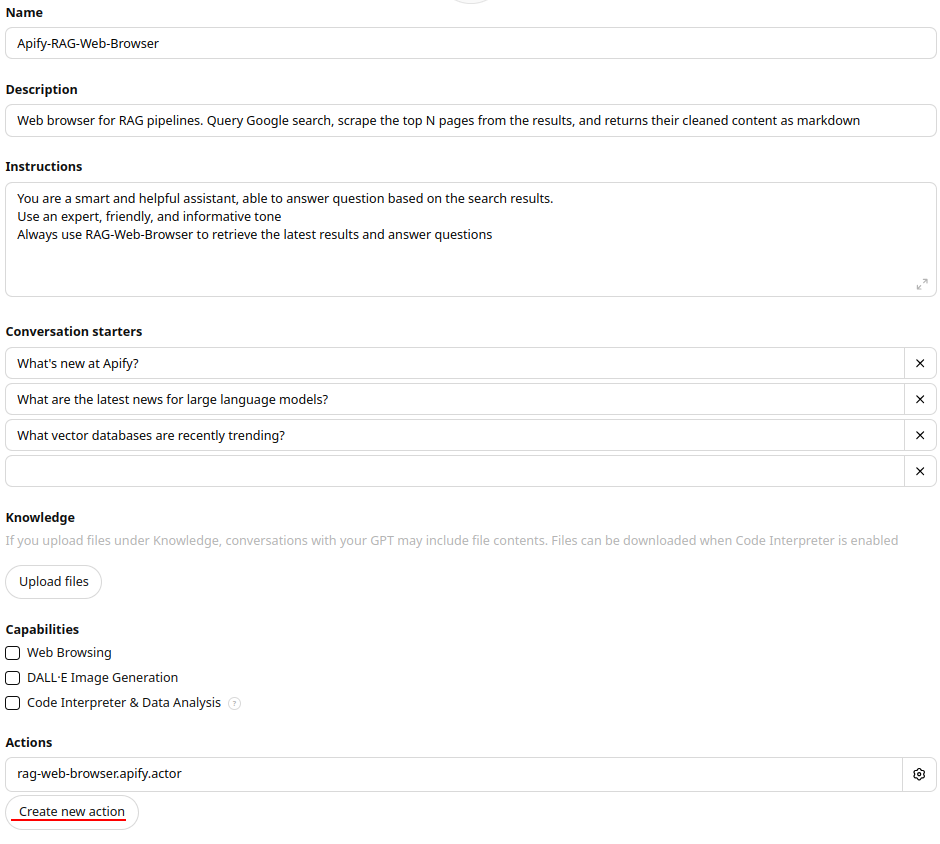
Learn more about [adding custom actions to your GPTs with Apify Actors](https://blog.apify.com/add-custom-actions-to-your-gpts/) on Apify Blog.
#### Anthropic: Model Context Protocol (MCP) Server
The RAG Web Browser Actor can also be used as an [MCP server](https://github.com/modelcontextprotocol) and integrated with AI applications and agents, such as Claude Desktop.
For example, in Claude Desktop, you can configure the MCP server in its settings to perform web searches and extract content.
Alternatively, you can develop a custom MCP client to interact with the RAG Web Browser Actor.
In the Standby mode, the Actor runs an HTTP server that supports the MCP protocol via SSE (Server-Sent Events).
1. Initiate SSE connection:
```shell
curl https://rag-web-browser.apify.actor/sse?token=
```
On connection, you'll receive a `sessionId`:
```text
event: endpoint
data: /message?sessionId=5b2
```
2. Send a message to the server by making a POST request with the `sessionId`, `APIFY-API-TOKEN` and your query:
```shell
curl -X POST "https://rag-web-browser.apify.actor/message?session_id=5b2&token=" -H "Content-Type: application/json" -d '{
"jsonrpc": "2.0",
"id": 1,
"method": "tools/call",
"params": {
"arguments": { "query": "recent news about LLMs", "maxResults": 1 },
"name": "rag-web-browser"
}
}'
```
For the POST request, the server will respond with:
```text
Accepted
```
3. Receive a response at the initiated SSE connection:
The server invoked `Actor` and its tool using the provided query and sent the response back to the client via SSE.
```text
event: message
data: {"result":{"content":[{"type":"text","text":"[{\"searchResult\":{\"title\":\"Language models recent news\",\"description\":\"Amazon Launches New Generation of LLM Foundation Model...\"}}
```
You can try the MCP server using the [MCP Tester Client](https://apify.com/jiri.spilka/tester-mcp-client) available on Apify. In the MCP client, simply enter the URL `https://rag-web-browser.apify.actor/sse` in the Actor input field and click **Run** and interact with server in a UI.
To learn more about MCP servers, check out the blog post [What is Anthropic's Model Context Protocol](https://blog.apify.com/what-is-model-context-protocol/).
### ⏳ Performance optimization
To get the most value from RAG Web Browsers in your LLM applications,
always use the Actor via the [Standby web server](#standby-web-server) as described above,
and see the tips in the following sections.
#### Scraping tool
The **most critical performance decision** is selecting the appropriate scraping method for your use case:
- **For static websites**: Use `scrapingTool=raw-http` to achieve up to 2x faster performance. This lightweight method directly fetches HTML without JavaScript processing.
- **For dynamic websites**: Use the default `scrapingTool=browser-playwright` when targeting sites with JavaScript-rendered content or interactive elements
This single parameter choice can significantly impact both response times and content quality, so select based on your target websites' characteristics.
#### Request timeout
Many user-facing RAG applications impose a time limit on external functions to provide a good user experience.
For example, OpenAI Assistants and GPTs have a limit of [45 seconds](https://platform.openai.com/docs/actions/production#timeouts) for custom actions.
To ensure the web search and content extraction is completed within the required timeout,
you can set the `requestTimeoutSecs` query parameter.
If this timeout is exceeded, **the Actor makes the best effort to return results it has scraped up to that point**
in order to provide your LLM application with at least some context.
Here are specific situations that might occur when the timeout is reached:
- The Google Search query failed => the HTTP request fails with a 5xx error.
- The requested `query` is a single URL that failed to load => the HTTP request fails with a 5xx error.
- The requested `query` is a search term, but one of target web pages failed to load => the response contains at least
the `searchResult` for the specific page contains a URL, title, and description.
- One of the target pages hasn't loaded dynamic content (within the `dynamicContentWaitSecs` deadline)
\=> the Actor extracts content from the currently loaded HTML
#### Reducing response time
For low-latency applications, it's recommended to run the RAG Web Browser in Standby mode
with the default settings, i.e. with 8 GB of memory and maximum of 24 requests per run.
Note that on the first request, the Actor takes a little time to respond (cold start).
Additionally, you can adjust the following query parameters to reduce the response time:
- `scrapingTool`: Use `raw-http` for static websites or `browser-playwright` for dynamic websites.
- `maxResults`: The lower the number of search results to scrape, the faster the response time. Just note that the LLM application might not have sufficient context for the prompt.
- `dynamicContentWaitSecs`: The lower the value, the faster the response time. However, the important web content might not be loaded yet, which will reduce the accuracy of your LLM application.
- `removeCookieWarnings`: If the websites you're scraping don't have cookie warnings or if their presence can be tolerated, set this to `false` to slightly improve latency.
- `debugMode`: If set to `true`, the Actor will store latency data to results so that you can see where it takes time.
#### Cost vs. throughput
When running the RAG Web Browser in Standby web server, the Actor can process a number of requests in parallel.
This number is determined by the following [Standby mode](https://docs.apify.com/platform/actors/running/standby) settings:
- **Max requests per run** and **Desired requests per run** - Determine how many requests can be sent by the system to one Actor run.
- **Memory** - Determines how much memory and CPU resources the Actor run has available, and this how many web pages it can open and process in parallel.
Additionally, the Actor manages its internal pool of web browsers to handle the requests.
If the Actor memory or CPU is at capacity, the pool automatically scales down, and requests
above the capacity are delayed.
By default, these Standby mode settings are optimized for quick response time:
8 GB of memory and maximum of 24 requests per run gives approximately ~340 MB per web page.
If you prefer to optimize the Actor for the cost, you can **Create task** for the Actor in Apify Console
and override these settings. Just note that requests might take longer and so you should
increase `requestTimeoutSecs` accordingly.
#### Benchmark
Below is a typical latency breakdown for RAG Web Browser with **maxResults** set to either `1` or `3`, and various memory settings.
These settings allow for processing all search results in parallel.
The numbers below are based on the following search terms: "apify", "Donald Trump", "boston".
Results were averaged for the three queries.
| Memory (GB) | Max results | Latency (sec) |
|-------------|-------------|---------------|
| 4 | 1 | 22 |
| 4 | 3 | 31 |
| 8 | 1 | 16 |
| 8 | 3 | 17 |
Please note the these results are only indicative and may vary based on the search term, target websites, and network latency.
### 💰 Pricing
The RAG Web Browser is free of charge, and you only pay for the Apify platform consumption when it runs.
The main driver of the price is the Actor compute units (CUs), which are proportional to the amount of Actor run memory
and run time (1 CU = 1 GB memory x 1 hour).
### ⓘ Limitations and feedback
The Actor uses [Google Search](https://www.google.com/) in the United States with English language,
and so queries like "*best nearby restaurants*" will return search results from the US.
If you need other regions or languages, or have some other feedback,
please [submit an issue](https://console.apify.com/actors/3ox4R101TgZz67sLr/issues) in Apify Console to let us know.
### 👷🏼 Development
The RAG Web Browser Actor has open source available on [GitHub](https://github.com/apify/rag-web-browser),
so that you can modify and develop it yourself. Here are the steps how to run it locally on your computer.
Download the source code:
```bash
git clone https://github.com/apify/rag-web-browser
cd rag-web-browser
```
Install [Playwright](https://playwright.dev) with dependencies:
```bash
npx playwright install --with-deps
```
And then you can run it locally using [Apify CLI](https://docs.apify.com/cli) as follows:
```bash
APIFY_META_ORIGIN=STANDBY apify run -p
```
Server will start on `http://localhost:3000` and you can send requests to it, for example:
```bash
curl "http://localhost:3000/search?query=example.com"
```