# Photoshoot GPT – AI Fashion Image & Video Generator (`piriai/photoshoot-gpt`) Actor
Turn clothing photos into AI fashion content for product pages, marketplaces, and social media. Create on-model photos, replace models or products, and generate videos with custom motion or templates.
- **URL**: https://apify.com/piriai/photoshoot-gpt.md
- **Developed by:** [Piri AI](https://apify.com/piriai) (community)
- **Security:** Limited permissions
- **Stats:** 2 total users, 1 monthly users, 100.0% runs succeeded, 0 bookmarks
- **User rating**: No ratings yet
## Pricing
from $500.00 / 1,000 on-model photos
This Actor is paid per event. You are not charged for the Apify platform usage, but only a fixed price for specific events.
Learn more: https://docs.apify.com/actors/running/actors-in-store.md#pay-per-event
## What's an Apify Actor?
An Actor is a serverless cloud program that runs on the Apify platform. It has two run modes.
In Batch mode, an Actor accepts a well-defined JSON input, performs an action which can take anything from a few seconds to a few hours,
and optionally produces a well-defined JSON output, datasets with results, or files in key-value store.
In Standby mode, an Actor provides a web server which can be used as a website, API, or an MCP server.
Apify vocabulary and the platform model are defined once, in the agent quickstart at https://apify.com/agents.md.
## How to integrate an Actor?
If asked about integration, you help developers integrate Actors into their projects.
You adapt to their stack and deliver integrations that are safe, well-documented, and production-ready.
Do not guess an integration path. Every one of them is in the agent quickstart at https://apify.com/agents.md: the Apify MCP server, Agent Skills with the Apify CLI, the JavaScript and Python clients, the REST API, and the account-free path for an agent with no human to sign in. It also carries the rule on stating cost before the first paid run.
For examples already wired to this Actor's own input schema, see the [API](#api) section below.
Each client library has reference documentation the quickstart does not restate: [JavaScript/TypeScript](https://docs.apify.com/api/client/js/docs.md) (`npm install apify-client`) and [Python](https://docs.apify.com/api/client/python/docs.md) (`pip install apify-client`).
# README
## Photoshoot GPT: AI Fashion Photo & Video Generator
Turn your clothing images into AI-powered fashion photos and videos with Photoshoot GPT. Show your collection on models, create new versions of existing fashion photos, and add movement to product images for your online store, marketplace listings, and social media.
Built for clothing brands, online sellers, creative teams, and developers automating fashion content, this Actor offers four ways to create from your product and reference images. Run it with your Apify account; you do not need to supply a separate Photoshoot account or API key. Each run performs one selected operation and saves the original files and result records to that run’s private Apify storage.
**Pricing:** On-model photos $0.50 per pose; replacements $0.25 per image; videos from $1.25 per video. Charges apply to successful outputs. [See all prices](#operations-and-prices).
### What you can create
#### On-model product photos
Create a new photo of a model wearing your clothing, starting with photos of the product. Choose a model, background, and compatible poses from the visual catalog to shape the presentation—from a clean catalog look to a styled scene for a collection.
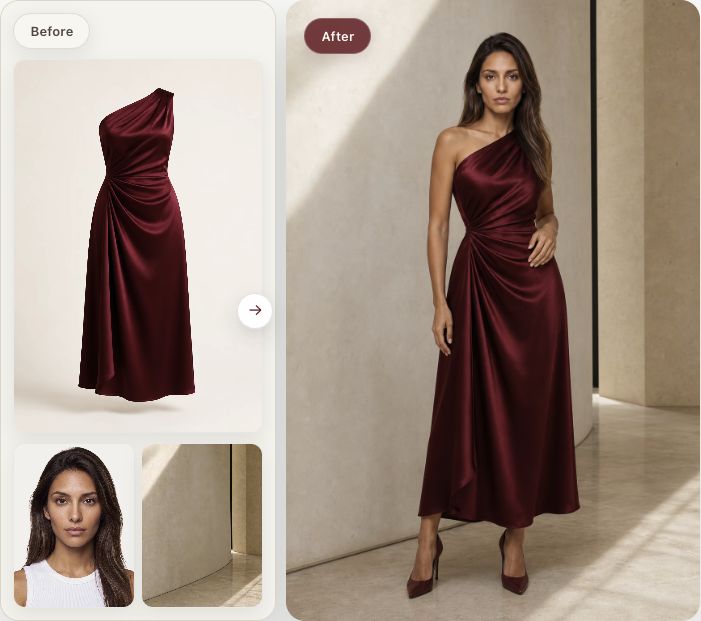 *Product photo + selected model and background → on-model photo.*
Select 1–10 distinct poses in one run. Each selected pose requests a separate photo, so you can build several views of the same product without submitting each pose as a new run.
#### Model replacement
Create a new version of an existing fashion photo with a different model. Upload a reference photo that already features your clothing and select the model you want to use. Explore other model looks for the same outfit or develop alternatives for a campaign.
#### Product replacement
Use a reference fashion photo to imagine your own product in that setting. Supply your product photos and a reference image; the reference guides the scene and composition while Photoshoot generates a new presentation of your clothing.
#### Product videos
Turn product photos into a video using a selected catalog model and one of two motion options:
- **Custom motion:** describe the movement you want, such as a gentle turn toward the camera. Use `motion_mode: "text"` and provide `motion_prompt`.
- **Motion template:** choose an available movement from the motion catalog. Use `motion_mode: "template"` and provide `motion_template_id`.
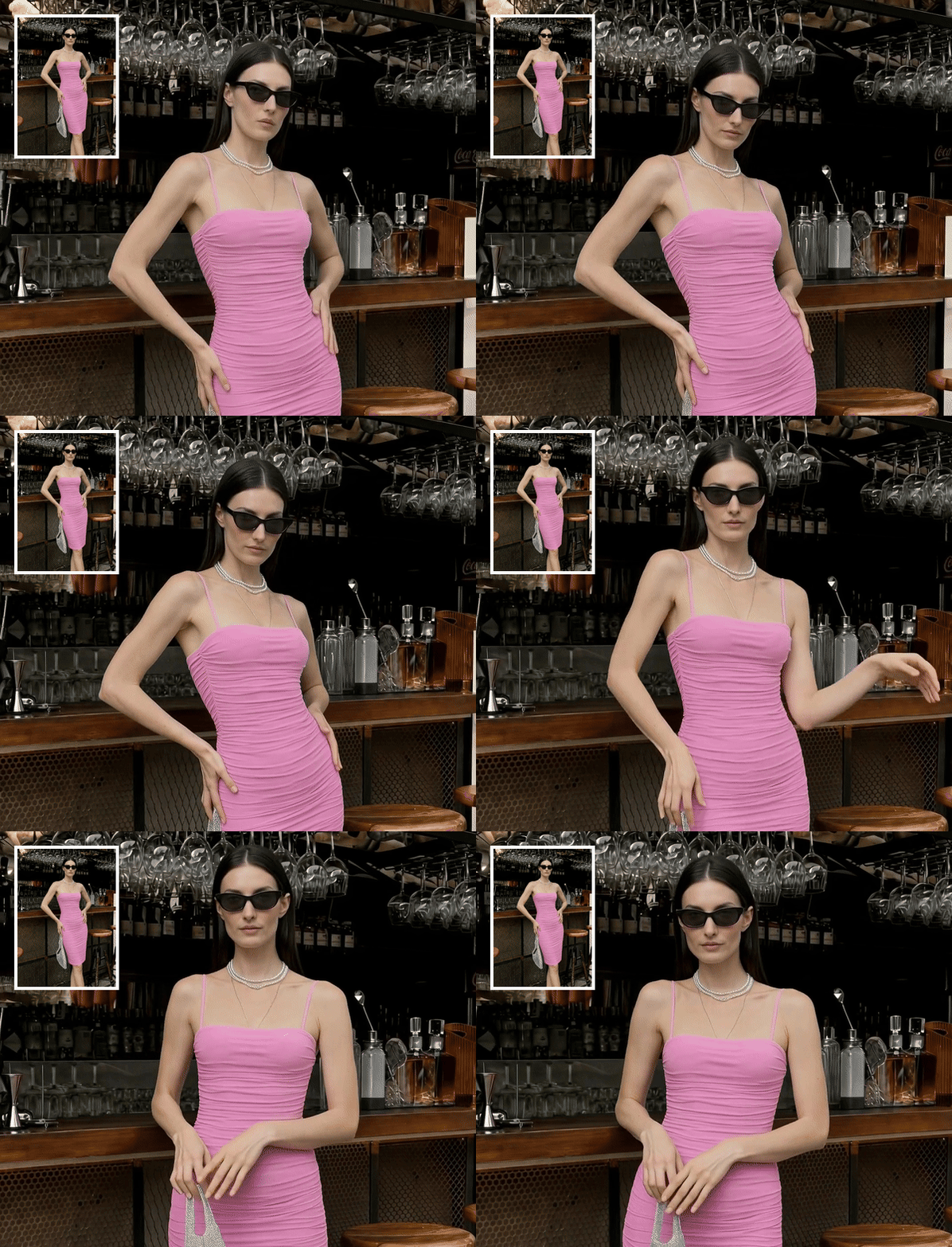 *Example fashion video. The corner image illustrates the look; video runs use product photos and a selected catalog model, not a reference-photo input.*
These modes use different generation paths and have different prices. Choose the mode that fits the movement you want; the Actor does not accept a custom motion description and a motion template together.
### Fashion content use cases
- **Online store and marketplace listings:** create on-model product photos and choose an image aspect ratio that suits your listing layout.
- **Collection launches:** explore a consistent selection of catalog models, backgrounds, and poses across your products. Each run handles one product or reference image operation.
- **Campaign alternatives:** try another model in an existing fashion photo or use a reference scene to explore a different product presentation.
- **Social media and product pages:** add motion to product photos without filming new footage.
- **Automated content workflows:** submit structured inputs through Apify and retrieve the saved files and result records for your own pipeline.
### How to create your first fashion photo or video
**Try the included example:** the example input selects **Use the included example photo ($0.25)**
and model replacement. Start it without uploading files to generate one real image
using the Photoshoot demonstration photo and model. It uses the same production,
private delivery and billing flow as other runs; it is not a free preview. This
small example also supplies the daily Apify Store quality test.
**For your own images, turn off Use the included example photo first.** Then follow
the steps below and explicitly confirm your own media rights. Example mode rejects
custom images/selections rather than applying publisher consent to them.
1. **Choose what to create.** Turn off the included example, then select on-model photos, model replacement, product replacement, or video in the Actor input form.
2. **Upload your images.** Use photos of the same product for product-based operations. Replacement operations also need a reference fashion photo. Use JPEG, PNG, or WebP files, up to **10 MiB per input image**. This limit applies to both product and reference photos.
3. **Browse the [Photoshoot visual catalog](https://photoshootgpt.com/developers/catalogs).** Copy the active IDs for the selections your operation needs. For on-model photos, choose a product type, model, background, and compatible poses. For template video, also choose a motion template.
4. **Allow access to your uploaded files.** After uploading, select the key-value stores containing those files under **Input file stores**. For example, if your product and reference photos are in the same store, select that store once. The selection must match the source image URLs and grants this run read-only access.
5. **Confirm your media rights.** Review the [terms and media rules](https://photoshootgpt.com/terms-of-service) and [privacy policy](https://photoshootgpt.com/privacy-policy). In **Published media policy version**, enter `media-upload-policy-2026-08-29-v2`. Confirm **Media rights and consent** only when you have the required rights and consent.
6. **Review the price and run budget, then start.** Set **Maximum cost per run** to cover all requested outputs. When the run finishes, open **Output** to find the saved files and job summary.
### Operations and prices
| Operation | Input value | Price per successful output |
| --- | --- | --- |
| On-model photo | `on_model_photo` | $0.50 per pose |
| Replace a model | `model_replacement` | $0.25 per image |
| Replace a product | `product_replacement` | $0.25 per image |
| Video with custom text motion | `video`, `motion_mode: text` | $1.25 per video |
| Video with a motion template | `video`, `motion_mode: template` | $2.50 per video |
On-model photos support 1–10 distinct catalog poses in one run. For example, three successful poses cost $1.50; a failed pose is not charged as a successful output. Other operations produce one output per run. Platform usage is included in these prices. There is no separate Actor-start or automatic Dataset-item fee. Check the price shown by Apify before starting.
Set **Maximum cost per run** high enough to cover every requested output. The Actor checks the requested total before submitting generation; it does not silently reduce the number of poses to fit the budget. A run budget is not a query of your Apify account credit balance.
If a run delivers two successful poses and one pose fails, the successful-photo charge is $1.00. Successful outputs can still be charged when another part of the job fails or the run is cancelled. A saved file and a confirmed charge are separate steps; an interrupted delivery or charge may require same-run recovery.
The examples below use placeholder catalog IDs and stores. Replace them with your active catalog selections and actual uploaded files before running.
### Input examples
Every operation requires `operation`, `policy_version`, and `media_rights_confirmed`. Product-based operations accept 1–10 photos of the same product and an optional `description`. Image operations accept an optional `aspect_ratio` (default `9:16`); video uses its motion-mode settings and does not accept that field.
| What you want to create | Required image and selection fields |
| --- | --- |
| On-model photos | `product_images`, `product_type_id`, `model_id`, `background_id`, `pose_ids` |
| Replace a model | `reference_image`, `model_id` |
| Replace a product | `product_images`, `product_type_id`, `reference_image` |
| Custom-motion video | `product_images`, `product_type_id`, `model_id`, `motion_mode: text`, `motion_prompt` |
| Template video | `product_images`, `product_type_id`, `model_id`, `motion_mode: template`, `motion_template_id` |
#### Create on-model photos in two poses
Upload your product photos, then replace the product type, model, background, and two pose IDs with compatible selections from the catalog. See [pricing](#operations-and-prices) for multi-pose costs.
```json
{
"operation": "on_model_photo",
"product_images": ["https://api.apify.com/v2/key-value-stores/AAAAAAAAAAAAAAAAA/records/product.png"],
"input_stores": ["AAAAAAAAAAAAAAAAA"],
"product_type_id": "00000000-0000-4000-8000-000000000001",
"model_id": "00000000-0000-4000-8000-000000000002",
"background_id": "00000000-0000-4000-8000-000000000003",
"pose_ids": ["00000000-0000-4000-8000-000000000004", "00000000-0000-4000-8000-000000000005"],
"aspect_ratio": "4:5",
"policy_version": "media-upload-policy-2026-08-29-v2",
"media_rights_confirmed": true
}
```
#### Replace the model in a fashion photo
Upload the existing fashion photo as `reference_image` and select the replacement model. This operation does not require separate product photos.
```json
{
"operation": "model_replacement",
"reference_image": "https://api.apify.com/v2/key-value-stores/AAAAAAAAAAAAAAAAA/records/reference.png",
"input_stores": ["AAAAAAAAAAAAAAAAA"],
"model_id": "00000000-0000-4000-8000-000000000002",
"aspect_ratio": "9:16",
"policy_version": "media-upload-policy-2026-08-29-v2",
"media_rights_confirmed": true
}
```
#### Present your product in a reference scene
Upload photos of your product and a reference fashion photo. Select the product type for your uploaded product; this operation does not require a separate catalog model or background.
```json
{
"operation": "product_replacement",
"product_images": ["https://api.apify.com/v2/key-value-stores/AAAAAAAAAAAAAAAAA/records/product.png"],
"reference_image": "https://api.apify.com/v2/key-value-stores/AAAAAAAAAAAAAAAAA/records/reference.png",
"input_stores": ["AAAAAAAAAAAAAAAAA"],
"product_type_id": "00000000-0000-4000-8000-000000000001",
"aspect_ratio": "4:5",
"policy_version": "media-upload-policy-2026-08-29-v2",
"media_rights_confirmed": true
}
```
#### Create a video with custom motion
Upload product photos, choose a model, and describe the movement. The example requests a gentle turn; generated motion can vary.
```json
{
"operation": "video",
"product_images": ["https://api.apify.com/v2/key-value-stores/AAAAAAAAAAAAAAAAA/records/product.png"],
"input_stores": ["AAAAAAAAAAAAAAAAA"],
"product_type_id": "00000000-0000-4000-8000-000000000001",
"model_id": "00000000-0000-4000-8000-000000000002",
"motion_mode": "text",
"motion_prompt": "The model gently turns toward the camera, showing the outfit from the front and side.",
"policy_version": "media-upload-policy-2026-08-29-v2",
"media_rights_confirmed": true
}
```
#### Create a video with a motion template
Choose an active motion template from the catalog. Supply its ID instead of a motion description.
```json
{
"operation": "video",
"product_images": ["https://api.apify.com/v2/key-value-stores/AAAAAAAAAAAAAAAAA/records/product.png"],
"input_stores": ["AAAAAAAAAAAAAAAAA"],
"product_type_id": "00000000-0000-4000-8000-000000000001",
"model_id": "00000000-0000-4000-8000-000000000002",
"motion_mode": "template",
"motion_template_id": "00000000-0000-4000-8000-000000000006",
"policy_version": "media-upload-policy-2026-08-29-v2",
"media_rights_confirmed": true
}
```
#### Source files and supported selections
Use the input form’s file-upload controls. For API submissions, source file URLs must have the query-free form `https://api.apify.com/v2/key-value-stores//records/`, and `input_stores` must select the stores containing those files. Do not include tokens in the URLs. Arbitrary public image URLs and signed URLs are not accepted; uploaded bytes and access permissions are verified before import.
Send only the fields for your selected operation. On-model photos use catalog poses; free-text poses, image edits, and retry-generation commands are not supported by this Actor. Video duration, resolution, and aspect ratio are not configurable input fields.
### View and download your results
Open the run’s **Output** tab to find:
| Output link | What you will find |
| --- | --- |
| **Generated media manifests** | The default Dataset, with one result record per stored output. |
| **Job summary and recovery instructions** | The `OUTPUT` record, including job status, completed/failed counts, and recovery information. |
| **Private output file records** | A JSON list of keys in the run’s key-value store. This API link lists records; it is not a file download screen. |
To download a photo or video:
1. In Apify Console, open the run’s default Dataset and choose its **Output files** view.
2. Find the row whose file role is `original` and copy its `record_key`.
3. Return to the run in Apify Console and open its default key-value store from the run’s storage section. Open the record matching that `record_key` to view or download the file. Use this Console storage screen rather than the **Private output file records** API link above.
For file details, job status, and recovery information, see [Advanced results and recovery](#advanced-results-and-recovery).
#### Example results
The following synthetic examples show one successful on-model photo. IDs, file size, hash, and pricing version are placeholders; they do not point to real media. The Dataset contains one manifest per saved output.
**Dataset item:**
```json
{
"schema_version": 1,
"delivery_id": "00000000-0000-4000-8000-000000000020",
"result_id": "00000000-0000-4000-8000-000000000021",
"lineage_id": "00000000-0000-4000-8000-000000000022",
"job_id": "00000000-0000-4000-8000-000000000023",
"customer_id": "00000000-0000-4000-8000-000000000011",
"run_id": "RRRRRRRRRRRRRRRRR",
"result_version": 1,
"ordinal": 1,
"event": "on-model-image-pose",
"pricing_version": "example-pricing-version",
"dataset_id": "DDDDDDDDDDDDDDDDD",
"dataset_item_key": "result_00000000-0000-4000-8000-000000000021",
"media": [
{
"role": "original",
"store_id": "SSSSSSSSSSSSSSSSS",
"record_key": "result_00000000-0000-4000-8000-000000000021_v1_original",
"mime_type": "image/jpeg",
"size_bytes": 1000,
"sha256": "aaaaaaaaaaaaaaaaaaaaaaaaaaaaaaaaaaaaaaaaaaaaaaaaaaaaaaaaaaaaaaaa"
}
]
}
```
The `record_key` identifies the original file in the run's private key-value store; the `sha256` is its content digest.
**`OUTPUT` record:**
```json
{
"id": "00000000-0000-4000-8000-000000000023",
"status": "completed",
"completed_count": 1,
"failed_count": 0,
"results": [
{
"schema_version": 1,
"delivery_id": "00000000-0000-4000-8000-000000000020",
"result_id": "00000000-0000-4000-8000-000000000021",
"lineage_id": "00000000-0000-4000-8000-000000000022",
"job_id": "00000000-0000-4000-8000-000000000023",
"customer_id": "00000000-0000-4000-8000-000000000011",
"run_id": "RRRRRRRRRRRRRRRRR",
"result_version": 1,
"ordinal": 1,
"event": "on-model-image-pose",
"pricing_version": "example-pricing-version",
"dataset_id": "DDDDDDDDDDDDDDDDD",
"dataset_item_key": "result_00000000-0000-4000-8000-000000000021",
"media": [
{
"role": "original",
"store_id": "SSSSSSSSSSSSSSSSS",
"record_key": "result_00000000-0000-4000-8000-000000000021_v1_original",
"mime_type": "image/jpeg",
"size_bytes": 1000,
"sha256": "aaaaaaaaaaaaaaaaaaaaaaaaaaaaaaaaaaaaaaaaaaaaaaaaaaaaaaaaaaaaaaaa"
}
]
}
]
}
```
Here `id` is the job ID and `results` contains the delivered manifests. Output contents can differ for partial completion, cancellation, errors, or recovery.
### Frequently asked questions
#### Do I need a Photoshoot account or my own AI provider keys?
No. Use your Apify account and Apify billing; no separate Photoshoot or provider key is required.
#### Where do I find model, background, pose, and motion template IDs?
Copy active IDs from the [visual catalog](https://photoshootgpt.com/developers/catalogs). Follow the selection steps in [Getting started](#how-to-create-your-first-fashion-photo-or-video); example IDs are placeholders.
#### What is the difference between custom motion and a motion template?
One takes a written movement description; the other uses a catalog template. See [Product videos](#product-videos) for choosing a mode and [pricing](#operations-and-prices) for its cost.
#### Can I generate several products or all four operations in one run?
Use separate runs for separate products or operations. A single on-model run can include several poses; see [On-model product photos](#on-model-product-photos).
#### Can I use a photo from any public URL?
Use uploaded files in authorized Apify storage. See [Source files and supported selections](#source-files-and-supported-selections) for accepted URLs and permissions.
#### Are the results added to my Photoshoot website account?
Actor results are stored in Apify, without synchronization to your existing Photoshoot website account. Follow [View and download your results](#view-and-download-your-results) to retrieve them.
#### Will every generated image exactly match my product or reference?
AI-generated results can vary. Review clothing details, fit, composition, and motion before using them in a listing or campaign.
#### What happens if my run budget is too small?
The Actor rejects an insufficient run budget before submitting generation. See [Operations and prices](#operations-and-prices) for budgeting, and follow any instructions in `OUTPUT`.
#### What if the run stops before I get all my files?
Keep the run and its storage. Follow [Interrupted runs and recovery](#interrupted-runs-and-recovery) to recover the existing work safely.
### Advanced results and recovery
#### Result details
The **Generated outputs** view shows output order, generation type, and result IDs. The **Output files** view shows the record key, file type, size, and SHA-256 digest for each file. A video may also have a preview or poster; download the `original` record for the original video. Images are at most 20 MiB and video originals at most 200 MiB. Access to these records requires permission to the run’s storage.
For example, two delivered on-model photos produce two Dataset records, with each record pointing to its own original file. A Dataset record identifies the saved files; check `OUTPUT` as well for the job outcome and any delivery or billing issues. Temporary Photoshoot media URLs are not stored in the Dataset.
The job summary reports `completed` or `partially_completed`, the backend job ID as `id`, completed/failed counts, and result manifests. Cancellation has a distinct `cancelled` outcome. Backend `failed` or `blocked` jobs fail the Apify run; handled Actor errors write an error summary where storage remains available.
#### Interrupted runs and recovery
Keep the same run and its storage. Use **Resurrect** to recover its saved job and outputs. Starting another run creates a separate request; it is not a safe way to retry an uncertain submission or charge. Do not change the input of an interrupted run. An input/checkpoint mismatch stops recovery instead of starting replacement production.
Cancellation stops new production. If successful outputs were already saved, the same resurrected run can finish their delivery and billing after backend settlement. This does not restart cancelled generation. Uncertain billing is reconciled against Apify’s event counters; the Actor never blindly sends another charge for a pending intent.
#### Error details for API users
Handled errors write an `OUTPUT` summary containing:
- `code` and `error.stage`: the failure category and processing stage.
- `job_id`, `operation_id`, `backend_status`, completed/failed counts when known.
- `job_started`: `true` for a known backend job, `false` before submission, or `null` when the submission outcome is uncertain.
- `exported_output_count` and `dataset_count_verified_at_failure`: delivered-file manifest count and whether it was freshly read. An unavailable count remains `null`.
- `billing.status`, delivery/intent IDs and the last checkpoint stage. `count_verified_at_failure: false` means no fresh charge-counter verification was performed during error reporting.
- `error.action`: recovery instructions. A definitive backend rejection may also include safe `backend_code` and `http_status` fields.
`BILLING_RECONCILIATION_REQUIRED` means keep the run storage and use Resurrect or contact support. `BACKEND_RECOVERY_REQUIRED` can mean a response was lost after a command committed; keep the same run. `MARKETPLACE_CLOSED` or `ACTOR_CONFIGURATION_ERROR` requires publisher attention. `INSUFFICIENT_RUN_BUDGET` requires a higher run spending limit or fewer explicitly selected poses before submission.
Completed file records remain in the Dataset/KVS when a later step fails. After an abrupt platform termination or storage outage, saving an updated summary may be impossible; keep the existing storage and inspect the run log. The last recorded delivery or charge state is not proof of a fresh platform verification.
### Privacy and support
Upload only media you may lawfully process, with consent from depicted adults. Do not upload minors, violent or explicit content. Results remain private to authorized Apify users. For support, provide the Apify run ID, job ID and error code; never share API keys or runtime tokens.
Visit the [Photoshoot website](https://photoshootgpt.com/) for product information and the [visual catalog](https://photoshootgpt.com/developers/catalogs) for available selections. For Actor issues, contact the publisher through this Actor’s **Issues** tab with the run ID and error details. Keep source images and generated media out of public support reports unless you intend to share them.
# Actor input Schema
## `use_example` (type: `boolean`):
Creates one real model replacement using only the included Photoshoot demonstration photo and model. No upload or media-rights checkbox is needed for this publisher-provided example. Turn this off before entering your own images or selections; normal pricing applies.
## `operation` (type: `string`):
Choose one of the four existing Photoshoot products.
## `product_images` (type: `array`):
Upload 1–10 photos for on-model photos, product replacement or video. Upload locators are verified before import.
## `reference_image` (type: `string`):
Upload one reference photo for model or product replacement.
## `input_stores` (type: `array`):
Select only the key-value stores containing the uploaded photos. Grants this run read-only access; IDs must exactly match the photo URLs.
## `product_type_id` (type: `string`):
Required with new product photos; copy an active ID from the visual catalog.
## `description` (type: `string`):
Optional for operations using product photos.
## `model_id` (type: `string`):
Required for on-model photos, model replacement and video.
## `background_id` (type: `string`):
Required for on-model photos; must be compatible with the product type.
## `pose_ids` (type: `array`):
On-model photos only: 1–10 distinct compatible catalog pose IDs, in output order.
## `aspect_ratio` (type: `string`):
Optional for image operations only. Video uses the existing motion-mode settings.
## `motion_mode` (type: `string`):
Video only. Choose template or text.
## `motion_template_id` (type: `string`):
Required only for template video; copy an active ID from the motion catalog.
## `motion_prompt` (type: `string`):
Required only for text video.
## `policy_version` (type: `string`):
Enter the current Photoshoot marketplace media policy version. It is verified before generation together with your media rights confirmation.
## `media_rights_confirmed` (type: `boolean`):
Confirm rights to upload and process the supplied media under the published policy. Required true; no automatic default.
## Actor input object example
```json
{
"use_example": true,
"operation": "model_replacement",
"policy_version": "media-upload-policy-2026-08-29-v2"
}
```
# Actor output Schema
## `results` (type: `string`):
One manifest per stored output, including private record keys and byte/hash metadata. Check the job summary for billing or recovery errors.
## `summary` (type: `string`):
No description
## `files` (type: `string`):
Locate each original, preview or poster by the record_key in its manifest. These records require authorized access.
# API
You can run this Actor programmatically using our API. Below are code examples in JavaScript, Python, and CLI, as well as the OpenAPI specification and MCP server setup.
## JavaScript example
```javascript
import { ApifyClient } from 'apify-client';
// Initialize the ApifyClient with your Apify API token
// Replace the '' with your token
const client = new ApifyClient({
token: '',
});
// Prepare Actor input
const input = {
"use_example": true,
"operation": "model_replacement",
"policy_version": "media-upload-policy-2026-08-29-v2"
};
// Run the Actor and wait for it to finish
const run = await client.actor("piriai/photoshoot-gpt").call(input);
// Fetch and print Actor results from the run's dataset (if any)
console.log('Results from dataset');
console.log(`💾 Check your data here: https://console.apify.com/storage/datasets/${run.defaultDatasetId}`);
const { items } = await client.dataset(run.defaultDatasetId).listItems();
items.forEach((item) => {
console.dir(item);
});
// 📚 Want to learn more 📖? Go to → https://docs.apify.com/api/client/js/docs
```
## Python example
```python
from apify_client import ApifyClient
# Initialize the ApifyClient with your Apify API token
# Replace '' with your token.
client = ApifyClient("")
# Prepare the Actor input
run_input = {
"use_example": True,
"operation": "model_replacement",
"policy_version": "media-upload-policy-2026-08-29-v2",
}
# Run the Actor and wait for it to finish
run = client.actor("piriai/photoshoot-gpt").call(run_input=run_input)
# Fetch and print Actor results from the run's dataset (if there are any)
print(f"💾 Check your data here: https://console.apify.com/storage/datasets/{run.default_dataset_id}")
for item in client.dataset(run.default_dataset_id).iterate_items():
print(item)
# 📚 Want to learn more 📖? Go to → https://docs.apify.com/api/client/python/docs/quick-start
```
## CLI example
```bash
echo '{
"use_example": true,
"operation": "model_replacement",
"policy_version": "media-upload-policy-2026-08-29-v2"
}' |
apify call piriai/photoshoot-gpt --silent --output-dataset
```
## MCP server setup
```json
{
"mcpServers": {
"apify": {
"type": "http",
"url": "https://mcp.apify.com/?tools=fetch-actor-details,piriai/photoshoot-gpt"
}
}
}
```
The hosted server signs you in with OAuth on first connect, so no API token belongs in this config. Clients without OAuth support can send an `Authorization: Bearer ` header instead, using a token from API & Integrations in Apify Console (https://console.apify.com/settings/integrations).
## OpenAPI specification
Download the OpenAPI definition: https://api.apify.com/v2/actors/PpYM5ef4KPTLgJXfZ/builds/aGIHmd6nspabcPgwE/openapi.json