Go to example tasks
Flight Price Tracker in Google Sheets: Row per Route and Date


Keep a live fare table in Google Sheets: connect this after a Google Flights scraper and each run updates the row of every route and date in place (update by key "route,departureDate"), adds new dates, and keeps your own columns and formulas untouched. Try it on our demo sheet, then paste your own sheet link.
Google Sheets Import & Export: Sync Datasets, Update Rowss_actors/google-sheets-import-export
Status
Mode
Tab
Rows added
+5 fieldsTextNumberBooleanListObject
Input
📄 Google Sheet(required):https://docs.google.com/spreadsheets/d/1XEl1x1BNcQrfP1ZdDyBtvshMn7Pa50-I6eWy6etH9wk/edit
⚙️ Mode:update
🗂 Tab name:Fares
Raw data (JSON)
route:NYC-LON+1
departureDate:2026-11-05+1
lowestPrice:512+1
airline:Sample Air+1
Unique key column(s):route,departureDate
Output fields
Status
Mode
Tab
Rows added
Rows updated
Duplicates skipped
Columns
New tab
Sheet
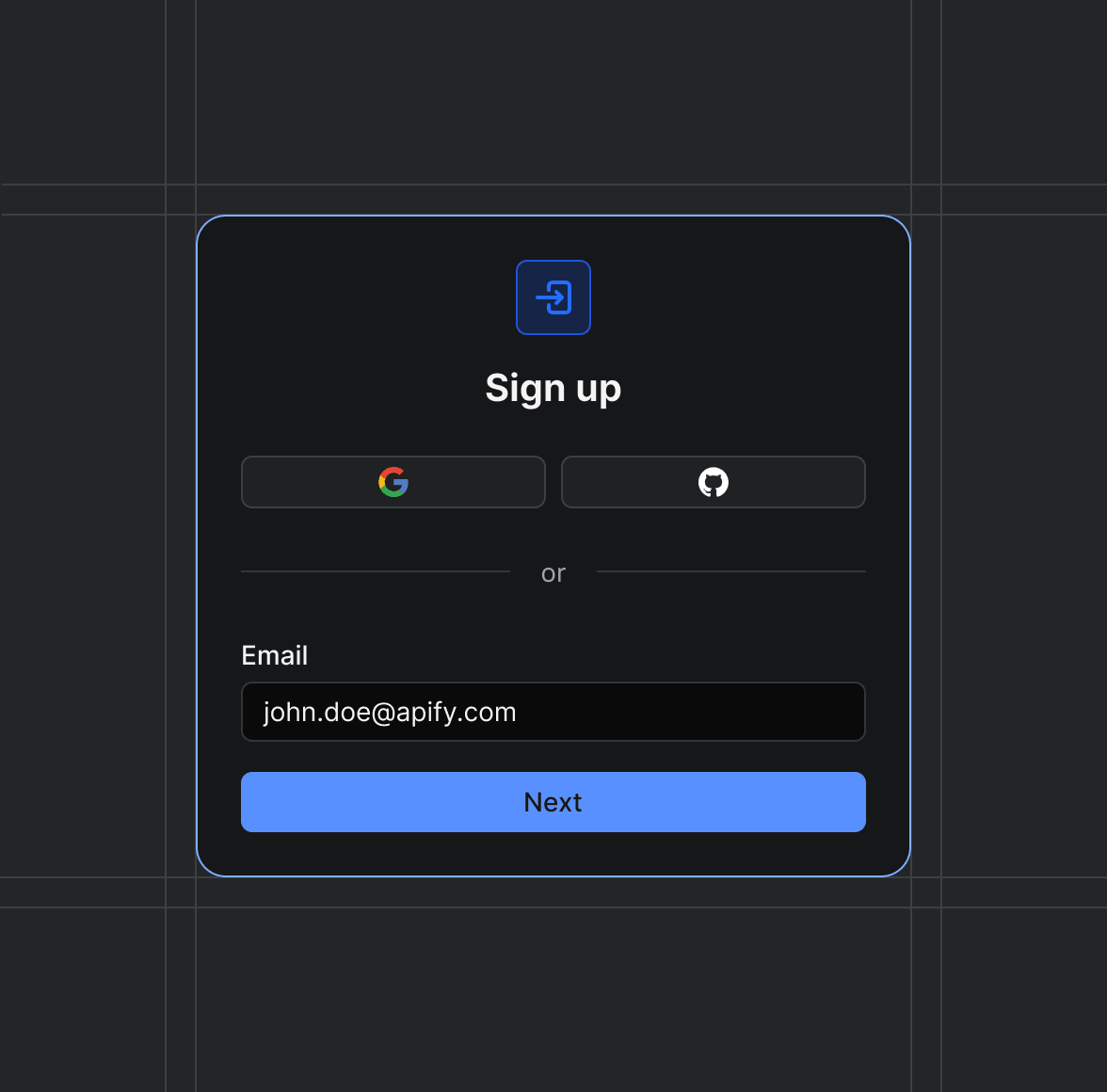
Sign up on Apify01
Create your Apify account to access the Google Sheets Import & Export: Sync Datasets, Update Rows.
Start the run02
The Actor will start running based on the input automatically.
Receive the output03
Monitor the progress in real-time. You will be notified as soon as your dataset is complete and ready for review.
Integrate into your workflow04
The final output is delivered in JSON, CSV, or Excel format, ready to be plugged into your workflow.