

Face Blur: Blur Faces in Photos & Videos
Pricing
Pay per event
Face Blur: Blur Faces in Photos & Videos
Automatically find and blur every face in photos and videos for privacy and GDPR compliance. Blur, pixelate or black out faces, with tracking in videos and crowd-ready detection in photos. Returns face positions too. JPEG, PNG, HEIC, MP4, MOV and more.
Pricing
Pay per event
Rating
0.0
(0)
Developer

Jumble Mog
Maintained by CommunityActor stats
0
Bookmarked
2
Total users
1
Monthly active users
11 days ago
Last modified
Categories
Security
Limited permissionsShare
Automatically find and hide every face in photos and videos. Upload or link your files, pick blur, pixelate or a black oval, and get back privacy-safe copies ready to publish, share or store. Built for crowds and for video: small faces in the back of a group photo are searched for at several sizes, and faces in videos are tracked from frame to frame so they stay covered when people move or turn. No API key, no GPU and no editing software.
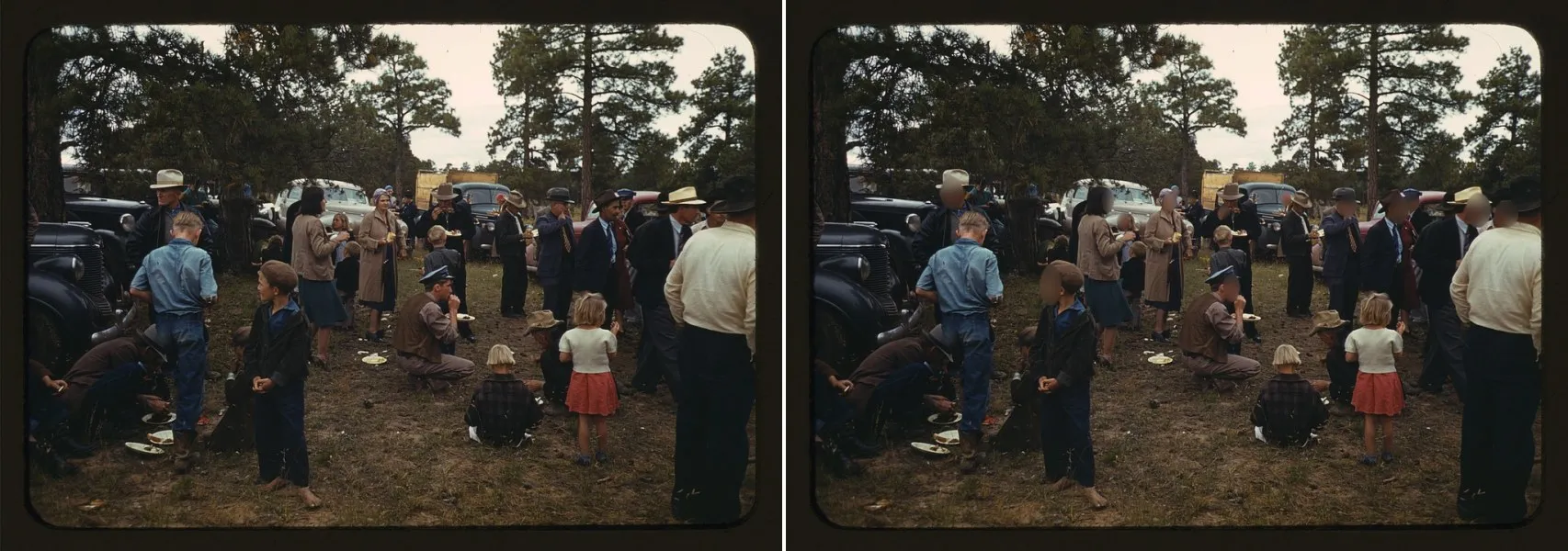
Samples: Pie Town, New Mexico, 1940, by Russell Lee (Library of Congress, no known restrictions). Default settings.
What it does
- Finds faces in crowds: photos are searched at full size and again enlarged (small photos) or tile by tile (large photos), so small and distant faces are found much more reliably than in a single pass. Faces looking at the camera or turned partly away are found, including small, dark and slightly blurry ones.
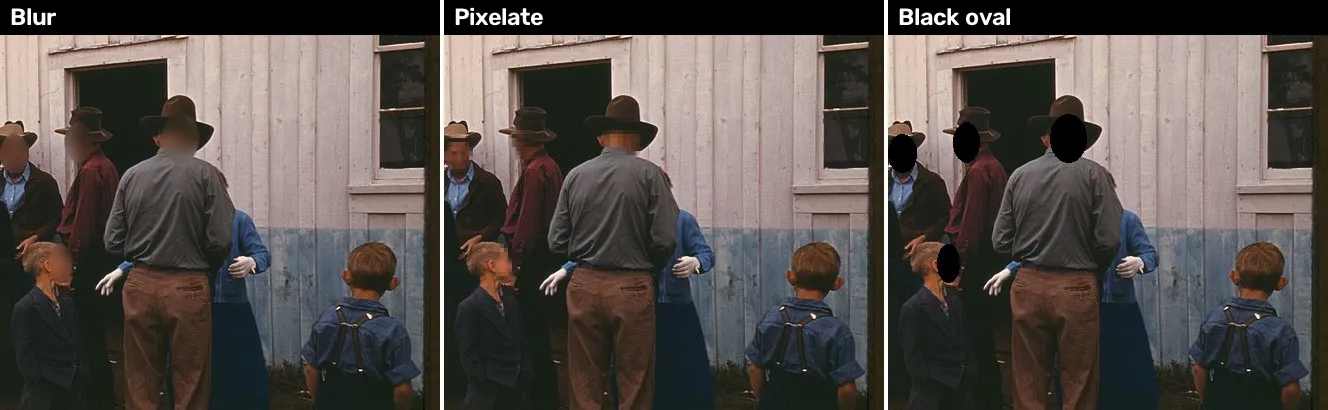
- Hides them three ways: a strong, smooth blur that looks natural, chunky pixelation, or a solid black oval. The hidden area covers the face with hair and ears, and you can make it bigger.
- Blurs whole videos: every frame is processed. Faces are detected about ten times a second and kept covered between detections and for half a second after a face is lost, so a face that turns away or is briefly missed stays hidden. Sound is kept.
- Returns face positions: each photo comes with a list of faces (x, y, width, height, confidence). Turn on only find faces to count faces or feed your own pipeline without saving edited copies.
- Keeps your format: JPEG stays JPEG, PNG stays PNG, WebP stays WebP (other formats become JPEG). Videos come back as MP4 (H.264 + AAC) up to 1080p, upright even when the phone stored them sideways.
- Takes files from anywhere: direct links, Google Drive and Dropbox share links, or uploads. Photos in JPEG, PNG, WebP, HEIC (iPhone), TIFF, BMP and GIF; videos in MP4, MOV, MKV, WebM, AVI and more, up to 2 GB and 2 hours.
- Fair billing: you pay per photo and per minute of video. Files that fail cost nothing.
Who it's for
- Publishers, journalists and bloggers who need to protect bystanders, minors or sources before publishing.
- Real estate, street and event photographers cleaning up passers-by in their shots.
- Dashcam, drone, bodycam and CCTV footage that has to be anonymized before sharing.
- Schools, clubs and companies posting event photos without the faces of people who didn't agree.
- Machine learning teams anonymizing image and video datasets under GDPR and similar privacy rules.
- Developers and AI agents adding automatic face anonymization to upload flows and content pipelines.
How to use it
- Paste links to photos or videos, or upload them.
- Choose how to hide faces (blur by default). For crowds, choose high sensitivity.
- Click Start. Each result appears in the Output tab with a download link and the number of faces hidden.
You can also run it through the Apify API, on a schedule, or from Make, n8n, Zapier and other integrations.
How-to examples
Each example below is a complete input, checked with a run of the Actor.
How to blur or pixelate faces in photos automatically
Result: "facesFound": 2, each with its box and confidence, and a copy of the photo with both faces pixelated in outputUrl. It took 0.24 seconds. Use "style": "black" for a black oval, or "sensitivity": "high" to also catch small, dark or half-turned faces.
How to blur faces in a video
Result: a blurred copy of the video in outputUrl, with frames, framesWithFaces, durationSeconds and minutesBilled. A 4-second test clip came back with 100 of 100 frames blurred in 0.7 seconds. Faces are followed from frame to frame, so a face doesn't flash into view when the detector misses it for a frame.
How to find faces without changing the photo
Result: "facesFound": 1, "faces": [{"x": 202, "y": 187, "width": 155, "height": 218, "confidence": 0.915}] and no edited file, so you can count people or draw your own boxes.
How to let an AI agent anonymize photos and videos
Add this Actor to the Apify MCP server with https://mcp.apify.com/?tools=jumblemog/face-blur. The agent sends the links in mediaUrls and gives the user outputUrl. facesFound tells it whether there was anything to hide.
FAQ
Is it for GDPR or privacy redaction? It hides faces in photos and video, which is what most privacy rules ask for when people in the footage haven't agreed to be shown. Check the results before you publish them: no detector finds every face.
Are my files kept or used for training? No. They are processed in your own Apify run and stay in your run storage until it expires. Nothing is sent to an outside service.
Which files work? JPEG, PNG, WebP and HEIC photos and common video files such as MP4 and MOV, from links, Google Drive or Dropbox, or uploads.
Does it blur license plates? No, only faces.
Does it work with Zapier, Make or n8n? Yes. Call the Actor with its Apify app or an HTTP request, and pass on outputUrl.
Input
| Field | What it does |
|---|---|
mediaUrls | Links to photos or videos, or Google Drive and Dropbox share links. |
files | Files uploaded from your computer or picked from an Apify key-value store. |
style | blur (default), pixelate or black. |
sensitivity | normal (default), high to catch small, dark or half-turned faces (may also hide a few things that only look like faces), or low for clear faces only. |
marginPercent | Extra area around each face, in percent of its size (default 25). |
detectOnly | true returns face positions for photos without saving edited copies. |
maxFiles | Stop after this many files (default 100). |
Example:
Output
Each file becomes one dataset item, and the edited file is saved in the run's key-value store. A photo:
A video adds durationSeconds, minutesBilled, frames, framesWithFaces and fps, and facesFound is the most faces seen in one frame:
A file that couldn't be downloaded or read gets status: "failed" and an error that says why, and isn't billed. Download your files within your plan's data retention period, or copy them to your own storage, because run storage expires.
Pricing
You pay per file processed, at the prices shown on this page:
- Photo processed: each photo, also in find-only mode.
- Minute of video processed: each started minute of video. A 10-minute video is 10 minutes; a 20-second clip is 1 minute.
Files that fail are never charged. If you set a maximum cost per run, the Actor stops before a file that wouldn't fit.
Speed
Measured on Apify at the default 4 GB of memory:
- Photos take about half a second each, plus the download. Large photos searched tile by tile take a second or two.
- Videos take one to two times their length at 1080p: a 20-second 1080p clip took 18 seconds and a 2.5-minute one under 5 minutes. Smaller videos are much quicker (a 25-second 360p clip took 16 seconds including the download). Giving the run more memory gives it more CPU, which speeds video up.
Tips and limits
- This Actor finds faces; it doesn't recognize anyone. It never compares faces or works out who a person is.
- Faces seen from behind, fully in profile, covered by masks or helmets, or smaller than about 10 pixels may be missed. Use high sensitivity for crowds and check important files before you publish them: automatic blurring helps you meet privacy rules, but you stay responsible for what you share.
- Blurred faces can't be restored from the output. Keep your originals if you might need them.
- Videos are re-encoded to H.264 MP4. Inputs above 1080p are rendered at 1080p (vertical videos at 1080 x 1920). Only the first audio track is kept.
- Photos above 25 megapixels are reduced to 25 megapixels first.
- Links to YouTube, TikTok, Instagram, Facebook, X, LinkedIn and Pinterest aren't supported, because those platforms' terms don't allow downloading. Use your own copy of the file.
For AI agents and developers
This Actor works with the Apify MCP server, so AI agents can call it as a tool: pass mediaUrls and read outputUrl (or faces) from each dataset item. Every item has the same documented fields, and status tells you whether a file succeeded. For a direct API call:
Privacy
Files are downloaded into the run, processed there and saved only to your own Apify storage. Nothing is sent to an outside service, and no face data is kept after the run.


