

Skool Video Downloader | How to Download Skool Videos
Pricing
Pay per usage
Skool Video Downloader | How to Download Skool Videos
Make an organized local copy of any Skool course you're authorized to open, with the lessons arranged in the order they were taught.
Pricing
Pay per usage
Rating
0.0
(0)
Developer

SERP Downloaders
Maintained by CommunityActor stats
1
Bookmarked
2
Total users
1
Monthly active users
18 days ago
Last modified
Categories
Share
Make an organized local copy of any Skool course you're authorized to open, with the lessons arranged in the order they were taught.
The extension builds a local, well-organized backup of lessons your Skool membership can already reach. You decide how much to take, whether that's a complete course, a handful of modules or a few individual lessons, and the result is laid out in nested folders (course, then module, then lesson) that follow the sequence the instructor set.
Get it Here
👉 Get it here: Skool Bulk Downloader
- ✅ Supported video is processed on your device, not on a remote server
- ✅ Select at the level of a course, a module or one lesson
- ✅ Pausing, retrying and recovering jobs, plus a record of past backups
Preview
How It Works
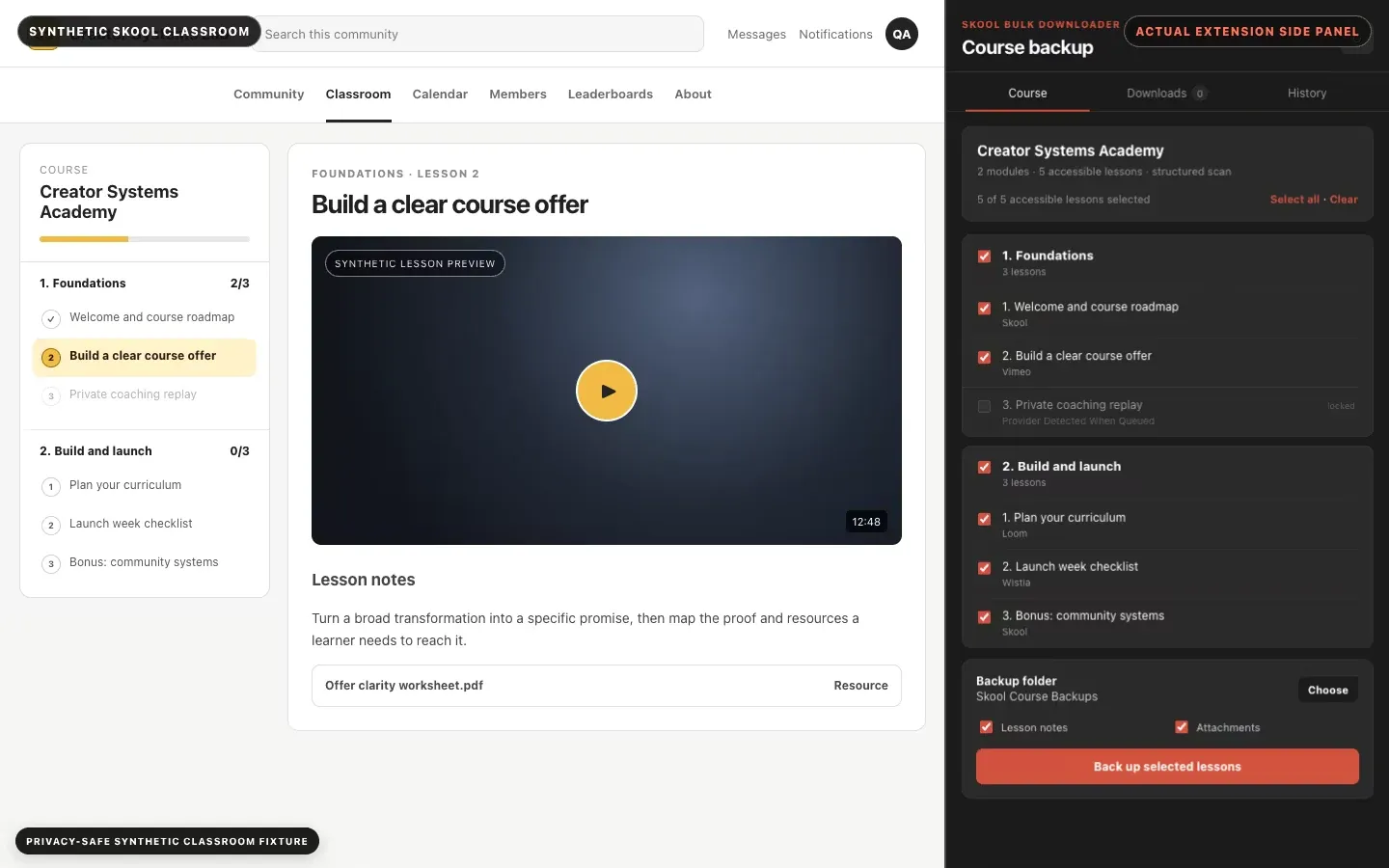
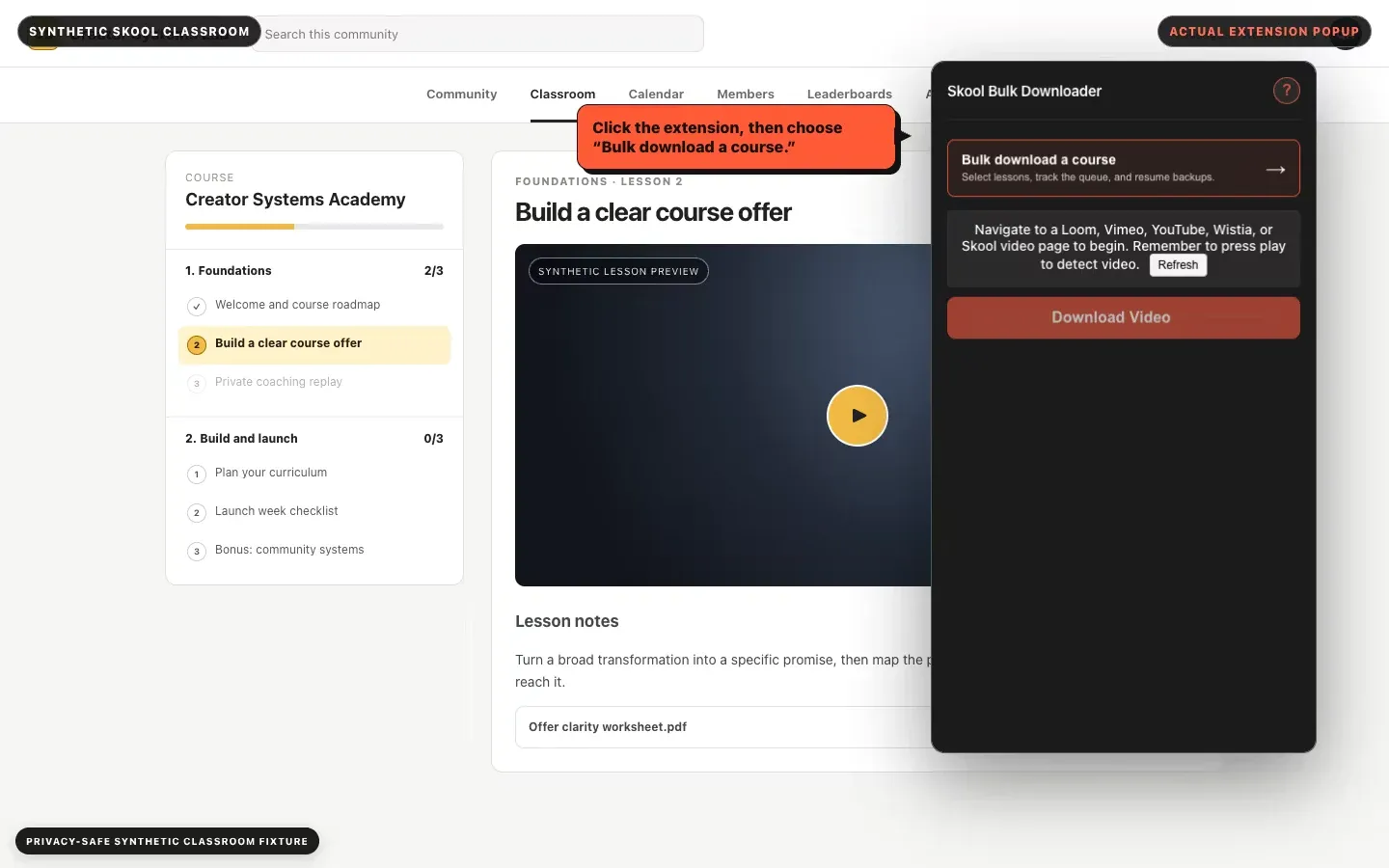
- Enter a course you're allowed to view: Go into a course that your account has permission to open, then start Skool Bulk Downloader from your browser's toolbar.
- Decide how much to save: Browse the modules and lessons the extension has found, then check the entire course or only the parts you're allowed to save.
- Track the run and read the report: The manager moves through your selection, logging the provider and status for each lesson, and ends by producing the organized backup along with a report.
What It Does
- Maps out the classroom's structure (courses, then modules, then lessons) as long as your account can open it, keeping the original sequence.
- Scope is chosen first, whether a complete course, particular modules or single lessons, and the backup starts after that.
- Wistia, Vimeo and Loom videos are saved, together with video that's native to Skool, whenever they're compatible.
- YouTube lessons are noted in information/link mode, which keeps the report honest about what was actually saved.
- Alongside video, the backup carries the lesson text, any resources and attachments, and an auditable report of the run.
- A single selected lesson is worked on at any moment, and its provider and progress stay visible.
Skool Bulk Downloader vs. Single-video workflow
They aren't interchangeable; which one fits depends on how much of a course you want to keep.
| Skool Bulk Downloader | Single-video workflow |
|---|---|
| Reads the course layout, then you tick whichever course, module or lesson you want. | The starting point is just the single video that's showing in your browser right now. |
| Folders follow course, module and lesson order, with the supporting lesson material saved alongside. | Typically produces a lone media file, with the course structure left behind. |
| Job progress is durable, with pause, retry and recovery tools, a history, and a final report at the end. | You repeat the process by hand for every lesson. |
| Ideal for backing up many authorized lessons at once with the same tidy organization throughout. | Makes sense when you merely need the one supported video you have on screen. |
Compatibility
Browsers: Chrome, Edge, Brave
Desktop browsers it runs in:
- Chrome from version 116 upward
- Microsoft Edge
- Brave
Video hosts it can handle:
- Video native to Skool
- Loom
- Vimeo
- Wistia
- YouTube, handled in information/link mode
What a backup contains:
- Folders arranged in course order
- Videos that are compatible
- Written lesson content, including notes
- Resources along with attachments
- A backup report that has been redacted
Outside what it handles:
- Firefox, which is not supported yet
- Phone and tablet browsers
- Safari
- Media locked by DRM
- Live-streamed content
FAQ
Is a full course something it can back up? Yes. Open a classroom your account can access, let the extension discover its modules and lessons, and choose either the entire course or just the sections you want. The manager then walks through that ordered selection, lesson by lesson.
What will I find inside a backup? Depending on the course, a backup can hold compatible videos, lesson text, resources and attachments, all in structured folders that go course, module, lesson. A report accompanies it, listing which items were completed, skipped, information-only or failed.
What video platforms does the bulk workflow cover? Compatible videos hosted on Wistia, Vimeo, Loom or Skool itself are covered by the verified bulk workflow. YouTube lessons are only noted in information/link mode, and the bulk workflow leaves them undownloaded.
Can I recover if a backup stops partway? Yes. Job state is saved locally, and the manager offers controls for recovery, history, retrying, pausing and resuming, so eligible work continues from where it left off rather than the whole course starting over.
Know Before You Use It
- Neither DRM-protected material nor live streams can be saved
- On phones and tablets, and in Safari, it isn't supported, and Firefox support hasn't arrived yet
- Processing is deliberately sequential: the bulk scheduler picks up a single selected lesson at once
- YouTube lessons only ever receive information/link treatment in the bulk workflow
Only download videos you own or have permission to save.


