Shipping Location Finder (USPS, UPS, FedEx)
Pricing
from $0.01 / 1,000 results
Shipping Location Finder (USPS, UPS, FedEx)
Find Every Shipping Location Near You Need to ship a package but don't know where to go? Post offices, UPS Stores, FedEx locations, drop boxes, access points — they're everywhere, but finding them all in one place is a hassle. The Shipping Location Finder searches USPS, UPS, and FedEx locations
Pricing
from $0.01 / 1,000 results
Rating
0.0
(0)
Developer

The Howlers
Maintained by CommunityActor stats
0
Bookmarked
1
Total users
1
Monthly active users
14 days ago
Last modified
Categories
Features
Share
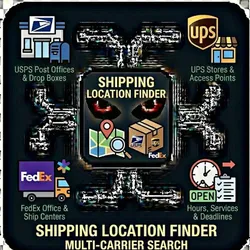
Find nearby USPS post offices, UPS stores, UPS Access Points and FedEx locations in one search. Each result includes the address, phone, distance, opening hours, services and drop-off or last collection times.
The data comes straight from the official carrier location APIs, using your own free developer keys.
Bring your own carrier keys
USPS, UPS and FedEx only answer location searches for registered developers. Their developer keys are free, and this actor uses yours:
- You get the carriers' own live data, not a scraped copy.
- Searches count against your own carrier quota.
- Your keys are secret inputs. Apify stores them encrypted, and each key is sent only to its own carrier.
You can use one, two or all three carriers. A carrier without keys is skipped and the result says so.
USPS keys
- Go to developers.usps.com and sign in or create a free account.
- Add an app. Make sure it has access to the Locations API.
- Copy the app's Consumer Key into
uspsClientIdand its Consumer Secret intouspsClientSecret.
USPS returns Post Offices, Contract Postal Units, Village Post Offices and self-service kiosks, with retail hours, services and last collection times.
UPS keys
- Go to developer.ups.com and sign in with a free UPS account.
- Create an app and add the Locator API product to it. UPS may ask you to link a UPS account number.
- Copy the app's Client ID into
upsClientIdand its Client Secret intoupsClientSecret.
UPS returns The UPS Store, UPS Customer Centers, UPS Drop Boxes and Authorized Shipping Outlets. With includeUpsAccessPoints on (the default), it also returns UPS Access Point partner stores.
FedEx keys
- Go to developer.fedex.com and sign in or create a free account.
- Create a project that includes the Locations API.
- Copy the project's API Key into
fedexApiKeyand its Secret Key intofedexSecretKey.
FedEx gives test keys first. Test keys only work in the FedEx sandbox, so either move the project to production for production keys, or turn on useCarrierTestEnvironment to try your test keys.
FedEx returns FedEx Office, Ship Centers, Authorized ShipCenters, OnSite locations and Drop Boxes, with store hours and latest drop-off times per service.
Quick start
See the output format (demo mode, no keys needed)
Live search with your keys
You can search by city and state instead of zipCode, and add address for a more precise starting point.
Input parameters
| Parameter | Type | Default | Description |
|---|---|---|---|
zipCode | string | - | 5-digit US ZIP code to search around. Use this, or city and state. |
address | string | - | Optional street address, used together with a ZIP code or a city and state. |
city | string | - | City name, used with state. |
state | string | - | 2-letter state abbreviation, for example TX. |
radius | number | 10 | How far to look, from 1 to 50. |
radiusUnit | string | "mi" | mi or km. Result distances use the same unit. |
carriers | array | ["USPS","UPS","FedEx"] | Which carriers to search. |
maxResults | integer | 20 | Maximum locations returned across all carriers, nearest first. |
demoMode | boolean | false | Return sample locations instead of calling the carriers. |
uspsClientId | secret | - | USPS Consumer Key. |
uspsClientSecret | secret | - | USPS Consumer Secret. |
upsClientId | secret | - | UPS Client ID. |
upsClientSecret | secret | - | UPS Client Secret. |
fedexApiKey | secret | - | FedEx API Key. |
fedexSecretKey | secret | - | FedEx Secret Key. |
includeUpsAccessPoints | boolean | true | Also search UPS Access Point partner stores. |
useCarrierTestEnvironment | boolean | false | Use the USPS TEM, UPS CIE and FedEx sandbox test environments, for test keys. |
Output
Each run writes one row with the search details and a locations list, nearest first. The Nearby Locations view in the dataset shows one line per location.
This example is built from the sample response in the USPS Locations API documentation, shortened to one location and a few services.
carrierStatustells you, per carrier, whether it answered (ok), had no keys (no_credentials), rejected the keys (auth_rejected) or failed for another reason (carrier_error), with a plain message.noticeappears when something needs your attention, for example a carrier whose keys were rejected.notesappears on a location when there is something to know before going, such as a temporary closure.isSampleDatamarks demo rows.isTestEnvironmentDatamarks rows from the carrier test environments.
Pricing
This actor uses pay-per-event billing:
| Event | When it is charged | Price |
|---|---|---|
| Actor start | Once when the run starts, one event per GB of memory (minimum one). At the default 4 GB of memory a run starts at $0.0002 | $0.00005 per GB |
| Location Search | Once per run that returns at least one live location | $0.01 |
| Result | Each row written to the default dataset (one row per run) | $0.00001 |
The Location Search fee is not charged when:
- no carrier keys were provided, or every carrier rejected its keys,
- the carriers found no locations within your radius,
- you use demo mode or the carrier test environments.
In those cases the run still writes one row that explains what happened, so only the actor start and that one result row are charged.
Troubleshooting
"rejected the keys"
Copy both keys again from the carrier's developer portal, without extra spaces. For FedEx, test keys only work with useCarrierTestEnvironment turned on.
"accepted the keys but refused the request"
The keys are valid, but the app does not include the location API. Add the Locator product (UPS), the Locations API (FedEx) or Locations API access (USPS) to your app, then run again.
"found no locations within ..."
Try a larger radius, or check the ZIP code. UPS searches at least 5 miles out and FedEx at most 50 miles.
"rate limit reached"
Each carrier limits how often your keys can be used. Wait a few minutes and run again.
How do I test without keys?
Turn on Demo Mode. It returns realistic sample locations so you can check the output format. Demo runs are never charged a search fee.
Built by John Rippy | Actor Arsenal