

Chrome Extension Scraper (Email)
Pricing
from $5.99 / 1,000 results
Chrome Extension Scraper (Email)
Chrome extension email scraper that queries a database of Web Store extensions, returning developer contacts, ratings, and metadata so you can build targeted outreach lists without manual collection.
Pricing
from $5.99 / 1,000 results
Rating
0.0
(0)
Developer

B2B Lead Generation
Maintained by CommunityActor stats
0
Bookmarked
16
Total users
0
Monthly active users
5 months ago
Last modified
Categories
Share
Chrome Extension Email Scraper: get developer contacts and extension data at scale
You have a list of Chrome extensions you need to reach. Or maybe you're mapping the competitive landscape in a specific category and need to understand who built what, how users rate it, and how to contact the developer. Either way, doing this manually through the Chrome Web Store takes days, and there's no official API to speed it up.
This actor queries a curated database of Chrome Web Store extensions and returns structured records, including developer emails, phone numbers, ratings, user counts, and full metadata. Set your filters, run the actor, and your results start flowing in batches as they arrive.
Who this is for
Growth marketers who want to run outreach to Chrome extension developers. Product researchers mapping the extension landscape by category. Developers scouting competitors, looking for partnership opportunities, or analyzing what permissions popular tools request.
If you've tried collecting this data by hand, you know the problem. The Chrome Web Store loads one extension at a time. There's no export button, no public API, no bulk view. You end up with a half-filled spreadsheet and three days gone.
The problem with Chrome Web Store research
The Web Store has tens of thousands of extensions. Finding developer contact information means opening each extension page, scrolling to the developer details section, copying fields one by one, and doing it again for the next extension. And the next. And a hundred more after that.
Even then, the data is inconsistent. Some pages have emails. Some don't. Ratings change. User counts drift. By the time your spreadsheet is "done," part of it is already wrong.
Manual collection doesn't scale. This actor replaces that process.
What this actor gives you
A database of Chrome extension records with the contact and metadata fields that matter: developer email, phone, company name, website, support URL, and privacy policy link. Each record also includes the extension's rating, review count, user count, version, permissions list, category, screenshots, and a direct store link.
Filters let you narrow by category (picked from a dropdown of all available options), search by name, set a minimum rating, and sort by name, rating, review count, or user count. The actor fetches in batches of 100 and pushes each batch as it arrives, so you see data moving through your dataset rather than waiting for a single bulk load at the end.
All search inputs are validated and sanitized before queries run, so SQL injection is not a concern.
What success looks like
Select Productivity: Developer from the categories dropdown and set sortBy to user_count. In a few minutes, you have a dataset of developer tools ranked by active users, with emails and company names ready for outreach. Add minRating: 4.5 to focus on the extensions users actually like. Export to Google Sheets and start personalizing your list.
That's a workflow that used to take a week. Now it takes a lunch break.
Input
| Parameter | Type | Default | Description |
|---|---|---|---|
categories | array | (all) | Pick one or more categories from the dropdown. Leave empty to return all. |
searchName | string | (none) | Case-insensitive partial name search. "tab" matches "Tab Manager", "TabZilla", "Better Tab". |
minRating | number | (none) | Only return extensions rated at or above this value (0-5 scale). |
maxItems | integer | 100 | Total records to return. The actor fetches 100 at a time and pushes each batch. Can go up to 100,000. |
sortBy | string | (none) | Sort field: name, rating, review_count, or user_count. |
sortOrder | string | desc | Sort direction: desc (highest first) or asc (lowest first). |
timeoutSecs | integer | 300 | Maximum run time in seconds. |
Example input
How filters and sorting work
Every filter is optional. You can run the actor with no filters at all and get all extensions up to your maxItems limit, or stack multiple filters together to zero in on exactly what you need.
Filter by category
The category filter limits results to one or more Chrome Web Store categories. Select from the dropdown in the input form — no typing required. Categories are organized into three main groups:
Lifestyle covers personal and leisure extensions: art, well-being, travel, fun, social, shopping, entertainment, news, games, and household tools.
Productivity covers work and developer tools: communication, workflow, tools, developer utilities, and education extensions.
Make Chrome Yours covers browser customization: functionality tweaks, accessibility tools, and privacy extensions.
You can select from the top-level group (e.g. productivity) to get everything under that umbrella, or pick a specific sub-category (e.g. productivity/developer) to narrow the results further. Selecting multiple categories returns extensions from all of them in one dataset.
Example: selecting lifestyle/shopping and productivity/tools returns all shopping extensions plus all productivity tool extensions in a single run.
Good for: targeting a specific market segment, building outreach lists for a defined niche, or comparing categories side by side.
Filter by name
The name search finds extensions where the name contains your search term, regardless of capitalization or position. Searching "ad" returns "AdBlock", "uBlock Origin", "Adguard", and anything else with "ad" anywhere in the name.
This is a partial match, so you don't need to know the exact name. A few characters are enough to find what you're looking for. Wildcards and special characters are stripped automatically, so only plain text search terms work.
Good for: finding all extensions from a specific developer family (e.g. "grammarly"), locating extensions in a product category by keyword (e.g. "vpn", "password", "screenshot"), or checking if a specific tool is in the dataset.
Filter by minimum rating
Set a number between 0 and 5 to exclude extensions below that rating threshold. Only extensions at or above the value you enter will appear in the results.
Common values:
4.0— well-rated extensions with a reasonable user base4.5— consistently high-quality extensions with strong user satisfaction4.8— only the top-rated extensions in the dataset
Combining minimum rating with a category filter is the fastest way to find the best-performing extensions in a specific niche — for example, the highest-rated developer tools (productivity/developer + minRating: 4.5).
Good for: filtering out low-quality extensions before outreach, finding market leaders by rating, or building a quality benchmark list.
Sort by name
Sorts all results alphabetically by extension name, A to Z (asc) or Z to A (desc). Useful when you want to browse results in a predictable order or spot duplicate names across categories.
Good for: auditing a dataset for duplicates, browsing a category alphabetically, or producing a clean sorted export for a report.
Sort by rating
Sorts results by average user rating, highest first (desc) or lowest first (asc). This is the most direct way to find Chrome extensions with the best user satisfaction scores in any category.
Pair with a minimum rating filter to get only the top tier: for example, sort by rating descending with minRating: 4.0 to see the best-rated extensions at the top, with no low-rated noise.
Good for: finding the dominant extensions in a niche by reputation, identifying which extensions users trust most, or benchmarking your own product against top-rated competitors.
Sort by review count
Sorts by total number of user reviews, most reviewed first (desc) or least reviewed first (asc). A high review count signals that an extension has been around long enough and installed widely enough to accumulate feedback — it's a proxy for longevity and reach.
An extension with 50,000 reviews and a 4.2 rating is often more established than one with 200 reviews and a 4.9 rating. Sorting by review count surfaces the extensions users have actually engaged with at scale.
Good for: finding extensions with large, active user communities, prioritizing outreach to developers with proven traction, or identifying long-running tools in a category.
Sort by user count
Sorts by current active user count, largest first (desc) or smallest first (asc). This is the most direct measure of reach — the number of people who have the extension installed and active right now.
Sorting by user count descending in any category immediately shows you the dominant players: the extensions that have won the most installs. Combined with the developer email field, this gives you a ranked list of the most-reached developers in that space.
Good for: identifying market leaders in a category, prioritizing outreach by audience size, or understanding which Chrome extensions have the widest distribution.
Combining filters and sort
All filters stack. You can select multiple categories, add a name search, set a minimum rating, and choose a sort field all in one run. The actor applies every active filter before sorting, so the result set is always filtered first and ordered second.
Example combinations that work well:
categories: [productivity/developer]+minRating: 4.5+sortBy: user_count— top developer tools by install count, quality-filteredsearchName: "screenshot"+sortBy: review_count— all screenshot extensions ranked by how much user feedback they've collectedcategories: [lifestyle/shopping, lifestyle/social]+sortBy: rating+sortOrder: desc— highest-rated lifestyle extensions across shopping and social combined
What data does this actor return?
Each record in the dataset is a full extension profile. Results are available in both JSON and table view directly inside Apify.
JSON view
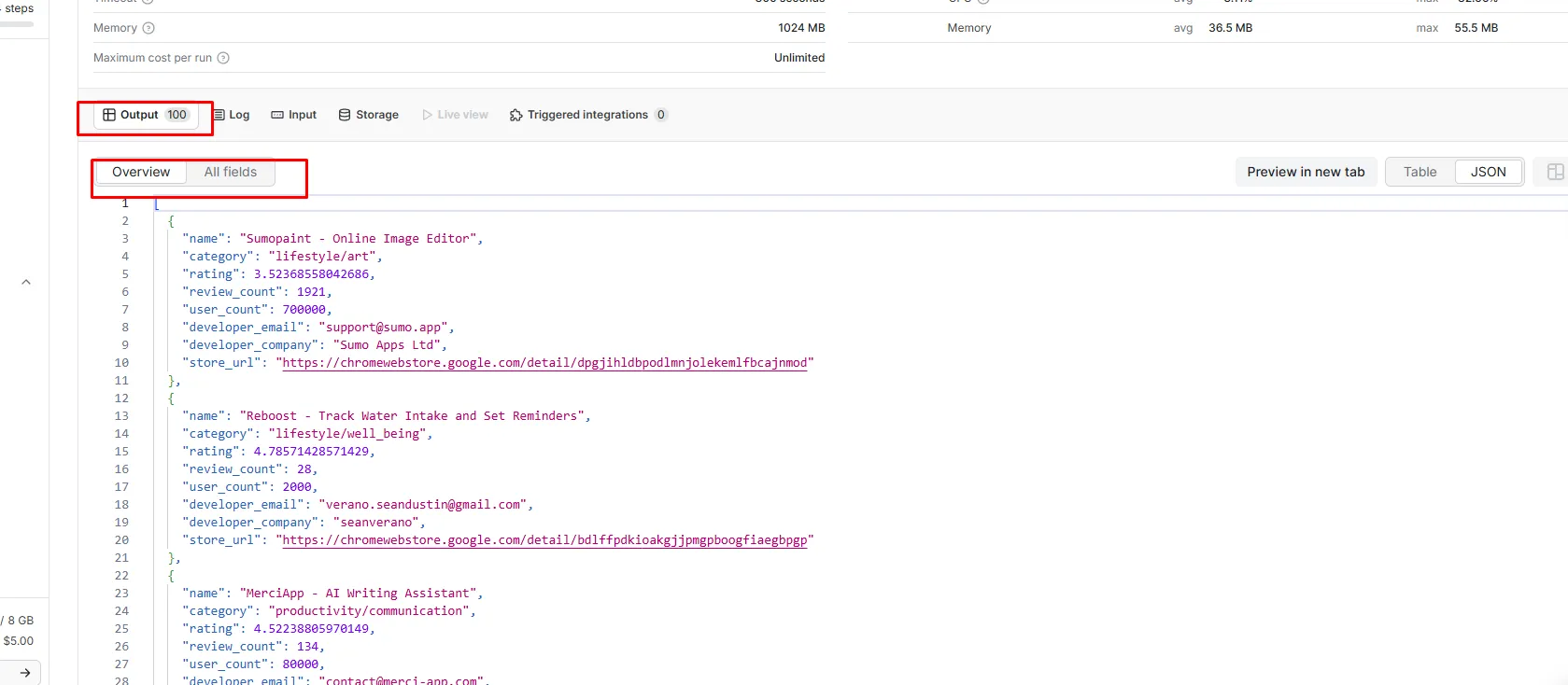
Table view
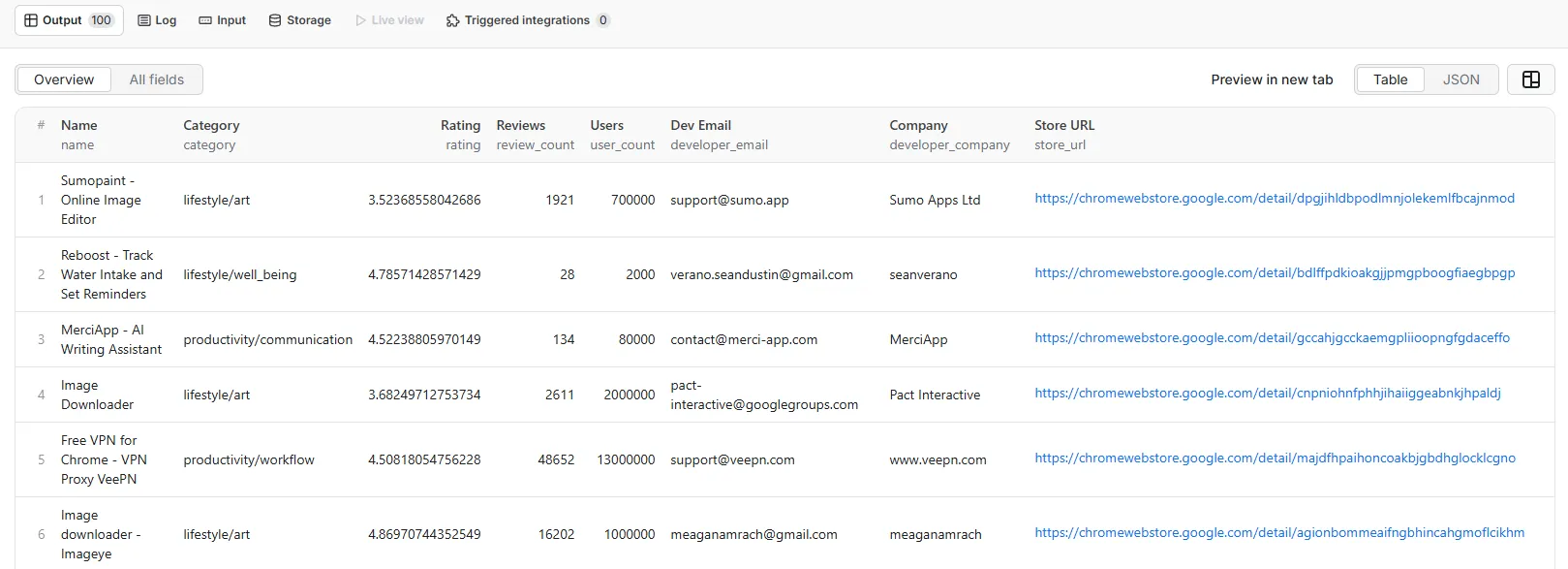
Here's a full example record:
| Field | Type | Description |
|---|---|---|
crx_id | string | Unique Chrome extension ID |
name | string | Extension display name |
rating | number | Average user rating (0-5) |
review_count | integer | Total number of user reviews |
user_count | integer | Current active user count |
version | string | Current published version |
manifest_version | string | Chrome manifest version (2 or 3) |
permissions | string | JSON array of requested permissions |
summary | string | Short description from the store listing |
full_description | string | Full extension description |
website | string | Developer or product website |
category | string | Store category (e.g. productivity/tools) |
is_featured | string | Whether the extension has a "Featured" badge |
developer_email | string | Contact email listed on the store page |
developer_phone | string | Phone number if listed |
developer_address | string | Physical address if listed |
developer_company | string | Company or developer name |
support_url | string | Support page URL |
privacy_policy_url | string | Privacy policy URL |
size | string | Extension package size |
languages | string | Supported language codes |
created_date | string | Date first published |
last_updated | string | Date of most recent update |
icon_url | string | Extension icon URL |
header_image_url | string | Promotional banner image URL |
screenshots | string | JSON array of screenshot URLs |
store_url | string | Direct Chrome Web Store link |
Use cases
- Email outreach campaigns: collect developer emails across a category to build a targeted cold outreach list with full contact details
- Competitive analysis: find the highest-rated extensions in your niche, then study their permissions, descriptions, and user counts
- Market research: understand how many extensions exist per category, what they offer, and where the gaps are
- Partnership prospecting: find extensions your product could integrate with based on shared audiences or overlapping permissions
- Security and compliance audits: pull permissions data across hundreds of extensions to spot which ones request sensitive browser access
- Content and SEO research: analyze descriptions, category distribution, and user counts to map the extension landscape before building your own
FAQ
How many results can I get?
Set maxItems to any number up to 100,000. The actor fetches 100 records at a time and pushes each batch to your dataset as it goes, so results start appearing right away rather than all at once at the end.
Can I filter by multiple categories at once? Yes. Select as many categories as you want from the dropdown and the actor will return extensions from all of them combined.
Is name search case-sensitive? No. The name filter does a case-insensitive partial match. Searching "tab" returns "Tab Manager", "TabZilla", "Better Tab", and anything else with "tab" in the name.
What happens if no results are found? The actor logs "No results found" to the console and exits cleanly. No empty records are pushed to the dataset.
Is it safe to pass user-provided search terms? Yes. All inputs are validated and sanitized before being used in queries. The name search also strips wildcard characters before they reach the filter.
Can I combine filters? Yes. You can combine category selection, name search, and minimum rating in a single run. Sort and pagination work on top of whatever filters you apply.
Integrations
Connect this actor to other tools using Apify integrations. Push results directly to Google Sheets, trigger Zapier workflows, sync to Slack, or build automated pipelines with Make, Airbyte, or GitHub Actions. Use webhooks to kick off downstream tasks the moment each batch of results lands in your dataset.


