Clip Forge avatar

Clip Forge

Pricing

from $15.00 / 1,000 video trims

Go to Apify Store
Clip Forge

Clip Forge

Trim, watermark, extract audio, and convert video to 9:16 vertical — via REST API or MCP tools for Claude, Cursor, and other AI agents. Works with direct video files and YouTube/yt-dlp-supported links. Pay-per-event pricing, no ffmpeg install needed.

Pricing

from $15.00 / 1,000 video trims

Rating

0.0

(0)

Developer

Chris Phillips

Chris Phillips

Maintained by Community

Actor stats

0

Bookmarked

2

Total users

1

Monthly active users

4 hours ago

Last modified

Share

ClipForge — Video trim, watermark, audio extraction & vertical convert API

What is ClipForge?

ClipForge is a video processing API that trims, watermarks, extracts audio from, and converts to 9:16 vertical any video — a direct video file URL, or a link from YouTube and the thousands of other sites yt-dlp supports. Call it as a plain REST API from any language, or use the built-in MCP tools to hand these operations straight to Claude, Cursor, or any other MCP-compatible AI agent. No ffmpeg installation, no server to run — just an input URL and a few parameters.

What can ClipForge do?

  • Trim — cut a video down to an exact start time and duration.
  • Extract audio — pull the audio track out as an MP3, with adjustable bitrate (64k-320k).
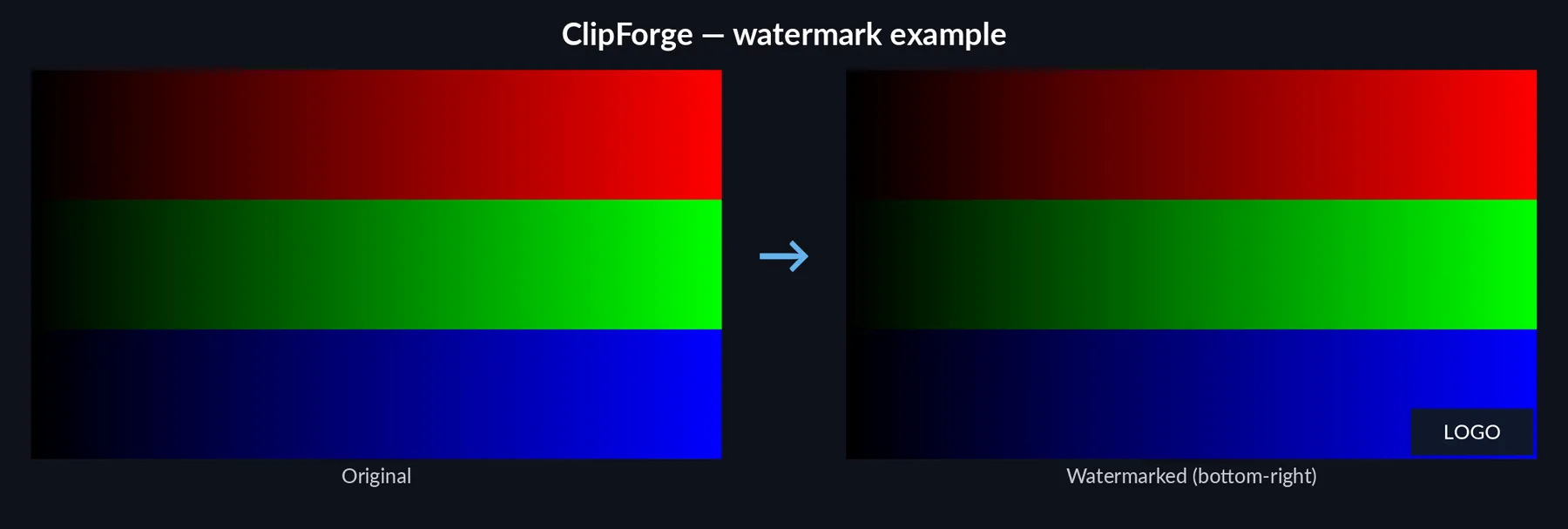
  • Watermark — overlay an image onto the bottom-right corner of a video.
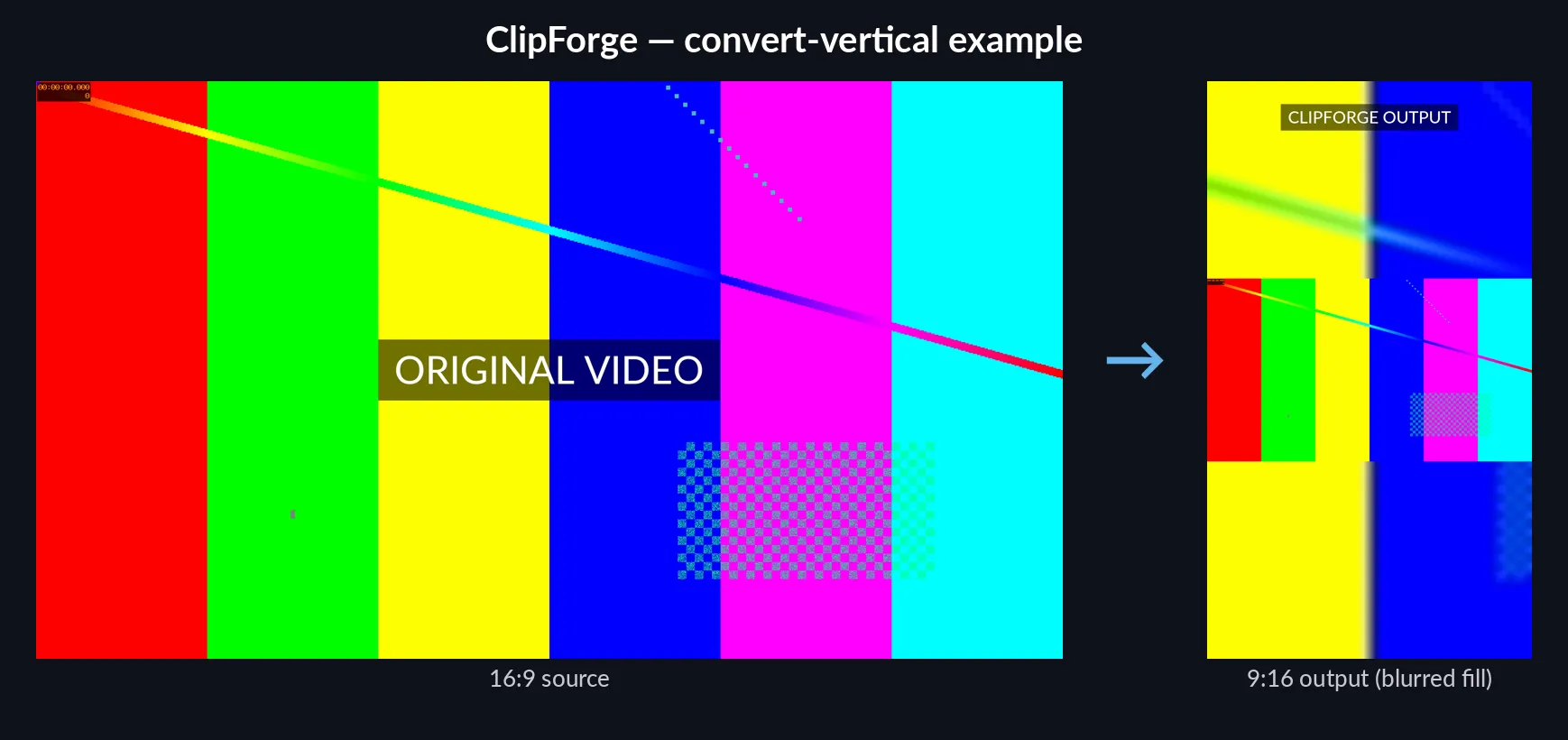
  • Convert to vertical — reformat a standard 16:9 video into 9:16, with a blurred, scaled copy of the video filling the background, ready for Shorts, Reels, and TikTok.
  • Accepts direct media file URLs (.mp4, .mov, etc.) and YouTube/yt-dlp-supported links — no need to pre-resolve a stream URL yourself.
  • Two calling styles: synchronous endpoints that stream the result straight back for short clips, and an async job endpoint (submit, poll, download) for longer sources.
  • Ships as an MCP server, so any MCP client can call Trim, ExtractAudio, Watermark, and ConvertToVertical as native tools.

Examples

Convert to vertical:

ClipForge convert-vertical example: a 16:9 source video next to its 9:16 output with a blurred background fill

Watermark:

ClipForge watermark example: a video before and after a logo is overlaid in the bottom-right corner

Remember the Apify platform!

ClipForge isn't just an ffmpeg wrapper — it comes with everything the Apify platform gives you on top: pay-per-event billing so you only pay for what you actually process, a persistent Standby API endpoint with no cold-start run management, built-in request monitoring, and one-line integration with Make, Zapier, and every other Apify-connected tool.

How do I use ClipForge?

Option 1 — REST API

Every call needs your Apify API token, either as a token query parameter or an Authorization: Bearer header.

Trim a video (synchronous, streams the MP4 back):

curl -X POST "https://YOUR-ACTOR-URL.apify.actor/trim?token=YOUR_APIFY_TOKEN" \
-H "Content-Type: application/json" \
-d '{
"inputUrl": "https://example.com/video.mp4",
"startTime": 30,
"duration": 15
}' \
--output trimmed.mp4

Extract audio (synchronous, streams the MP3 back):

curl -X POST "https://YOUR-ACTOR-URL.apify.actor/extract-audio?token=YOUR_APIFY_TOKEN" \
-H "Content-Type: application/json" \
-d '{
"inputUrl": "https://www.youtube.com/watch?v=example",
"bitrate": "192k"
}' \
--output audio.mp3

Watermark or convert to vertical (async — submit, poll, download):

# 1. Submit the job
curl -X POST "https://YOUR-ACTOR-URL.apify.actor/process-async?token=YOUR_APIFY_TOKEN" \
-H "Content-Type: application/json" \
-d '{
"action": "watermark",
"inputUrl": "https://example.com/video.mp4",
"watermarkUrl": "https://example.com/logo.png"
}'
# -> { "jobId": "..." }
# 2. Poll until status is "completed" or "failed"
curl "https://YOUR-ACTOR-URL.apify.actor/status/JOB_ID?token=YOUR_APIFY_TOKEN"
# 3. Download the result
curl "https://YOUR-ACTOR-URL.apify.actor/download/JOB_ID?token=YOUR_APIFY_TOKEN" --output result.mp4

action can be trim, extract-audio, watermark, or convert-vertical — the async endpoint supports all four, not just the two shown above.

Option 2 — MCP tools

Point any MCP client at the Actor's /mcp endpoint with your Apify token in the Authorization: Bearer header:

{
"mcpServers": {
"clipforge": {
"url": "https://YOUR-ACTOR-URL.apify.actor/mcp",
"headers": { "Authorization": "Bearer YOUR_APIFY_API_TOKEN" }
}
}
}

Then call Trim, ExtractAudio, Watermark, or ConvertToVertical directly — each returns the processed file as a base64-encoded string. This is the fastest path if you're working inside Claude Desktop, Cursor, or another MCP-aware assistant and want it to clip or reformat video on your behalf without writing any glue code.

Tip: use the async endpoint for longer or slower sources

The synchronous endpoints (/trim, /extract-audio) are great for short clips, but Apify's Standby mode caps how long it will wait for a first response on any single request. If you're pulling from a slow host or trimming several minutes of footage, use /process-async and poll /status instead — it returns instantly and lets processing run in the background for as long as it needs.

Pricing

ClipForge uses Apify's pay-per-event model — you're charged per action, not for the whole run:

ActionPer requestPer second of output
Trim$0.015$0.0005
Extract audio$0.005$0.0003
Watermark$0.03$0.002
Convert to vertical$0.03$0.002

For example, trimming a 15-second clip costs $0.015 + (15 × $0.0005) = $0.0225. Extracting audio from a 2-minute video costs $0.005 + (120 × $0.0003) = $0.041. Platform/compute usage is billed separately on top of these event prices, so there's no markup hidden inside them — what you see here is exactly what the action itself costs.

Input parameters

/trim and the trim action:

FieldTypeRequiredNotes
inputUrlstringyesPublic video URL or YouTube/yt-dlp-supported link
startTimenumber (seconds)yesWhere to start the clip
durationnumber (seconds)yes1-1800 seconds (30 minutes max)

/extract-audio and the extract-audio action:

FieldTypeRequiredNotes
inputUrlstringyesPublic video URL or YouTube/yt-dlp-supported link
bitratestringnoe.g. 128k, 192k, 320k — defaults to 192k

watermark action (async only):

FieldTypeRequiredNotes
inputUrlstringyesVideo to watermark
watermarkUrlstringyesPublic image URL, overlaid bottom-right

convert-vertical action (async only):

FieldTypeRequiredNotes
inputUrlstringyesVideo to reformat to 9:16

Output

Synchronous endpoints return the file directly (video/mp4 or audio/mpeg). Async jobs return a jobId, then a status object once you poll /status/{jobId}:

{
"id": "a1b2c3d4",
"status": "completed",
"resultUrl": "/download/a1b2c3d4",
"contentType": "video/mp4"
}

status moves through pendingprocessingcompleted (or failed, with an error message). Once completed, GET /download/{jobId} returns the file.

FAQ

Is there a limit on video length? Trims are capped at 30 minutes per clip. For extract-audio, watermark, and convert-vertical, the source video is capped at 1 hour by default.

What if the source is temporarily unreachable? ClipForge automatically retries transient upstream failures (timeouts, 5xx errors) a few times before giving up. If it still fails, you'll get a 502 response — safe to retry the request yourself after a short wait.

What does a 400 error mean? Your input didn't pass validation — an invalid URL, an out-of-range trim duration, a bad bitrate format, or a source with no audio track when one was required. The response body includes a specific message.

What does a 429 mean? The Actor is tracking too many pending async jobs at once; wait a moment and retry.

Can I use this from Zapier, Make, or my own backend? Yes — it's a standard REST API under the hood, so anything that can make an HTTP POST request can use it. The MCP interface is an additional option for AI-agent workflows, not a replacement for the REST API.

Is it safe to use with copyrighted or third-party video? ClipForge only processes video you already have the rights to use or that's publicly hosted — it doesn't bypass DRM, paywalls, or platform restrictions. You're responsible for making sure you have the right to process and redistribute whatever you send it.

Something's not working — where do I report it? Open an issue in the Issues tab on this Actor's page. Include the request payload (minus your token) and any error message you got back.