Bulk Text Classifier
Pricing
$1.00 / 1,000 classified texts
Bulk Text Classifier
Classify texts in bulk from CSV, JSON or pasted lists. Add your own labels for sentiment analysis, topics, support tickets and customer feedback. Choose one or multiple labels per text and export clean results. Use with Claude, Codex or Cursor through Apify.
Pricing
$1.00 / 1,000 classified texts
Rating
0.0
(0)
Developer

Lofomachines
Maintained by CommunityActor stats
0
Bookmarked
1
Total users
0
Monthly active users
11 days ago
Last modified
Categories
Share
What does Bulk Text Classifier do?
Turn a CSV, JSON file or list of texts into clear, useful categories. Bulk Text Classifier assigns your own labels to reviews, support tickets, survey answers, comments, product descriptions and other text. Describe your goal, add your labels and start.
Use it for bulk sentiment analysis, topic classification, customer feedback tagging, support ticket routing and text categorization. Each result contains just the original text and its label. Enable multiple labels when one text can belong to several categories.
No coding, training data or separate AI credentials needed. Run it in Apify Console, connect an automation, or ask your AI assistant to handle the workflow through Apify.
Ready-to-use examples
Choose a starting point, replace the sample texts and keep or customize its labels. All examples share the same price and account-wide Free-plan allowance.
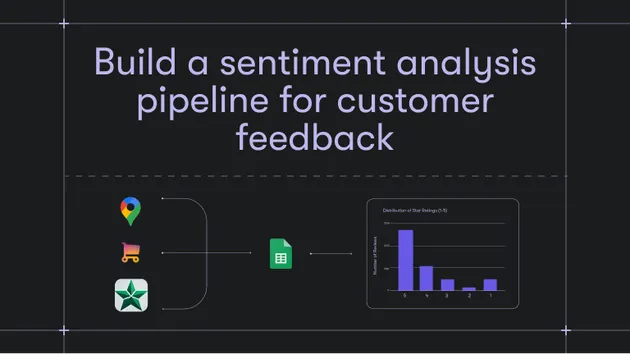
- Analyze customer review sentiment without code
- Tag customer feedback with multiple topics
- Route support tickets to the right team
- Classify local CSV files with Claude, Codex or Cursor
- Use JEV for text classification without code
How to classify texts from CSV, JSON or a pasted list
- Add your texts. Choose Paste texts, then use Bulk edit to paste one text per line. Or choose Upload CSV / JSON and upload your file.
- For files, name the text field. Enter the exact CSV column name or top-level JSON key. For a column called
Customer review, enterCustomer review, including the capital C and space. - Describe your goal. For example: “Analyze the sentiment of each customer review.”
- Add your labels. For sentiment, try
positive,neutral,negative. For support tickets, trybilling,technical support,cancellation,other. - Optionally turn on Allow multiple labels per text and choose a maximum.
- Click Save & Start. Watch the progress counter, then open Output to view and download your results.
Only your selected source is used. If you switch to file upload, the sample pasted texts are ignored. See the Input tab for all fields, tooltips and examples.
What can you use a bulk text classifier for?
| Your task | Example goal | Example labels |
|---|---|---|
| Review sentiment analysis | Identify how the customer feels about the product | positive, neutral, negative |
| Customer feedback analysis | Identify the themes mentioned in each response | pricing, quality, delivery, service |
| Support ticket routing | Choose the team that should handle each ticket | billing, technical support, sales, other |
| Survey response coding | Group open-ended answers by the reason customers left | price, missing features, reliability, other |
| Sales inquiry classification | Identify the intent of each inquiry | buy now, request demo, compare options, support |
| Product categorization | Choose the best category for each product description | clothing, electronics, home, beauty, other |
| Social media comment tagging | Identify discussion topics in each comment | product question, complaint, praise, unrelated |
| Content review queues | Flag the types of content that need human review | spam, abuse, promotional, relevant |
One text, several topics? Enable multiple labels to capture both pricing and delivery in the same customer review. The maximum controls how many matching labels can appear, not how many must appear.
File examples: CSV and JSON text classification
CSV upload
Upload a UTF-8 CSV with a header row:
Set Text column / JSON key to review. Comma, semicolon and tab separators are supported. Quoted text may contain commas and line breaks. Other columns are ignored and do not appear in the output.
JSON upload
Upload a JSON array of objects:
Set Text column / JSON key to review. The key must exist in every object and contain a non-empty string. Nested paths are not supported: review.text means a literal key named review.text. Export nested values into a top-level field first.
What results will I get?
Exactly two fields, with one row per classified text in the original input order. A completed run covers the full input unless your budget or Free-plan allowance stops it early:
| Field | What it contains |
|---|---|
text | Your original text, unchanged |
label | One of your labels; a list of matching labels in multiple-label mode |
Example single-label output:
Example multiple-label output with a maximum of 2:
Examples are illustrative; classification depends on your goal and labels. Multiple-label mode returns an empty list if no label matches. Single-label mode always chooses the best available label, so include other or unclear when you need that option.
You can download the dataset in formats such as JSON, HTML, CSV or Excel through Apify. JSON preserves multiple labels as a list. Review the exported layout when using a spreadsheet workflow.
Classify files on your computer with Claude, Codex or Cursor
Use Bulk Text Classifier with the Apify plugin or an Apify MCP connection in a supported assistant. Give the assistant access to the file, your exact text column name, your goal and your labels. It can prepare the input, run the Actor and retrieve the results for you.
The Actor runs in the cloud. A path such as Downloads/reviews.csv is not a cloud download link: your assistant must upload the file to accessible storage or read the selected column and submit the texts. File access and available plugin tools depend on your assistant setup. The connected Apify account must have access to this Actor.
Copy this prompt for CSV sentiment analysis
Use the Apify plugin to run lofomachines/bulk-text-classifier. Read the file reviews.csv in my workspace and use the exact column review. Classify sentiment with labels positive, neutral and negative. Use single-label mode. Upload the file if your tools support it; otherwise read the column and submit the texts. Fetch all result pages and save the output as classified-reviews.csv next to my file. Keep the original order.
Copy this prompt for customer feedback tagging
Use Apify to run lofomachines/bulk-text-classifier on feedback.json. The top-level text key in every object is comment. Identify topics using pricing, delivery, quality and customer service. Allow multiple labels, with a maximum of 3 per text. Retrieve all results and save them as classified-feedback.json.
Copy this prompt for a large local file
Use the Apify plugin to classify the texts in my CSV. First inspect its headers and confirm that the column customer_message exists. Use billing, technical support, cancellation and other as labels. Classify by the team that should handle the request. Split the input into batches within the Actor limits, run them, fetch every result page and merge results in original order into a new CSV.
These workflows let you organize local text collections without manually labeling each row or copying thousands of individual messages into a chat.
Input example for automations and AI assistants
For file input, set source to file, provide the upload URL in file and the exact column or key in textField. The API tab provides integration examples. You can also save an Apify task, schedule repeat runs or connect the Actor to a larger workflow.
How to get useful, consistent classifications
- Explain the decision. “Classify sentiment toward our delivery service” is more specific than “analyze this.”
- Use distinct labels. Similar labels such as
happyandpositiveare harder to separate. - Define ambiguous labels in your goal. Explain when to choose
otheror how to handle mixed sentiment. - Try a small sample first. Review the results, refine the goal and then run the full file.
- Choose single-label mode for routing. Use multiple labels for overlapping topics.
How fast is it, and what does it cost?
Texts are processed in parallel, and identical texts within a processing batch share a classification request while retaining every output row. Short texts and single-label classification generally require less work than long texts with many labels. Runtime also depends on service availability and retries; there is no guaranteed texts-per-second rate.
$1 per 1,000 classified texts ($0.001 per text), for both single-label and multiple-label classification. Standard run processing is included, with no separate Actor start fee. One saved result is one billable text, regardless of how many labels it receives. A valid multiple-label result with no matching label ([]) also counts as a completed classification. Duplicate input rows each produce a billable result.
Only results saved to the dataset are charged. Validation failures produce no classification charge. Check the Pricing tab for the current price. Taxes, your Apify subscription and optional services outside this Actor are separate.
Free Apify plan trial: up to 20 texts total per Apify account across all runs, a maximum of 2,000 UTF-8 bytes per text, and up to 10 available labels. Both classification modes are included. Inputs exceeding the Free-plan per-run limits are rejected before classification starts. The allowance does not reset when you start another run, create a task, delete your results or run several batches at the same time. If fewer trial slots remain than your input size, only the available prefix is processed and the status explains the limit. Slots are reserved before classification; interrupted or failed attempts can consume trial slots, but only saved results are billed. Normal Actor charges use your available Apify credits; “Free plan” does not mean zero-priced results. Paid Apify plans can use the full limits below.
Control your spending: set Maximum cost per run in Run options. The Actor checks the remaining classification budget before starting each batch. If the budget cannot cover the full input, it saves the affordable prefix in original order and reports that the run budget was reached. Compare the progress count with your input size before treating an export as complete.
Frequently asked questions
How many texts can I classify at once?
Up to 50,000 texts, with up to 20 MB of selected text per run. Uploaded files must also be at most 20 MB. Each text can contain up to 12,000 UTF-8 bytes; the character count depends on the language. Split larger files or longer documents before running.
Can I use my own labels?
Yes. Add 2–50 unique labels, each up to 120 characters. Leading and trailing spaces in labels are removed. The Actor only returns labels from your list.
Does it support Italian and other languages?
You can submit texts, goals and labels in different languages. Test a sample in your target language, especially for slang, specialist vocabulary or mixed-language content. No language detection column is added.
What happens if a text belongs to more than one category?
With multiple labels enabled, matching labels are returned up to your chosen maximum. With it disabled, each text gets one best-matching label.
Why did my file fail validation?
Check the exact field name, including capitalization and spaces. Every selected value must be non-empty text. CSV rows must have consistent columns; JSON must be an array of objects. Save the file as UTF-8. Input errors stop the run before classification begins.
Are duplicates removed or texts shortened?
No. Output preserves the original text, order and duplicate rows. Overlong texts are rejected instead of silently shortened.
What happens if a run cannot finish?
Temporary classification errors are retried. If the run still fails, completed batches remain in its dataset. A failed run may contain only part of the input: check the final status and progress count before using the results as a complete export.
Is my file processed locally?
No. Files and selected texts are processed in the cloud using automated classification services. Only the selected text field is submitted for classification. A separate private quota ledger stores a hashed account identifier and trial reservations to enforce the cumulative Free-plan allowance; it does not store your texts. Application logs contain progress and concise error messages, not your texts. Input and results remain subject to your Apify storage and access settings.
Are results always correct?
No automated classifier is perfect. Review a sample before relying on the output, and keep human review for decisions where mistakes have significant consequences.
Support and more tools
Have a question or a use case to share? Open the Actor's Issues tab with a small, non-sensitive example and the result you expected.
Build your next workflow with more Actors by Lofomachines. Discover tools to collect, organize and turn data into useful results.