
LinkedIn Ad Library Scraper
Pricing
from $2.00 / 1,000 ad returneds
LinkedIn Ad Library Scraper
Returns every ad an advertiser is running on LinkedIn, or every ad matching a keyword, straight from LinkedIn's own public Ad Library.
Pricing
from $2.00 / 1,000 ad returneds
Rating
0.0
(0)
Developer

MrDoe
Maintained by CommunityActor stats
0
Bookmarked
2
Total users
1
Monthly active users
3 days ago
Last modified
Categories
Share
What does LinkedIn Ad Library Scraper do?
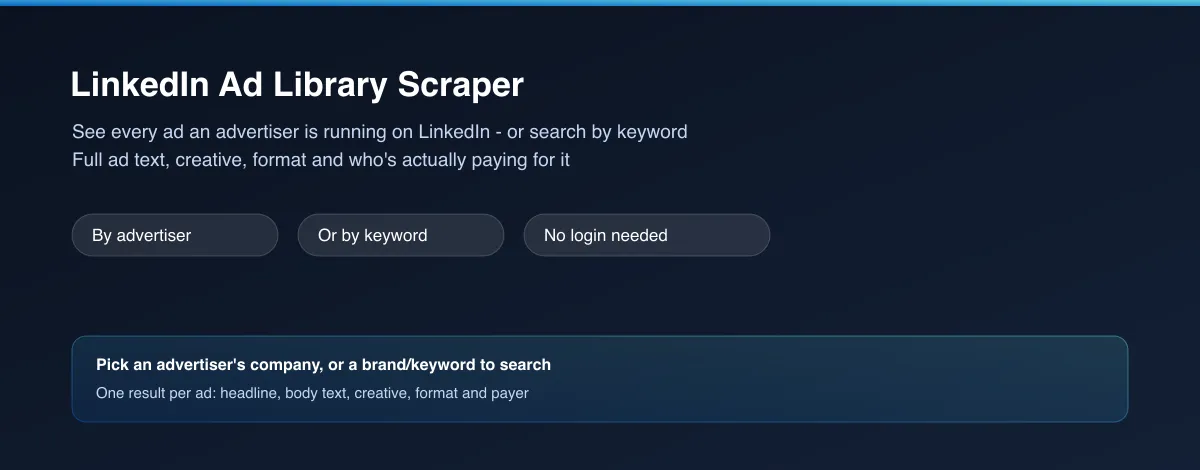
LinkedIn Ad Library Scraper returns every ad an advertiser is currently running on LinkedIn - or every ad matching a keyword across all advertisers - as clean structured data. For each ad you get the headline, full ad text, creative image, format and call-to-action, and optionally who actually paid for it (often an ad agency, not the brand itself). No login, no LinkedIn account needed.
Why use LinkedIn Ad Library Scraper?
- No LinkedIn account needed - works fully logged out, every run.
- Full ad content, not a summary - headline, complete body text and creative for every ad.
- Two ways in - look up one advertiser by their LinkedIn company, or search by keyword to find ads from any advertiser running on that topic.
- See who's paying - optionally reveal the actual payer behind each ad, which is frequently a media/creative agency rather than the brand it's promoting - a real B2B intelligence signal LinkedIn discloses but doesn't make easy to collect at scale.
- B2B-focused - a distinct audience and ad style from consumer platforms, useful for recruiting, SaaS, and professional-services competitive research.
What makes this different
Most ad-library lookups make you click through one advertiser's ads by hand, one at a time. This Actor pulls every one of an advertiser's current ads - or every ad matching a keyword - directly into structured rows, so you can review a competitor's entire current LinkedIn ad activity, including who's actually funding it, in a spreadsheet in one pass.
Who uses LinkedIn Ad Library Scraper?
- B2B marketers and demand-gen teams - see exactly what messaging and offers a competitor is running on LinkedIn right now.
- Recruitment and employer-branding teams - track how competitors are advertising open roles and employer brand campaigns.
- Agencies and consultants - identify which agency is behind a competitor's or a prospective client's current LinkedIn campaigns.
- Market researchers - pull a structured record of B2B advertising activity in a given topic or industry for a client report.
How it works
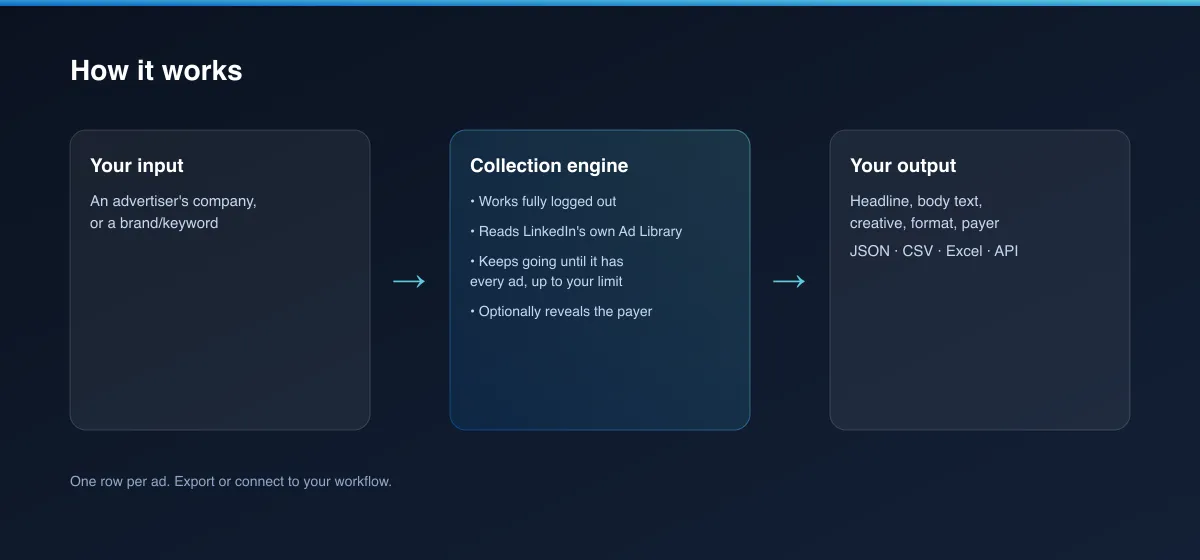
- Your input - an advertiser's LinkedIn company, or a brand/keyword to search.
- The Actor collects it - it reads LinkedIn's own public Ad Library for that advertiser or keyword, works fully logged out, and keeps going until it has every ad, up to your limit.
- Your output - one structured record per ad, with its full text, creative and format, ready for a spreadsheet, dashboard or report.
What data can you extract?
| Field | Description |
|---|---|
advertiserName | The advertiser's display name on LinkedIn |
advertiserCompanyUrl | Link to the advertiser's LinkedIn company page |
adFormat | The ad's format (e.g. Single Image Ad, Video Ad) |
headline | The ad's headline |
bodyText | The ad's full body text |
ctaText | The call-to-action button text (requires fetchPayerInfo) |
imageUrl | The ad's creative image, or video cover image |
payerName | Who actually paid for the ad, often an agency (requires fetchPayerInfo) |
country | The country filter applied to this run, when one was given |
searchedBy / searchTerm | Whether this run searched by companyId or keyword, and the value used |
adDetailUrl | Direct link to view this ad on LinkedIn's own Ad Library |
scrapedAt | When this record was collected (ISO timestamp) |
How to use LinkedIn Ad Library Scraper
- Open the Actor and go to the Input tab.
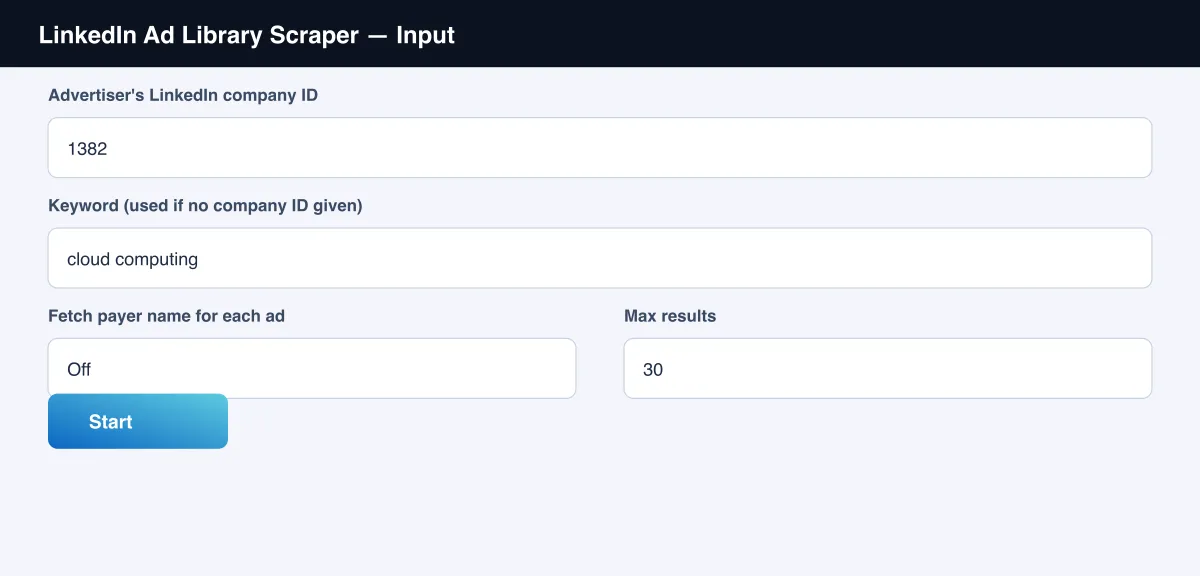
- Enter an Advertiser's LinkedIn company ID (a number, or a company URL containing one), or leave it empty and use Keyword instead (see the screenshot below).
- Optionally turn on Fetch payer name for each ad to also capture the CTA text and who actually paid for each ad.
- Optionally set Max results.
- Click Start.
- Open the Dataset tab, or pull results via the API, once the run finishes.
Input Parameters
| Parameter | Type | Required | Default | Description |
|---|---|---|---|---|
companyId | String | No* | - | An advertiser's LinkedIn company ID, or a URL containing one |
keyword | String | No* | "cloud computing" | A word/phrase to search, used when companyId is empty |
country | String | No | - | Limit results to one country (2-letter code), e.g. "US", "GB" |
fetchPayerInfo | Boolean | No | false | Also fetch each ad's CTA text and actual payer name |
maxItems | Integer | No | 30 | Maximum number of ads to return |
proxyConfiguration | Object | No | Residential Apify Proxy | Advanced - a residential proxy is required; leave as default unless you have a reason to change it |
*Provide either companyId or keyword - if both are empty the run has nothing to search for.
Output Data
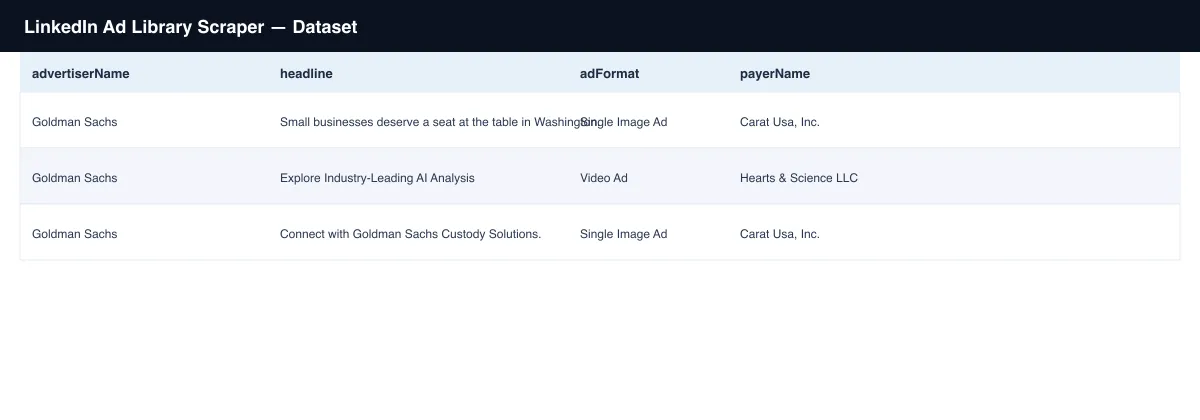
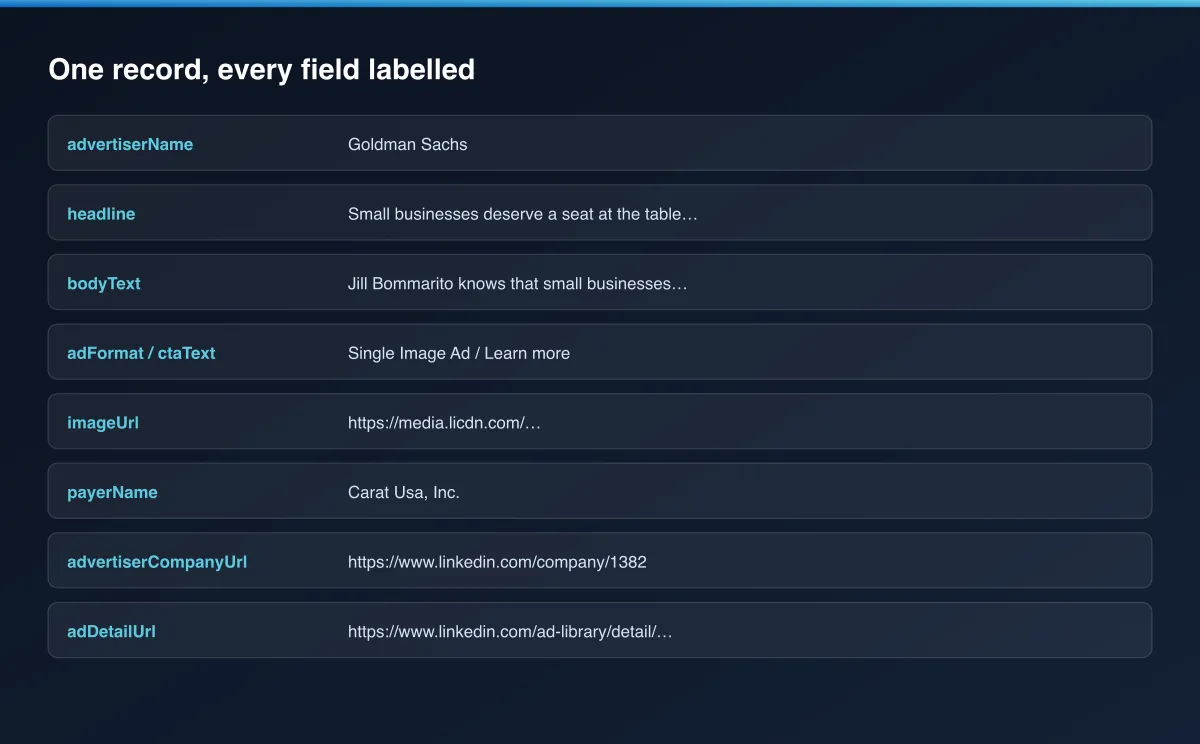
Each ad produces one dataset record. Example:
Usage Examples
- Competitor audit - set
companyIdto a competitor's LinkedIn company ID to see every ad they're currently running. - Topic research - set
keywordto a product category or industry term to see which advertisers are active in that space on LinkedIn right now. - Agency intelligence - turn on
fetchPayerInfoto see which media/creative agency is actually behind a set of campaigns, not just the brand name shown. - Ongoing tracking - schedule the same
companyIdon a recurring run to catch new ads as an advertiser launches them.
Tips for Best Results
- Use
companyIdwhenever you know it - it's more precise than a keyword search and returns only that advertiser's own ads. - Only turn on
fetchPayerInfowhen you need it - it adds one extra page load per ad, so it's slower and costs more than the default fast path. - A keyword search can match ads from many different advertisers across industries - combine it with a specific product or topic term to narrow results.
Known Limitations
- Returns the ads LinkedIn's own public Ad Library currently discloses for the given advertiser or keyword, not a full historical archive.
- This Actor cannot surface view/impression/spend numbers - LinkedIn's public Ad Library doesn't publish those figures for ordinary ads.
- Creative image URLs are served from LinkedIn's own CDN and may expire after some time; download or re-host them promptly if you need to keep a copy.
Integrations
Connect LinkedIn Ad Library Scraper to the rest of your stack via the Apify API, webhooks, scheduled runs, or directly to Google Sheets, Make, and Zapier through Apify's built-in integrations.
Export Formats
Download results as JSON, CSV, Excel, or XML from the Dataset tab, or fetch them programmatically via the Apify API.
Frequently Asked Questions
Do I need a LinkedIn account or to log in?
No. Every run works fully logged out.
How do I find an advertiser's company ID?
Search for the advertiser directly on LinkedIn's own Ad Library site, click their name in the
results, and copy the numeric ID from the resulting URL - or paste that same URL straight into
the companyId field; this Actor extracts the number for you.
Why is payerName empty by default?
Getting it requires visiting each ad's own detail page, which is slower and costs more per ad.
Turn on fetchPayerInfo when you specifically need it.
Can I schedule this to run automatically?
Yes, use Apify's built-in Scheduler to re-check an advertiser or keyword on any interval you choose.
Support
Found an issue or have a request? Open it on the Actor's Issues tab in the Apify Console.
Legal / Responsible Use
You're responsible for using this Actor in compliance with applicable laws and the target platform's terms of service. This Actor retrieves publicly viewable ad information only; it does not collect personal data.


