

PSD to PNG Converter: Render Photoshop Files with Fonts
Pricing
from $42.50 / 1,000 psd converteds
PSD to PNG Converter: Render Photoshop Files with Fonts
Convert Photoshop PSD/PSB files to PNG, JPG, WebP or AVIF without Photoshop. Text layers are redrawn with your fonts (upload, link or auto Google Fonts), effects and blend modes applied, layers shown/hidden. Batch + ZIP.
Pricing
from $42.50 / 1,000 psd converteds
Rating
0.0
(0)
Developer

Scrapers Lat
Maintained by CommunityActor stats
0
Bookmarked
2
Total users
1
Monthly active users
a month ago
Last modified
Categories
Share
PSD to PNG Converter: Render Photoshop Files with Fonts
Turn Photoshop documents (PSD and PSB) into PNG, JPG, WebP, AVIF or TIFF images, in bulk, without Photoshop. Text layers are redrawn with real fonts, so text you edited, translated or filled in from a template shows up correctly, even if the file was never re-saved in Photoshop. Adjustment layers, smart objects, every layer effect, blend modes, masks and groups are applied, and you can show or hide any layer before rendering.
Replace text right here: translate a design, personalize a template or produce hundreds of variants from one PSD with a CSV (one row per image). You can also get back an edited, still-editable PSD with the new text.
Missing fonts are handled for you: upload your own, paste links, or let the converter download the right Google Font automatically and use metric-compatible replacements for Arial, Helvetica, Times New Roman, Calibri and other commercial fonts.

Rendered from this sample PSD (the prefilled example). Its 6 text layers use Bebas Neue and Poppins, which were not uploaded: the converter found them on Google Fonts by itself.
📥 Input · 📤 Output · 💰 Pricing




Table of contents
- What it does
- Who uses it
- Quickstart
- Edit text and fill templates
- Fonts: how text is matched
- Input reference
- Output reference
- Example output record
- Run via API
- Pricing and limits
- FAQ and troubleshooting
What it does
- Converts PSD and PSB files of any size, at 1, 8, 16 and 32 bits per channel, in every color mode: RGB, CMYK, grayscale, bitmap, indexed, Lab, duotone and multichannel.
- Redraws text layers from their text, with kerning, tracking, leading, paragraph boxes, every justification mode, indents, all caps and small caps, faux bold and italic, baseline shift, underline and strikethrough. Vertical text (including upright CJK) and OpenType features such as ligatures, contextual alternates, swashes, fractions, ordinals, oldstyle figures and super/subscript are drawn too. Prefer the pixels Photoshop saved? Switch Text layers to Keep original pixels.
- Every warp: all 15 Photoshop warp styles (Arc, Arch, Bulge, Flag, Wave, Fish, Rise, Fisheye, Inflate, Squeeze, Twist, Shell and the rest) plus custom and quilt warps.
- Every layer effect: stroke (solid, gradient or pattern; inside, center or outside), drop shadow, inner shadow, outer glow, inner glow, satin, bevel and emboss (with contours and textures), and color, gradient and pattern overlays.
- Adjustment layers: levels, curves, brightness/contrast, hue/saturation, color balance, vibrance, exposure, selective color, channel mixer, gradient map, photo filter, invert, posterize, threshold, black & white and color lookup (3D LUTs).
- Smart objects: the preview saved in the file by default, or re-rendered from their embedded or linked contents (PSD/PSB, PNG, JPG) with their perspective, warps and smart filters (blurs, sharpen, unsharp mask, high pass, median, maximum, minimum, offset, mosaic, invert, solarize, curves, brightness/contrast and more).
- Full compositing: all 27 blend modes, groups (pass-through and knockout), clipping masks, layer masks, vector masks, fill layers (solid, gradient, pattern), shape strokes, opacity and fill opacity, Blend If and channel restrictions.
- Replace text in any text layer, including layers inside smart objects, before rendering. The layer keeps its font, size, color, effects and warp.
- Template variants: one PSD in, many images out. Give a list of variants (or a CSV with one row per image), each with its own texts and visible layers.
- Edited PSD output (optional): get the PSD/PSB back with the new text, still editable in Photoshop, next to the image.
- Show or hide layers by name before rendering, with wildcards and group paths (
Draft*,Header/Logo,#12). Remove watermarks or guides, switch template options on and off, or hide every text layer for a clean background. - Many files at once: upload files, paste links (direct, Google Drive, Dropbox, OneDrive/SharePoint, GitHub), pick a key-value store, or send ZIP archives full of PSDs. All images (and edited PSDs) also come in a single ZIP.
- Output the way you need it: PNG, JPEG, WebP, AVIF or TIFF; quality and PNG compression; scale by percent or fit inside a max width/height; background color for transparent areas; trim empty edges; thumbnails; file name prefix.
- Text content and layer data for every file: the text of each text layer, plus the full layer list (name, group path, type, visibility, opacity, fill opacity, clipping, blend mode, position, size).
- Text masks (optional): one grayscale PNG per text layer showing exactly where its letters land, for translation, inpainting and QA workflows.
- Never charges for failures: a broken link, a file that isn't a PSD or a file over your size limit is reported with a clear reason and costs nothing.
Who uses it
- Marketing and e-commerce teams rendering banners, social posts and product images from PSD templates, in every language and size.
- Comic, manga and webtoon translators putting the translation straight into the text layers, rendering the pages and keeping an editable PSD, plus clean text-free backgrounds and text masks.
- Personalization at scale: certificates, badges, tickets, name cards, price tags and social cards from one template and a spreadsheet.
- Print-on-demand and template shops generating previews and thumbnails for thousands of PSD listings.
- Developers and automation builders (Make, Zapier, n8n, your own backend) who need a PSD to image API with no Photoshop license and no desktop step.
- Agencies and archivists batch-converting old PSD/PSB libraries into web-friendly formats.
Quickstart
- Open the Input tab.
- Add your files under 📂 Photoshop files: drop them in Upload PSD / PSB files, paste links in PSD / PSB links, or both. ZIP archives work.
- Optional: add your fonts under 🔤 Fonts (upload files or a ZIP of your font folder).
- Choose the Output format and any extras, then click Start.
- Open the Output tab: each row has an image preview and a download link. The ZIP with all images link downloads everything at once.
The prefilled example converts one sample banner so you can see the result in a few seconds.
Edit text and fill templates
Same change in every file. Use Replace text (key = layer, value = new text):
| Key (layer) | Value (new text) |
|---|---|
Headline | SUMMER SALE |
Card/Name | Ana Pérez (layer Name inside group Card) |
Price* | $19.99 (every text layer whose name starts with Price) |
Logo box/Title | ACME (text layer Title inside smart object Logo box) |
Write \n for a new paragraph. Layers are matched by name (case-insensitive, * and ? wildcards), by group path or by index (#12); the texts field of any result lists the exact layer names. The new text keeps the layer's font, size, color, effects and warp.
Many images from one PSD. Use Variants (JSON) or Variants from a CSV / JSON file. Every variant becomes one image named <file>-<variant>:
The same thing as a CSV (columns named after text layers; name, file, show and hide are optional, empty cells keep the original text):
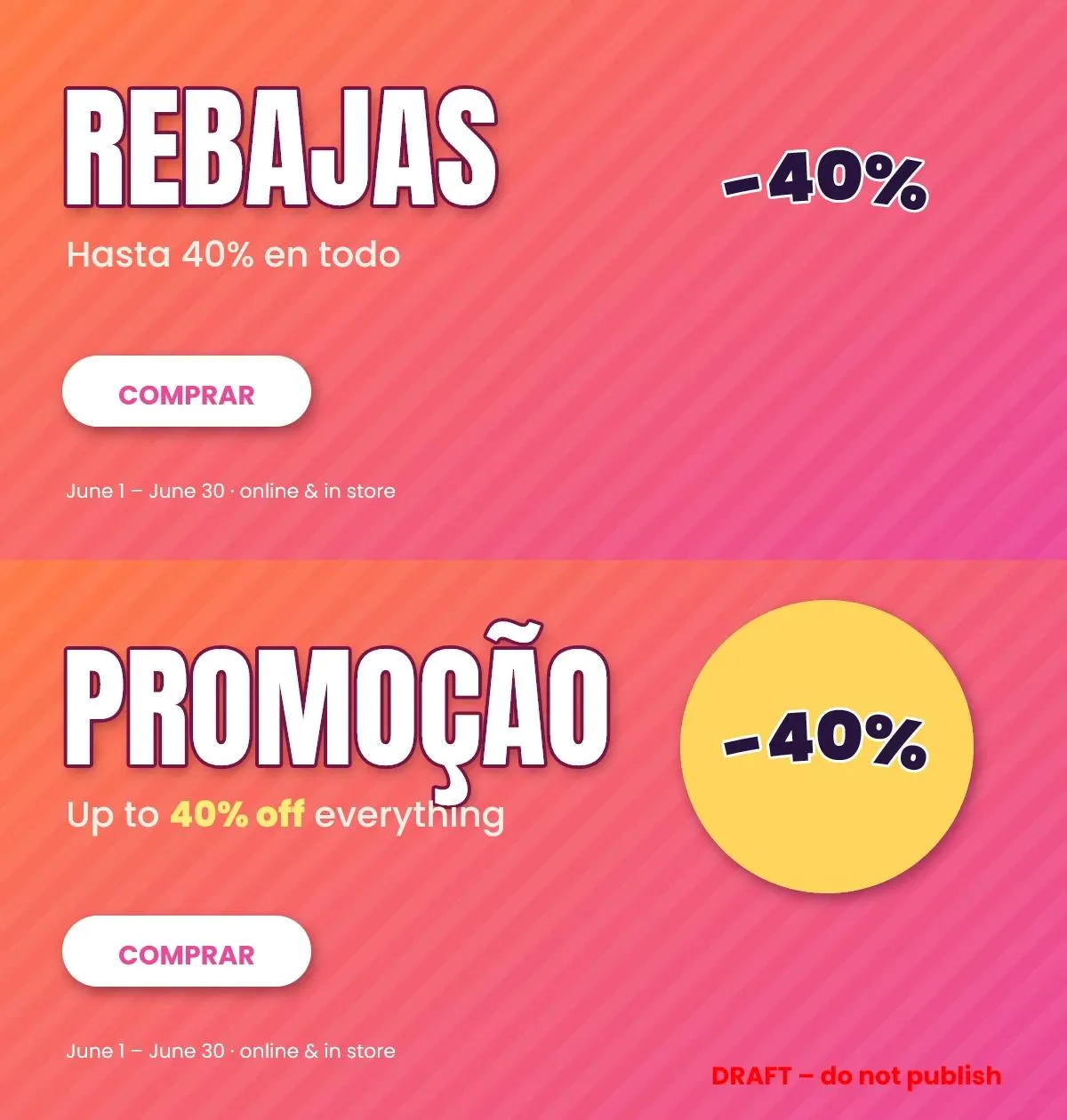
Both images come from the sample PSD in one run: new texts, a different font forced with the font map (Bebas Neue drawn as Anton), and different layers switched on and off.
Use the file column (or "files": ["banner*.psd"]) to send a row to specific PSDs when you convert several templates at once. Turn on Also save the edited PSD to get each variant back as an editable PSD as well.
Fonts: how text is matched
Photoshop files store the names of their fonts, not the fonts themselves. For each font used in a text layer, the converter looks in this order:
- Your fonts (uploads, links, ZIPs or the selected key-value store). TTF, OTF, TTC, WOFF and WOFF2 are accepted. Your fonts always win.
- Google Fonts (1,900+ families), downloaded automatically in the exact weight and style. You can also preload families by name.
- Replacements for commercial fonts that aren't free to distribute:
- metric-compatible (same letter widths, so lines break exactly like the original): Arial, Helvetica, Times New Roman, Courier New, Calibri, Cambria, Georgia;
- look-alikes: Gotham and Proxima Nova, Futura, Avenir, Myriad, Minion, Garamond, Segoe UI, SF Pro, Impact, Gill Sans, DIN, Trebuchet, comic lettering fonts and more;
- script-matched: Japanese, Chinese and Korean system fonts (Kozuka, Hiragino, Meiryo, MS Gothic/Mincho, SimHei, SimSun, PingFang, Malgun, Gulim…) use Noto fonts of the same script and style.
- Closest style of the same family, then of a common sans, serif or monospace family, with synthetic bold or italic when needed.
- The built-in font library (Noto including Chinese/Japanese/Korean, DejaVu, Liberation, Roboto, Open Sans, Inter and more), which also covers any character your fonts lack.
Want a specific replacement? Use the Font map (key = font in the PSD, value = font to draw it with, e.g. CCWildWords-Roman → Anton-Regular). The target can be one of your fonts, a built-in font or any Google Fonts family, which is downloaded automatically.
Every result says what happened in fontsResolved (requested font, family used, source, match type) and lists anything still unavailable in fontsMissing, so you know exactly which fonts to upload for a pixel-exact match.
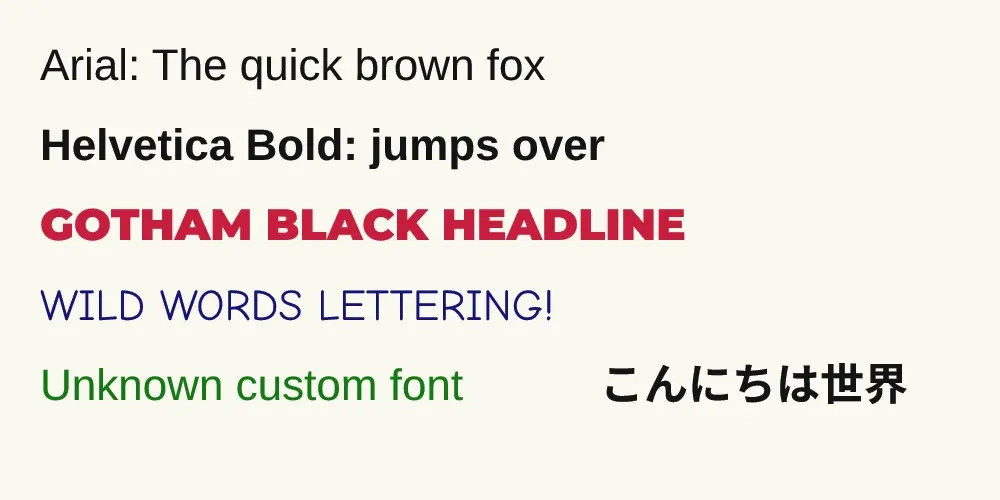
A test file using ArialMT, Helvetica-Bold, Gotham-Black, CC Wild Words, an unknown brand font and Kozuka Gothic. Nothing was uploaded.
Input reference
| Field | Type | Description |
|---|---|---|
psdFiles | file upload (array) | PSD/PSB files or ZIP archives you upload. |
psdUrls | array of links | Public links to PSD/PSB files or ZIPs. Google Drive, Dropbox, OneDrive/SharePoint and GitHub share links are converted to downloads automatically. |
fileStore | key-value store | Optional. Use every PSD/PSB, ZIP and font stored in one of your key-value stores. |
linkedFiles | file upload (array) | Outside files of linked smart objects (PSD, PSB, PNG, JPG or a ZIP), matched by file name. Files inside a ZIP of PSDs are found automatically. |
linkedFileUrls | array of links | Links to those files. |
fontFiles | file upload (array) | Font files or ZIPs of fonts. |
fontUrls | array of links | Links to font files or font ZIPs. |
googleFonts | array of names | Google Fonts families to preload, e.g. Poppins, Bebas Neue. |
fontMap | key-value list | Draw font key (name in the PSD) with font value. |
autoDownloadGoogleFonts | boolean | Find missing fonts on Google Fonts automatically. Default true. |
fontSubstitution | lookalike / metric / off | Replacement policy for commercial fonts. Default lookalike. |
useBuiltInFonts | boolean | Use the built-in font library. Default true. |
textReplacements | key-value list | Replace the text of matching text layers in every file. Key: layer name, wildcard, group path, #index or Smart object/Layer. Value: new text (\n = new paragraph). |
variants | array of objects | One image per variant: name, texts (layer → text), show, hide, files (PSD name filter). |
variantsFile | file upload or link | CSV or JSON with one variant per row (columns = text layers, plus optional name, file, show, hide). |
textRendering | rerender / original | Redraw text with fonts, or keep the pixels Photoshop saved. Default rerender. |
hideLayers | array | Layers/groups to hide. Case-insensitive, * and ? wildcards, group paths (Header/Logo) or index (#12). |
showLayers | array | Layers/groups to switch on (their parent groups are switched on too). |
hideTextLayers | boolean | Render without any text. Default false. |
exportTextMasks | boolean | Save one coverage mask per text layer. Default false. |
renderSmartObjects | boolean | Re-render smart objects from their contents instead of the saved preview. Default false (smart objects with replaced text are always re-rendered). |
outputFormat | png / jpeg / webp / avif / tiff | Output format. Default png. |
quality | 1-100 | Quality for JPEG, WebP, AVIF, TIFF. Default 90. |
pngCompression | 0-9 | PNG compression level (lossless). Default 6. |
backgroundColor | text | Fill transparent areas, e.g. #FFFFFF. Empty keeps transparency. |
scalePercent | 1-400 | Resize relative to the canvas. Default 100. |
maxWidth / maxHeight | pixels | Fit inside these bounds (never enlarges). 0 = no limit. |
trimTransparentEdges | boolean | Crop empty borders. Default false. |
thumbnailWidth | pixels | Also create a thumbnail. 0 = none. |
fileNamePrefix | text | Prefix for every output file name. |
createZip | boolean | One ZIP with every image when more than one file is converted. Default true. |
includeLayerDetails | boolean | Add the full layer list to each result. Default true. |
saveEditedPsd | boolean | Also save the PSD/PSB with the replaced text, still editable. Free. Default false. |
maxConversions | integer | Cap on images produced (and charged) per run, variants included. Default 1000. |
maxFileSizeMb | integer | Skip files above this size. Default 2048. |
renderTimeoutSecs | integer | Time limit per file. Default 300. |
Example input:
Output reference
One dataset row per file. Images are saved in the run's key-value store and linked from each row; the run's OUTPUT record has totals, the ZIP link and every font found during the run.
| Field | Description |
|---|---|
fileName, source | The PSD (with its folder when it came from a ZIP) and where it came from. |
variant | Variant name, when variants were used. |
status, error | converted or failed, with the reason for failures (never charged). |
imageUrl, imageKey | Download link and storage key of the rendered image. |
format, imageWidth, imageHeight, imageSizeBytes | Output image details. |
thumbnailUrl | Thumbnail link (when requested). |
psdUrl, psdKey | Edited PSD/PSB link and key (when requested and text was replaced). |
psdWidth, psdHeight, colorMode, bitDepth, hasTransparency | Document details. |
layerCount, groupCount, textLayerCount, smartObjectCount, adjustmentLayerCount | Layer statistics. |
texts | Text of every text layer (after replacements), with layer name, group path and visibility. |
textEdits | Each text replacement and how many layers it changed. |
layersHiddenByRules, layersShownByRules | How many layers your rules changed. |
fontsResolved, fontsMissing | Fonts found automatically and fonts still unavailable. |
textMasks | Per-text-layer masks: layer, link and position (when requested). |
layers | Full layer list: index, name, path, type (pixel, text, group, fill, adjustment, smartObject), visibility, opacity, fill opacity, clipping, blend mode, position, size, text. |
warnings | Notes about features drawn approximately or skipped. |
renderTimeMs, convertedAt | Timing and timestamp. |
The Converted images view shows a preview of every image; the Text content view lists the text of each file and the replacements applied.
Example output record
A real result from a run on the sample PSD with two variants, text replacement, a font map and the edited PSD turned on (texts, fontsResolved and layers trimmed):
Run via API
Pricing and limits
- $0.05 per image produced ($50 per 1,000 conversions), with lower prices on higher Apify plans. One PSD/PSB in = one conversion, whatever the output format; with variants, every variant image counts as one conversion.
- Edited PSDs, thumbnails, text masks, layer details, text content and the ZIP download are included at no extra cost.
- Failed files are never charged.
- Your run's spending limit is respected: the run stops converting before it would go over, and you are only charged for images you receive.
- Free Apify plans can convert up to 10 files per run.
- Big files: the default 2 GB memory handles typical PSDs. For large PSB files (hundreds of MB, huge canvases) start the run with 4-8 GB of memory.
FAQ and troubleshooting
Do I need Photoshop or a license? No. Everything runs on Apify; you only need the PSD files.
My text looks different from Photoshop.
Almost always a font is missing or is a different version. Check fontsMissing and fontsResolved in the result, then upload the exact font files (or a ZIP of your font folder) and run again. Uploaded fonts always take priority.
I edited the text with a script or another app and the old text still shows elsewhere. That is the problem this converter solves: with Redraw text with fonts (the default) every text layer is laid out again from its current text, so the image always shows what is in the file.
Can I get the image exactly as Photoshop last saved it? Yes, set Text layers to Keep original pixels. Fonts are then not needed for text.
What do replaced texts look like? Each new paragraph keeps the paragraph settings of the old paragraph in the same position and the character style used most in it. A word highlighted in another color or weight in the original is therefore drawn in the main style; to keep mixed styles, split them into separate text layers in the template.
My smart object is linked to an outside file. Upload the linked files under Linked smart object files (or keep them in the same ZIP as the PSD) and turn on Re-render smart objects. Without them the preview saved in the PSD is used, which is usually what Photoshop showed.
Which features are approximated?
Very little. Photoshop's random patterns (the Dissolve blend mode and noise gradients) are drawn with the same density but different dots, and a smooth ramp is used for noise gradients. Extreme stacks of color adjustments with out-of-gamut colors can land a few levels away from Photoshop. Noise, distort and Camera Raw smart filters and smart filter masks are not applied (the saved preview is used instead), and duotone files that use color-book inks without a saved preview are shown in grayscale. Edited PSDs cannot be written for bitmap and multichannel documents (the image is still produced). Every case is listed in the row's warnings, never a crash.
My Google Drive / Dropbox link fails. Make sure the file is shared as "anyone with the link". Private files can be uploaded instead, or stored in an Apify key-value store and selected under …or a key-value store with your files.
How do I export several versions of the same template? Use Variants: each one sets its own texts and visible layers, and all images come out of a single run. For hundreds of versions, upload a CSV with one row per image.
Is my data private? Your files and images stay in your own Apify storage, under your account's data retention settings.
Need a feature, a format or a custom workflow? Open an issue on the Issues tab, we answer fast.


