
OCR PDF & Image to Excel
Pricing
from $20.00 / 1,000 pages
OCR PDF & Image to Excel
Extract tables and structured text from PDFs and images using OCR, then export the results to Excel. Supports scanned documents, multi-page PDFs, table reconstruction, merged headers, and noisy scans.
Pricing
from $20.00 / 1,000 pages
Rating
0.0
(0)
Developer

Daniel Messias Leão da silva
Maintained by CommunityActor stats
0
Bookmarked
2
Total users
1
Monthly active users
25 days ago
Last modified
Categories
Share
Convert scanned PDFs and images into structured Excel workbooks using OCR.
OCR PDF & Image to Excel detects table-like structures, reconstructs rows and columns, and exports the extracted content to an XLSX file. It is designed for scanned documents and images where the original table data is not directly available as selectable text.
What can it process?
The Actor supports:
- PDF documents from a direct file URL
- Images from a direct file URL
- Multi-page PDFs
- Tables with visible borders
- Borderless tables
- Merged headers
- Multi-row headers
- Weak or missing table borders
- Skewed scanned pages
- Noisy or lower-quality scans
- Tables with varying column widths
- Text, numeric, monetary, date, and formula-like cell content
OCR results depend on the quality and layout of the source document.
How to use it
- Open the Actor input.
- Enter a direct URL to a PDF or image.
- Select the OCR language.
- Set the maximum number of PDF pages to process.
- Run the Actor.
- Open Storage -> Key-value store.
- Download
OUTPUT.xlsx.
For multi-page PDFs, each processed page is exported to its own worksheet.
Input
file_url
Direct URL to the PDF or image to process.
language
OCR language used during recognition.
max_pages
Maximum number of PDF pages to process. This can be used to limit work on large documents.
Output
The generated workbook is stored as OUTPUT.xlsx in the run's default Key-value store.
The Actor also writes one metadata record to the default Dataset, including:
statusfile_urlsource_typepages_processedrows_extractedocr_languageocr_confidenceoutput_file
Example metadata:
Example result
Here is a real example processed by the Actor.
Source image
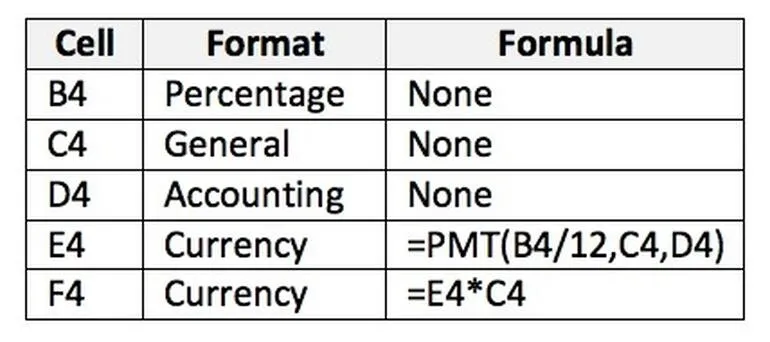
The input contains a table with 3 columns and 6 rows:
| Cell | Format | Formula |
|---|---|---|
| B4 | Percentage | None |
| C4 | General | None |
| D4 | Accounting | None |
| E4 | Currency | =PMT(B4/12,C4,D4) |
| F4 | Currency | =E4*C4 |
Generated Excel workbook
The Actor detected the table structure and generated OUTPUT.xlsx with the same 3 columns and 6 rows, including the formula-like values.
This example was processed as a single image and exported to the Page_1 worksheet.
Excel workbook
The generated workbook provides:
- One worksheet per processed page
- Extracted rows and columns
- Bold first row
- Frozen first row
- Automatic filtering
- Automatic column-width adjustment
- Detected formulas preserved as text where appropriate
Table reconstruction
The Actor combines OCR with structural table analysis. Depending on the document, it can use visible grid lines, recovered weak borders, recurring text positions, physical grid reconstruction, borderless-table anchors, merged-header detection, multi-line header recognition, adaptive deskew, and conservative multi-pass OCR correction.
Pricing
The primary usage event is $0.02 per successfully processed page.
Examples:
- 1 page: $0.02
- 10 pages: $0.20
- 100 pages: $2.00
- 1,000 pages: $20.00
The Actor charges the page event only after OCR for that page completes successfully. Apify may show platform usage separately according to the user's plan.
Tips for better results
- Use clear, readable source files.
- Prefer direct file URLs rather than webpage URLs.
- Select the correct OCR language.
- Test a small number of pages before processing a large PDF.
- Review the workbook when the source is heavily damaged or unusually formatted.
Handwriting and extremely low-resolution scans may require manual review.
Privacy and responsible use
Only process documents that you are authorized to access and process. You are responsible for complying with applicable privacy, copyright, confidentiality, and data-protection requirements.
Where to download the Excel file
After a successful run, open:
Run -> Storage -> Key-value store -> OUTPUT.xlsx
The Dataset contains processing metadata. The Excel workbook itself is stored in the Key-value store.


