
Microsoft Ad Library Scraper
Pricing
from $1.40 / 1,000 results
Microsoft Ad Library Scraper
[💰$2 / 1K] ⚡ Fast Microsoft Ad Library scraper for Bing ads shown in the EU/EEA. No login, no API key. Search by keyword, country and date, or paste ad, advertiser and search URLs. Get ad copy, landing pages, advertiser, payer, run dates, impressions per country and targeting.
Pricing
from $1.40 / 1,000 results
Rating
0.0
(0)
Developer

Aboo Script
Maintained by CommunityActor stats
0
Bookmarked
2
Total users
1
Monthly active users
7 days ago
Last modified
Categories
Security
Limited permissionsShare
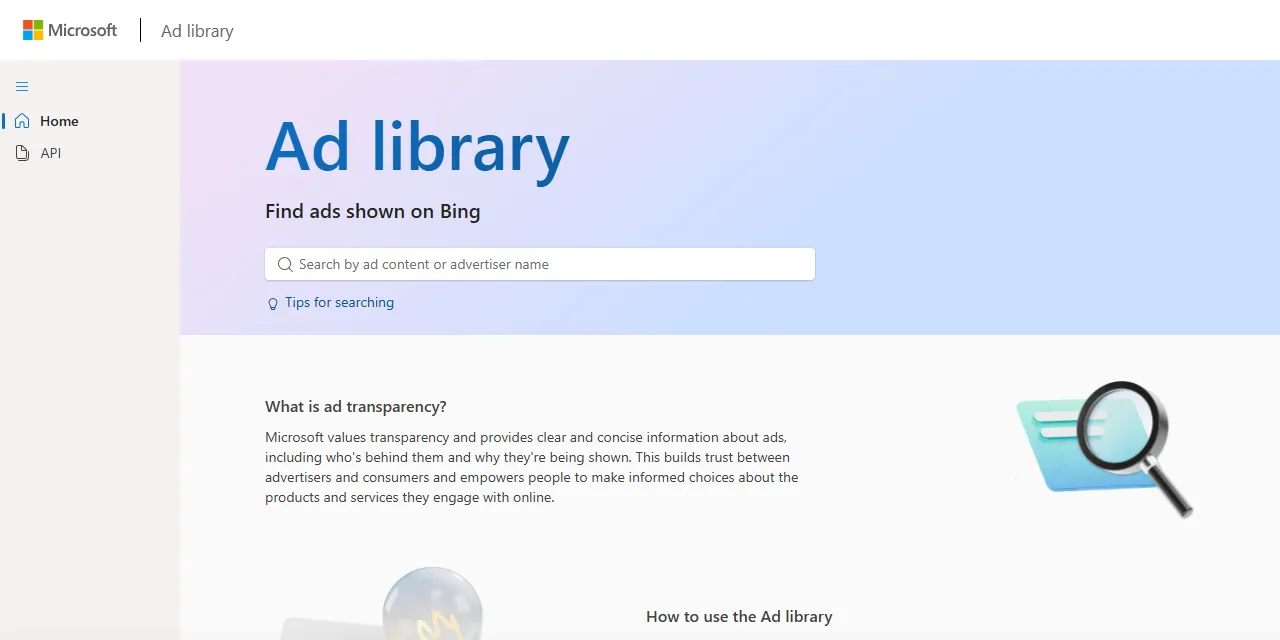
Microsoft Ad Library Scraper extracts Bing ads shown in the EU/EEA from the Microsoft Ad Library into clean, structured data you can download as JSON, CSV, Excel, or HTML. Type a keyword or paste an Ad Library search, advertiser, or ad URL, and get the ad copy, display and destination URLs, advertiser details, run dates, impressions per country, and targeting for every ad. No account or login required.
Introduction
The Microsoft Ad Library is Microsoft's public ad transparency database. It lists the ads shown on Bing and the Microsoft Advertising network in the European Union and EEA, together with who paid for them, when they ran, how many people saw them, and how they were targeted.
This actor collects the same public information you see in your browser and turns it into a ready-to-use dataset, a simple Microsoft Ad Library API alternative. You can run it once, schedule it to run daily, or connect it to your own tools.
What data can you extract from Microsoft Ad Library?
- 🏷️ Ad title and ad text
- 🔗 Display URL, destination (landing page) URL, and the Ad Library URL of each ad
- 🖼️ Ad images with width and height, when the ad has them
- 🏢 Advertiser name, ID, profile URL, country, and verified status
- 💳 Who paid for the ad
- 📅 First and last date the ad was shown
- 📊 Total impressions range (as text and as minimum and maximum numbers) and the share of impressions per country
- 🎯 Targeting used (location, age, gender, audiences) and whether it was used to include or exclude people
- 🚫 Whether the ad was restricted, and why
Use Cases
- 📈 Market research: see which brands advertise on Bing in each EU country and what messages they use.
- 🕵️ Competitor monitoring: follow every ad a competitor runs, with its landing pages, run dates, and reach.
- ✍️ Ad copy inspiration: collect real search ad headlines and descriptions for any keyword.
- 🗂️ Database building: build your own archive of Microsoft Advertising ads by keyword or advertiser.
- 🔍 Transparency and compliance research: study who pays for ads, how they are targeted, and which ads are restricted.
- 🤖 AI and automation: feed clean, structured data into spreadsheets, dashboards, or AI workflows.
How to scrape Microsoft Ad Library step by step
- Type keywords into Search queries, or paste one or more Microsoft Ad Library URLs into Start URLs.
- Optionally pick Countries and a Shown from / Shown until date range for your search queries.
- Set Maximum number of results to how many ads you want per URL or per query.
- Click Start and wait for the run to finish.
- Download your data in JSON, CSV, Excel, or HTML from the Output tab.
Input
- Search queries: keywords to search in the ad text or advertiser name, one per line, for example
nikeor"running shoes"(use quotes for an exact phrase). Each query is scraped separately. - Start URLs: Microsoft Ad Library URLs. Supported pages: ad search pages, advertiser search pages (the ads of every advertiser found are scraped), advertiser pages, and single ad pages. Country, date, and keyword filters you apply on the website are kept in the results.
- Maximum number of results: how many ads to collect for each start URL or search query. Use
0for no limit. - Countries: only ads shown in these EU/EEA countries. Leave empty for all countries. Applies to search queries only.
- Shown from and Shown until: only ads shown within this date range. Applies to search queries only.
- Proxy configuration: the default Apify datacenter proxy is recommended, as it keeps ad details such as impressions and targeting complete.
You can use start URLs, search queries, or both in the same run.
Input Examples
Search by keywords:
Scrape an ad search page, an advertiser, and a single ad:
Search ads shown in Germany and France since the start of 2025:
Output
Each ad is saved as one item in the dataset. Here is an example of a single item:
impressionShare is the percentage of the ad's impressions shown in that country. Ads with images return them as { "url", "width", "height" } objects in images.
You can download the dataset in JSON, CSV, Excel, XML, or HTML, or access it through the Apify API.
Notes
- The Ad Library only covers ads shown in the EU and EEA, so ads shown only in other regions are not available.
- The library returns at most 1,000 ads per search or advertiser. Split broad searches into narrower keywords, countries, or date ranges to get more.
- An advertiser search URL scrapes the ads of the advertisers found, and Maximum number of results counts all of their ads together.
- Countries, Shown from, and Shown until apply to search queries only; start URLs keep the filters already in the URL.
- The Ad Library can be slow at busy times. The actor waits and retries automatically; if an ad's details still cannot be loaded, the ad is saved with its basic data (title, text, URLs, advertiser) and the detail fields are
nullor empty. - Many search ads have no images, so
imagesis often an empty list.paidForByisnullwhen the advertiser did not declare a separate payer. - Ad text is returned in the language the advertiser used.
- If the same ad appears in several of your searches, it is saved only once.
Why use the Microsoft Ad Library Scraper?
- ✅ No login needed: works with public data only, so there is no account to manage.
- 📊 Full ad details included: impressions per country, targeting, payer, and run dates come with every ad by default.
- 🎯 Keeps your filters: paste any Ad Library URL from your browser and get exactly what you see there.
- 🧩 Every page type in one run: mix keywords, ad searches, advertiser searches, advertiser pages, and single ads.
- 🧹 Clean data: numbers are real numbers, dates use one standard format, and text is free of HTML.
- 💸 Pay for what you need: set a result limit per URL or query and keep every run small and cheap.
- 🔄 Ready for automation: schedule runs, export to Google Sheets, or connect to Make, Zapier, and n8n.
FAQ
How many ads can I scrape?
You can set any number in Maximum number of results, or 0 for no limit. The actor keeps going until it reaches your limit or runs out of ads. See Notes for the library's own limit per search.
Do I need a Microsoft Advertising account?
No. The actor only collects publicly available data from the Ad Library. You do not need to log in or provide any account details.
Can I scrape all ads of one advertiser?
Yes. Paste the advertiser's Ad Library page (for example https://adlibrary.ads.microsoft.com/advertiser/4295394582) into Start URLs, or paste an advertiser search URL to cover every advertiser matching a name.
Can I scrape data on a schedule?
Yes. Use Apify Schedules to run the actor every hour, day, or week, and get fresh data automatically.
Can I request a new feature or filter?
Yes. Right now the actor supports search queries, start URLs, countries, and a date range. If you need other filters or inputs, get in touch and they can be added.
Can I get a custom or private version?
Yes. The actor can be customized for your workflow, delivered as a private version, or a new scraper can be built for a different website. Use the contact details below.
Need to scrape other ad libraries?
- Google Ads Transparency Scraper: ads from the Google Ads Transparency Center.
- Facebook Ads Library Scraper: ads from the Meta Ad Library.
- LinkedIn Ad Library Scraper: ads from the LinkedIn Ad Library.
- Amazon Ad Library Scraper: ads from the Amazon Ad Library.
- X Ads Repository Scraper: ads from the X (Twitter) Ads Repository.
Need help or want a custom solution?
- 📧 Email: aboo.script@gmail.com
- 🧩 More scrapers: Apify profile
Image Credit
Image credit: Microsoft Ad Library


