

Outlook Mail Intelligence – Microsoft 365
Pricing
from $1.40 / 1,000 e-mail reads
Outlook Mail Intelligence – Microsoft 365
Read your Microsoft 365 work/school mailbox READ-ONLY via Microsoft Graph, with your organization's own Entra app: sign in on Microsoft's page with a short code (Mail.Read only), search, folders, JSON/CSV export, attachments, stats, duplicates, threads, phishing signs, new-mail checks. Free demo.
Pricing
from $1.40 / 1,000 e-mail reads
Rating
0.0
(0)
Developer

Badr Bouargan
Maintained by CommunityActor stats
0
Bookmarked
2
Total users
1
Monthly active users
2 days ago
Last modified
Categories
Features
Share
For Microsoft 365 work/school accounts (your organization's own app). This Actor reads a Microsoft 365 business or school mailbox through an app that your organization's administrator creates in Microsoft Entra (about 5 minutes, free – see "For your administrator" below). Personal Microsoft accounts (Outlook.com, Hotmail, Live) are not supported in this version.
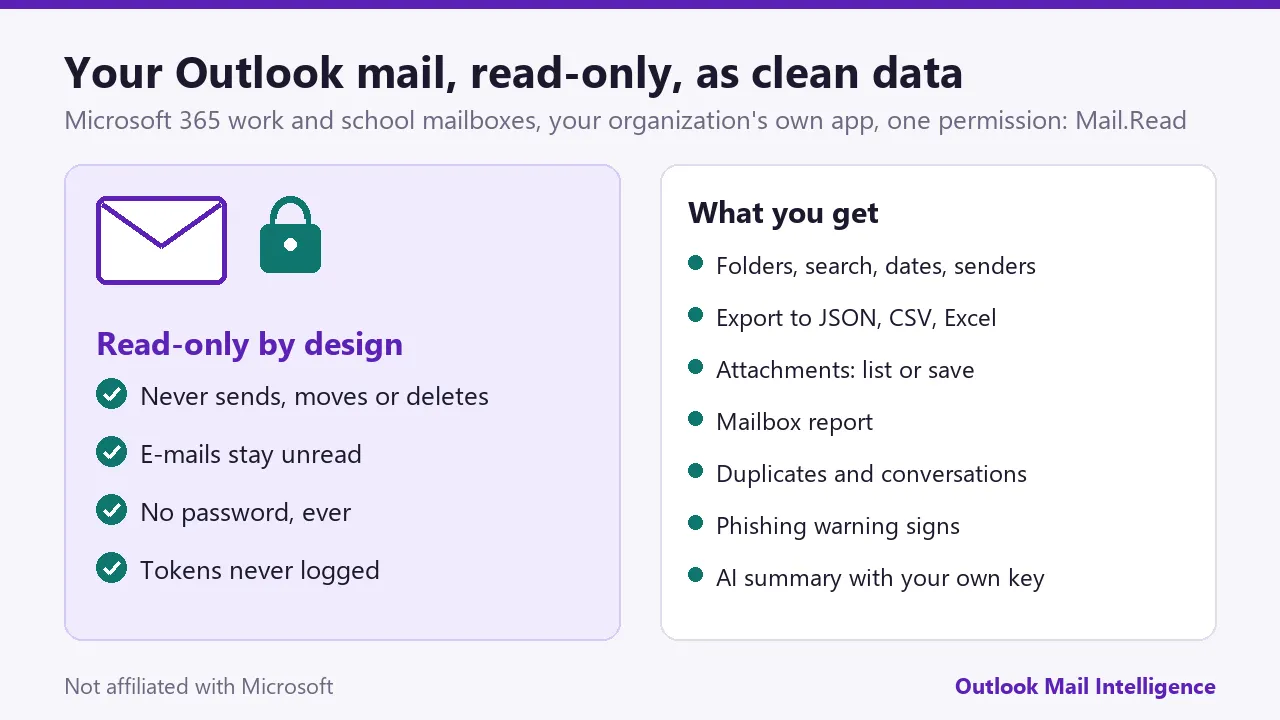
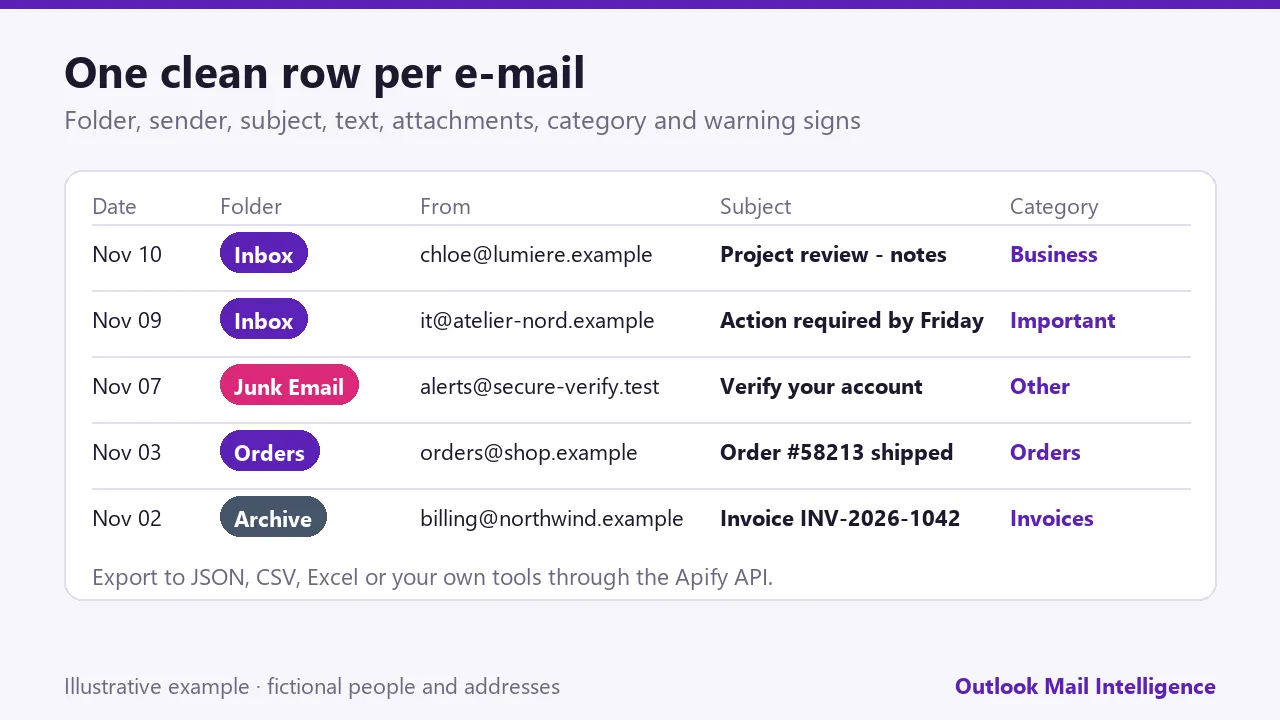
Turn your Microsoft 365 mailbox into clean, searchable data, read-only, through Microsoft Graph. You sign in on Microsoft's own page with a short code: no password is ever typed into this Actor. Pick folders, dates, senders or a search, and get one row per e-mail with its text, folder, attachments, category, conversation, duplicate check and phishing warning signs, plus a mailbox report – and, if you want, an AI summary with your own OpenAI, Anthropic or Gemini key.
Try it first for free: run it with an empty input and you get a demo on a fictional mailbox (14 invented
e-mails, clearly marked demo: true) in a few seconds – no Microsoft account, nothing charged.
Not affiliated with Microsoft. Outlook, Microsoft 365, Microsoft Graph and Microsoft Entra are trademarks of Microsoft Corporation, used only to describe compatibility. No Microsoft or Outlook logo is used.
Who is it for?
- Companies, schools and their teams on Microsoft 365 who want invoices, orders, support tickets or client e-mails as a spreadsheet or JSON, without installing anything.
- Developers and automation builders who need Microsoft 365 mail in a pipeline (Apify API, webhooks, Make, Zapier, n8n) with a stable schema – including "only the new e-mails since the last run" on a schedule.
- IT administrators who want a read-only export they control: the app lives in their own directory, they grant and revoke it.
Each user reads their own mailbox (delegated permission): no access to colleagues' mailboxes.
For your administrator: create the app (about 5 minutes, free)
The menu names below are written from Microsoft's documentation; Microsoft renames menus from time to time, so look for the closest name if one differs.
- Open the Microsoft Entra admin center (entra.microsoft.com) with an account allowed to register apps.
- Identity → Applications → App registrations → New registration:
- Name: for example
Mail export (Apify); - Supported account types: Accounts in this organizational directory only (single tenant);
- Redirect URI: leave empty (the code sign-in does not need one);
- click Register.
- Name: for example
- Authentication → Advanced settings → Allow public client flows = Yes (this enables the device code sign-in) → Save.
- API permissions → Add a permission → Microsoft Graph → Delegated permissions → tick Mail.Read (and offline_access) → Add permissions. Remove User.Read if it was added by default (not needed). Then click Grant admin consent for .
- Create no client secret and no certificate: the app is a public client.
- On the app's Overview page, copy the Application (client) ID and the Directory (tenant) ID and give them to the users. Both are identifiers, not secrets.
Conditional Access: some organizations block the device code sign-in with a Conditional Access policy (the run
then ends with CONDITIONAL_ACCESS_BLOCKED). An administrator can exclude this app – or the users concerned – from
the policy that blocks the "device code flow", if your security rules allow it.
How it works: connect once, then read
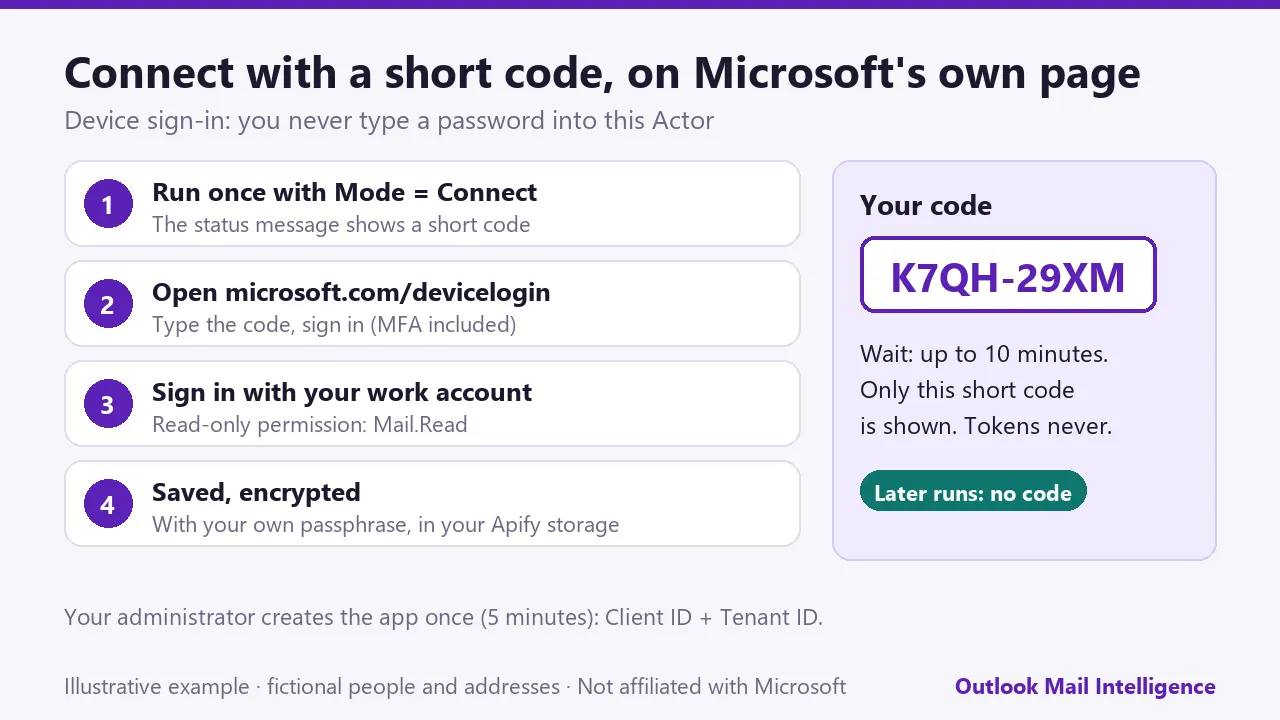
- Connect (once, about 2 minutes). Run the Actor with Mode = Connect, the Client ID and Tenant ID
from your administrator, and a Connection passphrase of your choice (at least 12 characters, typed in a
secret field). The run's status message shows a short code, for example
K7QH-29XM. Open https://microsoft.com/devicelogin, type the code, sign in with your work or school account (multi-factor included) and confirm. The run waits for you – up to 10 minutes – then reads your Inbox in the same run. Keep the run timeout at the default (1,800 s): a connect run needs at least 20 minutes. - Read (every later run, or a schedule). Run with Mode = Read (or Auto), the same Client ID, Tenant ID and passphrase: no code, no sign-in. Use a saved task to keep your settings.
- Disconnect when you are done (see "How to remove the access").
The connection is saved encrypted with your passphrase (AES-256-GCM, key derived with scrypt) in a key-value
store of your own Apify account (outlook-mail-intelligence). Microsoft renews the connection at each use; it
expires after a period without use (about 90 days by default, your organization may set it shorter). Your
passphrase is never stored: without it, the saved connection cannot be opened. Prefer nothing stored? Turn off
Remember the connection: the sign-in is then used for that one run only.
Several mailboxes? Give each one a different Connection name.
Permissions, explained
| Permission | Why | What it allows |
|---|---|---|
Mail.Read (delegated) | To read your e-mails and attachments | Read the mail of the signed-in user only. Not send, not delete, not move, not change. |
offline_access | So that later runs work without signing in again | Lets Microsoft give a refresh token. It gives no access to any data by itself. |
Nothing else is asked: no profile (User.Read), no contacts, no calendar, no write permission, no application
permission, never a password. Inside the Actor, an allow-list lets through only mail read requests on the
signed-in user's own mailbox and the sign-in to your organization's tenant only; every other request – send,
reply, forward, move, copy, delete, mark as read, other users – is refused before it is sent. Nothing is ever
marked as read.
Input examples
Demo (no Microsoft account):
First connection, then read last month's invoices with their files:
Later runs, two folders, unread only, between two dates:
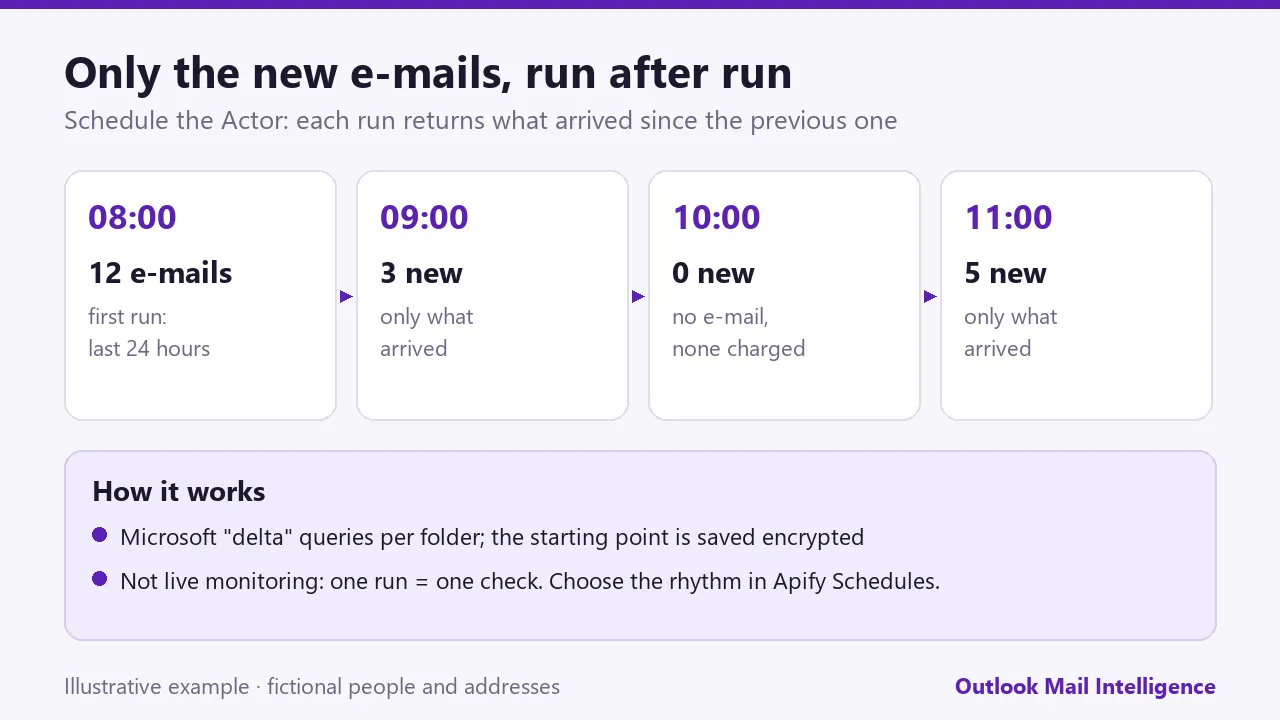
Scheduled every hour, only the new e-mails: same as above with "monitorNewOnly": true.
Folders accept names (Inbox, Sent Items, Archive, Junk Email, Deleted Items, Drafts, your own
folders), paths (Inbox/Clients) or All. Search (KQL) is Microsoft's own search: from:, to:, subject:,
hasAttachments:true, received>=2026-01-01, quotes, AND / OR. Microsoft returns at most 1,000 results per
search; the date, unread and sender filters are then applied to those results.
What you get
| Feature | What it does | Charged? |
|---|---|---|
| Read & search | Folders and subfolders, Microsoft search (KQL), date range, senders, subject words, unread only, with attachments only, newest first | per e-mail read |
| Export | Dataset (JSON, CSV, Excel, API) + a spreadsheet-safe EMAILS_CSV file | included |
| Attachments | Name, type, size for every file; optional saving to your key-value store with SHA-256 and per-file / per-run size limits | file saved |
| Mailbox report | Folders (Outlook's own totals and unread counts), top senders and domains, e-mails per month / weekday / hour, categories, attachments, duplicates | once per run |
| Duplicates | Same Message-ID or same content found twice (reported only, never deleted) | free |
| Conversations | Outlook's conversationId plus References / In-Reply-To | free |
| Phishing warning signs | Display name vs address, Reply-To mismatch, link text vs real link, links to IP addresses, risky / double extensions (invoice.pdf.exe), SPF / DKIM / DMARC fail. Indicators only, never a verdict | free |
| Category (rules) | Business, Personal, Invoices, Orders, Support, Marketing, Important, Other | free |
| New e-mails since the last run | Microsoft "delta" queries per folder, for scheduled runs | per new e-mail |
| AI summary + category | With your own OpenAI / Anthropic / Gemini key (optional, off by default) | per e-mail analysed |
| Demo mode | Fictional sample mailbox, no Microsoft account | never |
Output
One dataset row per e-mail (type: "email"), for example:
Other rows: attachment, ai-analysis, thread, duplicate-group, mailbox-report. Ready-made views: E-mails,
Phishing indicators, Attachments, AI summaries, Conversations and duplicates. Files in the key-value store:
MAILBOX_REPORT, EMAILS_CSV, FOLDERS, RUN_SUMMARY, FAILED_INPUTS, and saved attachments (att-…). Demo rows
carry demo: true.
Only the new e-mails, on a schedule
Turn on Only new e-mails since the last run and schedule the Actor (Apify → Schedules, for example every hour). The first run returns the e-mails since From date (default: the last 24 hours) and saves a starting point per folder, encrypted with your connection; each next run returns only what arrived since the previous run. This is not live monitoring: one run = one check, as often as your schedule. If more new e-mails arrive than Maximum e-mails, the next run continues. Microsoft search cannot be combined with this option.
Optional AI – with your own key
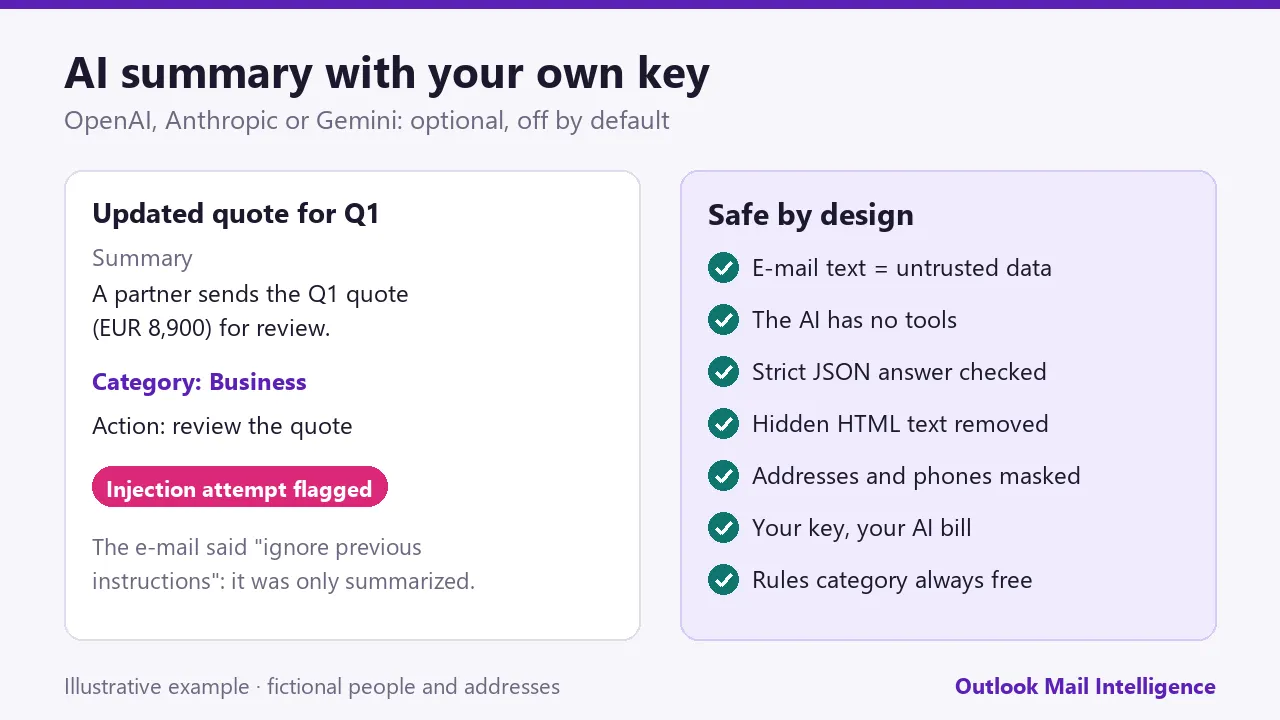
Choose OpenAI, Anthropic or Gemini and paste your API key in the secret field. Each analysed e-mail gets a short summary, a category, key points, action items and an injection flag. The AI cost is billed by your AI provider. Check your organization's rules before sending business e-mails to an AI provider.
E-mail content can contain hidden instructions ("ignore previous instructions…"). This Actor is built so that they cannot do anything:
- the e-mail is sent as data inside a clearly delimited block, after removing hidden HTML text and invisible characters; addresses and phone numbers are masked by default;
- the AI has no tools – it can only answer with a small JSON object, which is checked strictly (any extra field, wrong value or free text is rejected and the rules category is kept);
- the answer is only stored as text in your results: it never triggers an action, never changes billing or the phishing signs; and the Actor itself can only read mail;
- e-mails that look like injection attempts are flagged (
aiPossiblePromptInjection).
There is no shared or managed AI key: without your key, no AI call is made.
Pricing
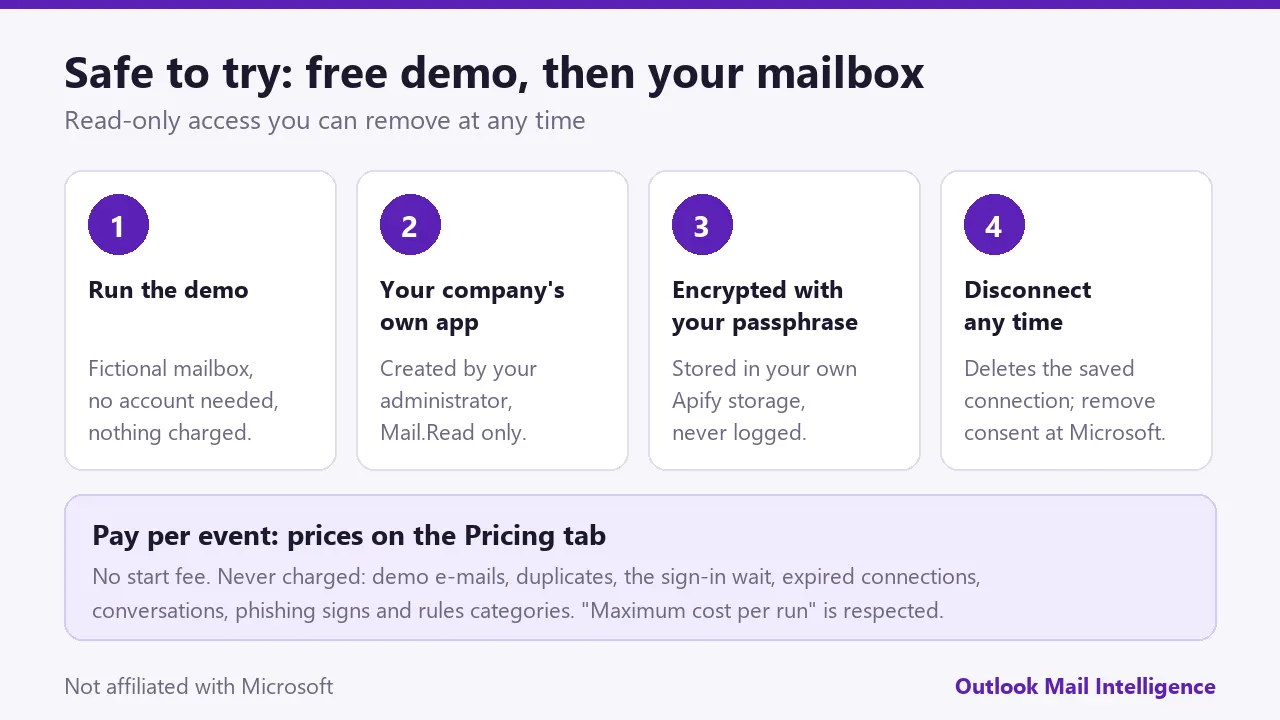
Pay per event – the current prices are on the Pricing tab. There is no start fee.
- Charged: each unique e-mail read, each attachment file saved, each e-mail analysed by AI (your key), one mailbox report per run.
- Never charged: demo e-mails, duplicates, conversations, duplicate groups, phishing signs, rules categories, disconnect runs, scheduled checks with no new e-mail, and runs that could not read the mailbox (sign-in declined or expired, admin consent missing, connection expired…).
- A connect run waits for your sign-in (up to 10 minutes, not charged): only the Apify compute time of that wait is used (default memory 256 MB), no event is charged for it.
- Your Maximum cost per run is respected: the run stops cleanly and keeps every row already delivered.
- Microsoft does not charge for reading your own mail through Microsoft Graph.
When something goes wrong
The run still ends SUCCEEDED with a clear status message telling you what to do; RUN_SUMMARY shows
status: "CUSTOMER_ERROR" with the errorCode, and FAILED_INPUTS lists each problem. Nothing is charged.
| Code | What it means / what to do |
|---|---|
APP_REQUIRED | Fill in Client ID and Tenant ID of your organization's app (see "For your administrator"). |
NOT_CONNECTED | No saved connection under this name: run once with Mode = Connect. |
PASSPHRASE_REQUIRED / PASSPHRASE_WRONG | Type your connection passphrase (12+ characters), the same one as when you connected. Lost it? Disconnect, then Connect again. |
DEVICE_CODE_EXPIRED | Nobody entered the code within 10 minutes. Run Connect again and enter the new code right away. |
DEVICE_CODE_DECLINED / DEVICE_CODE_INVALID | The sign-in was cancelled, or the code was not accepted. Run Connect again. |
CONNECT_NEEDS_MORE_TIME | The run timeout is too short to wait for the sign-in: set at least 1,200 seconds. |
ADMIN_CONSENT_REQUIRED | Admin consent for Mail.Read is missing: your administrator clicks Grant admin consent in the app's API permissions. |
CONDITIONAL_ACCESS_BLOCKED | Your organization's Conditional Access blocks the device code sign-in. Ask your administrator (see above). |
ACCOUNT_NOT_IN_TENANT / AUTHORITY_MISMATCH / TENANT_NOT_FOUND | Check Tenant ID and sign in with an account of that organization (personal accounts are not supported). |
APP_NOT_FOUND / PUBLIC_CLIENT_DISABLED | Check Client ID, and that the app has Allow public client flows = Yes. |
TOKEN_EXPIRED_OR_REVOKED / RECONNECT_REQUIRED | The saved connection expired or was revoked, or Microsoft asks for a new sign-in: run Connect again. |
PERMISSION_MISSING | The Mail.Read permission is missing or was removed from the app. |
MAILBOX_NOT_FOUND | This account has no mailbox that Microsoft Graph can read (no Exchange Online licence, on-premises mailbox…). |
THROTTLED / MICROSOFT_UNREACHABLE | Microsoft's limits or servers: the Actor waited and retried (honouring Retry-After); rows already read are kept. Run again later. |
GRAPH_API_ERROR / AUTH_FAILED | Another Microsoft refusal; the message gives its short code. Check the search and filters. |
STORAGE_UNAVAILABLE | Your Apify key-value store did not answer in time. Run again. |
INVALID_INPUT / READ_ONLY_VIOLATION | An input value is invalid (the field is named), or a non-read request was refused by the guard. |
FOLDER_NOT_FOUND | A folder does not exist (your folders are listed); the other folders are still read. |
DELTA_TOKEN_INVALID | The starting point of "new e-mails" was too old for Microsoft: a new one is taken (not an error). |
Turn on failRunOnError if you prefer a FAILED run (for scheduled monitoring). The run also stops cleanly before its timeout.
How long does it take?
The demo takes a few seconds. A connect run waits for your sign-in (usually 1–2 minutes, at most 15). Reading depends on Microsoft's answer time and the size of the e-mails; start with the default 50 e-mails, then raise Maximum e-mails (up to 10,000 per run). Default memory: 256 MB.
How to remove the access
- In this Actor: run Mode = Disconnect with the same Connection name. It deletes the saved encrypted connection (and the "new e-mails" starting point) from your key-value store. No passphrase needed.
- As a user: at https://myapps.microsoft.com, open the app and revoke its permissions (if your organization allows it).
- As an administrator: Entra admin center → Enterprise applications → the app → Permissions (revoke the consent) or Properties → Delete; deleting the app in App registrations stops every connection at once. Revoking a user's sessions also ends their saved connection.
- On Apify: clear the passphrase and AI key from saved inputs and tasks, and delete the runs' datasets if you no longer need them.
Privacy
- Your e-mails go from Microsoft directly to your own Apify run and are stored only in that run's dataset and key-value store (set a data retention period in your Apify settings if you want them deleted automatically).
- The app belongs to your organization; the saved connection stays in your own Apify account, encrypted with your passphrase. The Actor's developer has no app, no access and no copy.
- No copy is sent anywhere else, except to your own AI provider, only if you turn AI on. No tracking.
- Only mailboxes you are authorised to read, in line with your organization's policies, Microsoft's terms and the privacy rights of the people in your e-mails.
Limits and honest notes
- Needs an app created by your organization's administrator (5 steps above); some organizations block the device code sign-in with Conditional Access.
- Personal Microsoft accounts (Outlook.com, Hotmail, Live) are not supported.
- A connect run must stay open while you sign in (up to 10 minutes); later runs need no sign-in until the connection expires or is revoked.
- Microsoft search returns at most 1,000 results per search; e-mails from online archives and on-premises-only mailboxes cannot be read.
- Each run reads up to 10,000 e-mails (newest first). "Only new e-mails" works per folder, between scheduled runs: it is not live monitoring.
- Statistics cover the e-mails read in the run (after your filters and limits), plus Outlook's own folder totals.
- Phishing signs are heuristics: a legitimate newsletter can show some of them, and a phishing e-mail can show none. They are never a malware or phishing verdict; no file is scanned or opened.
- Cloud attachments (links to OneDrive / SharePoint) and attached Outlook items are listed, not downloaded.
Not in this version
Personal accounts, Contacts, calendar events and full mailbox backups (.eml / archive) are not in this version. Reading many mailboxes with an administrator's application permission (client secret or certificate) is not supported either.
FAQ
Will my e-mails be marked as read? No. The only permission is Mail.Read; isRead shows Outlook's state,
unchanged.
Can it delete, send or move e-mails? No. The permission does not allow it, and a guard refuses every non-read request before it reaches Microsoft.
Do I give my password to the Actor? Never. You sign in on Microsoft's own page (microsoft.com/devicelogin); the Actor only receives a connection that you or your administrator can remove at any time.
Why does my organization need its own app? So that your administrator controls everything: who may use it, which permission it has, and when it is removed. No third-party app gets access to your organization's mail.
Why a passphrase? It encrypts the saved connection in your Apify storage, so that nobody can use it without the passphrase – not even with access to the storage.
Not affiliated with Microsoft.


