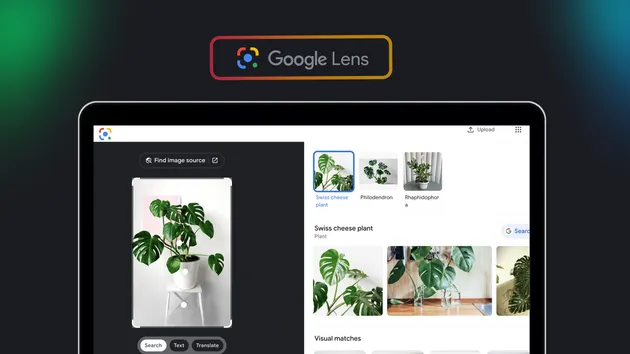
Google Lens | AI Mode | Reverse image search | Translation+OCR
Pricing
Pay per event
Google Lens | AI Mode | Reverse image search | Translation+OCR
Google Lens | Reverse image search | AI Mode🌟 Seamlessly identify text, translate in real time 🌐, recognize and classify objects 🎁, reverse search images 🔍, and extract detailed structured data 📚. It’s fast, reliable, and affordable—your essential tool for all visual intelligence needs! 🚀
Pricing
Pay per event
Rating
3.9
(4)
Developer
borderline
Maintained by CommunityActor stats
10
Bookmarked
1.3K
Total users
132
Monthly active users
0.11 hours
Issues response
2 days ago
Last modified
Categories
Share
📸 Google Lens Actor
Welcome to the Google Lens Actor! This unofficial Google Lens API empowers you to analyze images programmatically, just like Google Lens does, but with added flexibility. Whether you're identifying text, recognizing objects, performing reverse image searches, or getting AI-powered insights, this Actor has got you covered!
🤝 Contribute: Feel free to open issues or pull requests to suggest new features or report bugs!
✨ What Does the Google Lens Actor Do?
This Actor allows you to process images in multiple powerful ways, delivering programmatic access to:
- 🔍 OCR and Text Recognition: Extract text from images with high accuracy
- 🌐 Text Translation: Translate extracted text into any supported language
- 🖼️ Reverse Image Search: Discover similar images and their sources
- 🎯 Exact Match Search: Find exact matches of images across the web
- 👁️ Visual Match Search: Find visually similar images
- 🛍️ Product Search: Identify and find products in images
- 📚 Homework Help: Get educational assistance for images with questions or problems
- 🤖 AI Mode: Ask questions about images and get AI-powered answers
💡 Why Use the Google Lens Actor?
- 🧠 Bootstrap AI Training: Build robust AI models with curated datasets
- 🛍️ Find Similar Products: Enhance shopping experiences with visual matches
- 🔦 Detect Web Content: Discover hidden or related content online
- 📖 Extract Text: Convert images to searchable, translatable text
- 🤖 AI-Powered Insights: Get intelligent answers about image content
🛠️ How to Use the Google Lens Actor
Step 1: Prepare Your Input
Provide the Actor with one or more images and select which search types you want to perform. You can supply images in three ways — use any combination in the same run:
imageUrls— image URLs from blogs, social media, e-commerce sites, or anywhere on the web.imagesBase64— images encoded directly as base64 strings, for when you don't have a public URL (local files, generated images, private assets).imageKvsRecords— images stored in an Apify Key-Value Store, referenced by record key. Best for large or private images you've already uploaded to a store.
Why not a direct file upload? Apify Actors receive their input as JSON, so they can't accept a raw multipart binary file the way a traditional HTTP API can. The three options above cover the same ground: link a hosted image (
imageUrls), inline the bytes as base64 (imagesBase64), or upload the raw bytes to Apify storage and reference them (imageKvsRecords). The last one is the closest to passing a file as bytes — no encoding needed. See Integrating from Python below for a copy-paste example.
Input Example:
Input Parameters:
| Field | Type | Required | Description |
|---|---|---|---|
searchTypes | array | Yes | Array of search modes to perform. Available options: all, ai-mode, ocr, translate-ocr, exact-match, visual-match, products, homework |
imageUrls | array | Conditional | List of image URLs to process. Provide at least one of imageUrls or imagesBase64 |
imagesBase64 | array | Conditional | List of images encoded as base64 strings. Accepts raw base64 or a data:<mime>;base64,... data URI. Provide at least one of imageUrls or imagesBase64 |
imageKvsRecords | array | Conditional | Images to read from an Apify Key-Value Store. Use { "storeId": "<store>" } (no key) to process every image in a store, or { "key": "<record-key>", "storeId": "<store>" } for specific files. Omit storeId to use this run's default store. Provide at least one of imageUrls, imagesBase64, or imageKvsRecords |
aiModeQuestions | array | Conditional | Questions to ask about the images (required if ai-mode is selected) |
translateLanguage | string | No | Target language code for translation (default: "en"). Used with translate-ocr mode |
language | string | No | Language for search results (default: "en") |
Available Search Types:
all- All search results from Google Lensai-mode- AI-powered answers to questions about the imageocr- Extract text from imagestranslate-ocr- Extract and translate text from imagesexact-match- Find exact matches of the imagevisual-match- Find visually similar imagesproducts- Search for products in the imagehomework- Get educational help for homework questions
Step 2: Review the Output
After processing, the Actor generates structured data that can be downloaded in various formats, such as JSON, CSV, Excel, or HTML.
Dataset Views
The Actor provides organized dataset views for easy access to your results. Each search type has its own view in the Apify console:
- All Results - All search results with individual rows per result
- AI Mode - AI-powered answers to your questions
- OCR Text - Extracted text segments
- Translated OCR - Translated text with original and translated versions
- Exact Match - Exact image matches found across the web
- Visual Match - Visually similar images
- Products - Product information and shopping links
- Homework - Educational assistance and explanations
- Global Errors - Any processing errors or issues
Access these views in the Storage tab of your Actor run on the Apify console.
🎯 Output Examples
All Results / Visual Match / Exact Match
Find similar images, exact matches, or general search results:
OCR - Text Extraction
Extract text from images with position information:
Translate OCR - Text Translation
Extract and translate text from images:
AI Mode
Get AI-powered answers about your images:
Products
Find and identify products in images:
🔦 Real-World Use Cases
- 📊 Data Analysis: Extract text and data from images for research and reporting
- 🎨 Creative Inspiration: Use visual matches to fuel your designs
- 🛍️ E-commerce: Identify and find similar products from images
- 🧠 AI Training: Build robust datasets for machine learning models
- 📚 Education: Get help with homework and learning materials
- 🌐 Content Discovery: Find the source and context of images
- 🤖 Intelligent Image Analysis: Ask questions and get AI-powered insights about any image
🏁 Ready to Start?
- Create a free Apify account at apify.com
- Find the Google Lens Actor in the Apify Store
- Configure your input:
- Add image URLs (
imageUrls) and/or base64 images (imagesBase64) - Select search types (
all,ai-mode,translate-ocr, etc.) - Add optional parameters like AI questions or translation language
- Add image URLs (
- Click "Start" to process your images
- View results in the Storage tab using the convenient dataset views
- Download results in your preferred format (JSON, CSV, Excel, HTML)
📖 Advanced Features
Multiple Search Types
Run multiple search types simultaneously to get comprehensive image analysis:
Language Support
The Actor supports 100+ languages for both search results and text translation. Specify your preferred language:
Base64 Image Input
When you don't have a public URL for an image (local files, generated images, private assets), send it directly as base64 via imagesBase64. The Actor decodes each string and sends it straight to Google Lens — no hosting required. Both raw base64 and data URIs (data:image/png;base64,...) are accepted, and you can mix imagesBase64 with imageUrls in the same run.
Each base64 image appears in the results under the identifier base64:<index> (base64:0 for the first, base64:1 for the second, and so on). If one base64 string is invalid, it is reported individually in the Global Errors view and the run continues for the remaining images.
Note: Base64 payloads are part of the Actor input, which is subject to Apify's input size limit. For very large images, prefer
imageUrls.
Using images from a Key-Value Store
Already have images stored on Apify (too big for base64, or private)? Point the Actor at a Key-Value Store and it reads them straight from there. You can process one whole store at once or pick specific files.
Step 1 — Put your images in a Key-Value Store
Pick whichever is easiest:
- In the Apify Console: go to Storage → Key-value stores → open (or create) a store → Upload your image files. Each file becomes a record, and its filename is its key.
- With the API:
PUT https://api.apify.com/v2/key-value-stores/{STORE_ID}/records/{KEY}with the image bytes and the rightContent-Typeheader (e.g.image/png,image/jpeg). - From another Actor that writes image records into a store.
Step 2 — Find your store's name or ID
Open the store in the Console — the name and Store ID are shown at the top. Either works in the input below. A named store looks like username~store-name (note the ~); a Store ID is a short code like aBc123XyZ.
Step 3 — Reference the images in your input
Option A — the whole store (easiest). Give a storeId and no key, and every image in that store is processed:
Option B — specific files. Give the key of each record you want:
You can mix both styles in the same list, and combine them with imageUrls and imagesBase64. Omit storeId to use this run's own default store (handy when an earlier step wrote the images there).
What you get back: each image appears in the results under the identifier kvs:<storeId>:<key> (or kvs:<key> when you used the default store).
What gets skipped or flagged:
- In whole-store mode, records that aren't images (like the
INPUTrecord, JSON, or text) are skipped automatically — no error. - In specific-file mode, a key that's missing or isn't an image is reported in the Global Errors dataset view, and the run continues with the rest.
⚠️ Common mistakes
- Wrong store name. A named store uses a tilde:
username~store-name, not a slash. When in doubt, copy the Store ID from the Console instead.- The record isn't an image. Only binary image records work — a record saved as JSON or plain text is rejected.
- Permissions. This run's default store always works. A named store must belong to you (or be shared with you); otherwise you'll see an "insufficient permissions" error in Global Errors.
Integrating from Python
Using the Apify API client for Python. To process a local image file with no base64, upload its raw bytes to a Key-Value Store and reference the record:
To process a whole folder, upload each file under its own key and pass "imageKvsRecords": [{"storeId": store["id"]}] to grab them all at once.
Prefer to inline the image instead? Base64 works too:
Dataset Views
Results are organized into convenient views in the Apify console. Each view shows data in a tabular format with individual rows for easy analysis and export. Access views directly from the Storage tab or via the Apify API.
For additional guidance, refer to the Apify documentation or contact support for assistance. Happy scraping! 🚀