

Google Maps Business & Website Contact Extractor
Pricing
$10.00 / 1,000 qualified domain with contacts
Google Maps Business & Website Contact Extractor
Extract verified public business contacts, company details, owned social profiles, technologies from Google Maps and hiring signals with resilient crawling.
Pricing
$10.00 / 1,000 qualified domain with contacts
Rating
0.0
(0)
Developer

Koo 빙
Maintained by CommunityActor stats
0
Bookmarked
2
Total users
1
Monthly active users
13 days ago
Last modified
Categories
Share
Find Google Maps businesses and website contacts in one run
Build a business contact list from industry and location, then enrich the discovered websites with public emails, phone numbers, fax numbers, contact pages and social links. Maps Lead Qualifier & Contact Enricher keeps branch contacts, company-wide contacts and contacts needing review separate, with source evidence you can inspect.
Use it for local prospect research, supplier discovery or enriching a list of websites you already have. Download a four-sheet Excel workbook for review, or use the dataset in your own workflow.
- Search Google Maps using multiple industry presets and countries, or type a specific industry.
- Check business activity against website evidence and your selected conditions.
- Keep Maps phone numbers while separating unrelated website numbers.
- See why a lead needs review instead of treating every extracted email as a verified branch contact.
- Export business summaries, contact details and supporting evidence together.
The Maps collector runs inside this Actor: no separately billed Maps Actor or Google Places API key is required. See Pricing below for billing conditions.
Quick start
- Open Input → Form → Basic search.
- Choose Find businesses on Google Maps.
- Select Industries, or enter a narrower activity in Specific industry.
- Select a country and enter a city or region. Start with the prefilled 5-business example.
- Click Start. After the run, open Business and contact results → Business summary.
- In the Output view selector, choose Download Excel — All results, then click the blue download button.
The starter Form uses a 90-second Maps budget, three pages per website and a 210-second collection budget. Saving results, contact checks and Excel export can add time. Existing saved tasks retain their inputs. Set the collection budget to 0 for unrestricted collection time, subject to other run limits.
For your first run, leave Require a qualified primary email and Require a qualified primary phone off so you can inspect incomplete results too. Turn them on when you need stricter contact requirements.
Example: commercial printers in Austin
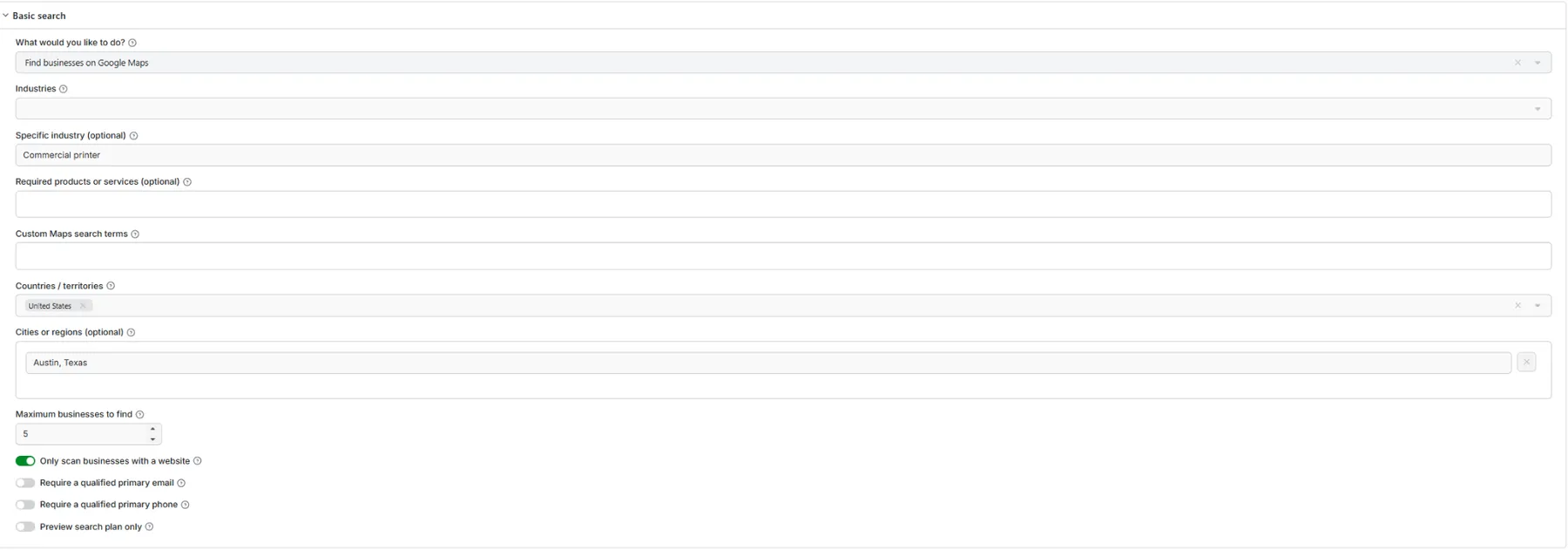
Use the Form editor—no JSON is needed. Choose broad industries and countries from the menus, or type an exact activity. The actual input below selects Commercial printer, United States, Austin, Texas, maximum 5 businesses, and Only scan businesses with a website.
Actual example results

These are historical results from the October 8, 2026 test, build 8pyjVmDubnuLBc6kV, before the rc22 review improvements. They are not a new rc22 benchmark. Run status was SUCCEEDED; the supplied run report measured 115.679 seconds. Results vary by site, location and access conditions.
| Observed measure | Result |
|---|---|
| Business / branch rows | 3 |
| Unique website domains | 2 |
| Rows with a main phone | 3 |
| Rows with a primary branch email | 2 |
| Website scan failures | 0 |
| Excel sheets | 4 |
| Business / branch | Primary email | Main phone |
|---|---|---|
| Sixth Street Printing | — | +15123229651 |
| Quik Print — Congress Ave | congress@qpaustin.com | +15124772014 |
| Quik Print — Shoal Creek Blvd | north@qpaustin.com | +15123319968 |
The two Quik Print listings share a website but have distinct supported branch emails. info@qpaustin.com is kept as a company contact. An extracted email is not automatically a qualified branch email.
Sixth Street's website published a different telephone number from Maps. The screenshot shows the older status; rc22 exposes this difference for review and separates inquiry purpose from branch ownership. rc22 also requires the full requested activity to be supported on the website when website evidence is required; a company-name keyword alone is insufficient. Do not interpret the screenshot's older matched labels as a fresh rc22 accuracy assessment.
The maximum of 5 was an upper limit; this run saved 3 rows. The supplied export does not establish the discovery stop reason or actual event charges. This small example is not an exhaustive market search, mailbox-delivery test or general performance guarantee.
Read and export your results
Start with Review status, Primary email, Main phone and Next action. A Phone review status asks you to check differing Maps and website numbers. When another issue takes priority, the phone warning remains in Next action and Quality & evidence. Use Company shared email and Company shared phone when a contact belongs to the organization but is not confirmed for the selected branch.
| Output view / Excel sheet | What it contains |
|---|---|
| Business summary | One row per business, key contacts, website, address and next action |
| Contact details | Extracted contacts, normalized values, purpose, attribution and source evidence |
| Quality & evidence | Industry checks, warnings, page errors and reasons for review |
| All fields | Detailed exported fields for auditing and downstream processing |
The sheets share Record ID. Phone numbers are stored as text, preserving the leading +. The workbook includes filters, frozen headers and status colors.
Download Excel
Open Output → Download Excel — All results and click Download Excel — All results. The workbook contains four sheets; the number of businesses depends on your run.
- The download is a separate output view, not a link inside a business row.
- It includes all saved rows in dataset order, independently of temporary Console filters and sorting. Filter or sort in Excel after download.
- For large exports, download every numbered part.
- If authentication is required, use Open file storage and download the XLSX from your signed-in Apify Console.
- Native dataset export remains available for CSV/JSON and other supported formats.
Very long audit cells may be truncated to Excel's cell limit and are marked accordingly; the dataset retains full values. Export parts are bounded by business count and file size. An export failure does not erase the saved dataset.
Choose your search conditions
| Setting | How to use it |
|---|---|
| Industries | Select one or more broad presets; a broad category is not proof of a narrow specialization |
| Specific industry | Describe the exact business activity, such as commercial printer or semiconductor equipment manufacturer |
| Required products or services | Add conditions that must all be supported by business evidence |
| Countries / territories | Select one or more countries |
| Cities or regions | Narrow the search; each entered location is combined with each selected country |
| Maximum businesses | Set an upper limit, not a guaranteed result count |
| Preview search plan only | Inspect SEARCH_PLAN without collecting businesses; start another run with preview off to collect |
| Require a qualified primary email / phone | Apply contact requirements to result qualification |
For independent city/country pairs, leave Countries empty and enter full locations such as Austin, Texas, United States and Seoul, South Korea.
You can also choose existing website or dataset inputs. Direct website enrichment uses company contact qualification because no individual Maps branch is requested.
Enrich websites you already have
In What would you like to do?, choose the website enrichment option and paste your website URLs. No Maps discovery is needed. Direct website inputs use company-level contact qualification because no Maps branch is selected. Start with one or two domains before a larger list. Dataset input is also available for existing results and supported retry workflows.
Contact and industry checks
Primary Maps contacts require branch evidence. A company email domain alone does not establish branch ownership. Other-branch and unverified contacts remain available for inspection rather than being silently promoted.
- Phone numbers are normalized and duplicate contact values within a business are merged with their evidence.
- Phone and fax are extracted separately; ambiguous TEL/FAX overlap is flagged.
- Email purpose helps distinguish general, sales, support, careers and other contacts. Unknown-purpose addresses are not automatically primary contacts; supported official contact blocks can establish general contact use.
- Email validation checks syntax and domain MX records, not mailbox existence or delivery.
website_supportedrequires website evidence for the full requested detailed activity.website_partialmeans the website supports only part of the condition or a name-only keyword.- Industry matching uses rules and dictionaries. Missing evidence remains
needs_review; it is not proof that the business is unsuitable. - Website evidence can support company activity without independently proving every branch's activity.
Explicitly labeled fax numbers are separated from telephone evidence when qualifying an email. JSON-LD email evidence preserves identity fields from the same object without borrowing another branch's details. Bounded activity-to-business-customer relations can support a commercial activity condition. Unlabeled multiple numbers, unresolved structured-data references and unsupported industry wording can still remain in review.
Pricing
Check the Actor's Pricing tab for the current event price. The event is domain-with-contacts, displayed as Qualified domain with contacts. A displayed business row is not automatically a charge.
For a domain to qualify, the saved result must meet target and required-contact conditions, contain an eligible primary contact, and pass the website enrichment rule. That rule requires a qualifying website email or the supported phone-plus-social combination. A Maps-only phone on a failed or no-contact website scan is insufficient.
There is at most one charge attempt per canonical domain within a run/checkpoint workflow. Two branches sharing a domain therefore do not automatically mean two event charges. Independent runs are billed independently. Preview runs do not emit contact-result events.
For example, 3 business rows across 2 domains allow at most 2 result events if both domains qualify; they do not imply 3 events. If the Pricing tab shows $0.01 per event, 2 confirmed events equal $0.02 in event fees. This is an illustration, not the measured charge for the sample run. Use the current displayed price.
An address-review or phone-review warning is not by itself a no-charge guarantee: another eligible contact can still satisfy the configured conditions. Check RUN_SUMMARY and the platform's run charge records for billing outcomes.
Event budgets limit event charges; they are not a blanket cap on every platform resource charge. Consult your current Apify plan and run settings for applicable compute, proxy and storage costs. No price or cost estimate is inferred from the example workbook.
FAQ
Why did the run return fewer businesses than requested?
The limit is a maximum. Search availability, duplicates, filtering, blocking and the discovery time budget can reduce the count. Check RUN_SUMMARY.collection_outcome for the requested maximum, saved count and discovery stop reasons, then MAPS_DISCOVERY for query details. A successful run can still contain a partial search. Public Maps results do not provide exhaustive market coverage.
Why is an extracted email missing from Primary email?
It may be a company-wide contact, another branch, an unknown-purpose address or insufficiently supported. Inspect Contact details for its attribution and evidence. An email can be extracted successfully without being a qualified branch contact.
Does this Actor call another Maps Actor?
No. Discovery uses its own browser collector. It does not require a Google Places API key. Public page layouts and access restrictions can still affect collection.
Can I automate runs?
Use the Actor's API and scheduling options in Apify. Test a small input first, then reuse the configuration in your workflow.
Can I resume or retry?
Restarting with the same storage can reuse checkpoints. Advanced resumeStoreId workflows continue in the original Dataset/KVS; inspect RUN_SUMMARY for the results location. Do not share one checkpoint between concurrent runs. Dataset mode with retryFailedOnly supports explicit failed-site retries; blocked and robots-denied pages are not treated as ordinary retryable failures.
How do I report a problem?
Open the Actor's Issues tab with the Run ID, relevant input settings and one affected Record ID. Include the expected result and the observed warning. Do not include API tokens or signed download URLs.
API / JSON example
The visual Form editor is the easiest starting point. The equivalent starter configuration below is for users who prefer JSON or want to automate runs.
This JSON matches the packaged quick-start Maps example. Change the industry and location first; increase time or page limits only after reviewing a small run. Saved tasks keep their previous inputs.


