

YouTube Transcript Scraper
Pricing
from $1.90 / 1,000 transcripts
YouTube Transcript Scraper
YouTube transcript scraper for videos, Shorts, playlists and channels. Get captions with timestamps, full text, SRT or VTT, in your language with auto-generated fallback, plus title, channel, date and views. No API key. Videos without captions are not charged.
Pricing
from $1.90 / 1,000 transcripts
Rating
0.0
(0)
Developer

Group Oject
Maintained by CommunityActor stats
0
Bookmarked
2
Total users
1
Monthly active users
7 hours ago
Last modified
Categories
Share
YouTube Transcript Scraper pulls captions and subtitles from YouTube videos, Shorts, playlists and whole channels. Each video comes back as one clean row with timestamped segments, the full plain text, optional SRT or WebVTT, and video metadata. No YouTube API key, no login, and you only pay for videos that actually have a transcript.
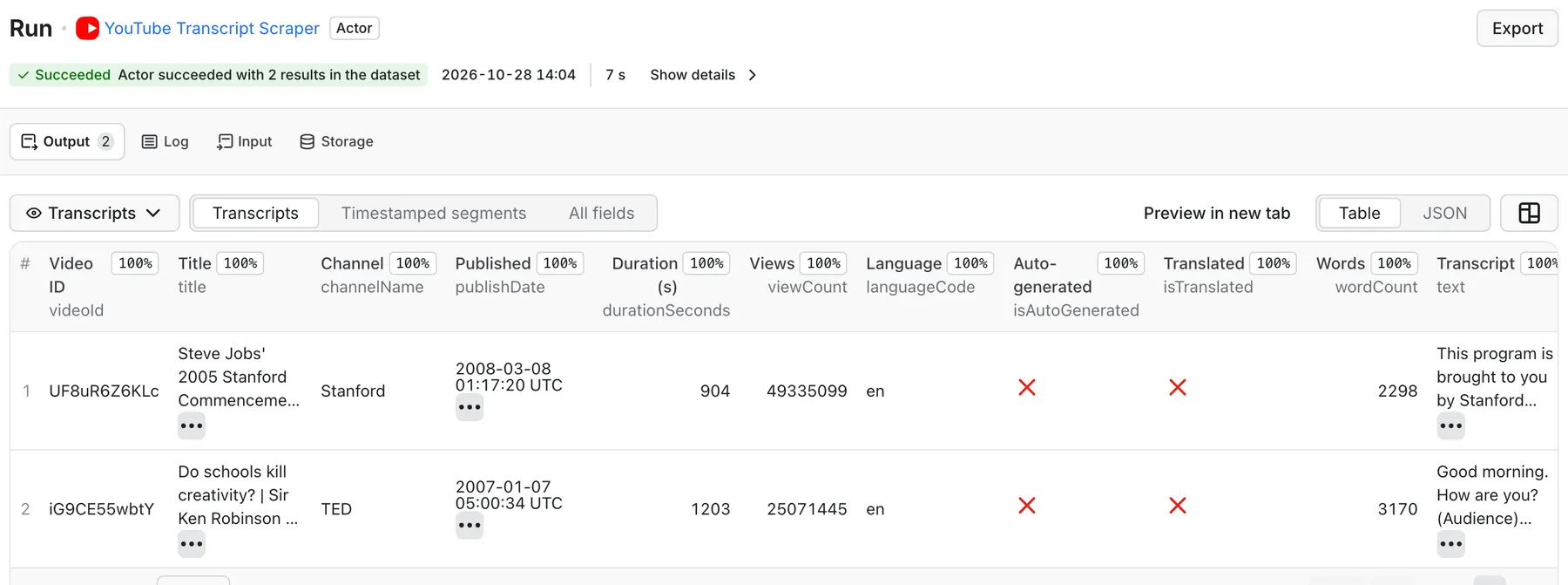
Real output from a default run of YouTube Transcript Scraper in Apify Console.
What can it do?
- Extract transcripts from any public video URL:
watch?v=links,youtu.beshort links, Shorts,/live/and/embed/URLs, mobile and music links, or bare 11-character video IDs. - Transcribe whole playlists and channels: paste a playlist URL, a channel URL or an
@handleand set how many of the newest videos to take. Pick long-form videos, Shorts, live streams or any mix. - Choose the language: list preferred languages in order (
["es", "en"]). Manual, creator-uploaded subtitles are preferred, and YouTube's auto-generated captions are the fallback. You can also restrict the run to manual-only or auto-only captions. - Fall back to the original language when none of your languages exist, or skip those videos. Your choice.
- Request a translation: set
translateToand the actor first looks for a native subtitle track in that language, then tries YouTube's built-in auto-translate. - Export in the format you need: timestamped JSON segments (
start,duration,text), one plain-text string, an SRT subtitle file and/or a WebVTT file, all inside the same row. - Add video metadata: title, channel name, ID and URL, publish date, category, views, likes, duration, description, tags, thumbnail and a Shorts flag.
- Monitor channels for new videos: turn on
onlyNewVideos, schedule the run, and each run returns transcripts only for videos it has not delivered before. AddpublishedAfter(a date or a window such as"7 days") to skip older uploads. - Stay within budget: the run stops when it reaches your maximum charge. Videos without captions are listed separately and never billed.
Typical uses: feeding transcripts to ChatGPT, Claude or a RAG pipeline, summarising podcasts and lectures, SEO content research, subtitle export, quote mining, and brand or competitor monitoring.
What data do you get?
| Field | Description |
|---|---|
videoId, url, title | Video ID, canonical watch URL and title |
channelName, channelId, channelUrl | Channel of the video (metadata) |
publishDate, category | Publish date-time (ISO 8601 with offset) and YouTube category (metadata) |
viewCount, likeCount, durationSeconds | Counts at scrape time and video length (metadata) |
isShort, isLiveContent | Shorts and live-stream flags (metadata) |
description, keywords, thumbnailUrl | Description, tags and thumbnail (metadata) |
language, languageCode | Language of the returned transcript |
isAutoGenerated | true when the captions are YouTube's automatic speech recognition |
matchedPreferredLanguage | false when the fallback language was used |
isTranslated, translatedFrom, translationError | Translation result, and the reason when a translation could not be applied |
transcript | Array of { start, duration, text } segments, in seconds |
text | Full transcript as one plain-text string |
srt, vtt | Ready-to-save subtitle files (when selected) |
segmentCount, wordCount, characterCount | Size of the transcript |
availableLanguages | Every caption track the video offers |
sourceType, sourceInput, scrapedAt | Which input produced the row, and when |
Videos without a transcript go to the NO_TRANSCRIPT record in the key-value store. Failed videos, playlists and channels go to ERRORS, and a run summary goes to SUMMARY.
How much does it cost?
You pay $2.50 per 1,000 transcripts ($0.0025 per video saved to the dataset). Proxy traffic and compute are included. Videos with no captions, or none in the languages you allowed, are not charged. Neither are failed, private or deleted videos.
On paid Apify plans the per-result price drops automatically (Bronze and above get volume discounts); the Pricing tab shows your exact rate.
- 100 lecture videos from a playlist, all with captions: 100 × $0.0025 = $0.25.
- A 2,000-video channel where 1,800 videos have captions: 1,800 × $0.0025 = $4.50. The 200 videos without captions are free.
Set a maximum charge on the run and the actor stops cleanly before going over it. Check the Pricing tab for the current rate.
How to use YouTube Transcript Scraper
- Paste one or more YouTube URLs, video IDs, playlist URLs or channel URLs into YouTube URLs or video IDs.
- Set Preferred languages (default
en) and, if you like, the Caption type and Translate to. - Pick Output formats: segments, text, SRT, VTT.
- For playlists and channels, set Max videos per playlist or channel and the Channel content types. To get only new uploads on a schedule, turn on Only new videos (monitoring).
- Click Start. Download the dataset as JSON, CSV, Excel or HTML, or read it through the API.
Input example
Output example
The values below are illustrative.
Monitor new videos on a schedule
Get the transcript of every new upload from a list of channels or playlists: podcast and news monitoring, competitor tracking, or a daily AI summary of what your favourite creators published.
- Put the channel URLs (or
@handles) and playlist URLs in YouTube URLs or video IDs. - Turn on Only new videos (monitoring) and give the monitor a State key, for example
ai-podcasts. Runs that share a key share the list of videos already delivered, so use one key per monitor. - Optional: set Published after to a date (
2026-10-01) or a rolling window (7 days). The first run then skips the back catalogue. You can also keep Max videos per playlist or channel small (5 to 20). - Save the input as a task, then open Schedules in Apify Console and run it hourly or daily.
- Add an integration to the task: a Slack or email notification, a webhook, or a Make / Zapier / n8n flow that sends each new transcript to an LLM for a summary.
How it works:
- The first run delivers the newest videos (up to Max videos per playlist or channel). Later runs skip every video already delivered, so you are charged only for new transcripts. A run with no new videos succeeds with an empty dataset.
- A video counts as delivered once its transcript row is saved, or once YouTube confirms it has no captions. YouTube can take a few hours to add auto-generated captions to a fresh upload, so a new video without captions is re-checked on later runs for 24 hours (at no charge) before it is marked as done.
- Videos that failed for other reasons (blocked request, live stream still running, max-charge limit reached) are not recorded and are retried on the next run.
- State is kept in your own named key-value store
youtube-transcript-monitor-<stateKey>(recordSEEN_VIDEOS). Delete that record, or change the key, to start over. - Monitoring and Published after apply to channel and playlist inputs. Single video URLs are always fetched.
- Each run's
SUMMARYrecord reports how many videos were skipped as already seen, how many were newly recorded and how many are waiting for captions. - Check at least as often as Max videos per playlist or channel new uploads can appear. If a channel publishes 30 videos between two runs and the cap is 10, the 20 older ones are not listed.
Use with the API
Replace <YOUR_APIFY_TOKEN> with your token from Apify Console → Settings → Integrations.
cURL (run synchronously and get the dataset items back):
Python (pip install apify-client):
JavaScript (npm install apify-client):
Use with AI agents / MCP
Connect Claude, Cursor, ChatGPT or any other MCP client to the Apify MCP server with this actor enabled:
Example prompt: "Get the transcript of https://youtu.be/UF8uR6Z6KLc and summarise the three main points in bullet form."
Integrations
Send transcripts wherever you need them with Apify integrations: Make, Zapier, n8n, Google Sheets, Slack, Airtable, or your own webhooks, which fire when a run finishes. Pair a scheduled run with a channel URL to keep a transcript archive up to date, then push new rows to a vector database or a spreadsheet.
FAQ
Is it legal to scrape YouTube transcripts?
The actor reads only public caption data that YouTube shows to any visitor, with no login. Scraping public data is generally lawful, but how you use it matters. Respect copyright, YouTube's terms and privacy laws such as GDPR. If you are unsure about your use case, ask a lawyer.
Why did a video return no row?
That video has no captions on YouTube, has none in the languages you allowed (with fallback switched off), or is private, deleted, age-restricted or region-blocked. Check the NO_TRANSCRIPT and ERRORS records in the run's key-value store, which give the reason and the caption languages the video does offer. These videos are not charged.
Does it work for videos without any captions?
No. The actor returns YouTube's own captions, both creator-uploaded and auto-generated. It does not transcribe audio. Most spoken videos have auto-generated English captions. Music-only clips, ambient videos and some Shorts have none.
Why is my translation missing?
YouTube's auto-translate endpoint is heavily rate-limited for automated clients. The actor first uses a native subtitle track in your target language when the video has one. If it doesn't and YouTube refuses the translation, the row keeps the original-language transcript and translationError explains what happened. You still get the transcript.
Do I need proxies?
No setup is needed. YouTube often answers datacenter IPs with a bot check, so the actor tries the Apify datacenter proxy first and automatically retries through Apify residential proxy, with a fresh IP on every retry. That traffic is included in the price.
How fast is it, and are there limits?
In our tests, a run with two videos finishes in about 15 seconds, and 60 videos take one to two minutes at the default concurrency of 10. There is no fixed cap on URLs. Playlists and channels are limited by Max videos per playlist or channel (up to 5,000 per source), and the whole run is limited by your maximum charge.
Can I monitor a channel for new transcripts?
Yes. Turn on Only new videos (monitoring), set a State key, save the input as a task and schedule it hourly or daily. Each run returns only transcripts of videos that earlier runs have not delivered, and you pay only for those. See Monitor new videos on a schedule. If you only need new-upload alerts without transcripts, use YouTube Channel Monitor.
Which output format should I use for an LLM?
Use text for summarisation and embeddings. Add segments when you need timestamps for citations or chaptering. Choose srt or vtt when you want subtitle files for a video editor or player.
Related actors
- YouTube Scraper API: search results, playlists, channel uploads and video details
- YouTube Comments Scraper: comments, likes and reply counts for videos and Shorts
- YouTube Channel Scraper: subscribers, video counts and channel details
- YouTube Channel Monitor: scheduled new-video alerts across many channels


