

Auto Reframe: Horizontal to Vertical Video (Face Tracking)
Pricing
Pay per event
Auto Reframe: Horizontal to Vertical Video (Face Tracking)
Turn horizontal videos into vertical 9:16 videos for YouTube Shorts, TikTok and Reels. Face tracking keeps the speaker in frame with smooth camera moves and clean cuts. Also 4:5, 1:1 and vertical to 16:9, or fit the whole picture over a blurred background.
Pricing
Pay per event
Rating
0.0
(0)
Developer

Jumble Mog
Maintained by CommunityActor stats
0
Bookmarked
1
Total users
1
Monthly active users
11 days ago
Last modified
Categories
Security
Limited permissionsShare
Turn horizontal videos into vertical 9:16 videos for YouTube Shorts, TikTok and Instagram Reels, with a virtual camera that follows the speaker's face. Give it an interview, podcast, webinar, vlog or any landscape video, and get back an MP4 at 1080 × 1920 where the person stays in the picture: the camera holds still while they talk, pans smoothly when they move, and re-frames on the exact frame of every cut. It also makes 4:5 and square videos, and turns vertical phone videos into horizontal 16:9 ones. No editing app, no watermark, pay per minute.
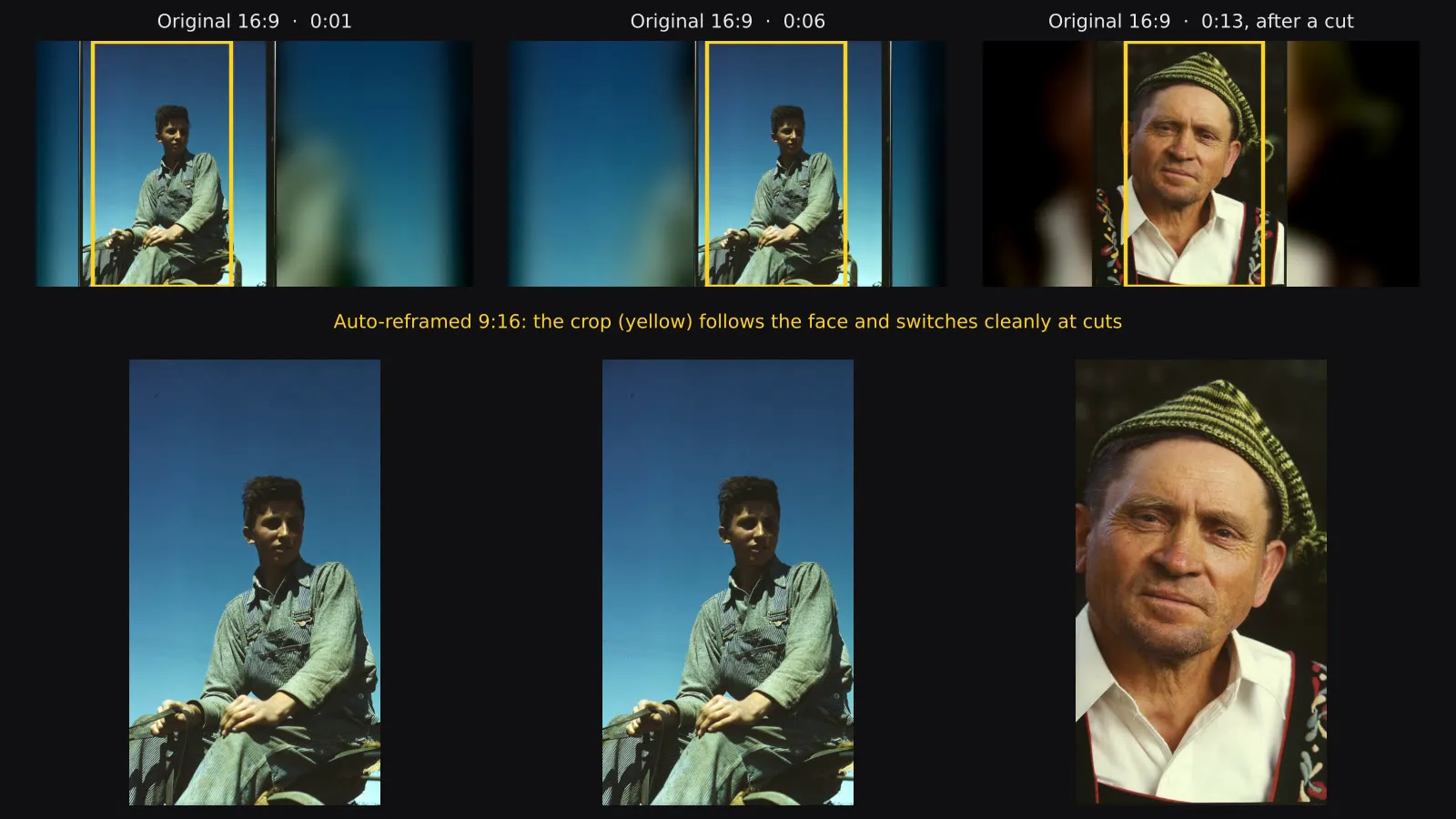
Watch the 16:9 demo clip and the vertical video made from it. The demo clip is made from 1940s color photos by the Farm Security Administration and Office of War Information (Library of Congress, no known restrictions), moved across a 16:9 frame.
What it does
- Face tracking: finds faces about eight times a second and follows the main one, the face that is biggest and on screen longest. When two or more people fit in the frame together, it keeps the whole group in.
- Moves like a camera operator: holds still while the speaker moves a little, re-centers with a smooth, eased pan when they move away, and never jitters. Pick smooth, fast, or static (one fixed position per shot).
- Knows where the cuts are: every cut between shots is detected, and the crop jumps to the new position on the exact frame of the cut, so a new shot never starts with a pan from the old one.
- Any shape: 9:16 for Shorts, TikTok and Reels, 4:5 for Instagram and Facebook feeds, 1:1 square, and 16:9 to turn vertical videos into horizontal ones.
- Fit mode: the whole picture over a blurred copy of itself, for slides, screen recordings and wide shots where nothing should be cut off.
- Ready to post: MP4 (H.264 and AAC) at 1080p or 720p, with the sound kept in sync. Phone videos recorded sideways are turned upright.
- Crop data for developers: optionally get the shots and the crop position of every frame as JSON, to use in your own editor or pipeline.
- Takes files from anywhere: direct links, Google Drive and Dropbox share links, or uploads. Videos up to 2 GB and 2 hours.
- Pay per minute of video. Files that fail cost nothing.
Who it's for
- Podcasters and YouTubers turning long-form episodes into Shorts, Reels and TikToks.
- Social media managers and agencies making vertical clips from interviews, webinars and event videos.
- Automation builders with clip pipelines in n8n, Make or Zapier: cut the clips, reframe them here, add captions, publish.
- App developers and AI agents that need reframing as one API step in a video workflow.
- Anyone with vertical phone videos who needs a horizontal version for YouTube, a website or a presentation.
How to use it
- Paste links to your videos, or upload them.
- Pick the shape (9:16 by default) and the layout.
- Click Start. Each video appears in the Output tab with a download link.
You can also run it through the Apify API, on a schedule, or from Make, n8n, Zapier and other integrations.
How-to examples
Each example below is a complete input, checked with a run of the Actor on a short test clip.
How to turn a horizontal video into a vertical 9:16 video for Shorts, TikTok and Reels
Result: an MP4 at 1080 x 1920 in videoUrl, with the crop following the speaker's face. shots and shotsWithFaces say how many cuts it found and how many had a face to follow. A 5-second 1280 x 720 test clip took 1.9 seconds.
How to make a square video without cropping anything out
Result: a 720 x 720 MP4 with the whole picture over a blurred copy of itself. This suits screen recordings and slides, where a crop would cut off text.
How to turn a vertical phone video into a horizontal 16:9 video
Result: a 1920 x 1080 MP4 for YouTube, a website or a presentation, with the phone video in the middle over a blurred background.
How to let an AI agent make vertical clips
Add this Actor to the Apify MCP server with https://mcp.apify.com/?tools=jumblemog/auto-reframe. The agent sends the clip links in videoUrls and gives the user videoUrl. In a clip pipeline it goes after the step that cuts the clips and before the one that adds captions.
FAQ
Does it follow the speaker? Yes, with "layout": "track" (the default). The crop holds still while the person talks, pans smoothly when they move, and re-frames on every cut. It doesn't know who is talking, so in a wide shot of two people it follows the most prominent face.
Is there a watermark? No.
Can I give it a YouTube or TikTok link? No. Those platforms' terms don't allow downloading, so use your own copy of the video, from a direct link, Google Drive, Dropbox or an upload.
Does it add captions? No. It keeps the sound as it is. Add captions in your editor or with another step.
Does it work with Zapier, Make or n8n? Yes. Call the Actor with its Apify app or an HTTP request, and pass videoUrl to the next step.
Input
| Field | What it does |
|---|---|
videoUrls | Links to video files, or Google Drive and Dropbox share links. |
files | Videos uploaded from your computer or picked from an Apify key-value store. |
aspectRatio | 9:16 (default), 4:5, 1:1 or 16:9. |
layout | track (default): crop and follow faces. center: fixed crop in the middle. fit: the whole picture over a blurred background. |
cameraMotion | smooth (default), fast or static (one position per shot). |
resolution | 1080p (default) or 720p. |
saveCropData | true also saves the shots and crop positions as JSON (default false). |
maxFiles | Stop after this many videos (default 100). |
Example:
Output
Each video becomes one dataset item, and the reframed video is saved in the run's key-value store:
A video that couldn't be downloaded or read gets status: "failed" and an error that says why, and isn't billed. Download your videos within your plan's data retention period, or copy them to your own storage, because run storage expires.
Pricing
You pay per started minute of video, at the price shown on this page. A 2½-minute video is 3 minutes; a 20-second clip is 1 minute. Files that fail are never charged. If you set a maximum cost per run, the Actor stops before a video that wouldn't fit.
Speed
Processing takes a little longer than the video itself. Measured on Apify with a 2½-minute 1080p video: about 3 minutes at the default 8 GB of memory, and about 5 minutes at 4 GB. Each run also needs a few seconds to start and to download the video.
Tips and limits
- It follows faces. Videos without people, such as products, animals or sports, get a centered crop; the fit layout often works better for those.
- It doesn't know who is talking. In a wide shot of two people sitting far apart, it follows the most prominent face. Multi-camera podcasts with close-ups of each speaker work best.
- On-screen text and graphics at the sides of the picture are cropped away. Use the fit layout for slides and screen recordings.
- The output is always 1080p (or 720p), so small videos are scaled up.
- Links to YouTube, TikTok, Instagram, Facebook and X aren't supported, because those platforms' terms don't allow downloading. Use your own copy of the video.
- Faces are only located to place the crop. Nobody is identified, and no face data is kept.
For AI agents and developers
This Actor works with the Apify MCP server, so AI agents can call it as a tool: pass videoUrls and read videoUrl from each dataset item. Every item has the same documented fields, and status tells you whether a video succeeded. For a direct API call:
The synchronous endpoint waits up to 5 minutes, which suits short clips. For long videos or batches, start a run with /runs and read the dataset when it finishes.
Privacy
Videos are downloaded into the run, processed there and saved only to your own Apify storage. Nothing is sent to an outside service.


