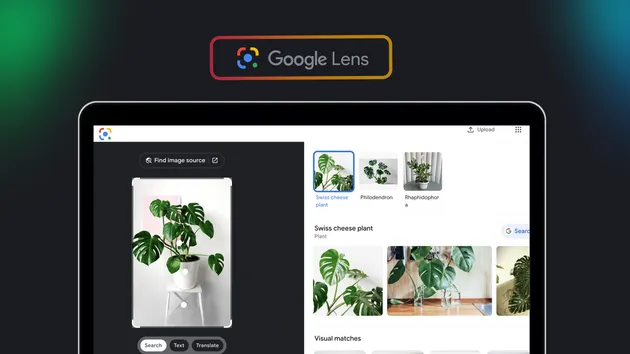
Google Lens AI Mode Scraper - Ask Questions About Images
Pricing
from $5.90 / 1,000 ai mode answers
Google Lens AI Mode Scraper - Ask Questions About Images
Ask Google AI Mode questions about any image and get the answer with its sources, plus Google Lens OCR text and translation. Export to CSV, Excel, JSON or XML.
Pricing
from $5.90 / 1,000 ai mode answers
Rating
0.0
(0)
Developer
ParseForge
Maintained by Apify PartnerActor stats
0
Bookmarked
2
Total users
1
Monthly active users
23 days ago
Last modified
Categories
Share
🔍 Google Lens AI Mode Scraper
🚀 Ask Google AI Mode anything about an image and export the answer in seconds. Every row pairs Google's AI answer (clean Markdown, tables included) with its cited sources, the text Google Lens reads in the image and its translation into any of 133 languages. 10 answers in 81 seconds on Apify, 18 fields per row.
Give the Actor image URLs or base64 images plus the questions you want answered. Each image is uploaded to Google Lens once, then every question is asked in Google AI Mode with the image attached, exactly like tapping "AI Mode" on a Lens result. You get back what Google answered: "This photo was taken on Yuyuan Road (愚园路) in Shanghai, China", the list of web pages it cited with real URLs, and the image's own text with pixel boxes.
One image and three questions make three rows. Answers keep their structure (headings, bullet lists, bold, comparison tables) as Markdown, so they paste straight into a doc, a CMS or an LLM prompt. The OCR text, detected language and translation ride along in every row at no extra cost.
| 🎯 Target Audience | 💡 Primary Use Cases |
|---|---|
| E-commerce and catalog teams | Identify products, read labels and describe item photos at scale |
| AI and data teams | Build image question-answer datasets grounded in Google's answers and sources |
| SEO and content teams | See which pages Google AI Mode cites for an image and a question |
| Travel, media and research teams | Identify places, landmarks and signs, and translate the text in photos |
📋 What the Google Lens AI Mode Scraper does
💡 Why it matters: Google AI Mode reads an image the way a person does and then searches the web to explain it. That answer, and the sources behind it, only exist inside a browser session. This Actor turns them into rows you can filter, compare and feed to other tools.
- Google AI Mode answers about images. Ask anything: "What is this?", "Where was this photo taken?", "Compare this with an alternative in a table". The answer follows the language of your question.
- Cited sources with real URLs. Every web page AI Mode cites, with title, domain, site name and snippet. Google's redirect links are resolved to the actual page.
- Markdown answers. Headings, bullet lists, bold text and tables come through as Markdown, not a flattened blob.
- Google Lens OCR in every row. The full text found in the image, its detected language, and each line with its pixel bounding box.
- Lens translation into 133 languages. Pick a target language and get Google Lens's translation of the image text.
- Image URLs or base64. Public links (JPEG, PNG, WebP, GIF, BMP, TIFF, AVIF) or base64 strings for files that are not online.
- Self-healing runs. When Google asks for a captcha, the Actor switches to a fresh browser identity, then to a residential exit, on its own.
🎬 Full Demo (🚧 Coming soon)
📊 Output
Every row is one image and one question.
| 🖼 Field | Description |
|---|---|
🖼 imageUrl | The image you sent (base64 images are named by position, like Base64 image #1) |
❓ question | The question asked in Google AI Mode |
🤖 answer | Google AI Mode's answer in Markdown |
👁 answerSeesImage | Yes when Google confirms the answer was generated with the image attached |
🔗 sourceCount / 📚 sources | How many pages the answer cites, and each one's title, url, domain, sourceName and snippet |
📝 ocrText | All text Google Lens reads in the image |
🌐 ocrLanguage / 🗣 ocrLanguageName | Detected language of that text (code and name) |
📏 ocrLineCount / 📐 ocrLines | Number of text lines, and each line with x, y, width, height in pixels of the original image |
🔤 translatedText | Google Lens translation of the image text |
🎯 translationTargetLanguage / 🧭 translationSourceLanguage | Target language you picked and the source language Lens detected |
↔ imageWidth / ↕ imageHeight | Size of the original image |
🕒 scrapedAt / ❌ error | Capture time, and an error message on failed rows |
Three real rows from a cloud run (lists shortened for reading):
A street sign, "Where was this photo taken?", translated to Spanish:
A poster, "What does this image say?":
The same sign, "What should I know about this?" (answer shortened, 11 sources):
✨ Why choose this Actor
- The real Google AI Mode, with the image attached. Answers come from Google's own AI Mode session for your image, and every row says whether Google confirmed it saw the image.
- Sources you can click. Cited pages come with their real URLs, not Google redirect links, plus title, site name and snippet.
- Answers that keep their shape. Tables, lists and headings arrive as Markdown.
- OCR and translation included in every row. No separate mode, no extra event: text, language, line boxes and a translation into 133 languages.
- Ask many questions per image. The image is uploaded once and every question reuses it.
- Clean rows. No
nullin data fields: missing values readN/A, flags readYesorNo, lists are always arrays. - Errors are never charged. An image that cannot be downloaded, or a question Google declines to answer, gives an error row you do not pay for.
📈 How it compares to alternatives
| This Actor | Typical Google Lens or AI Mode Actor | |
|---|---|---|
| AI Mode answer about an image | Yes | Text-only AI Mode, or a separate paid mode |
| Cited sources with resolved URLs | Yes, title, domain, site name, snippet | Often missing or Google redirect links |
| Answer formatting | Markdown with tables and lists | Plain text |
| OCR text with line boxes in the same row | Yes, included | Separate mode or separate Actor |
| Translation of image text | 133 languages, included | Separate mode, fewer languages |
| Visual matches / reverse image search | Not included (see FAQ) | Some Actors |
🚀 How to use
- Create a free Apify account (sign up here) and get $5 in free usage credit.
- Open the Actor and add one or more image URLs (or paste base64 images under More image sources).
- Type the questions you want answered. Every image gets every question.
- Optionally pick a language under Translate image text to.
- Set Max Items (one item = one image and one question) and click Start.
- Download the dataset as CSV, Excel, JSON or XML, or read it from the Apify API.
A minimal input:
💼 Business use cases
🛍️ Product identification and cataloging
Send product photos from suppliers or marketplaces and ask "What product is this, and what are its key specs?". Store the answer next to the OCR text of the label and the pages Google cited, and enrich your catalog without manual lookups.
🧠 AI training and evaluation data
Build question-answer pairs grounded in real images and real web sources. The Markdown answer, source URLs and OCR text make a ready-made benchmark or fine-tuning set for multimodal models.
🔎 AI search visibility (GEO)
Ask the questions your customers ask about your product images and see which pages Google AI Mode cites. Track whether your site shows up as a source over time.
🌍 Travel, compliance and field operations
Read and translate signs, menus, labels and documents in photos from the field, and ask AI Mode to explain them in the team's language.
🔌 Automating Google Lens AI Mode Scraper
Schedule runs and route the output with Apify integrations: Make, Zapier, Slack, Airbyte, GitHub and Google Drive, or plain webhooks. For example, drop new product photos into a Google Drive folder, run the Actor on them every hour and post each answer to a Slack channel, or append every row to a Google Sheet.
🌟 Beyond business use cases
- Research: study how Google's AI describes images, which sources it trusts and how answers change over time.
- Personal: identify plants, landmarks, artworks or objects in your own photos and keep the answers.
- Non-profit: translate and explain signs, notices and documents for communities that need them.
- Experimentation: compare Google AI Mode's image answers with other multimodal models on the same images.
🤖 Ask an AI assistant about this scraper
Paste this README into ChatGPT, Claude or any AI assistant and ask how to phrase your questions, how to join the output with your data, or how to analyze the answers. Each row is flat JSON with one image and one question, which models handle easily.
❓ Frequently Asked Questions
🤖 Is this really Google AI Mode?
Yes. The Actor uploads your image to Google Lens and opens Google AI Mode on it, the same flow as the "AI Mode" button in Lens. The answerSeesImage field is Yes when Google's reply header confirms the image was part of the question.
🗣 Which languages can I ask in? Any language AI Mode supports. It answers in the language of your question: ask in Spanish, get the answer in Spanish.
📚 Are the sources real links?
Yes. Google hides cited pages behind redirect links; the Actor follows each one and returns the real page URL with its title, domain, site name and snippet. Some answers cite no sources (for example when the question is only about the image's own text), and then sources is an empty list.
🔤 How does translation work?
Pick a target language and Google Lens translates the text it finds in the image, block by block. If the text is already in that language, translatedText says so. All 133 languages in the list were tested against Google Lens.
📝 Is OCR included even if I only want answers? Yes, every row carries the OCR text, language and line boxes. Switch off Include OCR lines with boxes to keep rows small.
🚫 Why did a question get "no answer"? Sometimes Google AI Mode declines a question for a specific image. The Actor retries with a fresh Lens session and, if Google still declines, writes an error row that is never charged. Rephrasing the question usually helps.
👁 Does it return visual matches or reverse image search results? No. Google does not serve Lens visual matches to automated clients from cloud infrastructure, so this Actor focuses on what it can deliver reliably: AI Mode answers, sources, OCR and translation.
🎲 Will the same question give the same answer twice? Not word for word. AI Mode is generative, so wording changes between runs while the facts usually stay the same.
🖼 Which image formats work? JPEG, PNG, WebP, GIF, BMP, TIFF and AVIF, by URL or as base64. Images larger than 1,200 pixels are downscaled before upload, and OCR boxes are mapped back to the original size. Maximum 20 MB per image.
⚡ How fast is it? About 10 to 20 seconds per answer, several at a time. A 10-answer run finished in 81 seconds on Apify. Use Parallel tabs (1 to 5) to trade speed for gentleness.
🛡️ Do I need a proxy? No. The Actor runs without one and, when Google asks for a captcha, switches to a fresh browser identity and then to a residential exit by itself. Set your own proxy only if you want to force one.
📁 What formats can I export? CSV, Excel, JSON and XML from the dataset view, or any format through the Apify API.
🔌 Integrate with any app
The dataset is available through the Apify API and every Apify integration, so you can pull it into a spreadsheet, database, BI tool or ML pipeline without glue code.
🔗 Recommended Actors
- Google Lens OCR Scraper: Google Lens text recognition with word-level boxes, for OCR-only workloads.
- Manga OCR Translator: read and translate text in manga and comic pages.
- Google Search Scraper: organic and paid Google results with 23 fields.
- Google Shopping Scraper: product prices and offers from Google Shopping.
- Image Converter API: convert images between formats before sending them anywhere.
💡 Pro Tip: browse the complete ParseForge collection for more AI and data Actors.
🆘 Need Help? Open our contact form
⚠️ Disclaimer: this is an independent tool and is not affiliated with, endorsed by, or connected to Google. It collects only publicly available answers and data. You are responsible for how you use the data and the images you submit, in line with Google's terms and applicable law.