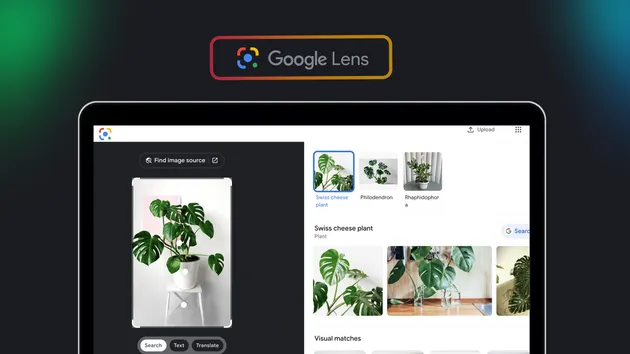
Google Lens OCR API - Image to Text & Coordinates
Pricing
from $2.99 / 1,000 ocrs
Google Lens OCR API - Image to Text & Coordinates
Google Lens OCR API. Extract text from images with word, line and paragraph bounding boxes in pixels, plus object detection and translation.
Pricing
from $2.99 / 1,000 ocrs
Rating
0.0
(0)
Developer

Thodor
Maintained by CommunityActor stats
0
Bookmarked
18
Total users
5
Monthly active users
8 days ago
Last modified
Categories
Share
An image to text API powered by Google Lens OCR. Paste an image URL, a screenshot, a scan, a manga page, an invoice, and get the text back as JSON with bounding box coordinates for every word, line, and paragraph. 0.5 to 1 second per image. No Google Cloud project, no API key to manage.
Google offers no official Lens API; this actor is the programmatic way to use Lens OCR. The coordinates are what separate it from a text dump: overlay a translation onto the original image, black out personal data, build a searchable PDF, or map a form label to the value sitting beside it. Looking for where an image appears online instead? That's the Reverse Image Search API; this one reads text only.
📋 How to extract text from an image
- Paste one or more image URLs into Image URLs. JPEG, PNG, WebP, and GIF all work.
- Optional: open 🌍 Translation & language and pick a Translate to language.
- Click Start.
- Open the Output tab and click Export for JSON, CSV, Excel, or HTML.
Measured on real images: a 900x300 PNG returned in 566 ms, an 800x400 PNG in 642 ms, and a 2878x1918 JPEG photo in 766 ms, each including the time to download the source file. Images process in parallel, so a batch costs little more wall time than its slowest image.
🎁 So what do you get?
| 📝 Extracted text | 📦 Boxes for every word, line, and paragraph | 🌍 Detected language |
|---|---|---|
| 🔁 Built-in translation | 🧭 Writing direction per paragraph | ➗ Math formulas as LaTeX |
| 🎯 Detected objects and salient regions | 📐 Pixel and normalized coordinates | 🔄 Rotation angle per box |
| #️⃣ Word, line, and paragraph counts | 🖼️ Image dimensions | 🚫 Failed URLs logged, never billed |
⚖️ Compared to Cloud Vision and Tesseract
| This actor | Google Cloud Vision | Tesseract | |
|---|---|---|---|
| Line bounding boxes | ✅ | ❌ Words and paragraphs only | ✅ |
| Coordinates | ✅ Pixel and normalized | ⚠️ Pixels only | ⚠️ Pixels only |
| Writing direction per paragraph | ✅ | ❌ | ❌ |
| Math as LaTeX | ✅ | ❌ | ❌ |
| Translation | ✅ Built in | ❌ Separate Translate API | ❌ |
| Objects and salient regions | ✅ Included | ⚠️ Separate feature, billed per call | ❌ |
| Accuracy on photos and angled text | ✅ Strong | ✅ Strong | ⚠️ Weak |
| Setup | ✅ Register on Apify, $5 free monthly credit | ❌ GCP project, billing, API key | ⚠️ Install and self-host |
Cloud Vision has no line level and no translation, and you need a GCP project, billing, and an API key before your first request. Tesseract is free, but you host it yourself, feed it the language up front, and accuracy drops sharply on photographs. This actor is an image URL in, JSON out.
🎯 Three things people run this for
| How | |
|---|---|
| 🈴 Manga and comic translation | Set translateTo, get each speech bubble's text, box, and writing_direction. Vertical Japanese comes back correctly ordered, ready to render the translation in place |
| 🕶️ Redaction before storage | Find the name or card number, take its word-level pixel box, black it out. OCR becomes a PII-removal step in your pipeline |
| 🧾 Invoice and form extraction | A label means nothing until you know which value sits next to it. Boxes give you the spatial layout, so Total due maps to $99.50 instead of a guess from reading order |
📥 Input
imageUrls: images to extract text from, as many as you liketranslateTo: ISO 639-1 target language. Empty = no translationlanguage: defaulten. A hint for the text in the image, not a filterregion: defaultUS. Locale hint for region-specific formatting
In the Console, the last three sit under the collapsible 🌍 Translation & language section.
💡 Tip: send the largest version of the image you have; text under roughly 15 pixels tall is unreliable. For non-Latin scripts, setting
languagemeasurably improves accuracy on Japanese, Arabic, Thai, and Cyrillic.
📤 Output
One dataset row per image. Failed images are never charged and never appear in the dataset; the failed URLs and reasons land in the FAILURES record of the run's key-value store.
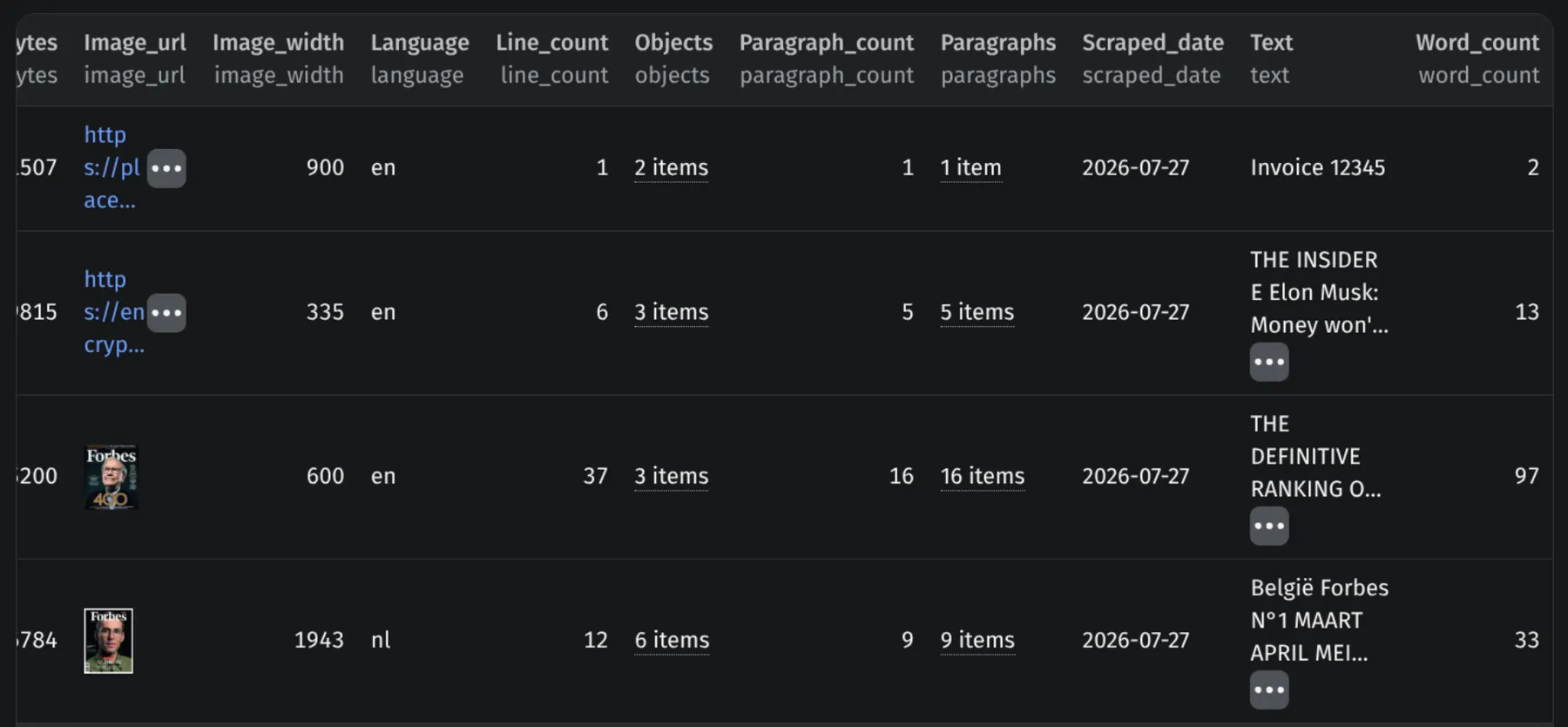
Fields
| Field | Description |
|---|---|
text | Full extracted text, paragraphs separated by blank lines |
language | Detected language of the text |
paragraphs[] | Each with text, language, writing_direction, bounding_box, and lines[] |
paragraphs[].lines[].words[] | Each word with text, separator, bounding_box, type, and latex when it is a formula |
objects[] | Detected objects and salient regions with boxes. Populated even when the image has no text, so a blank result is still a real result |
translation | Translated text plus detected source language, when translateTo is set |
paragraph_count, line_count, word_count | Counts for quick filtering |
image_width, image_height, image_size_bytes | Source image properties |
Every bounding_box carries normalized coordinates (x, y, width, height, center_x, center_y, rotation) plus a pixels object with the same box in image pixels. Use pixels for cropping and drawing, the normalized values if you resize afterwards.
⚙️ Use it as an image to text API
Every run is an HTTP endpoint: POST the same JSON as the form and the records come back in the response body, usually within seconds.
Python
Node.js
curl
Swap run-sync-get-dataset-items for runs to fire async with a webhook when you batch thousands of images. The apify-client SDK works too, in Python and JavaScript, and the n8n, Make, and Zapier integrations take the same input.
💡 Tip: no need to write the JSON by hand. Fill in the form on the Input tab, switch the editor from Form to JSON, and copy the result into your code.
💰 How much does OCR cost?
Billing is per image processed, at the rate on the price card on this page. No subscription, no monthly minimum, no per-run start fee. Images that fail are not charged.
❓ FAQ
Is there an official Google Lens API? No, Google has never published one. Cloud Vision is a different engine with different output. This actor drives Lens itself and returns its results as JSON.
Can I use this image to text API for free? Yes. Registering on Apify comes with $5 of free platform credit every month, no credit card needed, enough for roughly 1,250 images at current rates.
How accurate is Google Lens OCR? Very good on printed text, including photos taken at an angle, and strong on non-Latin scripts. Low resolution, heavy compression, and stylised fonts reduce accuracy. Handwriting works partially: neat sometimes, cursive generally not.
What languages are supported? Lens detects the language automatically and handles more than 100, including right-to-left scripts like Arabic and Hebrew and vertical Japanese.
What image formats work? JPEG, PNG, WebP, and GIF. Animated GIFs are read as their first frame. If your host serves AVIF or HEIC, convert first.
Is OCR on images legal? Extracting text from images you are entitled to process is ordinary data processing. What matters is what the images contain and what you do with the results; if they hold personal data, GDPR or CCPA applies to you.
🛟 Support
Something not working, or a field missing? Message me in the Issues tab and I'll look into it quickly. I'm a solo dev, so don't hesitate.
Need to find where an image appears online instead of what it says? The Reverse Image Search API covers that side.
- Thodor


![Instagram Posts, Reels & Comments Scraper [NO LOGIN] ✅ avatar](https://images.apifyusercontent.com/er0jo10t-xngWvDQkGqKsV6CP0at0xdHMoAPoVPSoEc/rs:fill:76:76/cb:1/aHR0cHM6Ly9hcGlmeS1pbWFnZS11cGxvYWRzLXByb2QuczMudXMtZWFzdC0xLmFtYXpvbmF3cy5jb20vc0NDU2R3bm1LTUoxUTJzVG4tYWN0b3ItOHFQZmVmQXltZkl3cmdrTVgtSWZDaHhpbFBtci1pbnN0YWdyYW0tdmVjdG9yLWxvZ28taWNvbi1zb2NpYWwtbWVkaWEtbG9nb3R5cGVfOTAxNDA4LTM5Mi5wbmc.webp)