

WhatsApp Product Image Resizer (Carousel, Catalog, Templates)
Pricing
Pay per usage
WhatsApp Product Image Resizer (Carousel, Catalog, Templates)
Prepare inventory for WhatsApp sales actions & catalogs. Smart padding ensures fashion products are never cropped in Carousels or Thumbnails. Automate formatting for bulk marketing pushes. Supports all API specs (1125x600, <5MB) to maximize conversion rates.
Pricing
Pay per usage
Rating
0.0
(0)
Developer
Treplit
Maintained by CommunityActor stats
0
Bookmarked
25
Total users
1
Monthly active users
9 months ago
Last modified
Categories
Share
🖼️ WhatsApp Image Resizer
Automatically resize, pad, and optimize product images for WhatsApp Business API formats.
Transform product photos into WhatsApp-ready images in seconds. No manual work, no cropping disasters, no file size rejections.
📍 What Does WhatsApp Image Resizer Do?
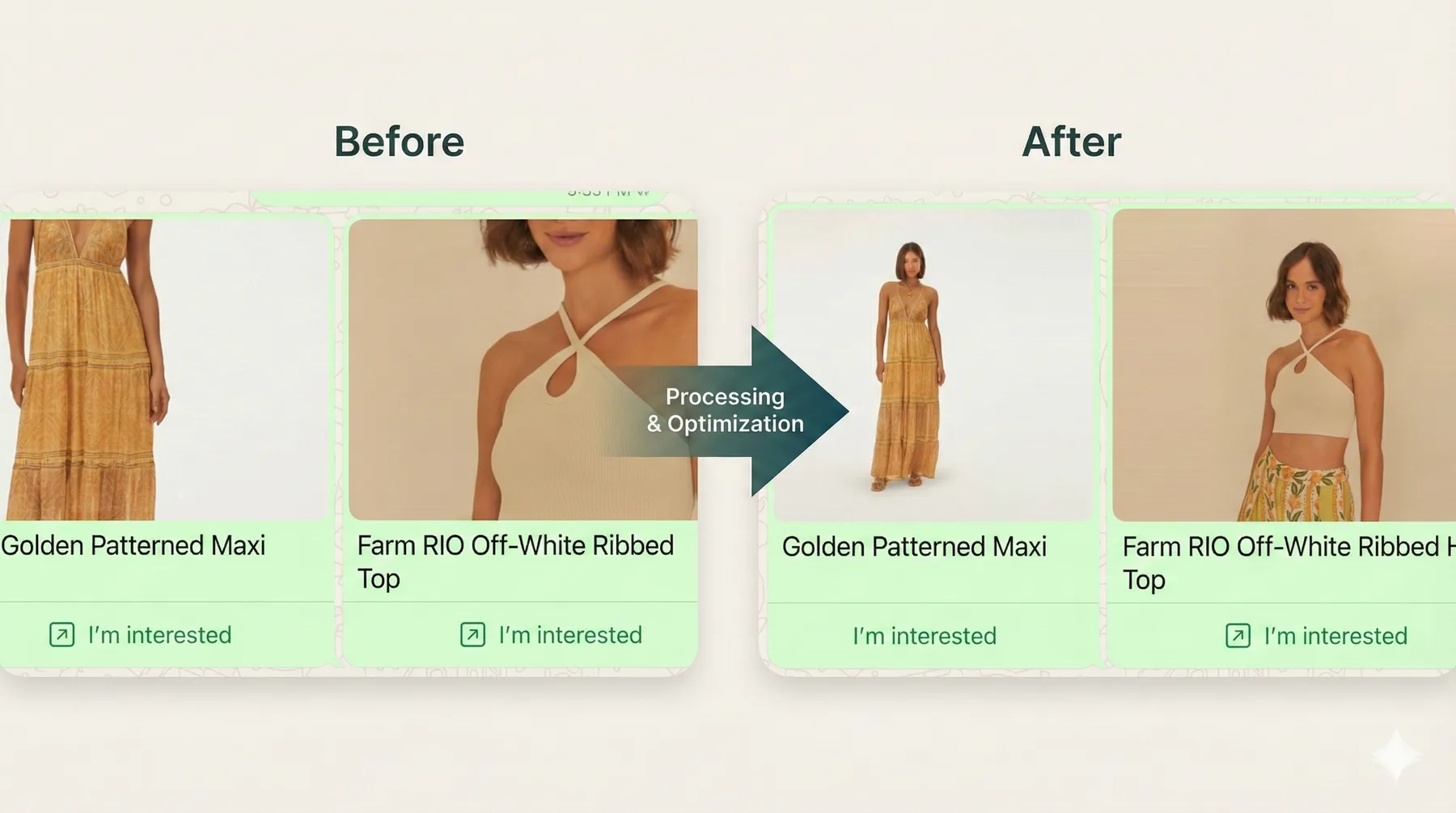
WhatsApp Image Resizer is a specialized image processing Actor designed to prepare product catalog images, marketing carousels, and message headers for the WhatsApp Business API.
WhatsApp enforces strict dimension and file size limits (e.g., 1125×600px for carousels, <5MB file size). Manually resizing thousands of product images is tedious and often leads to awkward cropping or quality loss.
This Actor automates the entire workflow:
- Accepts images via public URLs or Base64
- Resizes them to exact WhatsApp specifications
- Smartly pads images (instead of cropping) to preserve the entire product view
- Compresses files to meet strict size limits (especially the 2MB limit for headers)
- Returns public URLs ready for your API calls
Built for: E-commerce businesses, marketing agencies, and developers building on the WhatsApp Business Platform.
🎯 Why Use WhatsApp Image Resizer?
The Problem
- WhatsApp rejects images that don't match exact dimensions (1125×600, 640×640, etc.)
- Cropping product images loses important details (especially for tall/portrait photos)
- File size limits (5MB for media, 2MB for headers) cause frequent rejections
- Manually processing hundreds of product images is time-consuming and error-prone
The Solution
- Automated Processing: Batch process up to 100 images in one run
- Smart Padding: Preserves entire product view with intelligent background fill
- Guaranteed Compliance: Every output meets WhatsApp's exact specifications
✨ Features
- Exact WhatsApp Formats: Pre-configured presets for:
carousel(1125×600px)catalog_thumbnail(640×640px)template_header(1125×600px)
- Smart Padding: Never cuts off your product. Adds padding (solid color, blurred, or edge-extended) to fit the aspect ratio. See examples below.
- Auto-Compression: Uses a binary search algorithm to find the highest quality that fits within WhatsApp's file size limits (5MB or 2MB).
- Batch Processing: Process up to 100 images in a single run.
- Privacy & Security: Includes SSRF protection to prevent access to internal network resources.
- High Performance: Built with Python's
Pillowandhttpxfor fast, async processing.
🎨 Padding Modes Explained
When your product image doesn't match WhatsApp's required aspect ratio (e.g., a tall portrait photo going into a wide 1125×600 carousel), the Actor adds padding to the sides. You can choose how that padding looks:
Original Image
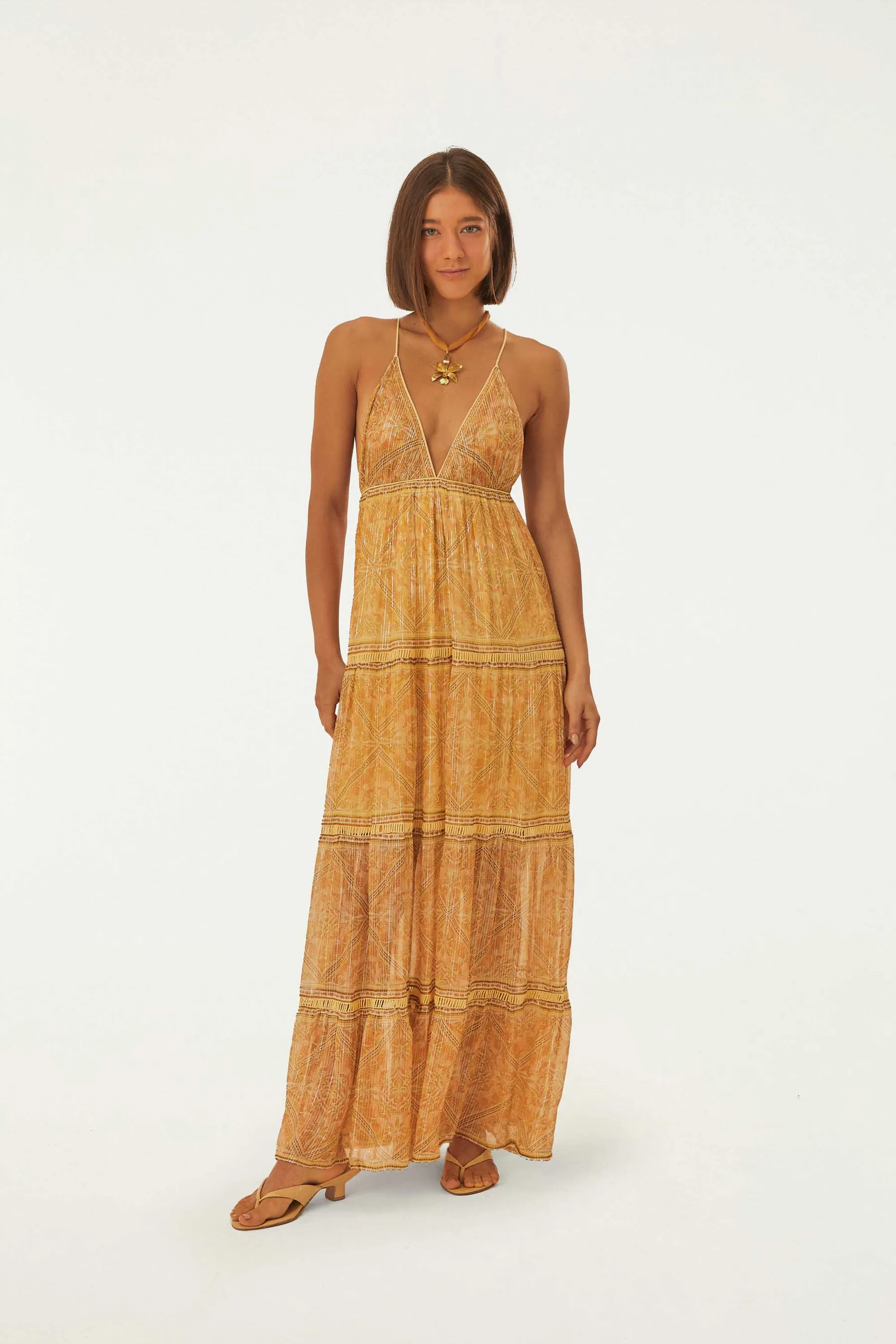 Portrait product photo (before processing)
Edge Extend (edge_extend)
Stretches the edge pixels of the image outward. Creates a seamless transition that feels natural.
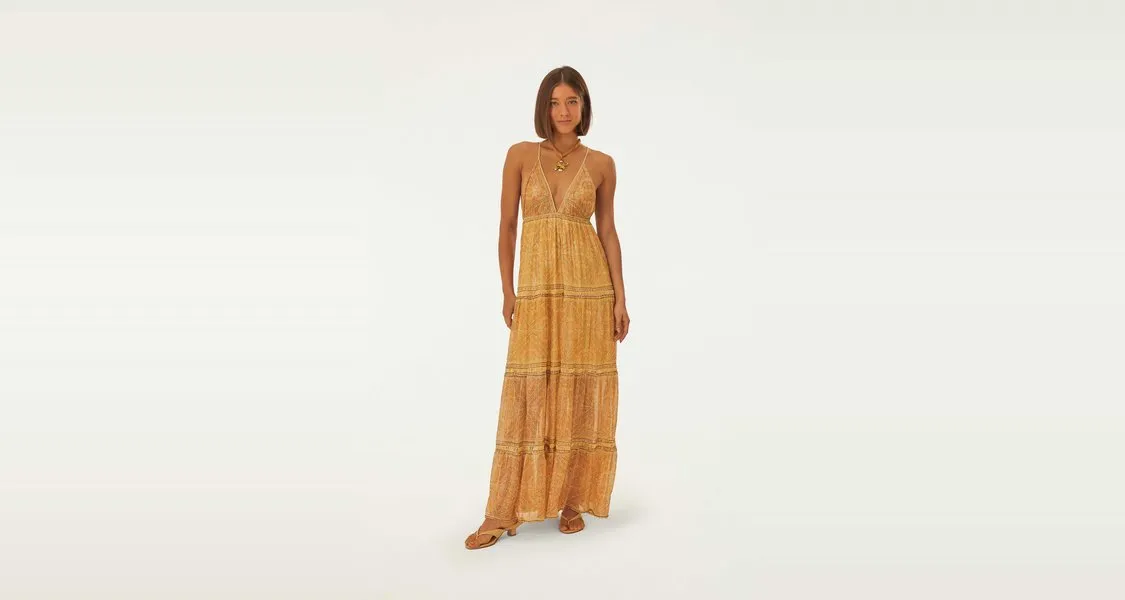
Best for: Photos with gradient backgrounds, studio shots, images where you want the background to "continue".
Solid (solid)
Fills the padding area with a single solid color. Clean and professional.
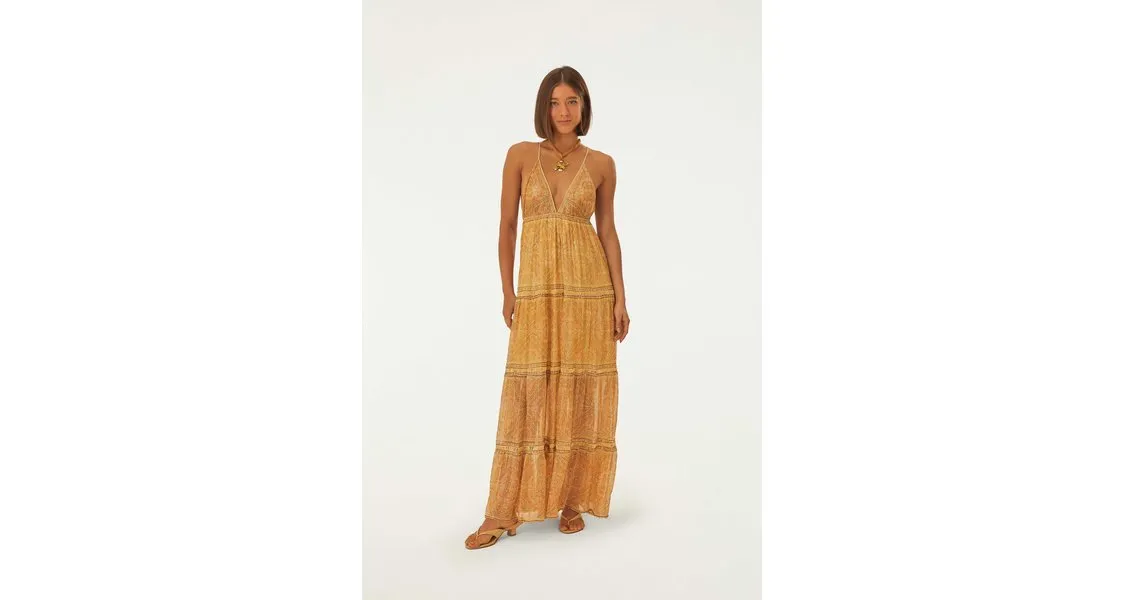
Best for: White background product photos, catalog images, minimalist brands.
Blur (blur)
Creates a softly blurred version of the image edges to fill the padding. Adds visual depth without distraction.
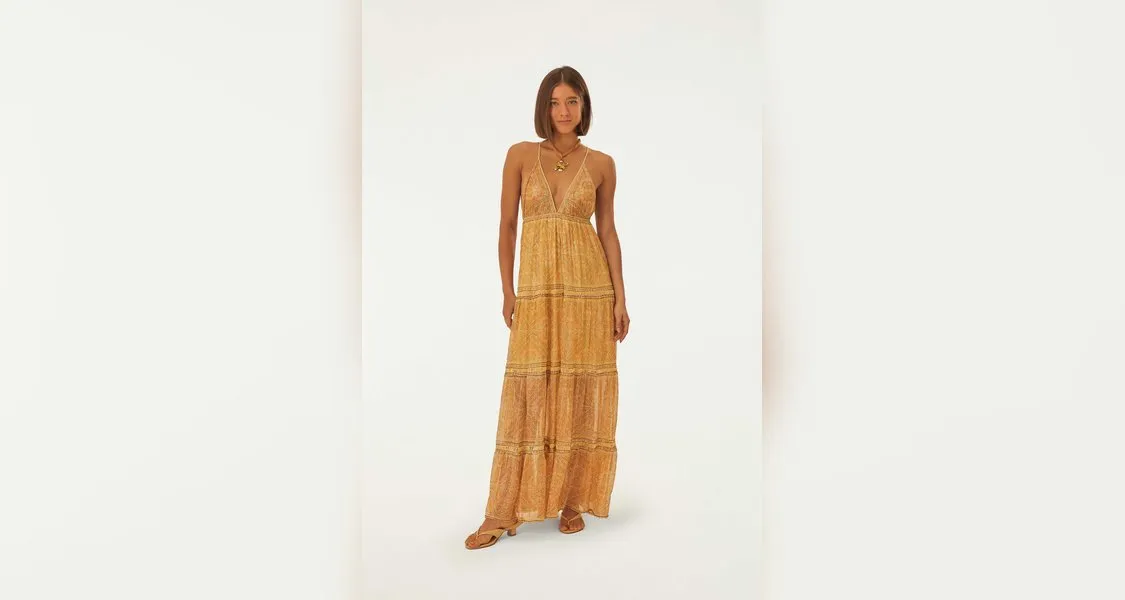
Best for: Lifestyle photos, fashion items, images with colored backgrounds.
Quick Comparison
| Mode | Effect | Best Use Case |
|---|---|---|
edge_extend | Stretched edge pixels | Gradient/studio backgrounds |
solid | Clean solid color fill | White/plain backgrounds |
blur | Soft blurred edges | Lifestyle & fashion photos |
🖼️ Combining Multiple Images
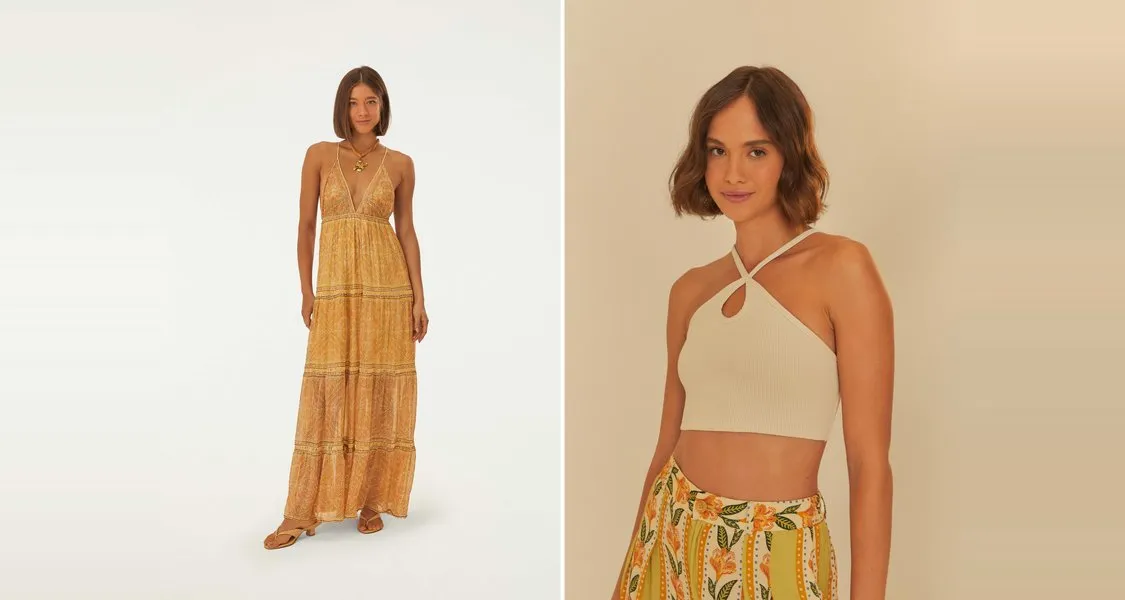
Show multiple product angles or variants in a single WhatsApp card by combining 2 or 3 images side-by-side. Set combineImages: true to enable this feature.
2 Images Combined
3 Images Combined
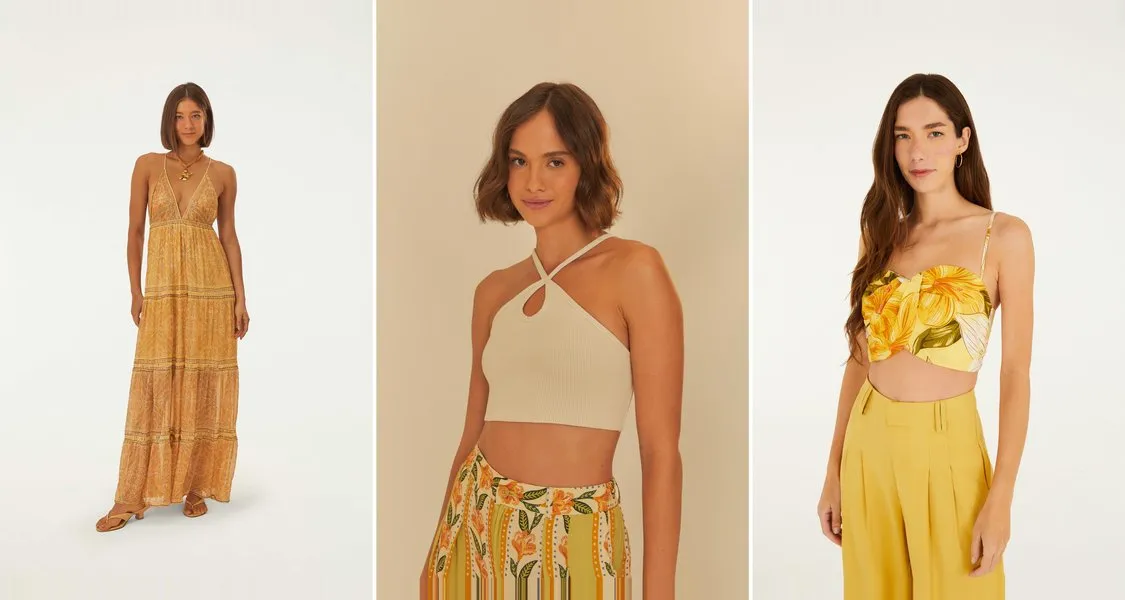
Best for: Product variants, multiple angles, before/after comparisons, color options.
🎓 How to Resize Images for WhatsApp Business API
Follow these simple steps to prepare your product images for WhatsApp:
1. Prepare Your Image URLs
Ensure your images are publicly accessible via HTTPS. You can use:
- Your e-commerce platform (Shopify, WooCommerce, etc.)
- Cloud storage (AWS S3, Google Cloud Storage, Cloudinary)
- Any public CDN or web server
Alternatively, provide images as Base64-encoded strings for private images.
2. Choose Your WhatsApp Format
Select the format that matches your use case:
carousel(1125×600px) - For product carousels in marketing messagescatalog_thumbnail(640×640px) - For product catalog thumbnailstemplate_header(1125×600px, max 2MB) - For message template headers
3. Configure the Actor Input
In the Input tab, paste your configuration:
Note: The id field is optional. If omitted, results are returned in the same order as your input URLs.
What You Pay For
- ✅ Successfully processed images (charged at $0.01 each)
- ❌ Failed images (download errors, invalid formats) are NOT charged
Why Pay-Per-Event?
- Transparent: Know exactly what you'll pay before running
- Fair: Only charged for successful outputs
- Predictable: No hidden compute costs or variable pricing
- Controlled: Set spending limits to prevent overruns
💼 Use Cases
- E-commerce stores preparing product images for WhatsApp catalogs
- Marketing agencies creating carousel campaigns
- WhatsApp chatbot developers processing user-uploaded images
- Product launches requiring bulk image preparation
- Multi-channel retailers repurposing product photography
⬇️ How to Configure WhatsApp Image Resizing Input
The input is a JSON object containing a list of images and configuration settings. You can provide images via url or data (base64).
Minimal Example (Just URLs)
Results are returned in the same order as your input URLs - no id field required!
With Custom IDs (Optional)
If you need to track specific images, add an optional id field:
Full Configuration Example
See the Input tab for a full description of all parameters.
⬆️ WhatsApp Image Resizer Output Data
The Actor stores results in two places:
- Key-Value Store: The actual processed image files (JPEGs/PNGs)
- Dataset: A JSON record for each processed image containing metadata and the public URL
Output Data Fields
Each processed image returns the following data points:
| Field | Description | Example Value |
|---|---|---|
success | Processing status | true or false |
id | Your custom identifier (optional) | "sku-123" or null |
sourceUrl | Original image URL | "https://myshop.com/image.jpg" |
publicUrl | WhatsApp-ready URL | "https://api.apify.com/v2/key-value-stores/..." |
originalWidth | Source image width | 2400 |
originalHeight | Source image height | 3600 |
outputWidth | Final width (WhatsApp format) | 1125 |
outputHeight | Final height (WhatsApp format) | 600 |
outputFormat | Image format (jpeg/png) | "jpeg" |
fileSizeBytes | Final file size (must be <5MB or <2MB) | 145023 |
targetFormat | WhatsApp format used | "carousel" |
processingTimeMs | Processing duration | 845 |
Dataset Item Example
Error Example
🧩 Integrations
Since this Actor outputs clean JSON data, it integrates easily with:
- N8N / Make.com / Zapier: Trigger the Actor when a new product is added to Shopify/WooCommerce, then send the
publicUrlto your WhatsApp API provider (Twilio, Meta, WATI, etc.). - Custom API: Call this Actor via the Apify API to process images on-demand for your application.
❓ WhatsApp Image Processing FAQ
Why padding instead of cropping?
WhatsApp images (especially carousels) have a wide aspect ratio (1.91:1). Most product photos are portrait (2:3) or square (1:1). Cropping to 1.91:1 would remove the top and bottom of your product. Padding ensures the entire product is visible and centered.
Can I combine images?
Yes! Set combineImages: true to stitch 2 or 3 images side-by-side. This is great for showing multiple angles of a product in a single carousel card.
How much does it cost to resize images for WhatsApp?
Simple, transparent pricing: $0.01 per image ($1 per 100 images, $10 per 1,000 images). Only successfully processed images are charged - failed images are free. You can set spending limits to control costs. See the Pricing section for details.
Can I process images in Python?
While this Actor is built with Python, you interact with it through Apify's platform (UI or API). No Python knowledge required. For custom Python integrations, use the Apify Python SDK.
What's the difference between carousel and catalog formats?
- Carousel (1125×600px): Wide format for marketing messages with multiple product cards
- Catalog (640×640px): Square thumbnails for WhatsApp Business product catalogs
- Template Header (1125×600px, max 2MB): Headers for message templates with stricter size limits
How do I integrate with Shopify or WooCommerce?
Use automation platforms like Make.com, Zapier, or n8n:
- Trigger: New product added to your store
- Action: Extract product image URL
- Action: Run this Actor with the image URL
- Action: Send the
publicUrlto your WhatsApp Business provider
Can I use this for other platforms besides WhatsApp?
Yes! While optimized for WhatsApp, the presets work for any platform with similar requirements. The smart padding and compression features are useful for any image processing workflow.
What happens if an image fails to process?
The Actor returns a JSON object with "success": false, an error code (e.g., DOWNLOAD_FAILED), and a descriptive message. Failed images don't stop the batch - other images continue processing.
Do I need to provide an ID for each image?
No! The id field is completely optional. If you omit it, the Actor will still process your images and return results in the same order as your input URLs. Use IDs only if you need to track specific images (like SKUs or product codes).


