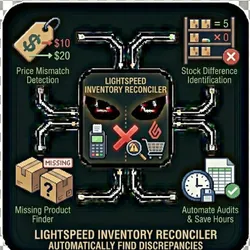
Lightspeed Inventory Reconciler
Pricing
from $0.01 / 1,000 results
Lightspeed Inventory Reconciler
Automatically find discrepancies between your Lightspeed Retail POS and your online store (Lightspeed eCom or Ecwid). Identify price mismatches, stock differences, and products that exist in one system but not the other - saving hours of manual inventory auditing.
Pricing
from $0.01 / 1,000 results
Rating
0.0
(0)
Developer

The Howlers
Maintained by CommunityActor stats
0
Bookmarked
2
Total users
0
Monthly active users
a month ago
Last modified
Categories
Share
Reconcile inventory between Lightspeed Retail POS and eCom platforms (Lightspeed eCom or Ecwid). Identify price and stock discrepancies, find products missing from either system.
BYOK (Bring Your Own Key) -- you provide your own API credentials.
Before You Start
This actor requires your own API credentials to fetch real data.
Where to get your key: API Key for Lightspeed Retail (R-Series) POS
This actor runs in Demo Mode by default, so a default free run returns sample data (free, no key needed) to show you the output format. Set demoMode to false to fetch real data.
Quick Start
Test with Demo Mode (free, no API key needed)
Run with real data
Input Parameters
| Parameter | Type | Default | Required | Description |
|---|---|---|---|---|
demoMode | boolean | true | No | Run with sample data to test the reconciliation process without API credentials. Perfect for exploring the output format before connecting your accounts. |
retailApiKey | string | - | Yes* | API Key for Lightspeed Retail (R-Series) POS |
retailApiSecret | string | - | Yes* | API Secret for Lightspeed Retail (R-Series) POS |
retailAccountId | string | - | No | Your Lightspeed Retail account ID |
ecomApiKey | string | - | Yes* | API Key for Lightspeed eCom (E-Series) |
ecomApiSecret | string | - | Yes* | API Secret for Lightspeed eCom (E-Series) |
ecomCluster | string | "us" | No | Lightspeed eCom data center region |
ecwidStoreId | string | - | No | Ecwid Store ID (alternative to Lightspeed eCom) |
ecwidAccessToken | string | - | Yes* | Ecwid API Access Token |
matchBy | string | "sku" | No | How to match products between POS and eCom |
includeUnmatched | boolean | true | No | Include products that exist only in POS or only in eCom |
generateReport | boolean | true | No | Generate a summary report with statistics and top issues |
*Required when Demo Mode is off.
Troubleshooting
"API key is required"
You have Demo Mode turned off but didn't provide an API key. Either:
- Turn Demo Mode on to test with sample data
- Add your API key in the input
"API error 403" or "Unauthorized"
Your API key is invalid, expired, or doesn't have access to this specific API endpoint. Double-check your key and account permissions.
"API error 429" or "Rate limit"
Too many requests. Wait a minute and try again, or reduce the number of items per run.
No results or empty dataset
Check the run log for error messages. Common causes:
- Invalid input format (check the examples above)
- API key without proper permissions
- The target data doesn't exist or is too small to track
How do I test without an API key?
Enable Demo Mode in the input. This returns realistic sample data so you can verify the output format works for your workflow.
Built by John Rippy | Actor Arsenal