

Shopify & WooCommerce Price Monitor - Price & Stock Tracker
Pricing
from $0.60 / 1,000 product rows
Shopify & WooCommerce Price Monitor - Price & Stock Tracker
Shopify price monitor and WooCommerce price tracker: paste competitor shops, get every product price and stock as Excel. Run on a schedule to see only changes: price drops and increases, back in stock, out of stock, new and removed products.
Pricing
from $0.60 / 1,000 product rows
Rating
0.0
(0)
Developer

Alpine Data Labs
Maintained by CommunityActor stats
0
Bookmarked
2
Total users
1
Monthly active users
2 days ago
Last modified
Categories
Share
Shopify & WooCommerce Price Monitor: Competitor Price and Stock Tracker
A Shopify price monitor and WooCommerce price tracker for competitor shops. Paste shop websites, click Start, and get every product with its price and stock status as Excel, CSV or JSON. Run it again (for example on a daily Schedule) and it tells you what changed since the last run: price drops, price increases, back in stock, out of stock, new products and removed products. It reads only the public product feeds that shops publish for every visitor. You don't need a login, an API key or any coding.
How to use it (no code)
- Fill in the form: paste shops, one per line: a domain (
allbirds.com), a full URL (https://porterandyork.com) or a product link (shop.com/products/name). The form already has two working example shops. - Click Start (bottom of the form). Most shops take 5–20 seconds. Note: Start with the pre-filled example is a small paid run (2 shops, max 50 products each): about 100 rows, about $0.075. An empty input checks 40 example products (about $0.03).
The first run is the baseline: it saves today's prices. Changes (price drops, stock changes) appear from the second run on. What the first run charges depends on What do you want back?. With All products, you get every product as a
baselinerow, charged as a product row ($0.00075 each). With Only changes, the first run returns no rows and charges nothing. - Download: open the Output tab and pick a view: Prices and stock (overview), Changes only or Full catalog details. Click Export for Excel or CSV.
- Optional: repeat it automatically. Click Save as a new task, then Schedule (for example daily at 07:00). Each run then shows only what changed. See the step-by-step guide below.
You never need to write JSON or code: every option is a field, dropdown or checkbox in the form.
What you get: prices, stock and changes
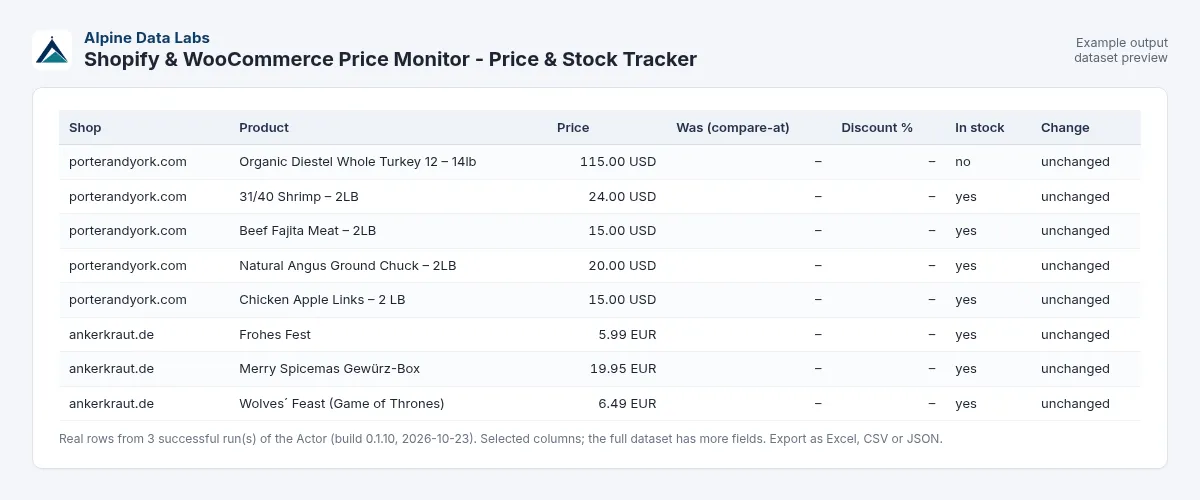
| Shop | Product | Variant | Price | Old price | Change % | Currency | In stock | Change since last run |
|---|---|---|---|---|---|---|---|---|
| ankerkraut.de | Frohes Fest | 55g im Korkenglas | 5.99 | EUR | yes | baseline | ||
| ankerkraut.de | Merry Spicemas Gewürz-Box | 19.95 | EUR | yes | baseline | |||
| deathwishcoffee.com | Boos Cruise Silicone Cup | 8.00 | 13.00 | -38.5 | USD | yes | price_down | |
| porterandyork.com | 31/40 Shrimp – 2LB | 24.00 | 19.20 | +25.0 | USD | yes | price_up | |
| porterandyork.com | Beef Fajita Meat – 2LB | 15.00 | USD | yes (was: no) | back_in_stock |
(Rows from test runs on 23 Oct 2026. For the change rows we edited the saved previous prices in our own test so that the second run had changes to find. The current prices are real.) Each row also has the compare-at price and discount %, the highest variant price, variants in stock / total, SKU, brand (vendor), product type or category, tags, product and variant IDs, link, image, created/updated dates, firstSeenAt, previousCheckAt and, if you want it, the description text.
Monitor competitor prices automatically: click Schedule and run it daily or weekly with What do you want back? = Only changes. Each run then returns only the products whose price or stock changed, plus new and removed products. You pay only for those rows. Send the results to email, Slack, Google Sheets, Make, Zapier or n8n under Integrations to get a price drop alert or a back in stock alert.
The column Change since last run (changeType) is one of baseline (first run), unchanged, new_product, removed, price_up, price_down, back_in_stock or out_of_stock. If several things change at once, the types are joined, for example price_down, back_in_stock.
Excel tip: product names come from the shops. If you open exports in Excel, use the XLSX export rather than CSV, so that a name starting with =, +, - or @ cannot be read as a formula.
Use cases: competitor price monitoring, stock alerts, catalog export
- Competitor price monitoring for your own shop: see the day a competitor runs a sale, raises prices or adds a new product.
- Back in stock and out of stock alerts: know when a product you resell or want to buy is available again.
- Price history: schedule daily runs and keep the datasets to build your own price history per product.
- Brand and MAP monitoring: check what retailers on Shopify or WooCommerce charge for your brand (use the brand filter).
- Catalog export / Shopify product scraper: download a full product list with prices, SKUs and variants as Excel.
- Market research: compare price levels and assortment across a niche.
Input fields in plain words
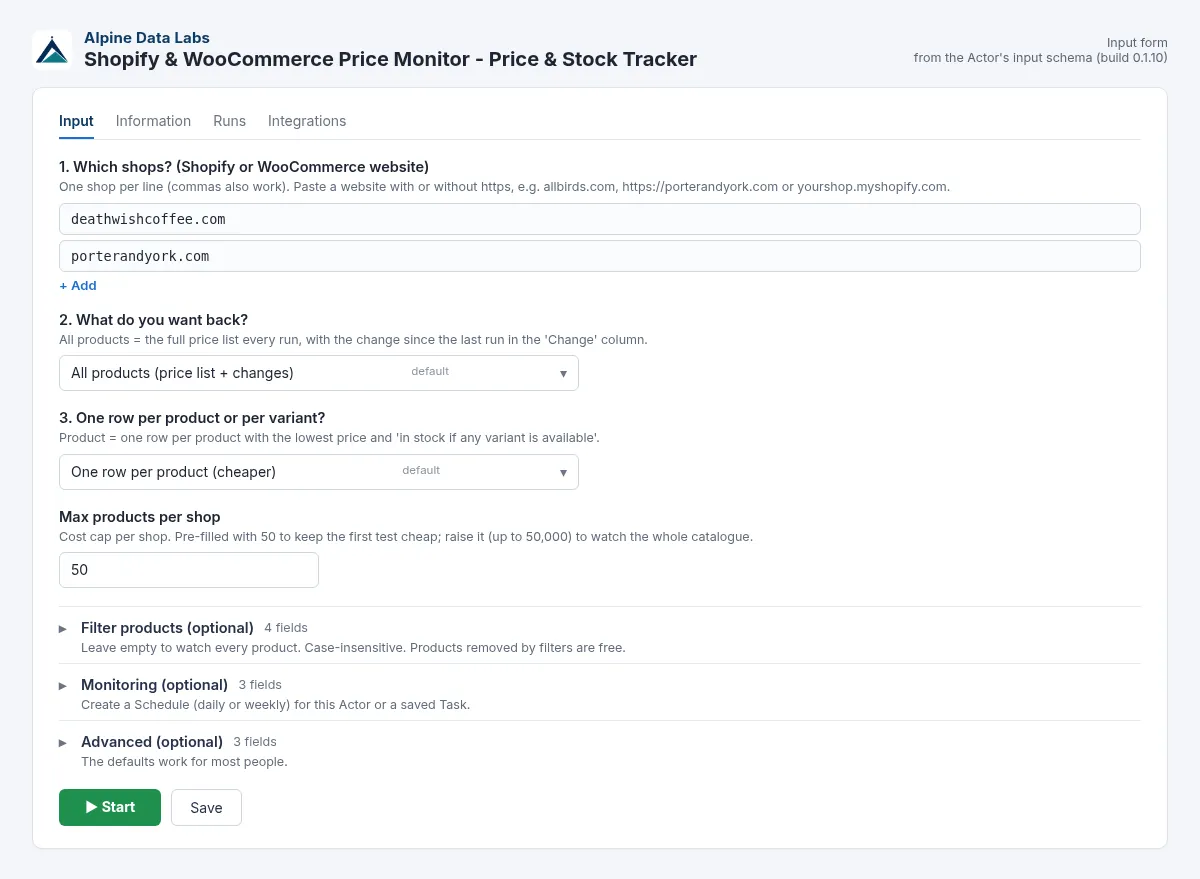
| Field | What it does | Example |
|---|---|---|
| 1. Which shops? | Shop websites or product links, one per line (commas also work). With or without https://. | allbirds.com, https://porterandyork.com |
| 2. What do you want back? | All products (with change info) or Only changes since the last run (cheapest for monitoring). | All products |
| 3. One row per product or per variant? | Per product: the lowest price, and "in stock" if any variant is. Per variant: one row per size/colour. | Per product |
| Max products per shop | Cost cap per shop. The form pre-fills 50 so test runs stay cheap. The default is 1,000, and you can set up to 50,000. | 1000 |
| Filter: Product name contains / must NOT contain | Keep or drop products by words in the name (case-insensitive). | coffee / sample |
| Filter: Brand, category or tag contains | Keep products whose brand, product type, category or tag matches. | Nike |
| Filter: Only products in stock | Skip sold-out products. | off |
| Monitoring: Ignore price changes smaller than (%) | Skips tiny changes, for example from currency rounding. | 1 |
| Monitoring: Report removed products | Adds a removed row for products that disappeared from the shop. | on |
| Monitoring: Monitor name | Keeps separate monitors with the same shops apart (each has its own "last run"). | competitors-de |
| Advanced: Include description | Adds the plain-text product description. | off |
| Advanced: Shop platform | Auto-detect (recommended), or force Shopify / WooCommerce. | Auto-detect |
| Advanced: Proxy | Only needed if a shop rate-limits you. Off by default. | off |
How to set up a daily Shopify price monitor (step by step)
- Paste your competitors' shop domains into Which shops? and set What do you want back? to Only changes.
- Give the monitor a name in Monitoring → Monitor name, for example
competitors-de. Use one name per list of shops. - Click Save as a new task, then Schedule it: daily at 07:00 is a good start, or every few hours for stock alerts.
- Under Integrations, add Send email, Slack, Google Sheets, Make, Zapier or n8n, triggered on "Run succeeded". Every message then contains only the price and stock changes.
- Optional: set Ignore price changes smaller than (%) to 1–2 to skip rounding noise. Use the name or brand filters to watch only the products you also sell.
Pricing: $0.75 per 1,000 products, $7.50 per 1,000 changes
You pay per result row (pay per event). Each row is charged once:
- Product row: $0.00075 ($0.75 per 1,000). This covers every product or variant row that is delivered without a change:
baselinerows on the first run andunchangedrows on later runs. Both appear only with All products. - Change row: $0.0075 ($7.50 per 1,000). This covers rows with a detected change: new, removed, price up or down, back in stock or out of stock. A change row is not charged as a product row too.
What exactly is charged per run:
| Run | All products | Only changes |
|---|---|---|
| First run (baseline) | every product row: $0.00075 each | nothing: no rows, baseline saved silently |
| Later runs | unchanged rows $0.00075 each, change rows $0.0075 each | change rows only, $0.0075 each; unchanged products are skipped and free |
Plan discounts: the prices above apply to the Apify Free and Starter plans. On Scale both prices are 10 % lower, on Business (and higher) 20 % lower:
| Apify plan | Product row | per 1,000 products | Change row | per 1,000 changes |
|---|---|---|---|---|
| Free, Starter | $0.00075 | $0.75 | $0.0075 | $7.50 |
| Scale (−10 %) | $0.000675 | $0.675 | $0.00675 | $6.75 |
| Business and higher (−20 %) | $0.0006 | $0.60 | $0.006 | $6.00 |
Cost cap per shop: Max products per shop limits how many products are read from each shop. The form pre-fills 50 for cheap test runs. Through the API, or if you clear the field, the default is up to 1,000 products per shop (maximum 50,000). With All products, one shop with 1,000 products therefore costs up to 1,000 × $0.00075 = $0.75 per run on the Free plan.
A new Monitor name, other shops or another row level start a new baseline, and the same first-run rule applies.
Example: you monitor 5 competitor shops with 400 products each, once a day, with Only changes. The first run saves the baseline, returns no rows and costs nothing. After that, if 30 products change per day, each run costs 30 × $0.0075 = $0.225, about $6.75 a month. A full export of all 2,000 products costs 2,000 × $0.00075 = $1.50.
The pre-filled example (2 shops, max 50 products each) returns about 100 rows and costs about $0.075.
Free: shops that cannot be read (not a shop, password-protected, blocked), invalid input, products removed by your filters, and unchanged products skipped in Only changes mode. If no shop can be read, the run ends with a clear message and nothing is charged (the run still succeeds; for temporary problems such as timeouts, rate limits or server errors the status message starts with a clear warning, the saved prices are kept, and a short RUN_SUMMARY record is written to the run's key-value store). You can also set a maximum charge per run in the run options. The Actor stops cleanly when the limit is reached.
FAQ and common mistakes
How do I track competitor prices on Shopify? Paste the competitor's domain, run once to save the baseline, then schedule daily runs with Only changes. You get a row for every price drop, price increase and stock change.
Can I get a price drop alert or back in stock alert by email or Slack? Yes. Schedule the Actor and add an email, Slack or Google Sheets integration to the run (Integrations tab). With Only changes, every notification contains just the changes.
Is this a Shopify scraper / WooCommerce product scraper too? Yes. With All products, it exports the full public catalog with prices, SKUs, variants, stock status, images and links. You can export it as Excel or CSV.
How does it know what changed? After each run it saves the prices and stock it saw, keyed by your shops, settings and Monitor name. The next run with the same settings compares against that. If you change the shops, row level or monitor name, a new baseline starts.
Why is my first run "baseline" with no changes? A change needs a previous run to compare with. With All products, the first run returns every product as a baseline row, and each row is charged as a product row ($0.00075). With Only changes, the first run returns no rows and nothing is charged. In both modes the baseline is saved for the next run.
How much does Shopify price monitoring cost? With Only changes, the first run is free and every later run costs $0.0075 per detected change (new, removed, price up or down, stock change). Unchanged products are free. For example, 2,000 products with 30 changes a day cost $0.225 a day. With All products you pay $0.00075 for every unchanged row plus $0.0075 per change, so 2,000 products cost about $1.50 per run.
The shop says "password-protected" or "does not look like a Shopify or WooCommerce shop". Password-protected shops are not public yet. Some shops use a custom (headless) storefront. In that case, try their name.myshopify.com address. WooCommerce shops need the WooCommerce Store API (WooCommerce 6 or newer, enabled by default). Some sites switch it off.
Do I get exact inventory numbers? No. Shops publish only "in stock / out of stock" (and, per product, how many variants are available), not quantities.
Which currency are the prices in? In the shop's default currency (shown in the currency column). Shops with several local currencies show their main one.
Is it legal to monitor competitor prices? The Actor reads only product data that each shop publishes openly for every visitor (Shopify's public product feed, the WooCommerce Store API). It follows robots.txt and waits between requests. Check the terms of the shops you monitor and how you use the data.
Limits
- Shopify and WooCommerce only. Other shop systems get a friendly "not a shop" message and are free.
- Headless or custom Shopify storefronts sometimes hide the public feed. Use the
myshopify.comdomain if you know it. - Some shops switch off the public product feed or the Store API, or rate-limit requests (HTTP 429). The Actor retries politely and then reports the shop as not readable (free). The optional proxy can help.
- About one request per second per shop, so very large catalogs (10,000+ products) take a few minutes.
- Products are only reported as
removedwhen the whole catalog was read. If Max products per shop cuts the list, missing products are not counted as removed. For product links, a product counts as removed only when the shop answers "not found"; temporary errors never createremovedrows. - If a run stops at your maximum charge, products that were not delivered keep their previous state, so their changes show up again in the next run instead of being lost.
- Only public shop websites are read. Local, internal or private network addresses (also via redirects or domains that point to them) and domains that cannot be found are skipped and not charged.
- Prices are the regular public prices. Customer-specific, B2B, member and cart-level discounts are not visible.
Data source and legal notes
Only public data. The Actor reads public product feeds (/products.json on Shopify, /wp-json/wc/store/v1/products on WooCommerce), respects robots.txt and keeps request rates low. It collects product data only, no personal data. Shopify and WooCommerce are trademarks of their owners. This Actor is not affiliated with or endorsed by Shopify, Automattic/WooCommerce or any shop.
Related tools from Alpine Data Labs
- Career Page Job Scraper: see which roles your competitors are hiring for (Greenhouse, Lever, Workday and more).
- Zefix Swiss Company Register: look up Swiss competitors and suppliers in the official company register.
- EU Tenders (TED): Tender Alerts: find public tenders for the products you sell.
- All tools from Alpine Data Labs: no-code data tools for public data, business research and monitoring.
Support
Found a shop that doesn't work, or need a field? Open an issue in the Issues tab. Built and maintained by Alpine Data Labs.
For developers / API & integrations
Everything in the form is also available through the API, so the Actor fits into your own workflows, websites and scripts. The input field names, their formats and the output fields are stable: inputs that worked before keep working.
Minimal JSON input (all other fields use the form defaults):
API default: if you leave out maxProductsPerShop, the Actor reads up to 1,000 products per shop (the form pre-fills 50 instead). Set it explicitly to control the cost, e.g. 20 products × $0.00075 = $0.015 per shop with All products.
Full example input:
cURL (runs the Actor and returns the dataset rows as JSON):
JavaScript (npm install apify-client):
Python (pip install apify-client):
Example output row:
Use the same stateKey on every run so each run compares with the previous one. Output field names (shop, title, price, oldPrice, changeType, …) do not change between versions.
Input field names (API) and accepted alternatives:
| Form field | API field | Also accepted |
|---|---|---|
| Which shops? | shops | shop, urls, startUrls (strings or {"url": …} objects), domains, stores, storeUrls, websites; one string with commas/new lines also works |
| What do you want back? | outputMode (all / only_changes) | mode, onlyChanges (true/false) |
| One row per | rowLevel (product / variant) | level |
| Max products per shop | maxProductsPerShop | maxItems, maxProducts |
| Product name contains / excludes | titleKeywords, excludeKeywords | keywords, keyword; comma-separated strings work |
| Brand or category | vendorOrCategory | – |
| Only in stock | onlyInStock | "yes"/"no", 1/0 |
| Ignore changes smaller than (%) | minPriceChangePct | minChangePct |
| Report removed products | reportRemoved | – |
| Monitor name | stateKey | monitorName |
| Include description | includeDescription | – |
| Shop system | platform (auto / shopify / woocommerce) | – |
| Proxy | proxyConfiguration | – |
Integrations:
- Schedules: save your input as a Task and add a Schedule (Apify Console → Schedules). Every scheduled run uses the same input.
- Webhooks: under Integrations → Webhooks, call your URL on "Run succeeded" and fetch the rows from
https://api.apify.com/v2/datasets/<datasetId>/items?format=json(orformat=xlsx/csv). - Make, Zapier, n8n: use the Apify app/node, "Run Actor" or "Run task", then "Get dataset items". Google Sheets, Slack and email integrations are available in the Integrations tab without any code.
- Apify MCP: AI agents can call this Actor through the Apify MCP server (mcp.apify.com) as the tool
alpine-data/shop-price-monitor.
Do not put your API token into public code or web pages. Keep it on your server or in the integration's credentials.


