

STEP to STL Converter API: CAD Renders, Volume & Weight
Pricing
Pay per event
STEP to STL Converter API: CAD Renders, Volume & Weight
Convert STEP and IGES CAD files to STL, 3MF, OBJ and GLB, render PNG views, and get exact size, volume, weight, surface area, round holes by diameter and the assembly's parts with names, colors and counts. OpenCascade kernel. Sews IGES surfaces into solids. For quoting tools and AI agents.
Pricing
Pay per event
Rating
0.0
(0)
Developer

Jumble Mog
Maintained by CommunityActor stats
0
Bookmarked
2
Total users
1
Monthly active users
5 days ago
Last modified
Categories
Features
Share
Turn STEP and IGES CAD files into mesh files, pictures and exact measurements, from one link. Send the file an engineer exports from SolidWorks, Fusion 360, Onshape, CATIA, NX, Creo, Inventor or FreeCAD and you get back:
- Mesh files: STL, 3MF and OBJ for 3D printing and slicers, and GLB (glTF) with the parts' colors and names for web viewers.
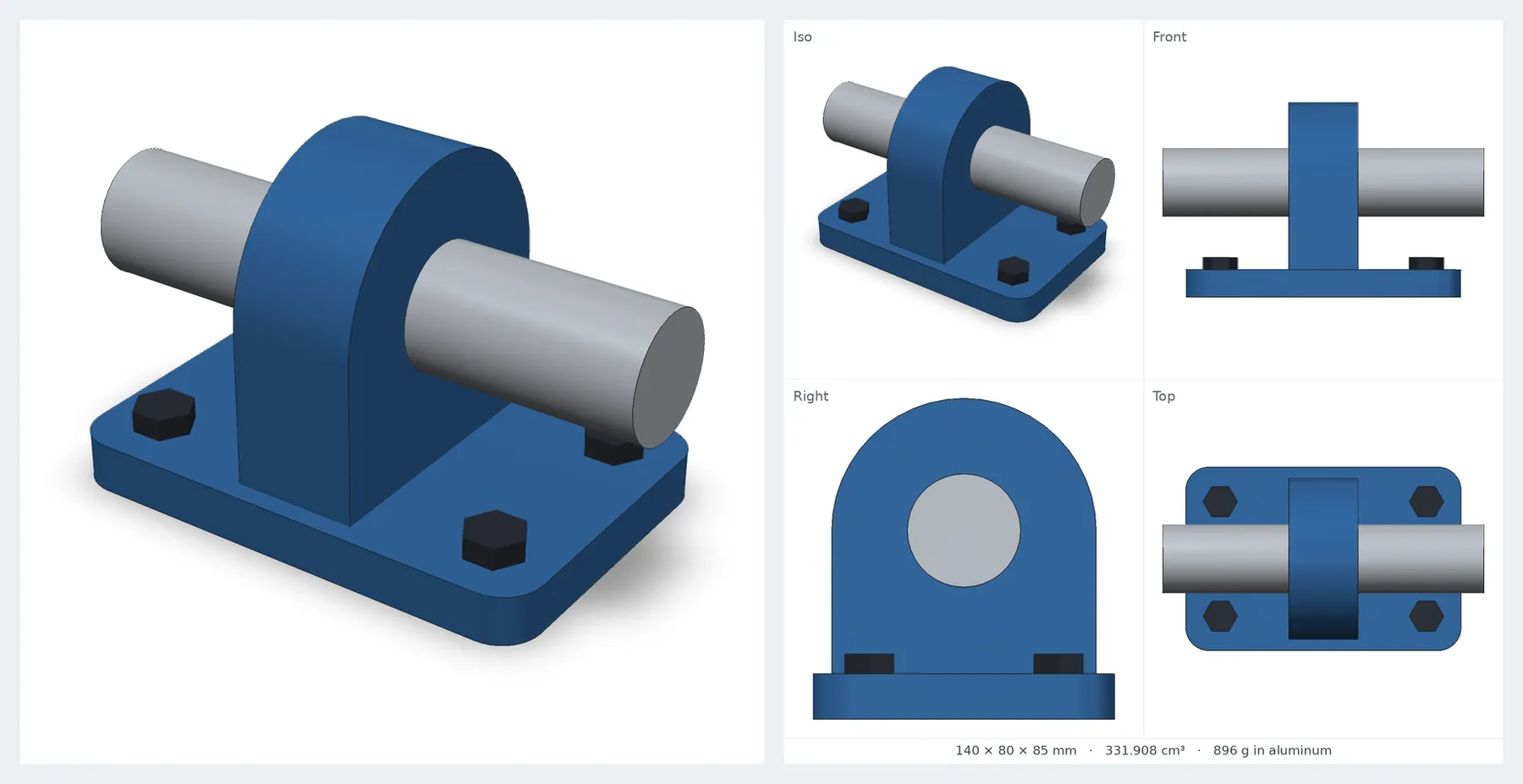
- Pictures: a PNG from any standard view (iso, front, back, left, right, top, bottom) and a four-view sheet with the model's size, shaded like a CAD program shows it, in the file's own colors.
- Exact measurements from the geometry itself, not from triangles: size in mm and inches, volume, surface area, centre of mass, and the weight in the material you pick.
- What a quote needs: the smallest box the part fits in, the number of faces by type (flat, cylinder, cone, freeform), and every round hole grouped by diameter and depth.
- The assembly's parts: each different part with its name, color, size, volume and how many times it is used.
- Exact-geometry files: STEP (AP203, AP214 or AP242), IGES and BREP, so IGES becomes STEP and loose IGES surfaces come back as a real solid.
It reads the model with OpenCascade, the open-source geometry kernel behind FreeCAD and KiCad's 3D viewer, so curves stay curves until the moment a mesh is made.
It's made for:
- Machine shops, 3D printing services and quoting tools that need a part's volume, weight, size and holes the moment a customer uploads a STEP file.
- Web shops and catalogs that need a preview picture and a GLB for a 3D viewer from each CAD file.
- Makers and engineers who get a STEP or IGES file and need an STL to print, without installing a CAD program.
- AI agents that are handed a CAD file and need to see it and know what is in it.
How to use it
- Add Links to CAD files (STEP, IGES or BREP, or a ZIP of them), or upload them. Write
exampleto try the built-in assembly. - Pick What to make: pictures, mesh files, exact-geometry files. The measurements always come back.
- Optionally pick a material for the weight.
- Click Start. Each model is a row in the results, with its measurements and links to its pictures and files.
What you can send
| You send | What happens |
|---|---|
A link to a .step, .stp, .iges, .igs or .brep file | One model |
| A link to a ZIP archive | Every CAD file in it is a model; other files are skipped |
A GitHub file link, or a folder link (https://github.com/user/repo/tree/main/cad) | The file, or every CAD file in that folder |
| Google Drive or Dropbox share links, uploaded files | Read like any other link |
Gzip-compressed files (.stpZ, .stp.gz) | Opened first |
example | The built-in example: a bearing bracket with a shaft and four bolts |
Examples
| Input | Result |
|---|---|
{"modelUrls": ["example"], "outputs": ["png", "sheet", "stl", "glb"], "material": "aluminum"} | example-bracket: an assembly of 6 parts (3 different), 140 × 80 × 85 mm, 331.908 cm³, 896 g in aluminum. 68 faces (52 flat, 16 cylinders); 5 round holes (4 × ⌀9 mm, 1 × ⌀30 mm). with an iso picture, the four-view sheet, an STL of 1,936 triangles and a GLB |
{"modelUrls": ["https://example.com/housing.step"], "outputs": ["stl"], "quality": "fine"} | A binary STL in millimetres with smooth curves, and the measurements |
{"modelUrls": ["https://example.com/old-part.igs"], "outputs": ["step", "png"]} | The IGES file as STEP, with its surfaces sewn into a solid where they close, and a picture |
How-to examples
Each recipe is an input you can paste into the Actor's JSON input, with what comes back.
How to convert a STEP file to STL
stlUrl links to a binary STL in millimetres, Z up, as the CAD file has it. meshWatertight says whether every solid's mesh is closed, which a slicer needs; for a solid STEP model it is. meshTriangles is the triangle count: the built-in example comes to 1,936 triangles at the normal fineness. Set "quality": "fine" for smoother curves (triangles within about 0.03% of the part's size) or "draft" for a small file. Add "3mf" to get one object per part, which slicers show as separate parts.
How to get the volume and weight of a STEP file
The example comes back with volumeCm3: 331.9084, surfaceAreaCm2: 564.693, sizeMm: [140, 80, 85], smallestBoxMm: [140, 85, 80], weightG: 2605.481 (2.61 kg in steel at 7.85 g/cm³) and centerOfMassMm: [60, 40, 32.635]. The volume is integrated over the exact surfaces, so a sphere of 25 mm radius gives 65.4498 cm³ whatever the mesh fineness. For a material that isn't in the list, send its density: "density": "1.31".
How to convert IGES to STEP
IGES files usually store a part as loose surfaces. The Actor sews them together, and where they close it makes a solid: this sample hammer's 45 freeform surfaces come back as 1 solid with a volume and a closed mesh, sewn is true, and a note says so. stepUrl links to the STEP file, which holds the solid. Pick the version with "stepSchema": AP214 (the default, read by nearly everything), AP203 or AP242.
How to render a STEP file to a PNG image
imageUrls has one PNG per view (iso, front, top), and sheetUrl the four-view sheet with the size, volume and weight written under it. Iso views are in perspective with a soft shadow; the others are flat, like a technical drawing. Parts are drawn in the colors stored in the file; set "modelColors": false and a "color" to draw everything in one color, or "background": "transparent" for a cut-out picture.
How to list the parts of a STEP assembly
parts lists each different part once, with how often it is used:
| name | count | sizeMm | volumeCm3 | color |
|---|---|---|---|---|
| bracket | 1 | 120 × 85 × 80 | 227.4373 | #346ca8 |
| shaft | 1 | 140 × 30 × 30 | 98.9602 | #c4c9d0 |
| bolt-m8 | 4 | 17.3 × 15 × 12.99 | 1.3777 | #2c3038 |
partCount is 3 and instanceCount 6. Copies of a part are found by how the file stores them, so a part saved twice as two separate bodies counts as two parts.
How to count the holes in a part
holes groups the round holes by diameter and depth: for the example, [{"diameterMm": 9, "depthMm": 12, "count": 4}, {"diameterMm": 30, "depthMm": 30, "count": 1}], with holeCount: 5 and holeDirections: 2 (the mounting holes point up, the bore sideways), a hint at how many setups drilling takes. A hole is a cylinder that faces inward and goes all the way around; fillets and slots' round ends aren't counted. The depth is the length of the cylindrical wall, so a counterbored hole shows up as two entries.
How to let an AI agent read a CAD file
Add this Actor to the Apify MCP server with https://mcp.apify.com/?tools=jumblemog/step-file-converter. The agent passes the link to a STEP or IGES file and reads summary, sizeMm, volumeCm3, weightG, holes and parts, and can open sheetUrl to see the model from four sides, instead of parsing STEP text itself.
FAQ
What units are the results in?
Millimetres, cm² and cm³, with the size and volume also in inches, and the weight in grams and pounds. A file stored in inches or metres is converted when it is read; fileUnit says what the file used. Mesh files are in millimetres, except GLB, which is in metres with Y up, as the glTF standard asks.
How exact are the volume and weight?
The volume, area, size and centre of mass come from the exact surfaces in the file (planes, cylinders, NURBS), not from the triangle mesh, so they don't change with the mesh fineness. The weight is the volume times one density for the whole model.
Can it read SolidWorks, Fusion 360 or Inventor files directly?
No. It reads the neutral formats those programs export: STEP, IGES and BREP. Native files (.sldprt, .f3d, .ipt, .prt, .CATPart), Parasolid (.x_t), ACIS (.sat), DWG and DXF aren't read. Every CAD program can save STEP.
Can it convert STL to STEP?
No. An STL is only triangles, and this Actor goes from exact geometry to triangles, not back. For pictures and measurements of STL, 3MF, OBJ or GLB files use the 3D Model Renderer.
Why does my IGES file have no volume?
Its surfaces don't close: there is a gap or a missing face, so there is no inside to measure. The result's notes say so. The pictures and mesh files are still made, and meshWatertight is false.
Are colors and part names kept?
Yes, in the pictures, the GLB and the STEP output, and in the parts list. STL has no colors or names; 3MF and OBJ keep the parts apart, with their names.
What happens to my files?
Each file is read inside your own run and the results are saved in that run's storage, which only you can open and which expires with your Apify plan's retention. Nothing is sent anywhere else.
Input
| Field | What it does |
|---|---|
modelUrls | Links to STEP, IGES or BREP files, or ZIP archives of them. example for the built-in model |
uploads | Files uploaded in the Apify Console |
outputs | Any of png, sheet, stl, 3mf, obj, glb, step, iges, brep. Default png and stl |
material | For the weight: steel, stainless-steel, aluminum, titanium, brass, copper, bronze, cast-iron, magnesium, zinc, abs, pla, petg, nylon, polycarbonate, pom, peek, polypropylene, hdpe, acrylic, pvc, resin, oak, pine, plywood, mdf, or none |
density | A density in g/cm³ instead of a material |
views | Views for the PNG pictures: iso, iso-back, front, back, left, right, top, bottom. Default iso |
imageWidth | Picture size in pixels, 200 to 4096. Default 1600 |
modelColors, color | Use the file's colors (default), and the color for parts without one |
background | A hex color or transparent |
edges, shadow | Draw the model's edges and a soft shadow (both on by default) |
quality | Mesh fineness: draft, normal or fine |
stepSchema | AP214 (default), AP203 or AP242, for the STEP output |
maxModels, timeoutSecs | Limits: models per run (default 100) and seconds per model (default 300) |
Output
One dataset item per model:
| Field | What it holds |
|---|---|
status, error | ok, or failed with the reason |
summary | The model in a sentence or two |
format, schema, writtenBy, fileUnit | STEP, IGES or BREP; the STEP version; the CAD program that wrote the file; the file's length unit |
sizeMm, sizeIn, boundsMm | Extent along X, Y and Z, and the bounding box's corners |
smallestBoxMm | The smallest box found that holds the model at any angle, longest side first: the stock or packing size |
volumeCm3, volumeIn3, surfaceAreaCm2, centerOfMassMm | Exact, from the geometry |
material, densityGCm3, weightG, weightLb | The weight, when a material or density is given |
isAssembly, partCount, instanceCount, parts | The different parts with name, count, size, volume and color |
solids, shells, faces, edges, vertices, faceTypes | What the model is made of; faces counted as plane, cylinder, cone, sphere, torus, revolved, extruded, freeform |
holeCount, holeDirections, holes | Round holes by diameter and depth |
valid, sewn, hasColors, notes | The geometry check, whether surfaces were sewn, and things worth knowing |
meshTriangles, meshWatertight | The mesh's triangle count and whether every solid's mesh is closed |
imageUrl, imageUrls, sheetUrl | Links to the pictures |
stlUrl, threeMfUrl, objUrl, glbUrl, stepUrl, igesUrl, brepUrl | Links to the converted files |
The files are in the run's key-value store, named like 001-bracket.stl and 001-bracket-iso.png. The first picture (or first file) is also saved as OUTPUT.
How it works
- Reading: OpenCascade reads the file into exact geometry with its assembly tree, part names and colors. Items made only of curves or points (axes, sketches) are left out. Parts stored as loose surfaces are sewn, and closed ones become solids.
- Measuring: volume, area and centre of mass are integrated over the exact surfaces, once per different part. The size is exact too: the faces that reach the model's outer limits are measured on their true surfaces. Holes are found as inward cylinders that go all the way around their axis.
- Meshing: each part is turned into triangles within the chosen distance of its surfaces. Each solid is welded into a closed mesh on its own.
- Drawing: the mesh is shaded with the surfaces' own normals, so curved faces are smooth and real edges stay crisp, and the model's edges are drawn on top.
Pricing
You pay one low price per model, at the price shown on this page, whatever pictures and files you pick. Models that can't be read are never charged. If you set a maximum cost per run, the Actor stops before a model that wouldn't fit.
Speed
A single part or small assembly takes 3 to 5 seconds. A casting with a thousand faces takes about 10 seconds at normal fineness and 15 at fine. A run through the API adds a few seconds for the cloud container to start.
Tips and limits
- Memory: the default 2 GB handles models up to a few thousand faces. Give large assemblies 4 to 8 GB.
- IGES assemblies: IGES has no solids, so parts that touch each other can end up joined when their surfaces are sewn, which changes the volume. Use STEP when you can.
- Threads modelled as real helical surfaces are read as freeform faces, and aren't counted as holes.
- The geometry check (
valid) is OpenCascade's strict one. Files exported from other CAD programs often fail it over small gaps and still measure and mesh fine. - Not read: dimensions and tolerances stored in the file (PMI), materials, and anything that isn't geometry.
- Limits: 200 MB per download, 400 MB unpacked per ZIP, 6 million triangles per model.
For AI agents and developers
This Actor works with the Apify MCP server, so AI agents can call it as a tool. Pass modelUrls and read summary, sizeMm, volumeCm3, weightG, holes, parts and the links. A direct API call that waits for the answer:
run-sync instead returns the run's OUTPUT: the first picture as a PNG, or the first file when no picture is asked for.
In Python, with the apify-client package:
Credits
- Geometry kernel: Open CASCADE Technology (LGPL-2.1 with exception) through the OCP Python bindings (Apache-2.0).
- Drawing: VTK (BSD-3-Clause) through PyVista (MIT), on Mesa's software renderer.
- Mesh files: trimesh (MIT).
- The example model is this Actor's own design.


