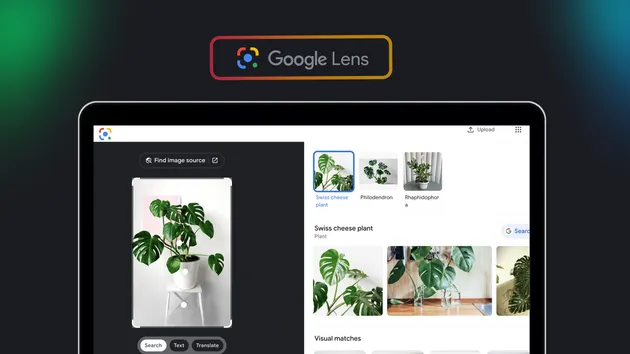
Google Lens OCR API - Image to Text ~800ms REST API
Pricing
from $3.49 / 1,000 image ocrs
Google Lens OCR API - Image to Text ~800ms REST API
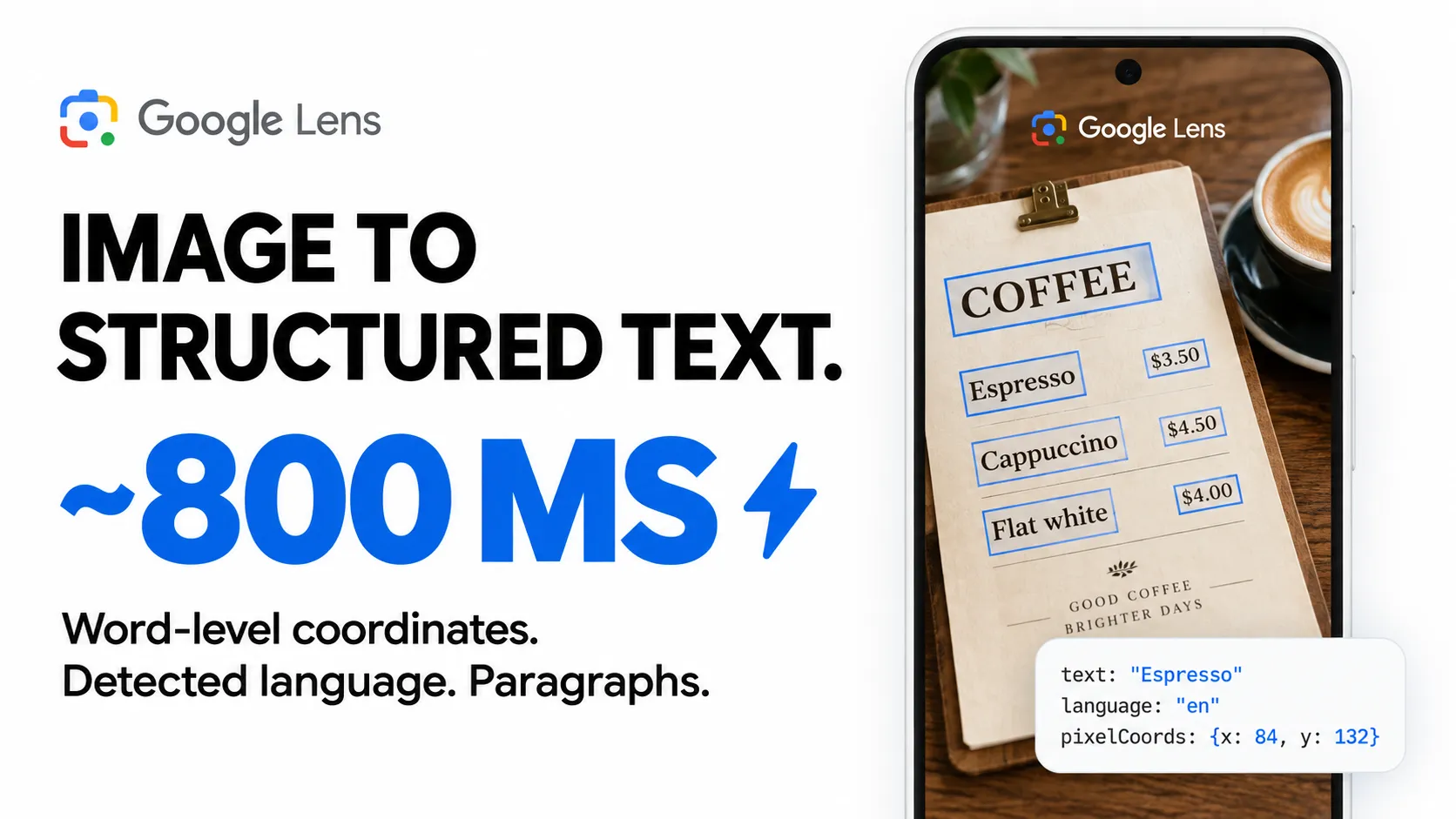
Extract text from any image via Google Lens OCR API. ~800ms per image, no browser needed. Returns word-level bounding boxes with pixel coordinates, detected language, and structured paragraphs/lines/words. Batch and HTTP API modes.
Pricing
from $3.49 / 1,000 image ocrs
Rating
5.0
(1)
Developer

Zen Studio
Maintained by CommunityActor stats
3
Bookmarked
616
Total users
62
Monthly active users
2 days ago
Last modified
Categories
Share
Google Lens OCR - Extract Text from Images with Bounding Boxes
From Zen Studio, creators of Google Lens Visual Search, Google Maps and Google Hotels data tools. 80,000+ combined runs across our two Google Lens actors.
Why choose this actor?
- OCR in ~800 ms. Extract text through a ready-to-use HTTP API that answers each request directly, making it easy to add image-to-text processing to your app or automation.
- Get the words and their positions. Return word-level bounding boxes in pixel and normalized coordinates, so you can highlight detected text, locate labels and connect words back to the image.
- Keep the document structure. Full text, detected language, paragraphs, lines and individual words come together in structured JSON. Select a lighter output mode when you only need plain text or line data.

Try an image with text
Open actor input, replace the sample URL with your image and keep outputDetail set to full for words and coordinates. Export JSON to preserve the nested structure. For direct API access, use the GET/POST /ocr endpoint below; POST also accepts a base64-encoded image.
| Zen Studio · Google Data Tools | |||
 Lens OCR Lens OCRYou are here |  Lens Search Lens SearchFind image matches |  Google Maps Google MapsBusiness details |  Google Hotels Google HotelsCompare hotel rates |
Copy to your AI assistant
Output Example
Pricing -- Pay Per Event
| Event | Free | Starter | Scale | Business |
|---|---|---|---|---|
| Image OCR (/1,000) | $4.99 | $4.49 | $3.99 | $3.49 |
| Result (/1,000) | $0.01 | $0.01 | $0.01 | $0.01 |
| Actor start (one-time) | $0.002 | $0.002 | $0.002 | $0.002 |
Apify plan subscribers get automatic volume discounts.
Free trial: 5 runs, no credit card required.
How Do You Want to Use It?
Two modes, same deployment. Pick what fits your workflow.
Option 1: REST API
Best for: developers, automation scripts, no-code tools (n8n, Make, Zapier)
Call the Actor over HTTP like any REST API. Send a request and get OCR results in ~800 ms, straight in the response. No run to start, no dataset to read.
Authentication
All API requests require authentication. Get your token from the Apify Console under Settings > Integrations.
Two ways to authenticate:
- Bearer header (recommended):
-H "Authorization: Bearer YOUR_APIFY_TOKEN" - Query parameter (convenient for testing and no-code tools):
?token=YOUR_APIFY_TOKEN
Endpoints
| Method | Endpoint | Description |
|---|---|---|
GET | /ocr | OCR via query parameters |
POST | /ocr | OCR via JSON body (supports imageUrl and imageBase64) |
GET | /health | Returns {"status": "ok"} |
The base URL for your requests:
Examples
curl -- OCR an image by URL
curl -- OCR a local file via base64
curl -- POST with image URL
Python -- URL and base64
n8n / Make / Zapier
Use an HTTP Request node pointed at https://zen-studio--google-lens-ocr.apify.actor/ocr with your Bearer token in the Authorization header. Pass imageUrl as a query parameter (GET) or in a JSON body (POST).
Option 2: Batch Processing
Best for: one-off image processing, scheduled jobs, results saved to a dataset
The simplest way: paste an image URL in the Apify Console, click Start, and download results from the dataset.
Quick Start Input
Minimal
With options
Text only (smallest output)
Using the Apify API Client
Python
JavaScript
Scheduled jobs: Create a Schedule in the Apify Console to run the Actor on a recurring basis.
Getting Your Apify API Token
- Go to the Apify Console
- Navigate to Settings > Integrations
- Copy your Personal API token
Use it as a Bearer token for the REST API, or pass it to the ApifyClient constructor for batch mode.
Input Parameters
| Parameter | Type | Description | Default |
|---|---|---|---|
imageUrl | string | Image URL to extract text from | required |
outputDetail | string | Level of detail: full, paragraphs, lines, words, text_only | full |
language | string | Language hint (ISO 639-1 code) | en |
region | string | Region hint (ISO 3166-1 alpha-2) | US |
translateTo | string | Translate text to this language (ISO 639-1 code) | -- |
Output Detail Levels
- full -- paragraphs with nested lines and words, all with bounding boxes
- paragraphs -- paragraph text and bounding boxes
- lines -- line text and bounding boxes
- words -- lines with individual word-level bounding boxes
- text_only -- just the extracted text, no coordinate data
Output
Each run produces one result with these fields:
| Field | Type | Description |
|---|---|---|
imageUrl | string | Source image URL |
language | string | Detected language code |
fullText | string | All extracted text joined |
lines | array | Lines with text and bounding boxes (when detail >= lines) |
paragraphs | array | Paragraphs with nested lines/words (when detail >= paragraphs) |
error | string | Error message if processing failed |
Bounding Box Format
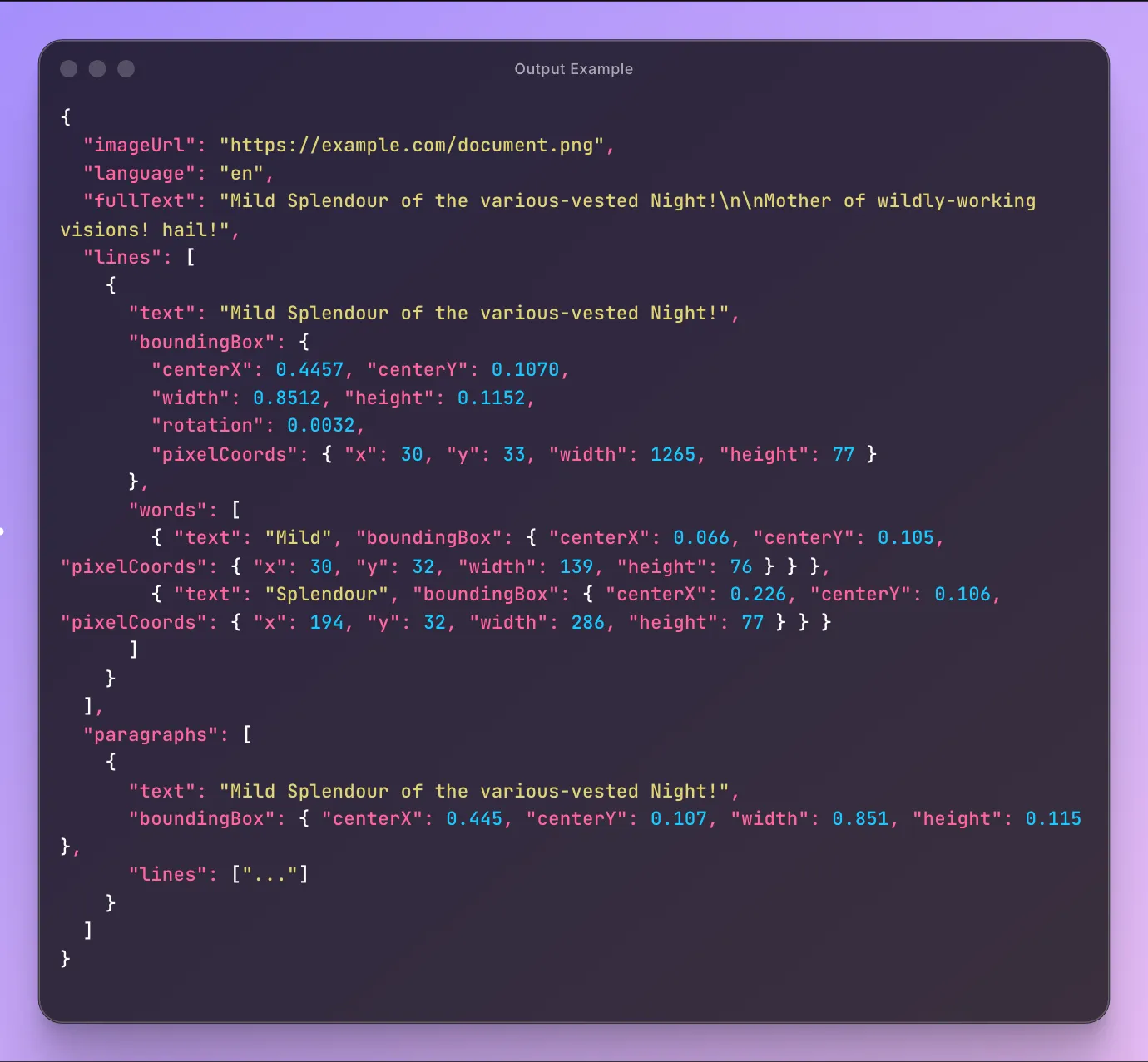
Every text element includes a bounding box with normalized coordinates (0-1) and pixel coordinates:
centerX,centerY-- center point (0-1 normalized)width,height-- dimensions (0-1 normalized)rotation-- rotation angle in radians (only present when non-zero)pixelCoords-- absolute pixel coordinates computed from image dimensions
Full Output Example
Real output from processing this test image with outputDetail: "full":
FAQ
Do I need to start the Actor before using the API? No. The REST API answers each request directly. There's no manual step required.
Can I use both modes at the same time? Yes. Batch runs and REST API requests are independent. You can run a batch while also making API calls.
What's the difference between the REST API and a normal run? A normal run processes an image and saves the result to a dataset. The REST API returns the result directly in the HTTP response. Use the API for real-time requests. Use batch for one-off processing with dataset output.
What image formats are supported? JPEG, PNG, WebP, BMP, TIFF, HEIC, and GIF.
How accurate is the text detection? Uses the same OCR engine as Google Lens in Chrome. Accuracy is high for printed text in good lighting. Handwriting and very low-resolution images may produce partial results.
What languages are detected?
Language detection is automatic. The language hint improves accuracy for specific languages but doesn't limit detection. The detected language is returned in the output.
How does the bounding box data work? Each text element (paragraph, line, word) includes normalized coordinates (0-1 range) and pixel coordinates. Normalized coordinates are relative to the image dimensions. Pixel coordinates give absolute positions for direct use in image annotation or cropping.
What is the rotation field?
The rotation angle in radians for text that isn't perfectly horizontal. Only included when the rotation is significant (> 0.001 radians).
Can I send base64 images instead of URLs?
Yes, via the POST /ocr endpoint. Include imageBase64 in the JSON body instead of imageUrl. Supports raw base64 or data URI format (data:image/png;base64,...).
What happens if the image fails to process?
The Actor returns an error result with the imageUrl and error field set. Failed images are not charged.
Is there a rate limit? No hard rate limit. Concurrent API requests are handled in parallel.
Legal Compliance
This Actor processes publicly accessible images provided by the user. Users are responsible for ensuring they have the rights to process the images they submit and must comply with applicable data protection regulations (GDPR, CCPA).