
Google Sheets Export & Import (No OAuth)
Pricing
from $0.30 / 1,000 rows
Google Sheets Export & Import (No OAuth)
Send any Apify dataset or JSON to Google Sheets, or read a sheet into a dataset. No Google login or expiring OAuth tokens: just share your sheet with our service account. Append, replace, dedupe, pick columns, flatten nested JSON.
Pricing
from $0.30 / 1,000 rows
Rating
0.0
(0)
Developer

LatentLark
Maintained by CommunityActor stats
0
Bookmarked
2
Total users
1
Monthly active users
13 hours ago
Last modified
Categories
Share
Google OAuth tokens expire or get revoked, and then your scheduled exports silently stop. This Actor doesn't use OAuth at all. You share your sheet once with our service account (sheets-export@latentlark.iam.gserviceaccount.com), and every scheduled run keeps writing to it: no "Sign in with Google", no token to refresh, no broken schedule next month.
Send any Apify dataset (or plain JSON) to a Google Sheet, or read a sheet back into a dataset. Append with duplicate skipping, replace, pick columns, flatten nested JSON.
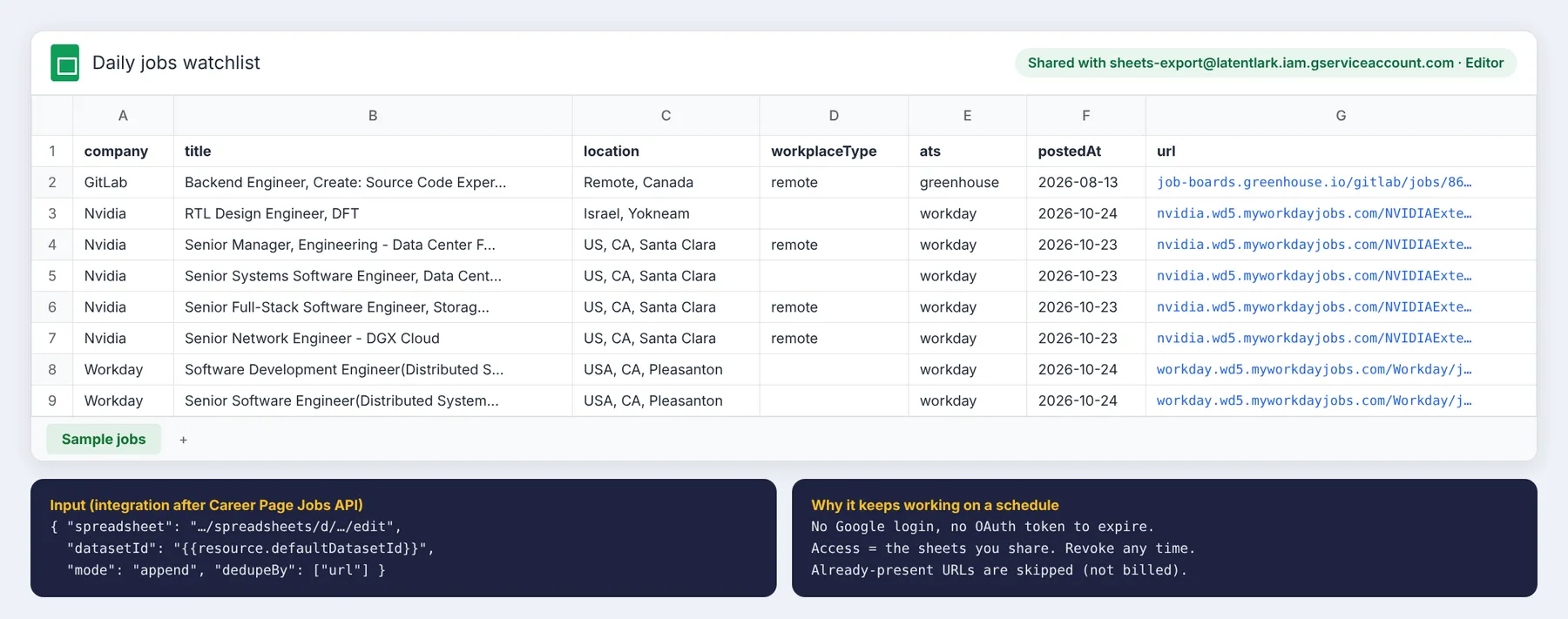
Try it in one click: the input is prefilled with a read-only demo sheet with 8 sample jobs (tab Sample jobs, open it to browse the data). Click Start with the defaults to read it into a dataset, then swap in your own sheet URL to export or import your data. The demo sheet is read-only: append or replace on it is refused with a clear message, so use your own sheet for writing.
Daily jobs → Google Sheet in 3 minutes
Pair it with Career Page Jobs API (Workday, Personio, Greenhouse, Lever, Ashby and more) to get a sheet that fills itself with new job openings every day:
- In Career Page Jobs API, add your companies and set
onlyNewSinceLastRunKey(e.g.my-watchlist). Save it as a task and give it a daily Schedule. - Share your sheet with
sheets-export@latentlark.iam.gserviceaccount.comas Editor. - On that task, open Integrations → Add integration → Actor, choose this Actor, trigger Run succeeded, input:
{"spreadsheet": "YOUR_SHEET_URL", "datasetId": "{{resource.defaultDatasetId}}", "mode": "append", "dedupeBy": ["url"]}
Every morning the new jobs land in your sheet. Rows whose url is already there are skipped and not billed. The same pattern works after any scraper.
This Actor vs the free Google Sheets Actor
The popular free Google Sheets Import & Export Actor is mature and has more processing options (modify mode, backups, custom transform functions). Pick based on how you'll run it:
| Free Google Sheets Actor | This Actor | |
|---|---|---|
| Google access | OAuth: connect your Google account, then pick a sheet | No login: share one sheet with a service account |
| What it can reach | Sheets in the connected Google account | Only the sheets you share with it |
| Long-running schedules | Stop when the OAuth token expires or is revoked, until you reconnect | Keep working as long as the sheet stays shared |
| Price | Free Actor, you pay platform usage | Small per-run + per-row fee, platform usage included |
| Best for | One-off or hands-on imports and exports | Unattended scheduled exports and integrations |
What it does
- Export a dataset to Google Sheets. Use any dataset ID, the dataset of the run that just finished (as an integration), or JSON you paste in.
- Append: add rows below the existing data. The header row is created automatically, and new fields become new columns at the right. Your column order is kept.
- Replace: clear the tab and write a fresh snapshot.
- Read: import a tab into a dataset, with one item per row and the header row as keys.
- Skip duplicates by one or more columns (e.g.
url), checked against rows already in the sheet. This is ideal for daily scheduled scrapes. - Pick and order columns, or exclude some (e.g. long
descriptionfields). - Flatten nested JSON:
{"company": {"name": "X"}}becomes the columncompany.name. Arrays can be joined into one cell, kept as JSON text, or split into one column per element. - Large datasets: rows are written in batches of 2,000. Google rate limits (429) and server errors are retried automatically with backoff.
- Safe by default: values are written as raw values, so text like
=IMPORTXML(...)from scraped pages is never executed as a formula. Turn on Let Sheets parse values if you want formulas or dates parsed. - Clear errors. For example, "Share the sheet with sheets-export@latentlark.iam.gserviceaccount.com as Editor" tells you exactly what to fix.
Setup (1 minute)
- Open your Google Sheet. You can create one at sheets.new.
- Click Share, add
sheets-export@latentlark.iam.gserviceaccount.com, choose Editor, untick Notify people and click Share. - Paste the sheet URL into Google Sheet URL and choose a dataset or paste JSON.
- Click Start.
The service account can only access sheets that you explicitly share with it, and you can remove access at any time from the Share dialog. For read mode, Viewer access is enough, and so is a sheet that is public to anyone with the link.
Use it as an integration (after any Actor)
To send every run of a scraper to a sheet automatically:
- Open your scraper (or its saved task) → Integrations → Add integration → Actor.
- Choose this Actor and the trigger Run succeeded.
- Use this input:
- Schedule the scraper. Each run adds only the new rows to your sheet.
From the API:
Input
| Field | Meaning |
|---|---|
spreadsheet | Sheet URL or ID (required). A #gid= in the URL selects that tab. |
mode | read (form default, works with the demo sheet), append or replace. Set append or replace explicitly to write. |
datasetId | Dataset to export. In integrations, use {{resource.defaultDatasetId}}. |
jsonData | Array of objects to write instead of a dataset. |
sheetName | Tab name. It is created if it is missing. |
columns / excludeColumns | Choose and order columns, or drop some. |
dedupeBy | Columns that identify a row; duplicates are skipped. |
flatten, arrayMode, flattenSeparator | How nested data becomes columns. |
parseValues | Let Sheets parse formulas, dates and currencies (off by default). |
maxRows | Stop after this many rows. |
serviceAccountJson | Optional: use your own service account key (stored encrypted). |
Output
The run's key-value store record OUTPUT contains the spreadsheet URL, the tab name, rowsWritten, rowsSkippedDuplicates, the columns, and any columns that were added. In read mode, the rows are stored in the run's dataset.
Pricing
You pay $0.005 per run plus $0.0003 per row written or read ($0.30 per 1,000 rows). Duplicates that are skipped are free. Platform usage is included. Example: a daily run that appends 200 new jobs costs about $0.065.
FAQ
How is this different from the Google Sheets Actor that asks me to log in with Google? That Actor uses OAuth: you grant broad access to your Google Drive, and the token can expire or be revoked, which makes scheduled runs fail until you log in again. This Actor never asks for your Google login. It can only touch the sheets you share with it, and that access does not expire.
Do I need a Google Cloud account?
No. Just share the sheet. If your organisation blocks sharing with outside accounts, you can create your own service account (see below) and paste its key into serviceAccountJson.
Using your own service account (optional)
- Create a project at https://console.cloud.google.com/projectcreate. No billing account is needed.
- Enable the Sheets API at https://console.cloud.google.com/apis/library/sheets.googleapis.com.
- Go to https://console.cloud.google.com/iam-admin/serviceaccounts → Create service account. Give it a name; no roles are needed.
- Open the account → Keys → Add key → Create new key → JSON. A file downloads.
- Paste the whole file into
serviceAccountJson, then share your sheet with that account'sclient_emailas Editor.
If key creation is blocked, your organisation's policy iam.disableServiceAccountKeyCreation is on. Ask your admin, or use a personal Google account.
What are the limits? Google allows 10 million cells per spreadsheet and 50,000 characters per cell (longer values are cut). Rate limits are handled automatically.
Can it update existing rows?
Not yet. Use replace for a fresh snapshot, or append + dedupeBy to only add new rows.
Is my data stored? Rows pass through the run and are written to your sheet. Nothing is kept outside your own Apify storage.
More from LatentLark
- Competitor Ads Monitor: track competitor ads from Google Ads Transparency Center and LinkedIn Ad Library, with new-ad alerts.


