

LinkedIn Company Employees Change Tracker
Pricing
from $3.00 / 1,000 employee observations
LinkedIn Company Employees Change Tracker
Track workforce changes across LinkedIn companies over time: new hires, departures, promotions, title, seniority, function and location changes, and headcount movement, from persistent employee snapshots with safe departure confirmation. No login or cookies.
Pricing
from $3.00 / 1,000 employee observations
Rating
0.0
(0)
Developer

Delowar Munna
Maintained by CommunityActor stats
0
Bookmarked
2
Total users
1
Monthly active users
9 days ago
Last modified
Categories
Share

Track how a company's LinkedIn workforce changes over time: new hires, departures, promotions, title, role, seniority and location changes, and headcount movement. No LinkedIn login or cookies.
Give it a list of companies and run it on a schedule. The first run saves a baseline of each company's publicly visible employees. Every later run compares against it and returns only what changed, one row per change, with the previous and current values, a confidence level and alert flags. A summary row per company adds observed headcount deltas, the function, seniority and location mix, and workforce signals.
The tracker is careful about departures. Public discovery fluctuates between scans, so a missing employee is never reported as departed after a single miss, and a scan that is capped, cut short or unstable never confirms departures by absence.
What you get
| Row | When | What's in it |
|---|---|---|
employee_change | One per employee per run, only when something changed | eventType, classification, confidence, changes[], employee, previous, current, departure evidence (newCompanyName, missingRuns, confirmedAt), alertReasons[] |
company_summary | One per company per run (includeCompanySummary) | runStatus, coverageStatus + details, observed and LinkedIn employee counts with deltas, changeCounts, function, seniority and location mix, period comparisons, signals[] |
Event types:
eventType | Meaning |
|---|---|
EMPLOYEE_ADDED | Someone appears for the first time. classification says whether it is a likely NEW_HIRE or only NEWLY_DISCOVERED by search. |
EMPLOYEE_DEPARTED | A departure that passed confirmation. classification is MOVED_TO_OTHER_COMPANY (with newCompanyName) or NO_LONGER_LISTED. |
PROMOTED | A title change with a clear upward seniority move. The raw TITLE_CHANGED / SENIORITY_CHANGED are kept in changes[]. |
ROLE_CHANGED | A title change that also moves the person into another function, e.g. Account Executive to Partnerships Manager. |
TITLE_CHANGED, SENIORITY_CHANGED, FUNCTION_CHANGED, LOCATION_CHANGED | The individual attribute changes. |
RETURNED | A confirmed leaver who appears again (REHIRE_OR_RETURN). |
EMPLOYEE_UNCERTAIN | Missing from one trustworthy scan. Only output with includeUncertainChanges. |
Both row types share the default dataset. The Changes view lists every row, and a company summary appears there as a labelled line (eventType: COMPANY_SUMMARY, classification = its run status). The Company summaries view shows the summary columns. It lists every row too, so change rows appear there with those columns empty. To keep one row type, filter on rowType (employee_change or company_summary) when you read the dataset.
Each person gets one row per run. If several things changed at once (a promotion plus a move to Singapore), the row's eventType is the most significant one and changes[] lists all of them.
Executive changes are labelled in executiveEvent (EXECUTIVE_JOINED, EXECUTIVE_DEPARTED, EXECUTIVE_PROMOTED). Alerts include NEW_EXECUTIVE_HIRE, EXECUTIVE_DEPARTURE, NEW_SALES_LEADER, PROMOTION, plus the company-level ENGINEERING_HEADCOUNT_SURGE, HEADCOUNT_DROP and LOCATION_EXPANSION.
How is this different from the LinkedIn Company Employees Scraper?
| Company Employees Scraper | Company Employees Change Tracker | |
|---|---|---|
| Question | Who works at this company now? | What changed in this company's workforce since last time? |
| Output | One row per current employee | One row per change, plus a summary per company |
| Memory | None, every run stands alone | Persistent employee state, history and snapshots |
| Departures, promotions, role changes | No | Yes, with confirmation safeguards and confidence |
The tracker uses the same no-login employee discovery underneath. What it adds is state, comparison, change detection and workforce analytics.
Quick start
Minimal input. The first run creates the baseline:
Run it again next week with the same input and you get the changes. To keep it going, save the input as an Apify Task and attach a Schedule (weekly is the recommended default).
Weekly competitor workforce monitor:
Sales team growth at target accounts:
Executive movement:
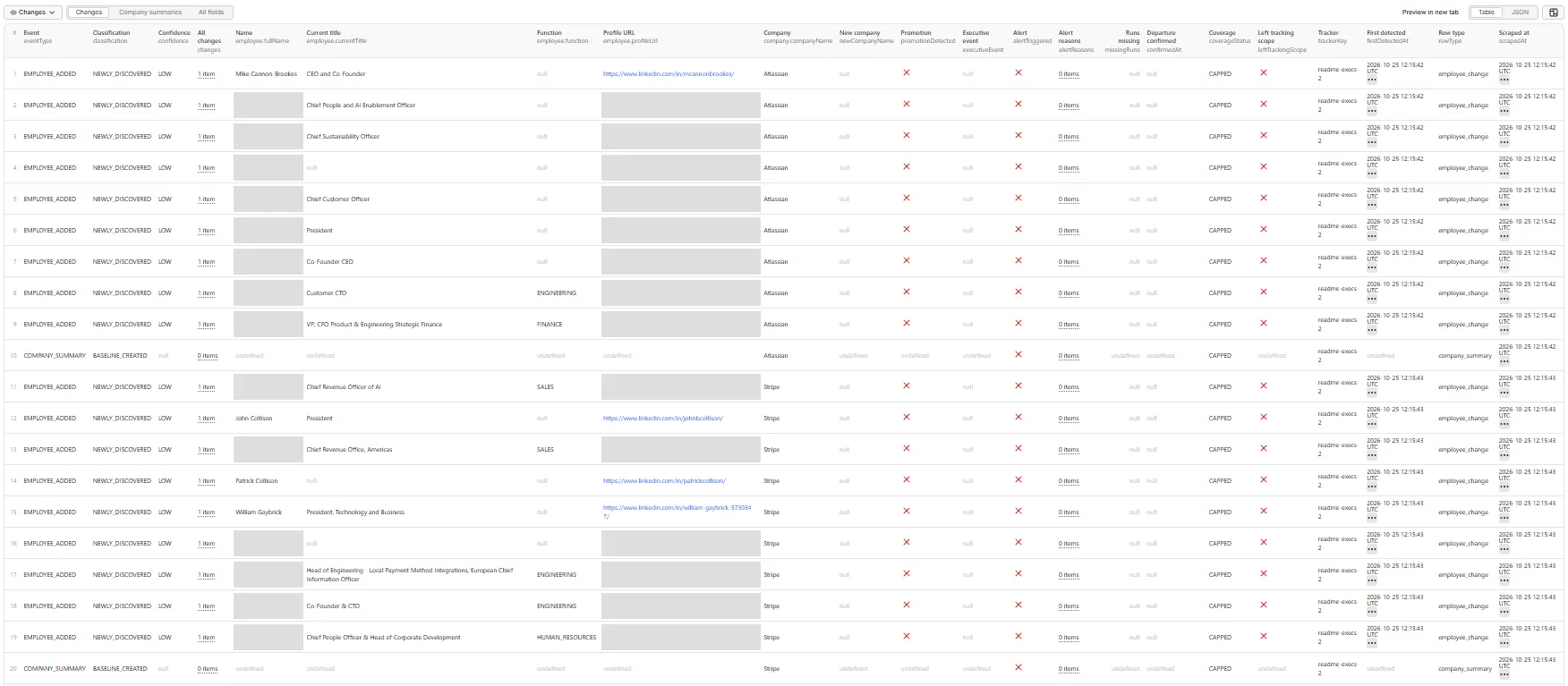
First run with the baseline roster in the dataset. By default a baseline run outputs only the company summaries. With Output the baseline roster on, every employee found is also listed (as EMPLOYEE_ADDED / NEWLY_DISCOVERED, isBaseline: true). This input produced the screenshots and real rows under Example output: 20 rows, 9 C-level and VP employees per company plus 2 summaries.
Engineering hiring in one city:
Example output
From a real baseline run of the executive input above (Stripe and Atlassian, C-level and VP, 9 per company).
Changes view. Names and profile links are hidden in this screenshot, except for four well-known public executives.
Company summaries view, cropped to its two summary rows (the change rows appear there with these columns empty):

A baseline roster row from that run:
Its company summary (trimmed):
The baseline is capped at 9 here, so later runs confirm departures only from direct evidence, never from absence (see What happens when a run hits the employee cap?).
The rows below are what later monitor runs output. They use fictional people; their fields are exactly what the tracker outputs for these changes.
A promotion:
A confirmed departure with evidence:
A company summary (trimmed):
FAQ
What happens on the first run?
The tracker saves each company's current roster as a baseline (runStatus: BASELINE_CREATED) and reports no changes. A first run is not a wave of new hires. The company summary row confirms the baseline and its size. If you want the baseline roster itself in the dataset, turn on Output the baseline roster. Comparison starts from the second run.
What counts as a new hire?
Someone who appears and was not in the saved roster. Newly discovered by search is not the same as newly hired, so each addition is graded:
classification / confidence | When |
|---|---|
NEW_HIRE / HIGH | The current role started recently (the start year is visible), or the person was absent from at least two trustworthy previous scans, and this scan is trustworthy too |
NEW_HIRE / MEDIUM | First appearance after one trustworthy previous scan, or a recent start year when the scans were less complete |
NEWLY_DISCOVERED / LOW | The previous scan was capped or partial, so the person may simply have been missed, or the role visibly started years ago |
LOW rows are held back unless you turn on Include uncertain changes. They are always saved to the state, so the person is known from then on.
Can newly discovered employees show up as false new hires?
That is exactly what the grading above prevents. For large companies, public search sees a sample of employees, and most first-time appearances are NEWLY_DISCOVERED, not hires. The tracker labels them as such and does not output them by default.
How are departures confirmed? Why isn't a missing employee immediately marked departed?
A person can be missing from one scan for reasons that have nothing to do with leaving: search results vary between runs. So departures go through a state machine: ACTIVE, then MISSING_ONCE, then DEPARTURE_PENDING, then DEPARTED_CONFIRMED. A departure is confirmed in one of two ways:
- Direct evidence (fast). Search results or the person's public profile show another current employer, or "ex-Company" wording. This is HIGH confidence when it comes from the profile or "ex-" wording, and comes with
newCompanyName. It is MEDIUM when only the search summary shows the other employer, because someone with two current roles can be summarised under the other one. - Repeated absence (slow). Missing from
departureConfirmationRuns(default 2) trustworthy scans in a row. This is MEDIUM confidence.
When Verify missing employees on their profile is on (the default), people the scan missed get a profile look-up. Someone whose profile still shows the company stays active, someone shown elsewhere is confirmed with HIGH confidence, and people search showed at another employer are checked first. These look-ups are free to you and bounded by Max profile checks per company.
How is roster coverage measured?
Every scan is graded before its absences are allowed to mean anything. The grade is coverageStatus, on every row:
coverageStatus | Meaning | Absences count toward departures? |
|---|---|---|
COMPLETE_OR_HIGH | Search ran to its natural end, under the cap, consistent with the previous scan | Yes |
PARTIAL | The scan was cut short, or an unfiltered roster is a small sample of LinkedIn's member count | No |
CAPPED | The roster hit maxEmployeesPerCompany (or your spending limit) | No |
UNSTABLE | The roster shrank by more than 25%, turned over by more than 30%, or absence alone would have confirmed more than 20% of the roster at once (mass-departure protection) | No, and absence-only departures are held back |
UNKNOWN | Nothing observed (the saved roster is kept unchanged) | — |
The summary row's coverage object shows the details: coverageRatio (observed / LinkedIn member count), rosterOverlapRate (share of last scan's people seen again), capHit and absencesCountTowardDepartures. "Complete" means complete for public search. It is never a claim about the company's real headcount.
What happens when a run hits the employee cap?
The roster is marked CAPPED. Who makes the cut varies between runs, so absence is not counted toward departures. Departures are still confirmed from direct evidence, and title, promotion and location changes are reported as usual. For full departure tracking, set Max employees per company above the company's visible size, or narrow the scope with filters.
How are large companies handled?
For a company with thousands of members, public search returns a sample. The tracker treats it as one: absences are not counted (PARTIAL, reason public_search_covers_small_share). Departures come from direct evidence. Public search often surfaces it, because a departed employee's profile usually still mentions the company in their work history, now under a different current employer. New appearances are mostly graded NEWLY_DISCOVERED. Promotions, title, role and location changes of the people it does see are fully tracked. For deep coverage, track a function, seniority or location slice (e.g. Sales in Sydney) rather than the whole company.
How are promotions detected?
A promotion is a derived classification, not just any title change. It needs a clear move up the seniority ladder (Manager to Director to VP to CXO, Associate to Manager), or an unambiguous grade step within a level (Director to Senior Director, VP to SVP). Ambiguous renames such as Product Manager → Product Lead stay plain TITLE_CHANGED. A HIGH promotion keeps the same function; a move up into a different function is MEDIUM.
Title comparisons ignore punctuation, case and common abbreviations (Sr. = Senior). A difference that only adds or drops words ("Engineer" vs "Software Engineer") is treated as a rendering difference and graded LOW.
Can I track only Sales, Engineering or executives? Specific locations?
Yes. Use Functions (e.g. SALES), Seniority levels (e.g. DIRECTOR, VP, CXO), Job titles and Locations. They also steer the search toward matching people. If someone moves outside the scope (a salesperson becomes a partnerships manager), that is reported as a role change with leftTrackingScope: true, never as a departure.
What happens if I change the filters?
Rosters with different scopes cannot be compared. If the filters, the employee cap or the employment-confidence setting change, the run saves a new baseline (runStatus: CONFIG_CHANGED) and reports no changes, so nobody who just became visible is treated as a new hire. To run several scopes side by side, give each its own trackerKey.
What do the confidence levels mean?
HIGH: direct or structured evidence on both sides of the comparison. MEDIUM: one solid signal, such as repeated absence from trustworthy scans or a first appearance after one complete scan. LOW: plausible but unconfirmed; output only with Include uncertain changes. changeConfidence on each row gives the confidence of every individual change in changes[].
Where is the history stored?
In your own Apify account:
- Latest state: the named key-value store
linkedin-company-workforce-state, one compressed record per tracker key + company. It holds every known employee's latest attributes, the departure state machine, per-run snapshots and a log of detected changes (kept about 13 months). - History datasets (when Save history datasets is on):
linkedin-company-workforce-history(one company summary per run) andlinkedin-company-workforce-events(every change ever reported). Use them to query trends over time.
State is separated by trackerKey, so two projects can watch the same company with different filters. An empty or failed scan never overwrites a saved roster.
What is COMPARE mode?
Same as MONITOR, plus the run re-lists every change saved in the longest selected comparison period (e.g. all changes in the last 90 days), marked fromHistory: true. The company summary always includes periods comparisons (previous run, 7 to 365 days) when comparisonPeriods is set.
How often should I schedule it?
Weekly is the recommended default. Twice weekly or daily suits high-priority companies. Rosters rarely need hourly checks. Keep the input, especially trackerKey, the filters and maxEmployeesPerCompany, the same on every scheduled run.
Does it require a LinkedIn login or cookies?
No. It uses only publicly accessible information: LinkedIn's public company pages and publicly indexed profile results. It never asks for your LinkedIn session.
Can I receive webhook alerts?
Yes. Add an Apify webhook on Run succeeded to your schedule or task, and in your workflow (Make, Zapier, n8n, Slack, email, a CRM) read the dataset filtered to rows with alertTriggered: true:
Can I use it through the Apify API or MCP?
Yes. Start a run with the API:
Or add it to an AI agent through the Apify MCP server as coregent/linkedin-company-employees-change-tracker. The RUN_SUMMARY record in the run's key-value store holds per-company status, coverage and change counts.
How does pricing work?
This Actor uses pay-per-event pricing with one event, employee observation. It is charged once per current employee observed for a tracked company in a run: validated as currently working there, inside your filters, deduplicated, up to Max employees per company.
- The cost of a change tracker is the scan, not the handful of changes it finds, so the charge follows the scan. Baseline runs are charged for their observations, even though they output no changes.
- One observation is charged once, however many changes it produces.
- Never charged: change rows, company summary rows, profile look-ups for departures, former employees, people outside your filters, duplicates, failed companies and the run summary.
- Your spending limit is respected. A company is never scanned beyond what your maximum charge per run can still pay for. A company that would exceed it is skipped with its saved state untouched.
To keep costs predictable, set Max employees per company to the depth you need. See the Pricing tab for current rates. This README deliberately doesn't quote figures, because rates can change.
Workforce signals
The summary row's signals[] are Coregent-derived analytics from observable LinkedIn data: NET_HEADCOUNT_GROWTH / NET_HEADCOUNT_DECLINE (from LinkedIn's own member count), SALES_TEAM_EXPANSION, ENGINEERING_EXPANSION, RECRUITING_EXPANSION, LOCATION_EXPANSION, LEADERSHIP_HIRING, HIRING_ACCELERATION / HIRING_SLOWDOWN, HIGH_EMPLOYEE_CHURN and POSSIBLE_RESTRUCTURING.
Team and location signals fire only when both compared scans are trustworthy. They are signals to look into, not confirmation of layoffs, M&A or financial distress.
Run statuses
runStatus on each company summary: SUCCESS, NO_CHANGES, BASELINE_CREATED, CONFIG_CHANGED, CAPPED_ROSTER, PARTIAL_ROSTER, UNSTABLE_COVERAGE, NO_EMPLOYEES_FOUND, COMPANY_NOT_FOUND, AMBIGUOUS_COMPANY (with the candidate companies), COMPANY_UNAVAILABLE, DUPLICATE_COMPANY, STATE_READ_ERROR, STATE_WRITE_ERROR, RATE_LIMITED, BLOCKED, PROVIDER_ERROR, PARTIAL_RESULT. Companies that failed for a transient reason are listed in the RETRY_INPUT record, ready to re-run.
🚦 Proxy policy
Use Apify Datacenter proxy (the default) or no proxy for normal runs. Both work for LinkedIn's public company pages at this Actor's conservative concurrency, and employee discovery does not go through your proxy at all.
Apify Residential proxy is not supported. The Actor fails at startup if apifyProxyGroups includes RESIDENTIAL. The reason: in pay-per-event Actors, residential bandwidth is billed to the developer, not the run user, so one bandwidth-heavy run could exceed the per-event revenue.
If you genuinely need residential routing, supply your own residential provider in the proxy editor's Custom proxy URLs field. That traffic goes through your provider, not Apify, and is unaffected:
Good to know
- This is an unofficial tool, not affiliated with or endorsed by LinkedIn.
- Rosters are built from publicly discoverable LinkedIn information. Public discovery may not include every employee, especially at large companies.
- A first-seen employee is not always a new hire; the
classificationsays which it likely is. - Departure events use confirmation safeguards and carry their evidence and confidence.
- Job titles and locations are self-reported by members and may be out of date.
- Dates are when a change was observed, not exact hire, promotion or termination dates.
- Workforce signals are Coregent-derived analytics, not official headcount, HR-system data, layoff confirmation or a complete organizational chart.
- Historical tracking starts with the first baseline; the tracker cannot report changes from before it started watching.


