
OCR Text Extractor
Pricing
from $1.40 / 1,000 file processeds
OCR Text Extractor
Read text off images and scanned PDFs with OCR in 19 languages. Every page returns its recognised text and an engine confidence score, plus optional word positions for building document parsers. Export data, run via API, schedule runs, or integrate with other tools or AI workflows.
Pricing
from $1.40 / 1,000 file processeds
Rating
5.0
(1)
Developer

Matvey
Maintained by CommunityActor stats
0
Bookmarked
30
Total users
20
Monthly active users
2 days ago
Last modified
Categories
Share
Read text off images and scanned PDFs with OCR in 19 languages. Every page comes back with the recognised text and an engine confidence score, and every word can come back with its position on the page. No API key, no external OCR service, no per-call quota.
What is OCR Text Extractor?
OCR Text Extractor turns pictures of text into text you can search, index or feed to a model. Point it at PNG, JPG, WEBP, TIFF, BMP, GIF or HEIC files, or at a scanned PDF, and it returns the text page by page.
Two things make it different from a plain OCR wrapper. It tells you how sure it is — an average confidence per page and per word — so you can route doubtful scans to a human instead of trusting them silently. And it returns word boxes: the position of every recognised word, which is what you need to highlight text on the original image or to build a parser that reads fields by location.
| What you give it | What you get back |
|---|---|
| A photo or screenshot of text | Recognised text with a confidence score |
| A scanned PDF | Text page by page, only the scanned pages billed |
| A PDF that already has text | The existing text layer, copied for free |
| A batch of mixed files | One row per file, same fields for all of them |
What data can OCR Text Extractor extract?
| Field | Type | Example |
|---|---|---|
source | string | https://example.com/invoice.png |
format | string | image or pdf |
pageCount | integer | 12 |
pagesRead | integer | 12 |
ocrPageCount | integer | 9 |
language | string | eng |
text | string | INVOICE 2026-114\nMalina Data… |
wordCount | integer | 26 |
charCount | integer | 184 |
confidence | number | 93.7 |
pages | array | [{"number": 1, "text": "…", "confidence": 93.7, "source": "ocr"}] |
words | array | [{"text": "INVOICE", "confidence": 95, "left": 124, "top": 168, "width": 174, "height": 32}] |
status / errorCode / errorMessage | string | ok, or why a file failed |
warnings | array | ["Only the first 50 selected page(s) were processed."] |
extractedAt | string | 2026-09-05T09:14:02+00:00 |
Each page says whether its text came from OCR or from a text layer the PDF already had, in pages[].source.
How much does OCR cost?
| Event | Price | When it is charged |
|---|---|---|
| File processed | $0.002 | Once per file that produced text |
| Page read with OCR | $0.009 | Per page that actually needed OCR |
Pages that already contain text are not charged as OCR pages, and files that fail are returned as error rows at no cost. A 20-page PDF where only 6 pages are scans costs $0.002 + 6 × $0.009 = $0.056, not the price of 20 pages.
| Job | Cost |
|---|---|
| 1,000 scanned photos | $11.00 |
| 100 scanned PDFs, 10 pages each | $9.20 |
| 500 mixed PDFs, a third of pages scanned | $16.00 |
Other OCR Actors on the Store charge from $2 to $15 per 1,000 scanned pages (checked 25 September 2026). The Apify Free plan includes $5 of monthly usage, which is about 550 scanned pages.
Bulk export
This Actor is built for bulk jobs — put hundreds of inputs into one run, or call it from the API on a schedule. There is no fee per run, no fee per page and no proxy charge: you pay for the rows you keep, and error rows are free, so a 50,000-row job costs exactly 50,000 × the row price with nothing added on top.
How to read text from a scan
- Click Try for free and sign in to Apify.
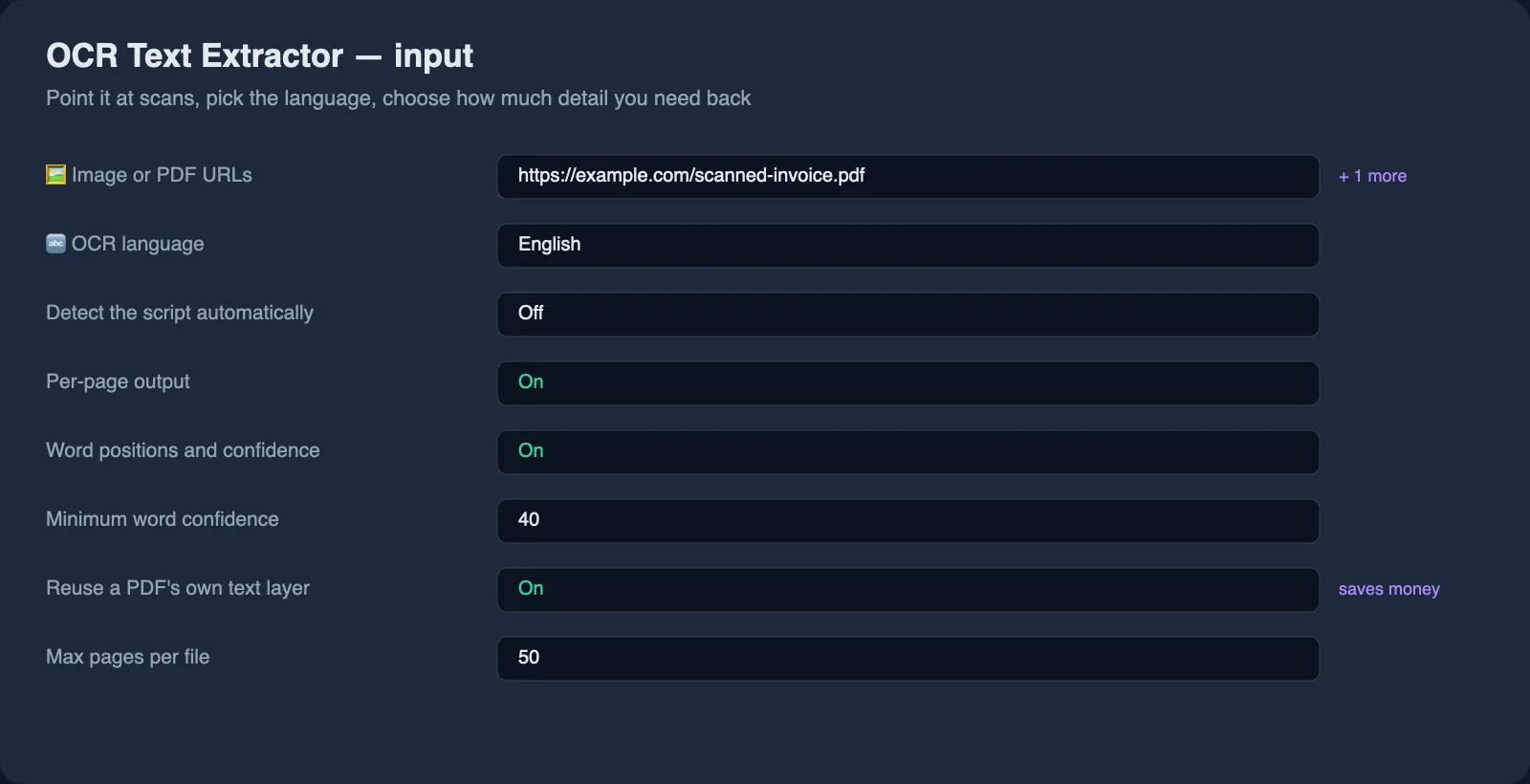
- Paste image or PDF links into Image or PDF URLs, or use Upload a file.
- Pick the OCR language — this matters more than any other setting for accuracy.
- Switch on Word positions and confidence if you need boxes.
- Press Start, then read the Output tab or export as JSON, CSV or Excel.
⬇️ Input
Picking the language
Accuracy on a good scan is mostly a question of the right language pack. Nineteen are installed: English, German, French, Spanish, Portuguese, Italian, Dutch, Polish, Russian, Ukrainian, Turkish, Indonesian, Vietnamese, Arabic, Hindi, Chinese (simplified and traditional), Japanese and Korean.
If you do not know the language in advance, switch on Detect the script automatically. The page is inspected first and the language is switched when the script is clearly Cyrillic, Arabic, Chinese, Japanese, Korean or Devanagari.
Filtering out unreliable words
minWordConfidence drops words the engine is less sure about than the number you give, from 0 to 100. On a clean scan almost everything sits above 90; on a phone photo of a receipt, setting 60 removes most of the nonsense.
Skipping pages that do not need OCR
useExistingTextLayer is on by default: a PDF page that already contains text is copied rather than re-recognised. That is faster, more accurate and cheaper. Switch it off when a PDF has a bad text layer and you want the picture read instead.
⬆️ Output
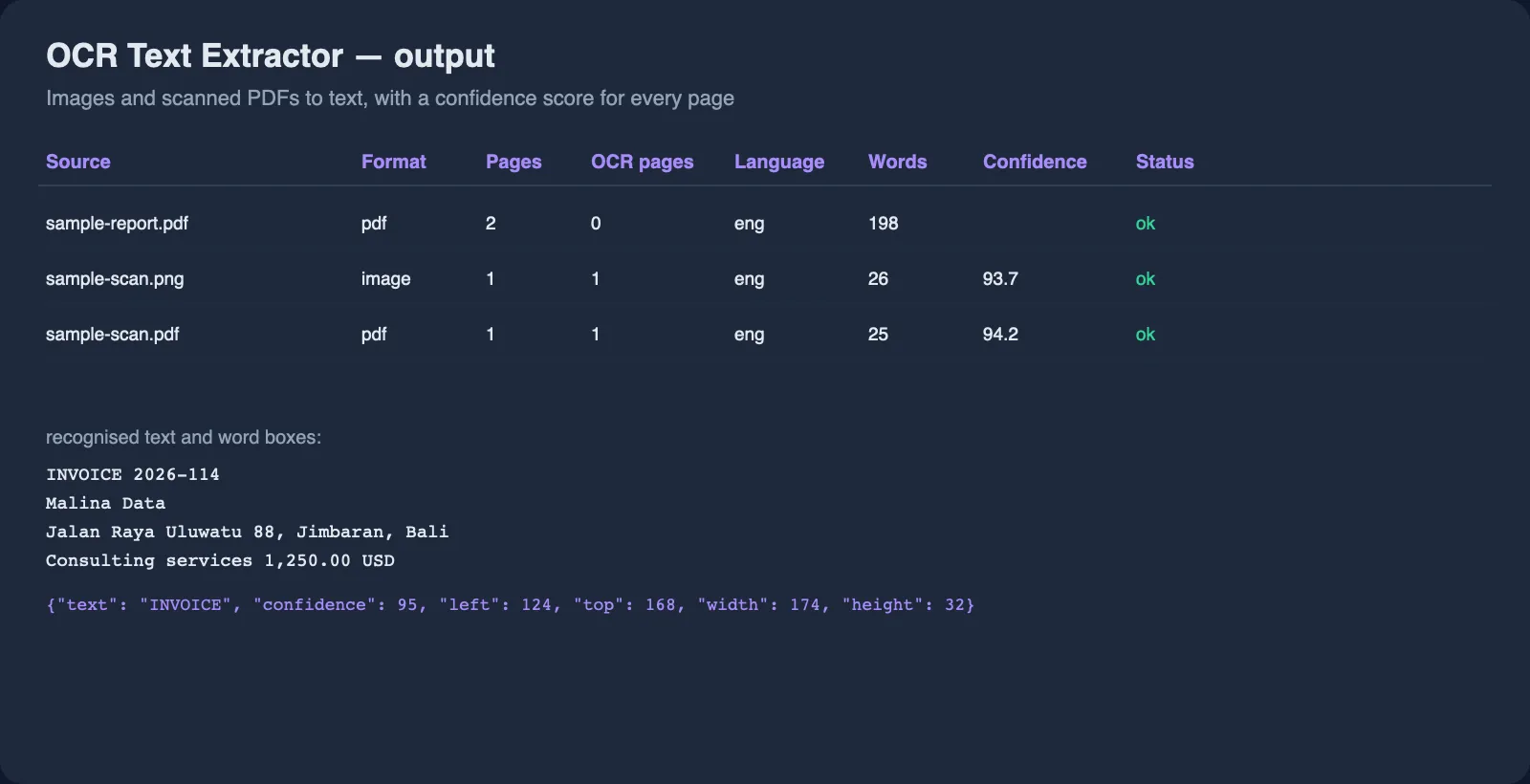
With Word positions and confidence switched on, each page also carries its words:
Coordinates are in pixels of the rendered page, measured from the top-left corner.
Error rows
errorCode | Meaning |
|---|---|
network-error / http-error | The file could not be downloaded |
too-large | The file is above the size limit |
unsupported-format | The file is neither an image nor a PDF |
corrupt-file | The file is damaged |
no-text-found | Nothing readable was found — usually the wrong language or a very low-resolution scan |
Use cases
Digitising paperwork
Invoices, permits, contracts and old records that only exist as scans become searchable text, with a confidence score that tells you which ones need a human.
Feeding scans to an LLM
A model cannot read a JPEG of a contract. Run it through here first and pass the text, with the low-confidence words filtered out.
Building a document parser
Word boxes let you read a field by where it sits on the page — the invoice number in the top right, the total above the signature — rather than by guessing from a wall of text.
Screenshots and photos
Text in screenshots, product labels and signs is read the same way as a document scan.
Integrations
- API:
POST https://api.apify.com/v2/acts/lergassy~ocr-text-extractor/runs - Python:
ApifyClient(token).actor('lergassy/ocr-text-extractor').call(run_input={'urls': [...]}) - JavaScript:
await client.actor('lergassy/ocr-text-extractor').call({ urls: [...] }) - n8n, Make, Zapier, Google Sheets: run the Actor and map the dataset onward.
- MCP: available through the Apify MCP server as a callable tool.
- Webhooks: fire a webhook when a run finishes.
🤖 For AI agents and LLM apps
- One row per file;
statusisokorerror, so a failed file needs no log parsing. confidencegives an agent a reason to ask for a better scan instead of acting on noise.pages[].sourcesays whether text was recognised or copied from a text layer.- Files can be passed as base64, so an agent does not need to host anything.
- Failed files are never charged.
❓ FAQ
How accurate is it?
On a clean 200-DPI scan in the right language, high — the sample invoice in this README reads at 94% average confidence. On phone photos, handwriting or heavy stamps, accuracy drops, which is exactly why every result carries a confidence score instead of pretending to be certain.
Does it read handwriting?
Not reliably. The engine is built for printed text.
What is the difference from Document Text Extractor?
Document Text Extractor is for documents that already contain text — PDF, Word, Excel, PowerPoint — and turns them into Markdown, tables and RAG chunks. This Actor is for pictures of text, and returns confidence scores and word positions. Use that one for files, this one for scans.
Do I need an API key for the OCR engine?
No. The recognition runs inside the Actor, so there is no external service, no key and no per-call quota.
Can I use it with the Apify API or an MCP server?
Yes to both, like any Apify Actor.
What is the largest file it can read?
50 MB by default, adjustable to 200 MB. Page count per file is capped at 50 by default so a long scan cannot surprise you.
Your feedback
Missing a language, or a scan that reads badly? Open an issue on the Issues tab — issues are answered quickly.
You might also like
| Actor | What it does |
|---|---|
| Document Text Extractor | PDF, Word, Excel and PowerPoint to Markdown, tables and RAG chunks |
| Software Reviews Scraper | Capterra, Software Advice, GetApp and TrustRadius reviews in one schema |
| Email & Phone Verifier | Validate e-mail addresses and phone numbers, find contacts on a website |
| US Business Leads | New business registrations from US state and city registries |


